
Why Does My PS5 Keep Overheating? Root Causes Explained
“”
Last updated: August 16, 2026
Fact-checked against official PlayStation support pages, safety guides, and hardware documentation
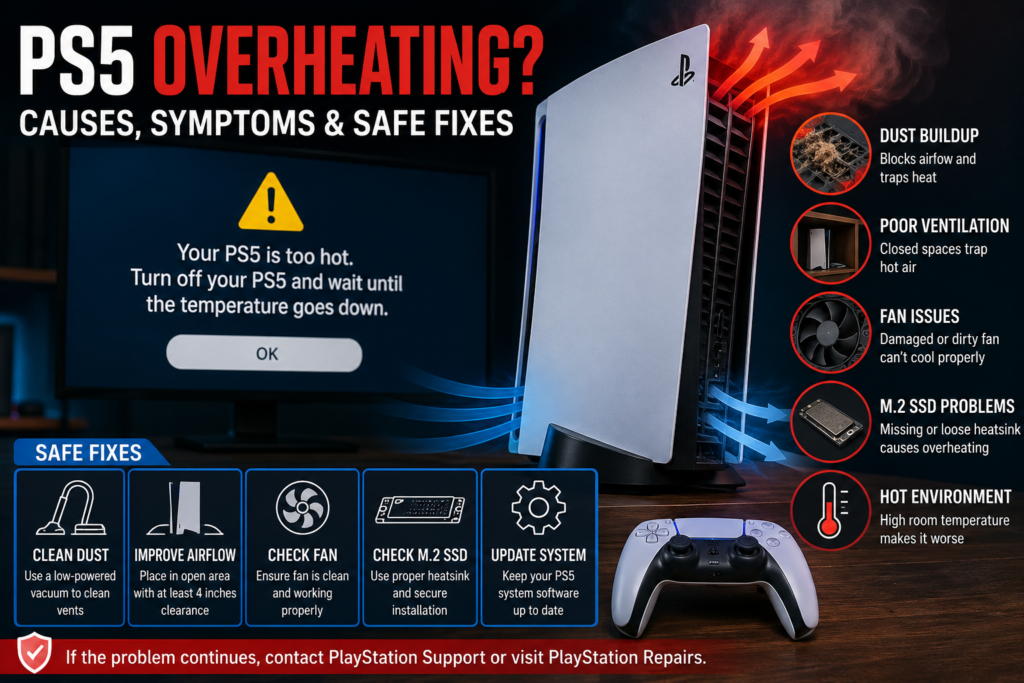
Your PS5 may keep overheating because its vents are blocked, dust has restricted airflow, the console is trapped inside a cabinet, or the room is too hot. A damaged fan, incorrectly fitted cover, unsupported M.2 SSD setup, or internal cooling fault can also cause repeated temperature warnings.
A warm case, hot exhaust air, or a louder fan does not automatically mean the console is overheating. Sony says the PS5 fan may run faster during certain games because it is working harder to cool the system.
Quick PS5 Overheating Diagnosis
| What your PS5 does | Most likely explanation | First check |
|---|---|---|
| Shows a “Your PS5 is too hot” warning | Airflow is blocked or the cooling system cannot remove heat fast enough | Turn it off and inspect its placement and vents |
| Shuts down during demanding games | Heat, power, software, or an internal fault may be involved | Test ventilation and another game |
| Turns off without a temperature warning | It may be a power or software issue rather than confirmed overheating | Check the power cord, outlet, updates, and repair diagnostics |
| Fan becomes louder during one game | The fan may be responding normally to a heavier workload | Check whether a warning or shutdown also happens |
| Fan makes grinding or ticking sounds | The fan may be obstructed or mechanically damaged | Stop using the console tester and arrange an inspection |
| Only one game crashes | The game files, update, or storage location may be responsible | Update or reinstall the game |
| Overheats again after cleaning | Dust may be deeper inside, or another component may have failed | Check the covers and contact PlayStation Repairs |
Is Your PS5 Actually Overheating or Just Running Hot?
A PS5 produces heat during normal gameplay. Its cooling system moves that heat through the console and releases it through the exhaust vents. The air coming from the back can feel hot because heat is being pushed out of the system.
The fan may also become louder during graphically demanding games. Sony describes this as normal when the fan temporarily increases its speed to cool the system more effectively.
Strong Signs That Your PS5 Is Overheating
The clearest sign is an on-screen temperature warning telling you that the PS5 is too hot.
Sony’s safety guide says to turn off the console and wait for it to cool when this notification appears. Continuing to use it may cause damage or malfunction. The console should then be moved to a cooler, well-ventilated location before use resumes.
Other warning signs include:
- The temperature message appears more than once
- The console shuts down soon after the warning
- The fan does not appear to be moving air
- You hear grinding, scraping, or irregular fan noises
- The console becomes unusually hot in an open and cool room
- The issue continues after the accessible vents have been cleaned
Symptoms That Do Not Confirm Overheating
These problems can happen alongside overheating, but they can also have other causes:
- One game crashing
- Screen flickering
- Visual artifacts
- Slow menus
- Freezing
- A black screen
- Unexpected shutdown without a temperature message
- A loud fan during one demanding game
Game data, system software, storage, HDMI problems, and power faults can create similar symptoms. Diagnose the pattern before assuming heat is responsible.
Why Does My PS5 Keep Overheating?
Blocked airflow is the most common place to start. Dust, room temperature, incorrect setup, fan trouble, and internal cooling faults become more likely when basic ventilation checks do not solve the problem.
The Console Does Not Have Enough Ventilation
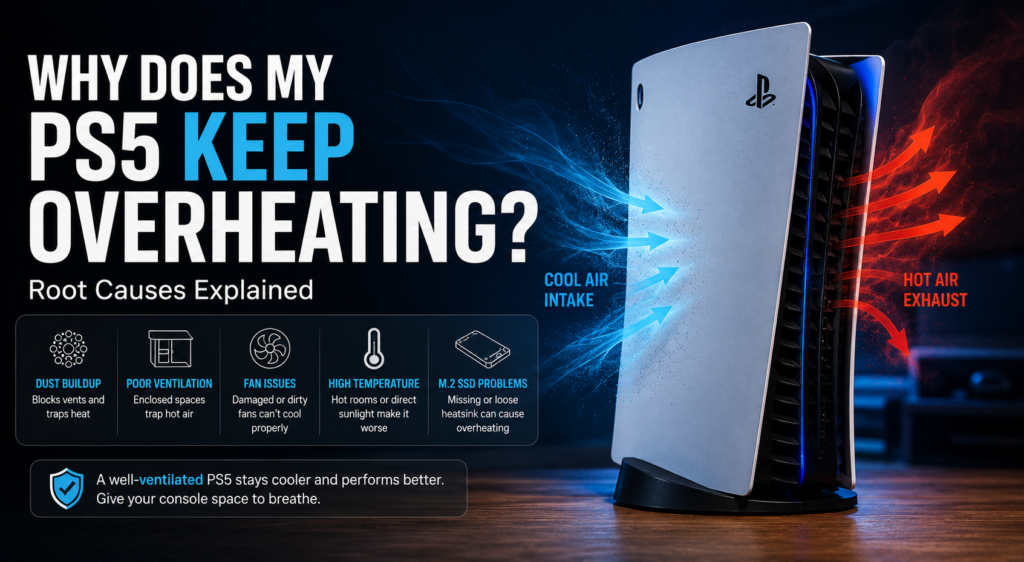
Your PS5 needs room to pull in cooler air and release warm air.
Sony recommends leaving at least 10 centimeters, or about 4 inches, between the console and a wall. The console should not sit on a long-fiber carpet, inside a cramped space, under a cloth, or anywhere its vents can be blocked.
A media cabinet can trap the hot air leaving the rear vents. The PS5 may then pull that warmer air back into the system.
Start with an open desk or shelf. Keep other consoles, routers, speakers, and decorations away from its air intakes and exhaust.
Dust Is Blocking the Air Vents
Dust, pet hair, carpet fibers, and smoke residue can collect around the side and rear vents. As airflow becomes restricted, the fan has to work harder to cool the internal parts.
Sony advises keeping dust away from the vents and using a low-powered vacuum cleaner after disconnecting the AC power cable.
A console in a home with pets, carpet, cigarette smoke, or frequent construction dust may need cleaning more often than one kept in a clean, open room.
Dust Has Reached Deeper Cooling Parts
The outside vents may look clean while dust remains around the internal fan or heatsink.
The heatsink is the metal cooling part that carries heat away from the main processor. If its narrow passages become packed with dust, the fan may spin but still fail to move enough air through the console.
Removing the outer covers can expose some accessible cleaning points, but deeper disassembly should be left to an experienced technician. Sony states that there are no user-serviceable parts inside the console and that unauthorized modification can void the warranty.
The PS5 Is Inside a Hot Room
Sony lists an operating temperature range of 5°C to 35°C, or 41°F to 95°F, in its PS5 safety documentation. This range refers to the surrounding environment, not the temperature of the processor inside the console.
For the related PS5 display or hardware issue, see our PS5 HDMI not working guide.
A room can become too warm because of:
- Direct sunlight
- Poor air conditioning
- A nearby heater
- A closed entertainment cabinet
- Other electronics releasing heat
- Limited room ventilation
Move the console away from windows and heat sources. Cooling the room is more useful than pointing a small accessory fan at blocked vents.
The Cooling Fan Is Blocked or Failing
The internal fan pulls air through the PS5. If it is blocked, damaged, or no longer spinning correctly, heat can build up quickly.
Listen for:
- Grinding
- Ticking
- Scraping
- Repeated changes in fan speed
- No noticeable airflow while a game is running
- A temperature warning soon after starting a game
Stop using the console if it produces unusual sounds or smells, behaves abnormally, or becomes too hot to touch. Sony advises unplugging the device under those conditions.
The Covers Were Installed Incorrectly
The outer covers are part of the console’s intended setup. A cover that has not clicked fully into place may interfere with airflow or leave the system improperly assembled.
Sony warns against operating the console without its cover.
If the problem began after cleaning:
- Turn off and unplug the console.
- Let it cool.
- Remove the covers again.
- Check for trapped cables, cloth, or debris.
- Reinstall each cover until it clicks into position.
- Test the console in an open area.
An Added M.2 SSD Has the Wrong Cooling Setup
A compatible M.2 SSD requires a heat-dissipation structure such as a heatsink or heat-transfer sheet. Sony says not to use an M.2 SSD in a PS5 without an effective cooling mechanism.
Check the SSD when:
- The issue began after installing it
- The temperature warning appears while playing games stored on it
- Its heatsink feels loose
- The expansion-slot cover does not close correctly
- The drive exceeds Sony’s listed size requirements
Move the affected game back to the console’s internal storage and test it again. Sony recommends this step when games stored on the M.2 drive develop gameplay problems.
Demanding Games Are Exposing an Existing Cooling Problem
Games with heavy graphics, large environments, and high frame rates place more load on the console. The fan may run faster, and the exhaust may become hotter.
That does not mean the game itself is damaging the PS5.
If several demanding games trigger the same temperature warning, the extra workload may be exposing:
- Restricted airflow
- Internal dust
- A weak fan
- A hot room
- A loose SSD heatsink
- Another internal fault
A properly installed and ventilated PS5 should not repeatedly show an overheating warning during normal supported gameplay.
A Game or Software Error Looks Like Overheating
A crash that happens only in one game may be caused by damaged data, a faulty update, or a storage problem.
Sony’s troubleshooting guidance for game errors includes:
- Restarting the PS5
- Updating the game and system software
- Reinstalling the affected game
- Using Safe Mode to rebuild the database when needed
Clearing the cache or rebuilding the database can help with software problems. Neither step removes dust or repairs a failed cooling fan.
The Internal Heat-Transfer System Has a Fault
PS5 consoles use liquid metal as the thermal interface material between the main processor and cooling assembly. Sony has carried this design into later models, including PS5 Pro.
A fault in this area requires internal inspection. Do not open the liquid-metal section unless you have the correct tools, training, and repair experience.
Liquid metal should not be treated as the first diagnosis simply because the console is standing vertically.
Why Does My PS5 Overheat and Shut Down?
A temperature warning followed by shutdown strongly suggests that the console cannot control its internal heat.
Check the following details:
- Did the warning appear before shutdown?
- How long had the PS5 been running?
- Was it inside a cabinet?
- Was the fan moving air?
- Did the issue happen in more than one game?
- Was the room unusually hot?
- Had the console or SSD recently been cleaned or modified?
- Can the PS5 restart normally after cooling?
These details help separate a cooling fault from a game crash or power problem.
Why Does My PS5 Shut Down Without an Overheating Warning?
A shutdown without a temperature message does not confirm overheating.
The cause may involve:
- The AC power cable
- The wall outlet
- A power strip
- System software
- Damaged game data
- An M.2 SSD problem
- An internal hardware fault
- Heat that caused a shutdown before the warning appeared
Sony directs users whose PS5 loses power or will not turn on to its PlayStation Repairs diagnostic tool.
For the related PS5 display or hardware issue, see our PS5 HDMI port repair guide.
Start with these checks:
- Connect the PS5 directly to a working wall outlet.
- Reseat the AC power cable.
- Inspect the plug and AC IN connector for dust or damage.
- Update the console and affected game.
- Test another game.
- Note whether the console shuts down immediately or only under load.
- Use PlayStation Repairs if the problem continues.
Do not keep forcing the PS5 to restart if it turns off again within minutes.
Why Does My PS5 Overheat Only When Playing Certain Games?
A game-specific issue is not always overheating.
Update the affected title and test another demanding PS5 game. When only one title crashes, reinstalling it may solve the problem. Sony also recommends moving a game from an M.2 SSD back to internal console storage when gameplay problems continue.
The problem is more likely to involve cooling when:
- Several demanding games cause the same warning
- The console shuts down after a similar amount of time
- The fan behaves abnormally
- Moving the PS5 to an open area helps
- Cleaning the vents changes the behavior
What Should I Do When My PS5 Says It Is Too Hot?
Turn the console off and let it cool before using it again.
Follow this order:
- Stop the game.
- Turn off the PS5 completely.
- Wait until the power indicator has turned off.
- Disconnect the AC power cable.
- Move the console to an open, cooler location.
- Check the side and rear vents.
- Remove any cloth, carpet fibers, or nearby objects.
- Wait until the console has cooled before restarting it.
Sony says continued use after the high-temperature notification may cause damage or malfunction.
There is no single cooling time that applies to every PS5. Room temperature, airflow, and how hot the system became all affect the wait.
Do not restart it immediately just to see whether the message appears again.
How to Fix a PS5 That Keeps Overheating
Start with the lowest-risk checks before opening anything.
1. Move the PS5 Into an Open Area
Take it out of a media cabinet and place it on a hard, stable surface. Leave at least 10 centimeters of clearance around its vents.
2. Turn It Off and Unplug It
Wait until the power indicator is fully off before disconnecting the cable. Sony warns that unplugging the console while the light is on or flashing may cause data loss, corruption, or hardware damage.
3. Clean the External Vents
Use a low-powered vacuum cleaner to remove loose dust from the vents. Wipe the exterior with a soft, dry cloth.
Do not spray cleaning liquid directly onto the console.
4. Clean Accessible Areas Under the Covers
Use the instructions for your exact CFI model because cover removal differs between the original PS5, current slim models, and PS5 Pro.
Turn the console off, unplug every cable, and allow it to cool before removing a cover. Do not power it on while a cover is removed.
For the related PS5 display or hardware issue, see our the HDMI cable included with PS5.
Clean only the areas you can safely reach. Do not push tools deep inside the system.
5. Check the Fan
Look for visible dust and listen for abnormal sounds.
Do not touch the fan blades while the console is connected to power. A fan that does not spin, grinds, or repeatedly stops needs professional inspection.
6. Reinstall the Covers Properly
Check that each cover sits flat and clicks into place. Do not operate the console without its covers.
7. Update the PS5 and the Game
Install the latest system software and game update. Sony regularly directs users to update both when a game crashes or produces an error.
8. Test Another Game
One broken installation does not prove that the console is overheating. Test a second demanding game in the same open setup.
9. Check the M.2 SSD
Confirm that:
- The SSD meets Sony’s requirements
- It has a heatsink or suitable cooling structure
- The heatsink has not moved
- The expansion-slot cover closes correctly
- The problem does not disappear when the game is moved to internal storage
10. Check the Power Connection
Inspect the cable, wall outlet, AC IN connector, and plug for dirt or damage. Sony advises keeping dust and foreign material away from the connector and power plug.
11. Contact PlayStation Repairs
Arrange a professional diagnosis when:
- The temperature warning returns
- The fan does not work
- The console shuts down in an open and cool room
- The PS5 powers off immediately
- You hear mechanical noises
- The console was dropped or exposed to liquid
- Accessible cleaning does not help
PlayStation provides a hardware and repair diagnostic route for console problems.
Why Is My PS5 Still Overheating After Cleaning?
Cleaning the outer vents may not remove deeper dust or fix a damaged component.
Check these possibilities:
The Covers Are Not Seated Correctly
Remove and reinstall them according to the instructions for your PS5 model.
Dust Remains Inside the Cooling Path
The fan or visible vents may be clean while the heatsink remains blocked.
The Fan Is Weak or Damaged
A fan can spin but still fail to move enough air.
The Room Is Too Warm
Test the console in a cooler room with open airflow.
The M.2 SSD Cooling Setup Is Incorrect
Check the heatsink and move the affected game to internal storage.
The Issue Is Not Overheating
A power fault or game error can produce similar shutdowns.
An Internal Cooling Part Needs Service
Stop DIY troubleshooting when the official temperature warning continues after safe cleaning and correct placement.
Should You Use Compressed Air to Clean a PS5?
Sony’s published support guidance recommends a low-powered vacuum cleaner for dust around the vents.
Compressed air can push loose dust deeper into the console when it is aimed incorrectly. Following the manufacturer’s stated cleaning method is the safer choice.
Do not use high-pressure air, a heat gun, or a household blower.
Does Vertical or Horizontal Placement Affect PS5 Cooling?
Both positions are supported when the correct stand or feet are installed.
Vertical placement alone does not prove that liquid metal has leaked. Sony continues to support vertical setups and uses liquid-metal cooling across PS5 generations, including PS5 Pro.
Airflow matters more than orientation.
Check that:
- The correct stand or feet are installed
- The console is stable
- The side and rear vents remain open
- It is not pressed against a wall
- The covers are attached correctly
You can test a different orientation, but changing position will not remove dust or repair a failed fan.
To test the related hardware in your browser, use our browser-based GPU test.
Do PS5 Cooling Stands Fix Overheating?
A cooling stand cannot repair the main causes of repeated overheating.
It will not fix:
- Blocked internal airflow
- A damaged internal fan
- A clogged heatsink
- A loose SSD heatsink
- Incorrectly fitted covers
- An internal thermal fault
- A power problem
Some accessories may also sit too close to the PS5’s intake or exhaust. Check the console’s normal ventilation before adding another fan.
Is the PS5 Pro Overheating?
A warm PS5 Pro or faster fan does not automatically mean the console has an overheating defect.
PS5 Pro uses its own fan, heatsink, power supply, and liquid-metal cooling design. Sony added grooves around the liquid-metal application area to make cooling more stable.
Use the same first checks:
- Read the warning message
- Turn the console off
- Let it cool
- Open the space around the vents
- Check the covers
- Inspect the M.2 SSD heatsink
- Confirm that the stand or feet are installed correctly
Follow the instructions for the CFI-7000 model group rather than using a teardown guide written for the original PS5.
Can You Check the Temperature of a PS5?
Sony’s user-facing troubleshooting guidance does not provide a live internal CPU or GPU temperature reading in the normal PS5 settings.
The 5°C to 35°C figure in the safety guide is the approved room-temperature range, not an internal processor reading.
Use these signs instead:
- Official temperature warning
- Shutdown pattern
- Fan behavior
- Airflow from the exhaust
- Console placement
- Whether the issue affects one or several games
Do not rely on an unofficial temperature claim based only on how warm the cover feels.
Common PS5 Overheating Myths
Hot Air From the Back Means the PS5 Is Overheating
Not necessarily. Hot exhaust often means the system is moving heat out of the console.
A Loud Fan Means the Console Is Broken
Not always. Sony says the fan may temporarily become louder during some games and apps.
Long Gaming Sessions Always Overheat a Healthy PS5
Long sessions create more heat, but they do not prove a fault. Ventilation, dust, room temperature, and hardware condition matter more.
Vertical Placement Always Causes Liquid Metal to Leak
Sony supports vertical placement and continues to use liquid metal in current PS5 designs. Orientation alone is not enough to diagnose a leak.
Performance Mode Fixes PS5 Overheating
Performance Mode is a game preset. It does not clean vents, restore airflow, or repair hardware.
Clearing the Cache Fixes a Cooling Problem
Clearing the cache may help a software error. It cannot remove dust or repair a fan. Sony lists Safe Mode tools for data, update, and display troubleshooting rather than physical cooling repair.
For diagnosis and repair steps, see our DualSense repair guide.
Every PS5 Needs New Thermal Paste
The PS5 uses liquid-metal thermal interface material rather than conventional thermal paste at its main processor.
When Should You Contact PlayStation Support?
Contact PlayStation Repairs when:
- The temperature warning returns after cleaning
- The fan does not spin
- The fan makes grinding or scraping sounds
- The PS5 shuts down soon after starting
- The console overheats in an open and cool room
- It turns off without warning more than once
- The issue began after a drop, liquid spill, or internal repair
- The SSD or its heatsink appears damaged
- The console is still under warranty
Do not perform deep internal repairs while warranty coverage may still apply. Sony warns that unauthorized modification can void the warranty.
Before contacting support, note:
- Your PS5 model number
- The exact warning message
- The games affected
- How long it runs before shutting down
- Whether the fan moves air
- What cleaning you performed
- Whether an M.2 SSD is installed
- Whether the power cable must be unplugged before restart
How to Prevent Your PS5 From Overheating Again
Keep the console on a hard, stable surface in an open area. Leave at least 10 centimeters around the vents and keep it away from thick carpet, direct sunlight, smoke, and heating equipment.
Check the vents regularly. Homes with pets, carpet, smoke, or heavy dust may need more frequent cleaning.
Use a low-powered vacuum for accessible vent dust, install the correct stand or feet, and keep the covers attached during use.
FAQS
Is It Normal for the Back of a PS5 to Feel Hot?
Yes. The rear exhaust can feel hot because the PS5 releases heat through that area. A warning message, repeated shutdown, or failed fan is more concerning than warm exhaust alone.
How Long Should I Wait After My PS5 Overheats?
Wait until the console has cooled in an open area. Sony does not provide one fixed cooling time. Do not restart it immediately after receiving a temperature warning.
Can I Turn My PS5 Back On After an Overheating Warning?
Yes, after it has cooled and you have checked its ventilation. Stop using it if the warning returns.
Can Dust Make a PS5 Shut Down Without a Warning?
Dust can restrict airflow, but a no-warning shutdown may also involve power, software, storage, or another hardware fault.
Why Does My PS5 Overheat Only During PS5 Games?
Native PS5 games may place more load on the console and expose an existing cooling problem. Test another demanding game before assuming one title is responsible.
Will Clearing the Cache Fix PS5 Overheating?
No. It may help software problems, but it cannot remove dust or repair the cooling system.
Does Performance Mode Stop a PS5 From Overheating?
Not reliably. It is not a replacement for proper ventilation, cleaning, or hardware diagnosis.
Should I Place My PS5 Horizontally If It Overheats?
You can test it horizontally, but orientation alone is unlikely to solve the problem. Use the correct feet and keep the vents open.
Can a Cooling Stand Fix an Overheating PS5?
It cannot fix deep dust, a failed fan, an SSD cooling problem, or an internal fault.
Can Overheating Permanently Damage a PS5?
Yes. Sony warns that continuing to use the console after a high-temperature notification may cause damage or malfunction.
Why Is My PS5 Overheating After I Cleaned It?
The covers may be installed incorrectly, dust may remain deeper inside, or the fan, SSD heatsink, power system, or internal cooling assembly may have a fault.
Should I Repair or Replace an Overheating PS5?
Start with an official diagnosis. Repair may make sense when the problem is limited to cleaning, the fan, or another replaceable part. Replacement becomes more reasonable when repair costs approach the console’s current value or several components are damaged.
Final Answer
Start with the console’s placement, vent clearance, and accessible dust. A warm PS5 or loud fan is not enough to confirm overheating.
Turn the PS5 off when it shows a high-temperature warning. If the warning returns, the fan stops working, or the console repeatedly shuts down in an open and cool location, use PlayStation Repairs rather than opening the power supply or liquid-metal cooling area yourself.
Research and Editorial Method
This article was prepared by Airam Chandler using official PlayStation support pages, PS5 safety guides, hardware documentation, error-code guidance, and Sony’s PS5 teardown material.
I did not claim live internal temperature measurements, multi-console testing, or internal PS5 disassembly for this article.





2 Comments