How to Connect PS5 Controller to Phone: Android and iPhone Guide
“”
Last updated: August 16, 2026
Reviewed using: Current PlayStation, Apple, and Android support guidance
To Connect PS5 Controller to Phone, turn off the DualSense and disconnect any USB cable. Hold the Create button and PS button together until the light bar starts flashing. Open your phone’s Bluetooth settings, select DualSense Wireless Controller, and confirm the pairing request.
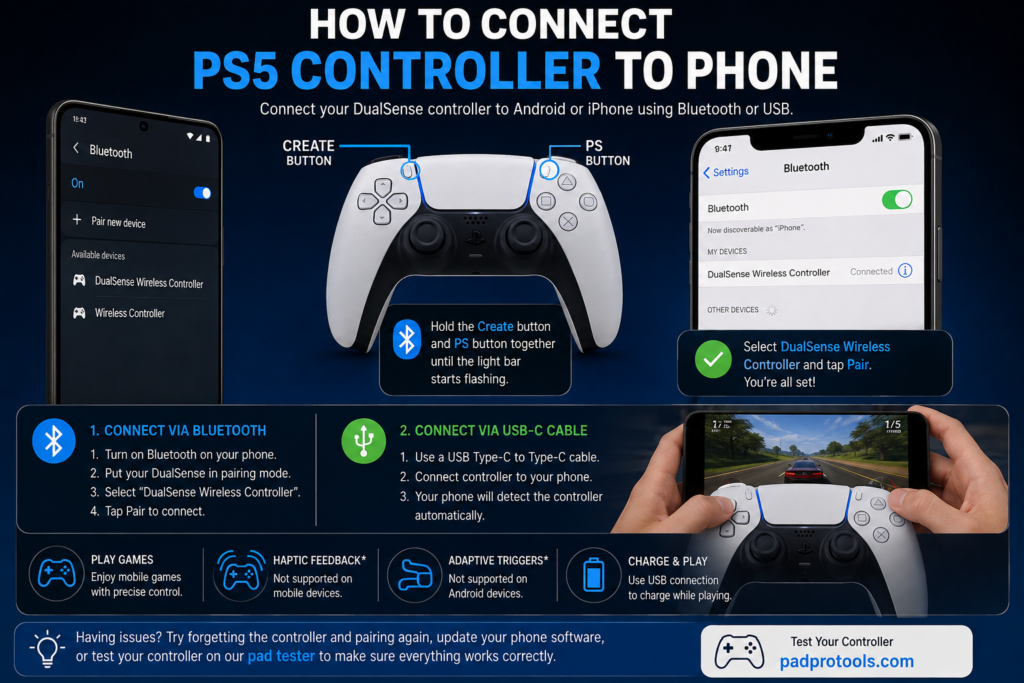
The same method works on supported Android phones, iPhones, and iPads. Once connected, open a mobile game with controller support or check the buttons and analog sticks with the PadProTools pad tester.
Can You Connect PS5 Controller to Phone?
Yes. Sony officially supports DualSense Bluetooth and USB connections on phones running Android 12 or later and iOS 14.5 or later. You can use the controller with supported mobile games, gaming apps, and PS Remote Play.
Your phone recognizing the controller does not mean every game will work with it. The game or app must also support external controller input.
PS5 Controller Phone Compatibility
| Device | Bluetooth | USB connection | PS Remote Play |
|---|---|---|---|
| Android 12 or later | Supported | Supported on compatible devices | Supported |
| Samsung Galaxy | Supported on compatible models | Device-dependent | Supported |
| Google Pixel | Supported on compatible models | Device-dependent | Supported |
| iPhone with iOS 14.5 or later | Supported | Supported with a suitable cable or adapter | Supported |
| iPad with iPadOS 14.5 or later | Supported | Supported with a suitable cable | Supported |
Some controller features may be missing even when the phone and game support the basic buttons and analog sticks.
How to Put the PS5 Controller in Pairing Mode
First, make sure the controller is not connected to a USB cable.
- Press and hold the PS button until the controller turns off.
- Find the Create button to the left of the touchpad.
- Press and hold the Create button.
- While holding it, press and hold the PS button.
- Keep holding both buttons until the light bar starts flashing.
- Release the buttons when the controller begins flashing.
The flashing light means the DualSense is discoverable and ready to appear in your phone’s Bluetooth device list.
The Create button sits where the Share button was located on the older DualShock 4. On a PS5 DualSense, its correct name is the Create button.
How to Connect a PS5 Controller to a Phone With Bluetooth
Once the controller is in pairing mode:
- Open Bluetooth settings on your phone.
- Turn Bluetooth on.
- Wait for nearby devices to appear.
- Tap DualSense Wireless Controller.
- Accept the pairing request.
- Wait until the phone shows the controller as connected.

The controller may appear as DualSense Wireless Controller or, on some Android devices, simply Wireless Controller.
Do not rely only on the light color to confirm the connection. Check the Bluetooth screen and make sure the controller status says Connected.
How to Connect a PS5 Controller to an Android Phone
Here is the standard Android method:
- Swipe down from the top of the screen.
- Touch and hold the Bluetooth icon.
- Tap Pair new device.
- Put the DualSense into pairing mode.
- Wait for the controller name to appear.
- Tap DualSense Wireless Controller.
- Tap Pair if Android asks for confirmation.
Google’s current Android instructions use the path Settings → Connected devices → Pair new device. Menu names may differ slightly depending on your phone brand and Android version.
Once connected, open a supported game and press a few buttons. Some Android versions also provide game controller settings where you can change button or joystick assignments.
How to Connect a PS5 Controller to a Samsung Phone
On most Samsung Galaxy phones:
- Open Settings.
- Tap Connections.
- Select Bluetooth.
- Turn Bluetooth on.
- Put the controller in pairing mode.
- Tap DualSense Wireless Controller under Available devices.
- Select Pair.
If the controller does not appear, tap Scan or turn Bluetooth off and back on.
Samsung may move or rename some settings between One UI versions, but the controller pairing process remains the same.
How to Connect a PS5 Controller to a Google Pixel
On a Google Pixel:
- Open Settings.
- Tap Connected devices.
- Select Pair new device.
- Hold the Create and PS buttons on the controller.
- Tap DualSense Wireless Controller when it appears.
- Confirm the connection.
The controller should then move from Available devices to Saved or Connected devices.
How to Connect a PS5 Controller to an iPhone
First, check that your iPhone is running iOS 14.5 or later.
- Open the Settings app.
- Tap Bluetooth.
- Turn Bluetooth on.
- Turn off the DualSense if it is already on.
- Hold the Create and PS buttons until the light bar flashes.
- Look under Other Devices.
- Tap DualSense Wireless Controller.
- Wait until it moves to My Devices and shows as connected.
Apple lists the DualSense and DualSense Edge as supported PlayStation controllers. Apple also confirms that a DualSense enters pairing mode by holding the PS and Create buttons until the light bar flashes.
Change PS5 Controller Buttons on iPhone
On iOS 16 or later, you may be able to change button assignments:
- Open Settings.
- Tap General.
- Select Game Controller.
- Tap your DualSense controller.
- Open Default Controls.
- Change the available button settings.
You may also be able to create separate controls for individual games. The available options depend on the controller, iOS version, and game.
How to Connect a PS5 Controller to an iPad
Connecting to an iPad uses almost the same steps as an iPhone:
- Open Settings.
- Tap Bluetooth.
- Turn Bluetooth on.
- Put the DualSense in pairing mode.
- Select DualSense Wireless Controller.
- Wait for it to show as connected.
DualSense support starts with iPadOS 14.5. Button customization requires a newer supported version of iPadOS and a compatible game.
How to Connect a PS5 Controller to a Phone With a Cable
Bluetooth is usually the easiest option, but you can also use a wired connection.
Android USB-C Connection
For an Android phone with a USB-C port:
- Get a USB-C to USB-C cable that supports data.
- Connect one end to the DualSense.
- Connect the other end to the phone.
- Wait for Android to detect the controller.
- Open a supported game or controller test.
The cable must support data, not charging only. Wired controller support can also depend on the phone’s USB hardware and Android software.
Google confirms that Android controllers can be connected through Bluetooth or a compatible wired connection.
iPhone Wired Connection
A DualSense can also connect to a compatible iPhone or iPad through a USB cable that supports data and charging. Depending on the iPhone model, you may need:
- A USB-C to USB-C cable
- A Lightning adapter
- A compatible data cable
Apple states that supported PlayStation controllers can pair and connect automatically when plugged directly into a compatible Apple device with a suitable USB cable.
Bluetooth or USB-C: Which Is Better?
| Feature | Bluetooth | USB-C |
|---|---|---|
| Cable needed | No | Yes |
| Easy to hold the phone | Yes | Cable may get in the way |
| Controller can charge while playing | No | Possible |
| Connection stability | Can be affected by interference | Often more consistent |
| Compatibility | Works on supported phones | Depends on port and cable support |
| Best use | Normal mobile gaming | Testing or longer sessions |
Bluetooth gives you more freedom. A cable can help when Bluetooth keeps disconnecting or the controller needs power.
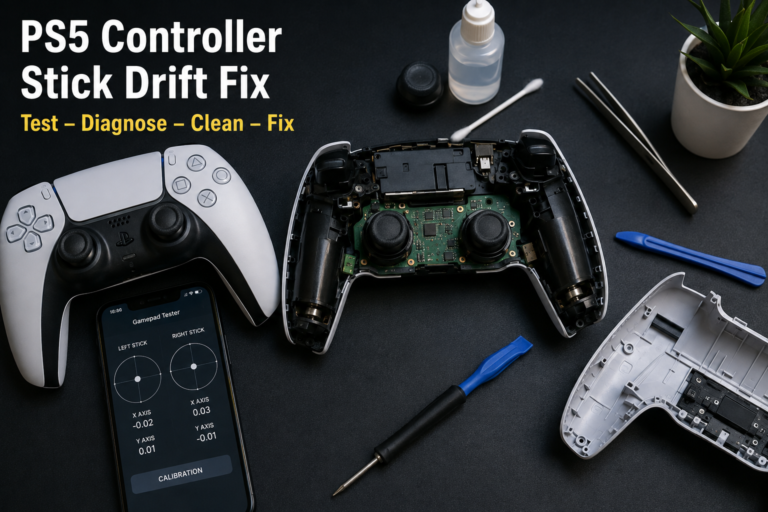
Test the PS5 Controller After Connecting It
A controller can show as connected while a game still ignores the buttons. Test it outside the game before changing random settings.
- Keep the DualSense connected to your phone.
- Open the PadProTools pad tester.
- Press a face button to activate controller detection.
- Test the D-pad.
- Press Cross, Circle, Square, and Triangle.
- Test L1, R1, L2, and R2.
- Move both analog sticks in a full circle.
- Press L3 and R3.
- Check whether any input stays active after you release it.
The tester reads controller inputs through your browser and can show live buttons, stick positions, trigger values, and possible drift. Android browser support depends on the phone and browser. Controller detection in iPhone browsers may be more limited, so you may need to test through a supported game or connect the controller to a computer.
What the Test Results Mean
| Test result | Likely meaning |
|---|---|
| All inputs work in the tester | The game or app may not support the controller |
| One button does not register | Possible button, mapping, or contact issue |
| A stick moves while untouched | Possible stick drift |
| Triggers jump instead of moving smoothly | Possible trigger wear or mapping issue |
| No controller appears | Bluetooth, cable, browser, or device support issue |
| Controller disconnects during testing | Low charge or wireless interference |
The test confirms whether the browser can read the controller. It does not prove that every mobile game supports DualSense input.
Why Is My PS5 Controller Not Connecting to My Phone?
Start with the problem you can see.
| Problem | Likely cause | What to try |
|---|---|---|
| Controller does not appear | Pairing mode is not active | Hold Create and PS until the light flashes |
| PS5 turns on instead | Controller connected to the console | Turn the controller off and repeat pairing mode |
| Pairing request fails | Old Bluetooth record | Forget the controller and pair it again |
| Light bar does not flash | Low charge | Charge the controller for a while |
| Controller keeps disconnecting | Interference or low battery | Move closer and disconnect unused Bluetooth devices |
| Android cannot find it | Bluetooth or software issue | Restart Bluetooth and the phone |
| iPhone sees it but will not connect | Saved pairing conflict | Select Forget This Device and pair again |
| Buttons work in menus but not the game | The game lacks controller support | Check the game settings and support page |
Google recommends turning Bluetooth off and back on, confirming that the devices are paired, and restarting the phone when Bluetooth accessories fail to connect. Apple recommends updating the phone and controller, forgetting the saved controller, pairing again, and reducing connected Bluetooth devices when interference is suspected.
Why Is the Controller Connected but Not Working in a Game?
A Bluetooth connection only means the phone recognizes the controller. The game must also support external controllers.
Try this:
- Close and reopen the game after connecting the controller.
- Check the game’s control settings.
- Look for a controller or gamepad option.
- Test the DualSense in PadProTools.
- Try a second controller-supported game.
- Remove any custom button mapping.
- Disconnect and reconnect the controller.
If the controller works in the tester but not in one game, the controller is probably fine. The problem is more likely the game’s support, control mode, or button mapping.
Some games may also display Xbox-style button labels even when you are using a PlayStation controller.
Players who prefer rear buttons and extra control options may compare a standard DualSense with a scuf controller ps5, but mobile support still depends on the phone and game.
How to Use a PS5 Controller With Remote Play on a Phone
PS Remote Play lets your phone display and control games running on your PS5 or PS4.
Prepare Your PS5
On your PS5:
- Open Settings.
- Select System.
- Open Remote Play.
- Turn on Enable Remote Play.
To connect while the PS5 is in rest mode:
- Go to Settings → System → Power Saving.
- Select Features Available in Rest Mode.
- Turn on Stay Connected to the Internet.
- Turn on Enable Turning on PS5 from Network.
Prepare Your Phone
- Install PS Remote Play from Google Play or the App Store.
- Sign in with the same PlayStation account used on the console.
- Connect the DualSense to your phone.
- Open PS Remote Play.
- Select PS5.
- Wait for the app to find your console.
PlayStation recommends at least 5 Mbps upload and download speeds for Remote Play, with 15 Mbps or more recommended for better performance. Remote Play can use a large amount of mobile data.
Reduce Remote Play Lag
- Use a strong 5 GHz Wi-Fi connection.
- Stay near the router.
- Pause large downloads.
- Disconnect devices using heavy network bandwidth.
- Keep your phone and PS5 software updated.
- Use a wired controller connection when supported.
- Avoid playing through weak mobile data.
Which DualSense Features Work on a Phone?
Basic controller support does not include every DualSense feature.
| DualSense feature | Mobile support |
|---|---|
| Face buttons | Supported in compatible games |
| D-pad | Supported in compatible games |
| Analog sticks | Supported in compatible games |
| L1 and R1 | Supported in compatible games |
| Standard L2 and R2 input | Supported in compatible games |
| Touchpad click | Depends on the app or game |
| Motion controls | Depends on the app or game |
| Adaptive trigger effects | Not supported on Android; other support depends on the game |
| Haptic feedback | Not supported on mobile devices |
| Built-in microphone | Not supported on mobile devices |
| Built-in speaker | Not supported on mobile devices |
| Controller headset jack | Not supported on mobile devices |
Sony states that adaptive triggers are not compatible with Android-based mobile devices. Haptic feedback, the built-in microphone, built-in speaker, and headset jack are not compatible with mobile devices.
A game may still provide normal vibration or feedback through its own support, but you should not expect the full PS5 console experience on every phone.
How to Switch the Controller Between Your Phone and PS5
Updated DualSense and DualSense Edge controllers can store up to four device pairings. Each device is assigned to a slot, making it easier to move between a PS5, phone, tablet, and computer without pairing from the beginning each time.
The slots use these button combinations:
| Slot | Buttons |
|---|---|
| Slot 1 | PS button + Triangle |
| Slot 2 | PS button + Circle |
| Slot 3 | PS button + Cross |
| Slot 4 | PS button + Square |
To add your phone to a specific slot:
- Turn the controller off.
- Disconnect its USB cable.
- Hold the selected action button and the PS button for more than five seconds.
- Wait for the light bar and player indicator to flash.
- Open Bluetooth settings on the phone.
- Select the controller.
To switch later, turn on the device and hold its action button plus the PS button for about three seconds.
Update the DualSense device software if the multi-device feature does not work.
How to Connect the PS5 Controller to the PS5 Again
The standard method is:
- Turn on the PS5.
- Connect the controller with a compatible USB data cable.
- Press the PS button.
- Wait for the player indicator to light up.
- Remove the cable after pairing.
Sony recommends this USB method when reconnecting the controller to the console.
If the PS5 is already saved in one of the controller’s four pairing slots, you can switch back by holding the matching action button and PS button for around three seconds.
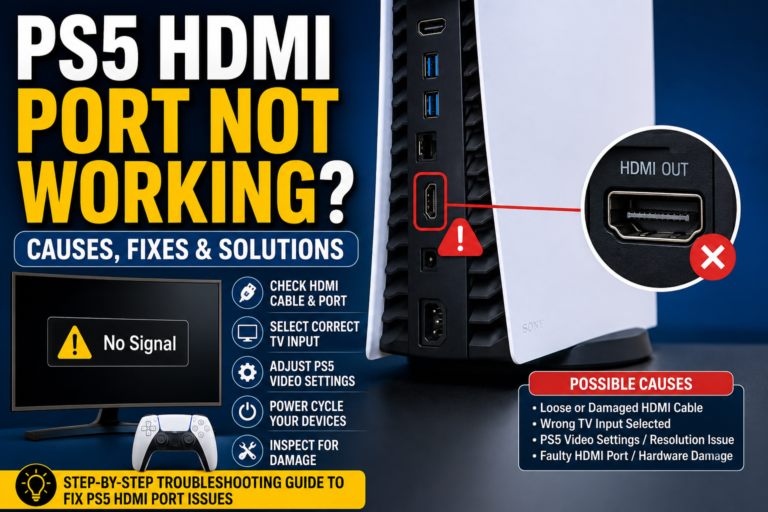
If the controller connects but the console has no video signal, check whether you are dealing with an HDMI cable or port issue before blaming the controller. Our guide to hdmi port repair cost explains what professional repair may involve.
If the console shuts down, becomes very hot, or shows a temperature warning, troubleshoot ps5 overheating separately. Pairing the controller will not fix a console cooling problem.
How to Connect a PS5 Controller to a PS5 Without a Cord
If the controller has already been registered to the PS5, press the PS button or use the saved pairing slot.
To pair an additional controller wirelessly:
- Use a controller that already works with the PS5.
- Open Settings.
- Select Accessories.
- Open General → Bluetooth Accessories.
- Turn off the new controller.
- Hold its Create and PS buttons until the light bar flashes.
- Select the new controller on the PS5 screen.
Sony confirms that an additional DualSense can be paired wirelessly through the PS5 Bluetooth Accessories menu when another connected controller is available.
A new, reset, or completely unregistered controller may still be easier to pair with a USB data cable.
How to Disconnect the Controller From Your Phone
On Android
- Open Bluetooth settings.
- Find the controller under Saved or Connected devices.
- Tap the settings icon beside it.
- Choose Disconnect to keep the pairing.
- Choose Forget to remove it.
On iPhone
- Open Settings → Bluetooth.
- Tap the information icon beside the controller.
- Select Disconnect to keep it saved.
- Select Forget This Device to remove the pairing.
Forget the controller only when you want to pair it again from the beginning or fix a saved connection problem.
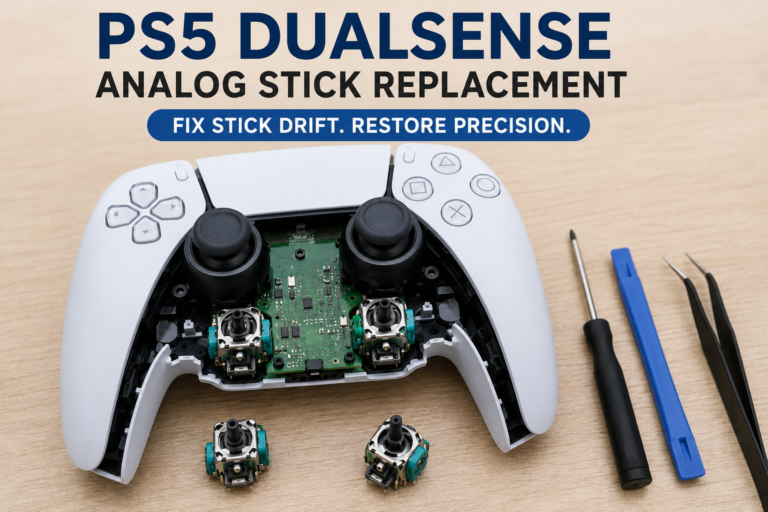
How to Reset a PS5 Controller
Reset the controller only after trying the normal Bluetooth fixes.
- Turn off the controller.
- Disconnect all cables.
- Find the small reset hole on the back near the Sony logo.
- Use a pin or straightened paper clip.
- Hold the internal reset button for about five seconds.
- Remove the pin.
- Put the controller back into pairing mode.
- Connect it to the phone again.
If you want to use it with the PS5 after resetting, connect it to the console with a USB data cable and press the PS button.
Other Controller and Portable Gaming Options
A DualSense works well for many mobile games, but fighting-game players may prefer the larger buttons and fixed layout offered by the best arcade sticks.
Before buying one, check platform compatibility because PS5, Android, iPhone, PC, and Nintendo Switch support can differ. Our best arcade stick guide covers the main layouts and connection options.
For players who want portable PC gaming without streaming from a PS5, a steam deck refurbished model may be another option. It is a different setup from phone gaming, but it lets you carry supported PC games without keeping a console running at home.
FAQS
Can I connect a PS5 controller to any phone?
No. Sony officially lists Android 12 and iOS 14.5 as the starting supported versions for DualSense Bluetooth and USB connections. The phone must also have compatible Bluetooth or USB hardware, and the game must support controller input.
Why is my PS5 controller not showing in Bluetooth?
The controller may not be in pairing mode, may still be connected to another device, or may have a low battery. Turn it off, disconnect its cable, and hold the Create and PS buttons until the light bar flashes.
Why is my controller connected but not controlling the game?
The game may not support external controllers, or controller support may need to be enabled in its settings. Test the DualSense outside the game to see whether the phone or browser can read the inputs.
Can I connect the controller without Bluetooth?
Yes. Supported Android and Apple devices can use a USB connection with a compatible data cable. You may need an adapter depending on the phone’s port.
Can the controller stay paired with my phone and PS5?
Yes. Current DualSense software supports up to four saved pairings. You can assign the PS5 and phone to separate slots and switch between them with the action buttons and PS button.
Can I use a PS5 controller with PS Remote Play?
Yes. Connect the controller to a supported phone, install PS Remote Play, sign in with your PlayStation account, and select your console. PlayStation recommends at least 5 Mbps, with 15 Mbps preferred for better performance.
Does DualSense vibration work on a phone?
Full DualSense haptic feedback is not supported on mobile devices. Basic feedback may depend on the phone, game, and connection, but you should not expect the same effects available on a PS5.
Why does pressing the PS button turn on my console?
The controller is reconnecting to the last device or saved slot instead of entering pairing mode. Turn it off first, then hold the Create and PS buttons together until the light bar flashes.
Connect, Test, and Start Playing
Turn on Bluetooth, place the DualSense in pairing mode, and select it from your phone’s device list. Once the phone says it is connected, test the controls before opening your game.
If every button works in the tester but not in the game, check the game’s controller support. If the controller does not appear anywhere, remove the saved pairing, charge it, update its software, and connect again.