
Does PS5 Come With an HDMI 2.1 Cable?
“”
Last updated: August 16, 2026
Yes, every new PS5 comes with an HDMI cable capable of supporting HDMI 2.1 features, including 4K gaming at up to 120Hz. You normally do not need to buy another cable unless the original is missing, damaged, too short, or causing connection problems.
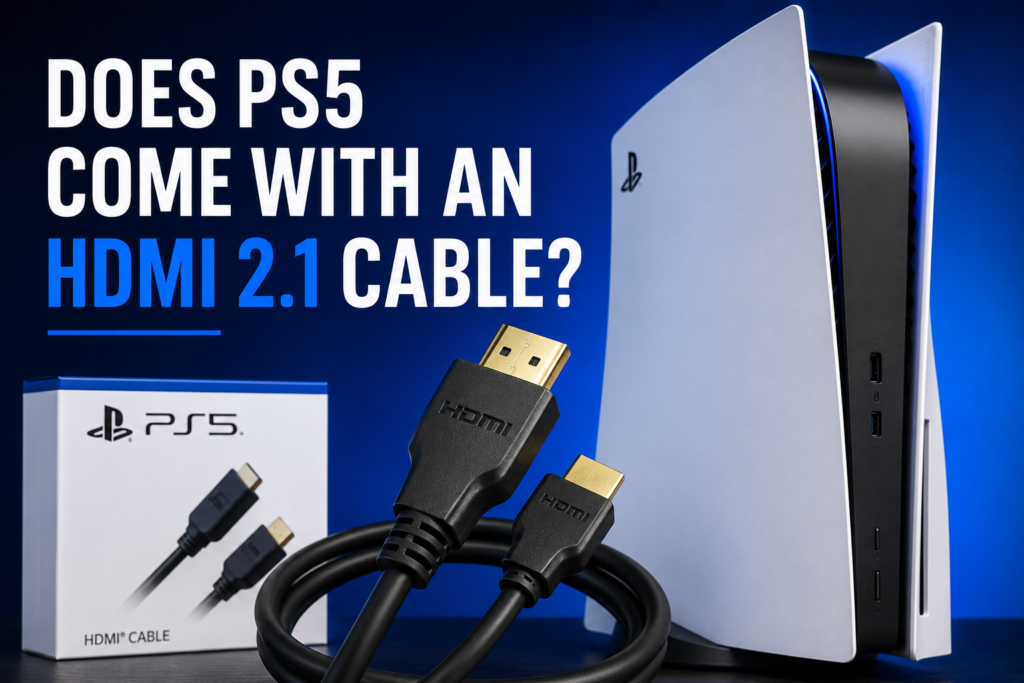
Sony describes the original launch-console cable as compatible with the Ultra High Speed standard defined by HDMI 2.1. Its current support guidance also recommends using the cable included with the PS5 for 4K at 120Hz.
However, the cable is only one part of the setup. Your TV or monitor, HDMI port, PS5 settings, and game must also support the resolution and refresh rate you want.
What HDMI Cable Comes With the PS5?
Does PS5 Come With an HDMI 2.1 Cable? The PS5 comes with an HDMI cable designed to handle the console’s supported video and audio features. People usually call it an HDMI 2.1 cable, although the official cable-category term is Ultra High Speed HDMI Cable.
Sony’s launch documentation specifically described the included cable as:
HDMI cable compatible with Ultra High Speed defined by HDMI 2.1.
Sony also recommends using the original cable when connecting a PS5 to a television or AV receiver.
The original cable can be used for:
- 1080p gaming
- 1440p gaming
- 4K gaming
- Up to 120Hz output
- HDR
- Variable Refresh Rate
- Auto Low-Latency Mode
- Digital audio
The final output still depends on the capabilities of your display and the game you are playing.
Is the PS5 HDMI Cable Really HDMI 2.1?
Yes. The cable included with the PS5 is capable of carrying the video signals required for the console’s HDMI 2.1 features.
For the related PS5 display or hardware issue, see our fix PS5 HDMI problems.
The confusion usually comes from cable naming. HDMI version numbers such as HDMI 2.0 and HDMI 2.1 technically describe HDMI specifications and device capabilities. Official retail cable categories use names such as:
- High Speed HDMI Cable
- Premium High Speed HDMI Cable
- Ultra High Speed HDMI Cable
The Ultra High Speed HDMI Cable category was introduced with HDMI 2.1 and applies to systems supporting bandwidth of up to 48Gbps. Certified models must pass official testing and carry an authentication label on their packaging.
Because of this naming system, the original PS5 cable may not have “HDMI 2.1” printed clearly on the cable jacket. That does not mean it is limited to HDMI 2.0.
Which PS5 Models Include an HDMI Cable?
Current PS5 console packages include an HDMI cable.
| PS5 model | HDMI cable included? | Main supported output |
|---|---|---|
| Original PS5 Disc Edition | Yes | Up to 4K at 120Hz |
| Original PS5 Digital Edition | Yes | Up to 4K at 120Hz |
| PS5 Slim Disc Edition | Yes | Up to 4K at 120Hz |
| PS5 Slim Digital Edition | Yes | Up to 4K at 120Hz |
| PS5 Pro | Yes | Up to 4K at 120Hz, plus model-specific display features |
Sony’s current product listings for PS5 Slim and PS5 Pro include an HDMI cable in the “What’s in the Box” section.
This means buyers of a new standard PS5, PS5 Slim, Digital Edition, or PS5 Pro should not need to purchase a cable separately.
A used, open-box, or refurbished console may have a different cable if the previous owner or seller replaced the original.
Does the PS5 HDMI Cable Support 4K at 120Hz?
Yes. The included PS5 cable supports the connection needed for 4K video output at up to 120Hz.
Sony confirms that PS5 consoles support the HDMI 2.1 specification and 4K 120Hz video output. It recommends either the included cable or an Ultra High Speed HDMI cable rated for 4K at 120Hz.
Getting 4K at 120Hz requires more than the cable:
| Requirement | Why it matters |
|---|---|
| PS5 console | Must be configured for the correct video output |
| Included or suitable replacement cable | Must carry the required signal reliably |
| Compatible TV or monitor | Must accept 4K at 120Hz |
| Correct HDMI input | Some TVs support 4K 120Hz on selected ports only |
| Supported game | The game must offer a 120fps or 120Hz mode |
| Correct display settings | Enhanced HDMI mode may need to be enabled |
| Compatible intermediary equipment | A receiver, soundbar, or switch must pass the full signal |
A 120Hz television does not make every game run at 120fps. The game must have a supported high-frame-rate mode, and you may need to enable Performance Mode inside the game or PS5 settings.
What Does the Original PS5 HDMI Cable Support?
The included cable is suitable for the main video features available on PS5 consoles.
| Feature | Supported? | Additional requirement |
|---|---|---|
| 1080p at 60Hz | Yes | Compatible display |
| 1080p at 120Hz | Yes | 120Hz display and supported game |
| 1440p at 120Hz | Yes | Compatible monitor or TV |
| 4K at 60Hz | Yes | 4K display |
| 4K at 120Hz | Yes | HDMI 2.1-capable input and supported game |
| HDR | Yes | HDR-compatible display |
| VRR | Yes | HDMI 2.1 VRR-compatible display |
| ALLM | Yes | Display with ALLM support |
| Digital audio | Yes | Compatible TV, soundbar, or receiver |
The table does not mean every feature is active automatically. Your television may require an enhanced-input setting, and some features must be enabled in the PS5 video-output menu.
Does PS5 Need HDMI 2.1?
No. You can use a PS5 with an older HDMI television or monitor.
HDMI 2.1 is mainly needed when you want to use advanced features such as:
- 4K at 120Hz
- HDMI 2.1 Variable Refresh Rate
- Auto Low-Latency Mode on compatible equipment
- Higher-bandwidth video formats
An HDMI 2.0 display can still be suitable for many PS5 users. It may support:
- 1080p at 60Hz
- 1080p at 120Hz
- 1440p at 60Hz
- 1440p at 120Hz on compatible displays
- 4K at 60Hz
- HDR
The exact combinations depend on the TV or monitor. Check its manual or supported signal-format list instead of relying only on the HDMI version printed in a product listing.
HDMI 2.0 vs HDMI 2.1 for PS5
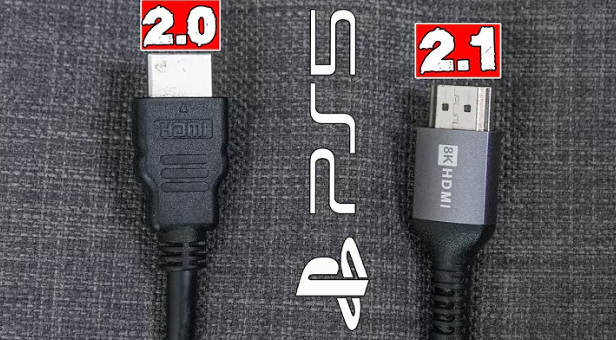
| Feature | HDMI 2.0 setup | HDMI 2.1 setup |
|---|---|---|
| 1080p gaming | Supported | Supported |
| 1440p gaming | Often supported | Supported |
| 4K at 60Hz | Supported | Supported |
| 4K at 120Hz | Usually not available | Supported |
| PS5 VRR | Usually unavailable | Supported on compatible displays |
| Basic PS5 use | Supported | Supported |
| Maximum PS5 video features | Limited | Best option |
You do not need to replace a working HDMI 2.0 television just to use a PS5. HDMI 2.1 becomes important when 4K at 120Hz and compatible VRR support are priorities.
Can PS5 Run 120Hz With HDMI 2.0?
Yes, depending on the resolution and display.
An HDMI 2.0 connection may support 120Hz at:
- 1080p
- 1440p on compatible monitors and TVs
For 4K at 120Hz, you normally need an HDMI 2.1-capable display input and the included PS5 cable or another suitable Ultra High Speed HDMI cable.
The difference between 120Hz and 120fps is also important:
- 120Hz is how often the screen can refresh each second.
- 120fps is how many frames the game produces each second.
A 120Hz display can show up to 120 frames per second, but only when the game and console output support that mode.
Is the Original PS5 HDMI Cable Good Enough?
Yes. The original cable is the best default option for most PS5 setups.
You do not need to replace it simply because another cable advertises:
- 8K support
- 48Gbps bandwidth
- Gold-plated connectors
- Gaming performance
- Better colors
- Sharper graphics
- Lower input lag
A more expensive cable will not improve picture quality when the original cable already carries the signal correctly.
It also cannot:
- Increase a game’s frame rate
- Change a game from 1080p to native 4K
- Reduce controller stick drift
- Fix unresponsive controller buttons
- Improve internet speed
- Add HDR to a display that does not support it
A replacement cable can help when the existing cable is defective, physically damaged, or unable to maintain a stable signal.
For the related PS5 display or hardware issue, see our troubleshoot a damaged HDMI port.
Do You Need to Buy Another HDMI Cable for PS5?
Most users do not need another cable.
Buy a replacement only when:
- The original cable is missing
- You bought the console used
- The connector is bent or damaged
- The cable has been crushed or cut
- The picture flickers
- The screen repeatedly loses signal
- The original cable is too short
- Another tested cable fixes the problem
- You need a longer in-wall or room-to-room installation
Before spending money, confirm that the problem is not caused by the TV port, video settings, game, receiver, soundbar, or HDMI switch.
How to Choose the Best HDMI 2.1 Cable for PS5
Look for a certified Ultra High Speed HDMI Cable rather than choosing one based only on price or marketing language.
Check for:
- Ultra High Speed HDMI Cable wording
- Official certification label
- Scannable QR or verification code
- 4K at 120Hz support
- The shortest practical length
- A reputable seller
- A clear return policy
The official certification program requires compliant Ultra High Speed HDMI cables to pass testing at an authorized testing center. Certified packaging carries a label that can be scanned to verify details such as the brand, model, and cable length.
Do not rely only on product titles containing phrases such as:
- PS5 gaming cable
- 8K HDMI cable
- Premium gaming HDMI
- Next-generation cable
- Gold-plated HDMI 2.1 cable
These phrases do not prove official certification.
What Length HDMI Cable Should You Use With PS5?
Use the shortest length that comfortably reaches your display without stretching the cable or bending the connectors.
For the related PS5 display or hardware issue, see our connect PS5 to a laptop with HDMI.
Sony’s current console product pages confirm that a cable is included but do not provide one universal length for every region and package. If the original cable is too short, choose a certified replacement in the length you need.
For a normal setup where the console sits near the television, a passive copper HDMI cable should be suitable.
For a long installation:
- Choose a certified cable at the exact required length.
- Avoid joining several cables with adapters.
- Consider an active or fiber-optic HDMI cable for unusually long runs.
- Test 4K at 120Hz before routing the cable permanently.
- Check whether an active cable has a required signal direction.
Longer HDMI runs are more sensitive to cable construction and signal quality.
How to Connect PS5 for 4K at 120Hz
1. Use the Included HDMI Cable
Connect the cable firmly to the PS5 HDMI output and the television’s compatible HDMI input.
Check that the cable is not:
- Crushed behind furniture
- Bent sharply near the connector
- Pulled tightly
- Loose at either end
- Visibly damaged
2. Use the Correct HDMI Port
Many televisions have several HDMI inputs, but only one or two may support 4K at 120Hz.
Look for port labels such as:
- 4K 120Hz
- HDMI 2.1
- 120Hz
- Game
- 8K
Check the television manual when the labels are unclear.
Sony recommends connecting the PS5 to the HDMI input that supports HDMI 2.1.
3. Enable the TV’s Enhanced HDMI Setting
Your TV may require a special input setting before accepting higher-bandwidth video.
Depending on the manufacturer, it may be called:
- Enhanced Format
- Input Signal Plus
- HDMI Deep Color
- Enhanced HDMI
- UHD Color
- 4K Enhanced Mode
The exact menu name differs between brands and models.
4. Connect the PS5 Directly to the Display
Temporarily remove any device sitting between the PS5 and television, including:
- Soundbar
- AV receiver
- HDMI switch
- HDMI splitter
- Capture card
- Video adapter
Connect the PS5 directly to the TV. If 4K at 120Hz starts working, the intermediary device or its HDMI input may be limiting the signal.
Sony recommends testing a direct connection when troubleshooting picture or sound problems.
5. Check the PS5 Video Settings
Go to:
Settings > Screen and Video > Video Output
Check these options:
- Resolution: Automatic or 2160p
- 120 Hz Output: Automatic
- VRR: Automatic when supported
- ALLM: Automatic
- HDR: On When Supported
- Video Transfer Rate: Automatic
The same screen lets you view the Current Video Output Signal and information about the connected HDMI device, including supported resolution, VRR, and HDR.
6. Launch a Game That Supports 120fps
The PS5 home screen does not always use the same output mode as a game.
Launch a game with a supported 120fps mode and enable its Performance or High Frame Rate option. Then check the PS5 or television signal information while the game is running.
How to Check Whether PS5 Is Running at 120Hz
Go to:
Settings > Screen and Video > Video Output
Open Current Video Output Signal and check the displayed resolution and refresh rate.
You should also:
- Enable 120 Hz Output.
- Launch a game that supports 120fps.
- Turn on its Performance or 120fps mode.
- Open the TV’s signal-information screen.
- Confirm that the refresh rate changes to 120Hz during gameplay.
Sony notes that the 120 Hz Output option applies to televisions and games that support a 120Hz frame rate.
PS5 4K 120Hz Not Working
A cable problem is only one possible cause. Check the game, PS5 video settings, TV input, and any receiver, soundbar, or switch connected between the console and display. If the console also becomes unusually hot, makes loud fan noise, freezes, or shuts down during gameplay, follow our PS5 Keep Overheating guide because the problem may be related to cooling rather than the HDMI cable.
| Problem | Check first |
|---|---|
| 4K works but 120Hz does not | Game support, PS5 setting, and TV input |
| 120Hz works only at 1080p | TV or monitor input bandwidth |
| Screen flickers at 4K | Cable, transfer-rate setting, or intermediary device |
| No signal | HDMI connection, selected input, or damaged port |
| HDR is unavailable | HDR support and enhanced-input setting |
| VRR is unavailable | HDMI 2.1 VRR support and PS5 setting |
| Signal changes when the cable moves | Cable connector or HDMI port damage |
Follow This Troubleshooting Order
- Restart the PS5 and display.
- Disconnect and reconnect both cable ends.
- Confirm that the correct TV input is selected.
- Try another HDMI input.
- Enable the TV’s enhanced HDMI setting.
- Set the PS5 resolution to Automatic or 2160p.
- Set Video Transfer Rate to Automatic.
- Connect the PS5 directly to the television.
- Update the PS5 and display firmware.
- Test another certified Ultra High Speed HDMI cable.
- Test the PS5 on another display.
- Inspect the HDMI port for physical damage.
Sony’s official checklist also recommends confirming that the TV supports 4K at 120Hz, using the included or suitable Ultra High Speed cable, updating the TV firmware, selecting the correct HDMI 2.1 port, and bypassing intermediary equipment.
Should You Change the PS5 Video Transfer Rate?
Leave Video Transfer Rate set to Automatic unless you experience flickering or an unstable 4K signal.
When flickering continues, Sony allows you to try:
-1-2
These settings reduce the amount of video information being transmitted, which may help an unstable display or connection. They can also limit some high-bandwidth formats, including 4K at 120Hz, so they should not be your first troubleshooting step.
Could the PS5 HDMI Port Be Damaged?
The console’s HDMI port may be damaged when:
- Multiple tested cables produce no signal
- The cable does not sit securely
- The connector feels unusually loose
- The signal changes when the cable moves
- The port looks bent or pushed inward
- The console was dropped while connected
- The cable was pulled sideways with force
Test another cable and display before assuming the port needs repair.
For the related PS5 display or hardware issue, see our PS5 port replacement costs.
Do not push tools into the HDMI port or attempt to bend its internal contacts. A damaged port usually requires professional inspection and soldering equipment.
Can You Use a PS4 HDMI Cable With PS5?
A PS4 HDMI cable may work for basic PS5 output, including 1080p or 4K at 60Hz, depending on the cable and display.
However, an older cable may not reliably support 4K at 120Hz or other high-bandwidth HDMI 2.1 features.
Use the original PS5 cable when available. If it is missing, use a certified Ultra High Speed HDMI cable.
Common PS5 HDMI Myths
Every PS5 owner needs to buy an HDMI 2.1 cable
False. A new PS5 already includes a suitable cable.
An expensive HDMI cable improves graphics
False when the original cable works correctly. A cable cannot add image detail that the console or game does not produce.
HDMI 2.1 makes every game run at 120fps
False. The game must include a 120fps mode.
Every HDMI port supports 4K at 120Hz
False. Some compatible televisions support the feature on selected inputs only.
If 120Hz is not working, the cable must be faulty
Not necessarily. The display, HDMI input, game, console settings, or an intermediary device may be responsible.
A new HDMI cable will reduce controller input lag
Not directly. A compatible high-refresh-rate display and Game Mode can make gameplay feel more responsive, but a cable will not fix controller hardware, Bluetooth, button, or analog-stick problems.
To test the related hardware in your browser, use our graphics performance test.
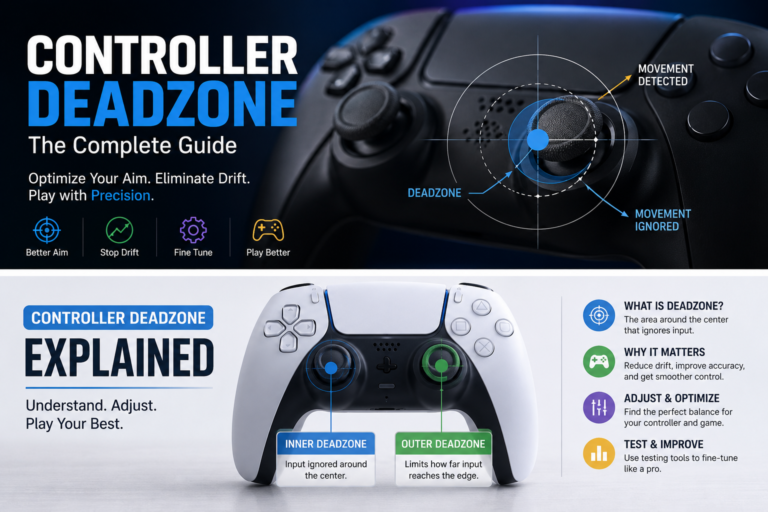
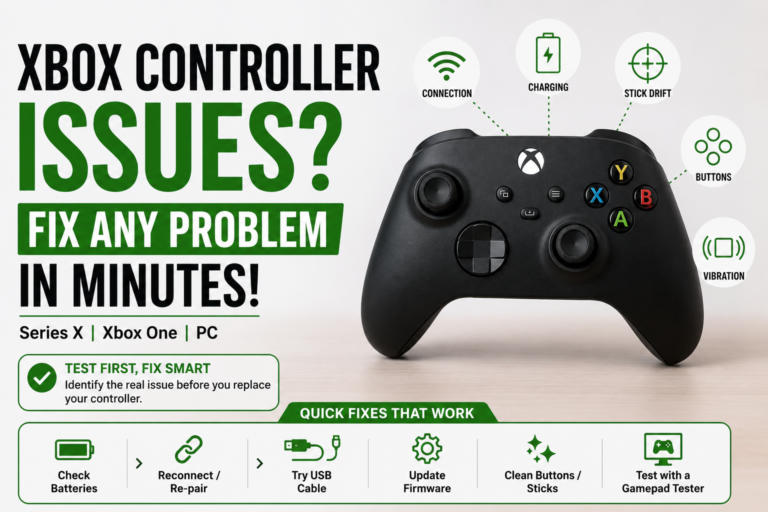
When controller input feels wrong, test the DualSense buttons and analog sticks separately with a gamepad tester.
FAQS
Does the PS5 come with an HDMI cable?
Yes. New PS5 console packages include an HDMI cable.
Is the cable included with PS5 really HDMI 2.1?
Yes. Sony describes the original PS5 cable as compatible with the Ultra High Speed standard defined by HDMI 2.1.
Does PS5 Slim come with an HDMI 2.1 cable?
PS5 Slim packages include an HDMI cable. Sony’s PS5 support guidance recommends using the cable included with the console for its supported video features.
Does PS5 Digital Edition include an HDMI cable?
Yes. Current PS5 Digital Edition product listings include an HDMI cable in the box.
Does PS5 Pro come with an HDMI cable?
Yes. Sony’s official PS5 Pro package contents include an HDMI cable.
Does the original PS5 HDMI cable support 120Hz?
Yes. It supports 120Hz output, including 4K at 120Hz when the display, input, settings, and game are compatible.
Can I use an HDMI 2.0 cable with PS5?
Yes, but some features may be limited. HDMI 2.0 can still support common formats such as 1080p, 1440p, and 4K at 60Hz.
Do I need an HDMI 2.1 TV to use PS5?
No. PS5 works with older HDMI displays. An HDMI 2.1-compatible TV is mainly needed for features such as 4K at 120Hz and PS5 VRR.
Which HDMI port should I use for PS5?
Use the HDMI input that supports the highest resolution and refresh rate. On an HDMI 2.1 television, select the port marked for 4K at 120Hz or gaming.
Why does my PS5 show only 60Hz?
The game may not support 120fps, its high-frame-rate mode may be disabled, or your TV input may not accept 120Hz at the selected resolution.
Can a soundbar or receiver block 4K at 120Hz?
Yes. A soundbar, receiver, switch, splitter, or capture card can limit the signal if it does not support the required passthrough format.
Will a better HDMI cable improve PS5 picture quality?
Not when the current cable works correctly. Replace the cable only when it is missing, damaged, too short, or causing an unstable connection.
Final Verdict
The PS5 comes with an HDMI cable capable of supporting HDMI 2.1 features, including 4K gaming at up to 120Hz.
Keep using the original cable unless it is missing, damaged, too short, or confirmed to be causing signal problems. Before buying another one, check the television’s HDMI input, enhanced-signal setting, PS5 video settings, game support, and any soundbar or receiver connected between the console and display.


2 Comments