
Cross-Platform Controller Compatibility Guide
Last updated: August 22, 2026
Quick Answer
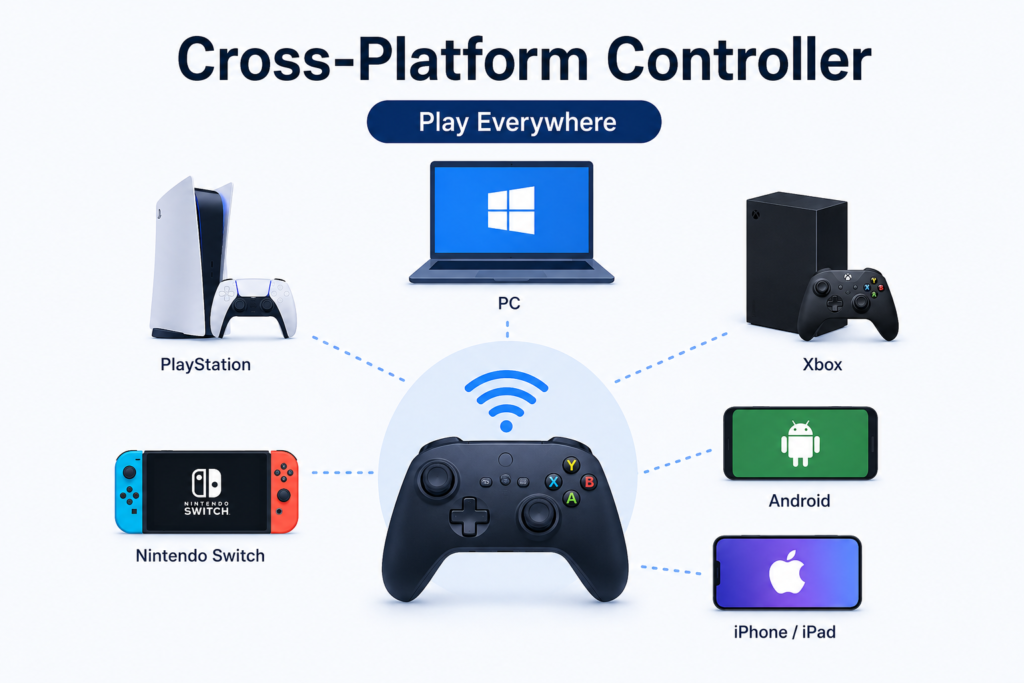
The most cross-platform-friendly controllers in 2026 are the Xbox Wireless Controller, DualSense (PS5), 8BitDo Ultimate, and GameSir G7/G8. Each supports Windows, Android, iPhone, Steam, and most cloud gaming services, but no controller has full native support across every console. Xbox controllers don’t pair with PlayStation consoles, and PlayStation controllers don’t pair with Xbox consoles, regardless of Bluetooth compatibility. Compatibility depends on three independent factors: the platform, the connection method, and whether the specific game supports controller input at all Xbox Controller Tester .
Quick Compatibility Summary
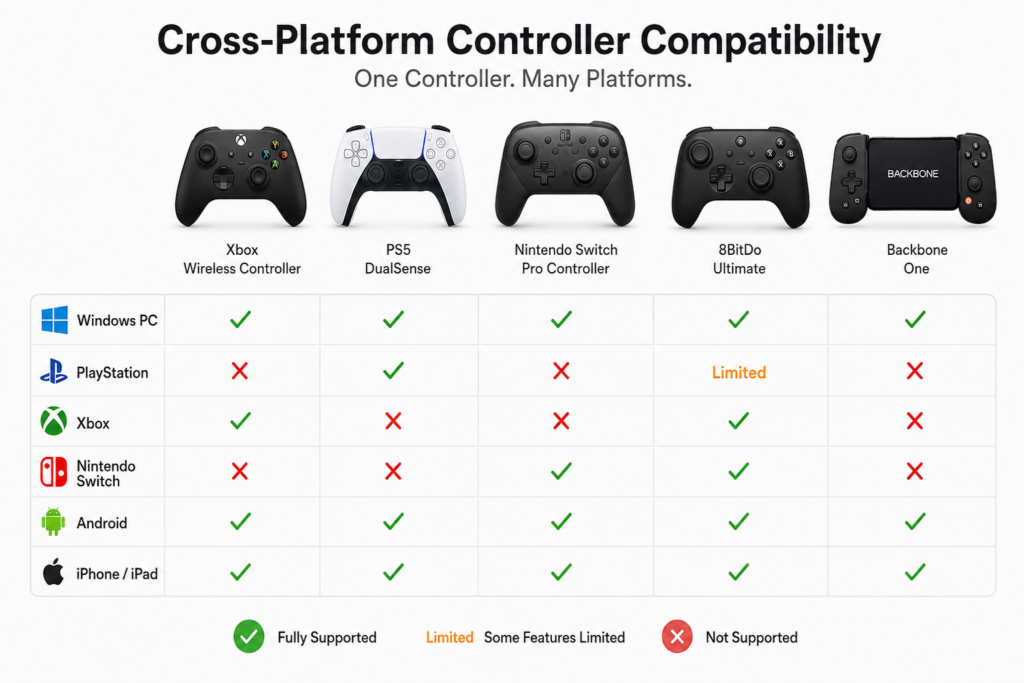
| Controller | Windows | Steam | Android | iPhone | Nintendo Switch | PlayStation | Xbox | Overall |
|---|---|---|---|---|---|---|---|---|
| Xbox Wireless Controller | ✅ Native | ✅ | ✅ | ✅ | ⚠ Adapter Required | ❌ | ✅ Native | ⭐⭐⭐⭐⭐ |
| DualSense (PS5) | ✅ | ✅ | ✅ | ✅ | ⚠ Partial | ✅ Native | ❌ | ⭐⭐⭐⭐☆ |
| 8BitDo Ultimate | ✅ | ✅ | ✅ | ✅ | ✅ | ⚠ Partial | ⚠ Model Dependent | ⭐⭐⭐⭐☆ |
| GameSir Controller | ✅ | ✅ | ✅ | ✅ | ⚠ Some Models | ⚠ Some Models | ⚠ Some Models | ⭐⭐⭐⭐☆ |
| Nintendo Switch Pro Controller | ✅ | ✅ | ⚠ Partial | ⚠ Limited | ✅ Native | ❌ | ❌ | ⭐⭐⭐☆☆ |
Quick Tip: No controller works natively with every gaming platform because console manufacturers deliberately use different security systems and wireless protocols to control their ecosystems. The right controller depends on the devices you actually own, not the longest spec sheet.
What Is Cross-Platform Controller Use?
Cross-platform controller use means using the same physical controller across multiple devices instead of buying a separate one for each. For example: an Xbox Wireless Controller on a Windows PC, an Android phone, and Steam; or a DualSense on a PS5, a gaming laptop, and a supported Android device.
Pairing successfully is not the same as getting full functionality. A controller can connect and still be missing:
- Vibration or haptic feedback
- Adaptive trigger resistance
- Correct button mapping
- Motion controls
- Touchpad input
- Full support inside a specific game
Understanding this distinction between ” connects vs. fully works is the single most useful mental model in this guide.
Cross-Platform Controller Use vs. Cross-Platform Gaming
These are unrelated concepts that get confused constantly:
| Cross-Platform Controller Use | Cross-Platform Gaming |
|---|---|
| One controller works on multiple devices | Players on different platforms play the same game together online |
| Hardware compatibility | Multiplayer/netcode support |
| Example: DualSense on Windows and Android | Example: a PC player and an Xbox player in the same lobby |
You don’t need one to have the other.
How Controller Compatibility Actually Works
Every controller communicates through one or more of these connection types, and your operating system, launcher, and the specific game all independently decide whether it works as expected.
USB Wired
The most reliable option for competitive play. Independent polling-rate testing in June 2026 measured wired USB-C connections (rear motherboard port) at 1–4ms average latency with under 0.4ms jitter, the most consistent result of any connection type tested, across Xbox Series, DualSense, and 8BitDo controllers.
Best for: competitive gaming, firmware updates, ruling out Bluetooth issues.
Bluetooth
The most common wireless method, and the most inconsistent one. The same 2026 testing measured Bluetooth 5.0 direct-to-PC connections at 8–12ms average, with jitter spikes up to 25ms when radio interference is present. On consoles specifically, Bluetooth performance drops further to a 10–20ms average with 2–4ms jitter because of added encryption overhead and console-side processing.
One counterintuitive exception: Sony’s DualSense and DualShock 4 cap wired USB polling at 250Hz (a 4ms baseline) but can run Bluetooth at up to 1000Hz (a 1ms baseline) with the right drivers, meaning Bluetooth is sometimes faster than wired on PlayStation controllers specifically, which does not hold true for Xbox controllers.
For setup, compatibility, or buying details, read our DualSense features guide.
Common interference source: running a Bluetooth headset and a Bluetooth controller through the same dongle simultaneously. This causes reported lag spikes of one to two full seconds in some cases, resolved by switching audio to a wired headset or a separate 2.4GHz dongle.
2.4GHz Wireless (Dedicated Receiver)
The middle ground most esports-oriented controllers use. Testing puts dedicated 2.4GHz receivers (like the Xbox Wireless Adapter) at 3–6ms average latency with 0.5–0.8ms jitter, close enough to wired that it’s imperceptible outside frame-perfect fighting games, and meaningfully more stable than Bluetooth.
Connection Type Comparison
| Connection Type | Typical Latency | Jitter | Battery Required | Best For |
|---|---|---|---|---|
| USB Wired | 1–4ms | <0.4ms | No | Competitive gaming |
| 2.4GHz Wireless | 3–6ms | 0.5–0.8ms | Yes | PC gaming, couch play |
| Bluetooth (PC) | 8–12ms | 1–2ms | Yes | Mobile, casual gaming |
| Bluetooth (console) | 10–20ms | 2–4ms | Yes | Casual console play |
Figures reflect independent community and third-party benchmark testing (Gamepadla, ResetEra/NeoGAF controller latency threads, June 2026 polling-rate testing); actual results vary by dongle chipset, driver version, and RF environment. These are not manufacturer-published specifications unless noted.
A successful Bluetooth pairing tells you that two devices can talk to each other. It does not tell you that every button, trigger, or feature will work correctly, which depends on the game and the input standard it expects, covered next.
XInput vs. DirectInput vs. HID
XInput is Microsoft’s controller standard, built for Xbox controllers and now supported natively by most Windows games. A controller using XInput is typically recognized instantly with a consistent button layout.
DirectInput predates XInput and is still used by some older or third-party controllers. It has no standardized button layout, which is the most common cause of scrambled button mapping in older PC games.
Many modern third-party controllers (8BitDo, GameSir, Flydigi) let you switch between XInput and DirectInput modes with a button combination — this single switch resolves the majority of “controller connects, but buttons are wrong” problems.
HID (Human Interface Device) is the universal standard your operating system uses to recognize any input device, keyboard, mouse, or controller, before deciding which driver to load. Without HID recognition, nothing else in this chain happens.
The Browser Gamepad API lets websites detect connected controllers directly, which is what powers browser-based controller testers. Chromium-based browsers (Chrome, Edge) currently offer the most complete Gamepad API support; Firefox and Safari support most controllers but can behave inconsistently depending on OS version.
To test the related hardware in your browser, use our gamepad tester.
Platform-by-Platform Compatibility
Windows PC
The most flexible platform by a wide margin. Xbox controllers get the smoothest experience because Windows and Xbox share the same XInput ecosystem and connect via USB-C, Bluetooth, or the Xbox Wireless Adapter, and most games recognize them immediately.
DualSense also works well on Windows via USB-C or Bluetooth, especially through Steam Input, but advanced features are inconsistent: Bluetooth DualSense disables haptic feedback and adaptive triggers in most PC games, as those features require the USB-C wired connection specifically.
Useful software:
- Steam Input: automatic detection, remapping, gyro support, community layouts
- DS4Windows makes PlayStation controllers behave like Xbox controllers in games without native support
- DualSenseX: adaptive trigger profiles and battery monitoring for DualSense
- x360ce: translates modern controller input into Xbox-compatible format for older PC games
PlayStation 5 & PlayStation 4
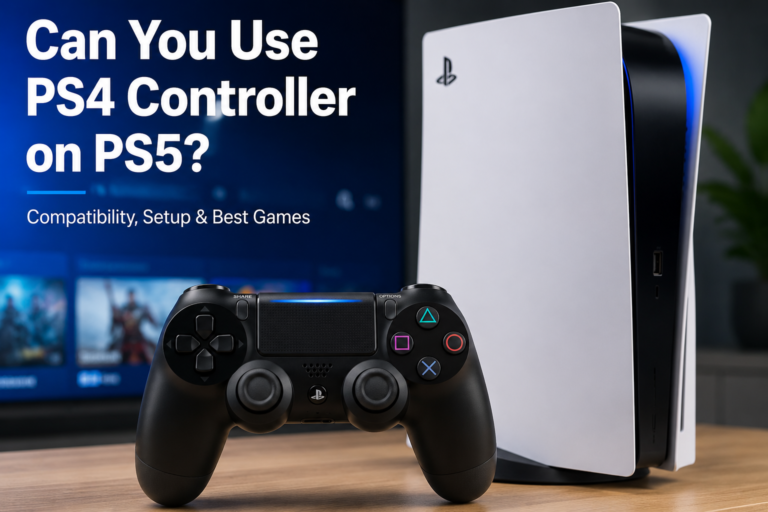
DualSense is the only controller with full native PS5 support (adaptive triggers, haptics, touchpad, motion, built-in mic). A DualShock 4 works on PS5 only for backward-compatible PS4 games; it cannot be used for native PS5 titles. Xbox controllers do not work on PlayStation consoles natively, and third-party adapters offer limited, inconsistent functionality rather than a full substitute.
On PS4, the DualShock 4 remains the only fully supported option; PS4 does not officially support the DualSense.
Xbox Series X|S & Xbox One
Xbox controllers pair in seconds, and firmware updates run through the Xbox Accessories app. PlayStation controllers are not natively recognized by Xbox consoles. Adapter solutions exist but vary in reliability and feature support.
Nintendo Switch & Switch 2
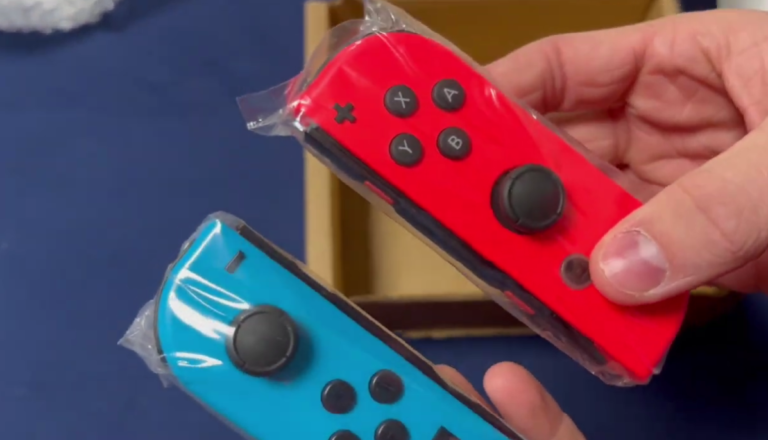
The Nintendo Switch Pro Controller remains the most reliable option: Bluetooth or USB, motion controls, HD Rumble, and (on supported models) NFC. Joy-Cons add motion sensors required for some exclusive titles, but are less comfortable for long sessions.
Xbox controllers don’t pair natively with Switch, though USB adapters can enable basic support in some games. A PS5 controller can connect via a compatible wireless adapter, but adaptive triggers and haptic feedback won’t carry over. The Switch simply doesn’t support those features regardless of the controller.
For setup, compatibility, or buying details, read our turn off a PS5 controller.
Switch 2 continues supporting most existing Nintendo and third-party accessories, though older peripherals may need a firmware update before every feature works.
Android
One of the most controller-friendly mobile platforms. Xbox, DualSense, DualShock 4, 8BitDo, GameSir, Backbone One (USB-C models), and most Bluetooth gamepads pair without extra setup. USB OTG adapters offer a lower-latency wired alternative to Bluetooth. The most common frustration isn’t hardware, it’s that individual games, not Android itself, decide whether controller input is supported at all.
iPhone & iPad
Modern iOS/iPadOS supports Xbox, DualSense, DualShock 4, Backbone One, and MFi-certified controllers through standard Bluetooth pairing. As with Android, controller support is decided on a game-by-game check before assuming.
Cloud Gaming Compatibility
| Service | Controller Support |
|---|---|
| Xbox Cloud Gaming | Xbox controllers, DualSense, DualShock 4, most Bluetooth gamepads |
| NVIDIA GeForce NOW | Wide support across Windows, macOS, Android, iPhone, Chromebook |
| Amazon Luna | Luna Controller, Xbox, PlayStation, several Bluetooth options |
| Steam Remote Play | Broadest support via Steam Input’s automatic configuration |
| Boosteroid | Xbox, DualSense, DualShock 4, generic XInput controllers |
Because cloud gaming already depends on internet latency, connection-method latency compounds on top of it. Use USB where practical, stay close to the receiver on Bluetooth, and keep firmware current small reductions add up in fast-paced games.
For setup, compatibility, or buying details, read our DualShock 4 guide.
Best Cross-Platform Controllers in 2026
Look for USB-C plus Bluetooth (ideally plus 2.4GHz), regular firmware updates, and increasingly Hall Effect or TMR thumbsticks, which use magnetic sensing instead of physical contact and meaningfully reduce long-term stick drift risk.
| Controller | Best For | Standout Strength | Key Limitation |
|---|---|---|---|
| Xbox Wireless Controller | Windows, Steam, cloud gaming | Native XInput, near-zero setup | No native PlayStation support |
| DualSense (PS5) | PlayStation + PC | Adaptive triggers, haptics, touchpad | Most advanced features need USB-C on PC |
| 8BitDo Ultimate | Switch + PC | Multiple connection modes, Hall Effect on select models | PlayStation/Xbox support varies by model |
| GameSir G7/G8 | Budget multi-platform | Hall Effect sticks and triggers at lower price points | Console licensing varies by model |
| Backbone One | Phone-first cloud gaming | Direct connection, lowest mobile latency | No PC, console, or Bluetooth support |
How to Pair a Controller (Quick Reference)
- Windows (USB): Connect the cable → Windows auto-installs drivers → test the buttons before launching a game.
- Windows (Bluetooth): Enable Bluetooth → put controller in pairing mode → Settings > Bluetooth & Devices > Add Device.
- PS5: USB auto-pairs; Bluetooth via Settings > Accessories > Bluetooth Accessories.
- Xbox: Press the console pair button, then hold the controller pair button until the Xbox button stops flashing.
- Nintendo Switch: Controllers > Change Grip/Order for Bluetooth; enable “Pro Controller Wired Communication” in System Settings for USB.
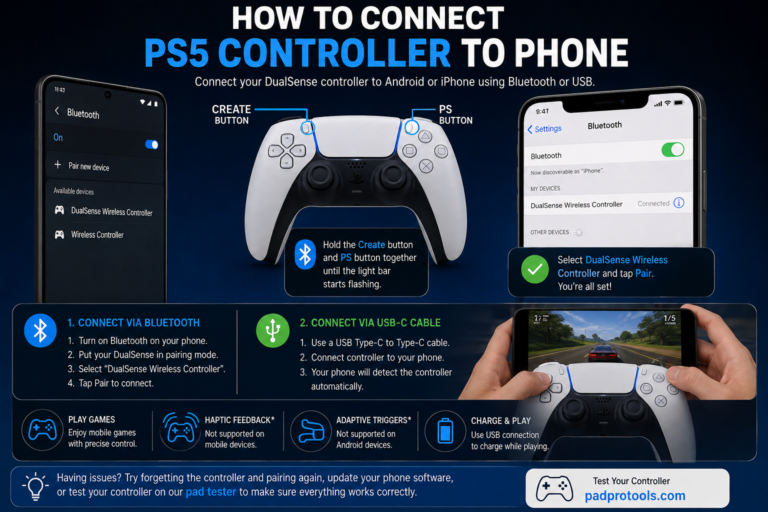
- Android/iPhone: Enable Bluetooth → pairing mode on controller → select from device list.
Always update firmware before first use. Outdated firmware is the most common root cause of pairing failures, mapping errors, and unexplained disconnects, even when the hardware itself is fine.
Troubleshooting Common Problems
| Symptom | Most Likely Cause | Fix |
|---|---|---|
| Not detected at all | Bad cable, old Bluetooth pairing, outdated firmware | Try a different (data-capable) cable, remove and re-pair, update firmware |
| Connects but doesn’t respond | The game doesn’t support that controller, wrong input mode | Test the controller in a browser-based tester first to isolate the hardware vs. game issue |
| Wrong button mapping | Controller using DirectInput when the game expects XInput | Switch controller mode, or adjust Steam Input settings |
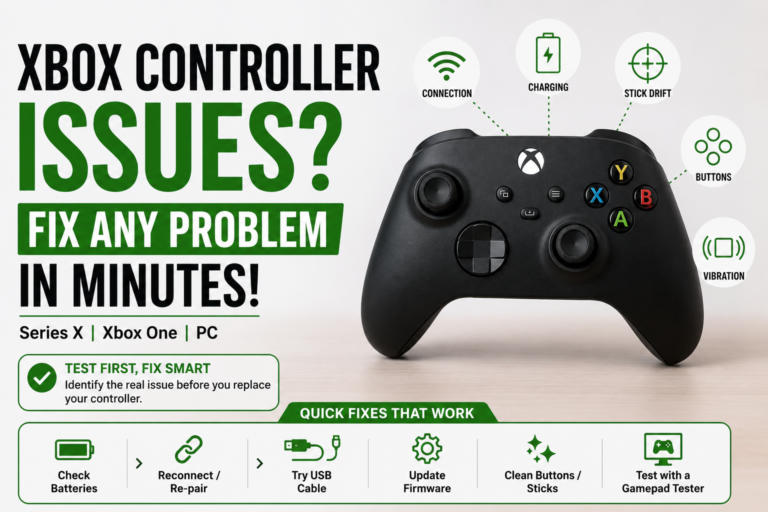
| Analog stick drift | Worn thumbstick module, dirt, bad deadzone settings | Test stick input directly before assuming hardware failure |
| Random disconnects | Low battery, weak Bluetooth signal, power-saving mode | Check the battery first, it’s the most common cause |
| High input lag | Bluetooth interference, background wireless traffic | Move Bluetooth audio devices off the same dongle; switch to USB or 2.4GHz for competitive play |
Note on wired vs. wireless for USB-C cables specifically: many USB-C cables are charge-only and don’t carry data. If a wired controller isn’t detected, this is the first thing to rule out before assuming a driver problem.
FAQS
Can I use one controller on multiple devices?
Yes. Most modern controllers support Windows, Android, iPhone, Steam, and some consoles, but exact compatibility depends on the specific controller model and platform.
Which controller works on the most platforms?
The Xbox Wireless Controller, DualSense, and premium third-party options from 8BitDo and GameSir currently offer the widest practical compatibility.
For setup, compatibility, or buying details, read our arcade controller guide.
Can I use a PS5 controller on a PC?
Yes, via USB-C or Bluetooth, and many games detect it automatically through Steam. Adaptive triggers and haptics require the wired USB-C connection in most PC titles
Can I use an Xbox controller on a PlayStation?
No. PlayStation consoles don’t natively support Xbox controllers, and adapter-based workarounds have inconsistent feature support.
Do all Android or iPhone games support controllers?
No. The device may recognize the controller perfectly, but each individual game decides whether controller input is enabled.
Is Bluetooth or USB better for gaming?
USB and 2.4GHz wireless are more consistent and lower-latency (roughly 1–6ms in independent testing), which matters for competitive play. Bluetooth (roughly 8–20ms depending on the platform) is fine for casual and mobile gaming.
Why is my controller connected but not working?
The pairing succeeded, but the specific game may not support that controller, or it’s in the wrong input mode (XInput vs. DirectInput). Testing outside the game first isolates the cause.
Final Thoughts
Cross-platform controller support has genuinely improved, but “wireless” and “compatible” are not the same claim, and no single controller yet works natively everywhere. Match the controller to where you actually spend the most time: Xbox Wireless Controller for Windows-first setups, DualSense for PlayStation loyalists who also game on PC, and the Switch Pro Controller (or a Hall-Effect-equipped 8BitDo) for Nintendo households. Whatever you choose, test every input after pairing and before launching a game; it takes a minute and eliminates most of the guesswork in this guide.


One Comment