
Use this online tool to check free online gamepad test whether the buttons on your gamepad respond correctly. Connect the controller through USB or Bluetooth, press each control, and watch the matching input appear on the screen. Button Controller Tester appear .
The test can help you find:
Live diagnostics
Button activity
| Button | Status | Value | Presses |
|---|---|---|---|
| Start the test, connect a controller, or click an on-screen button. | |||
- Buttons that do not respond
- Inputs that remain active after release
- Repeated inputs from one physical press
- Buttons that work only sometimes
- Incorrect button mapping
- Triggers that do not reach their expected value
You do not need to create an account or install a program. The tool reads the controller states that your browser receives through the Gamepad API.
Test Your Controller Buttons
Controller status: Waiting for controller input
Connect your controller and press any physical button to begin.
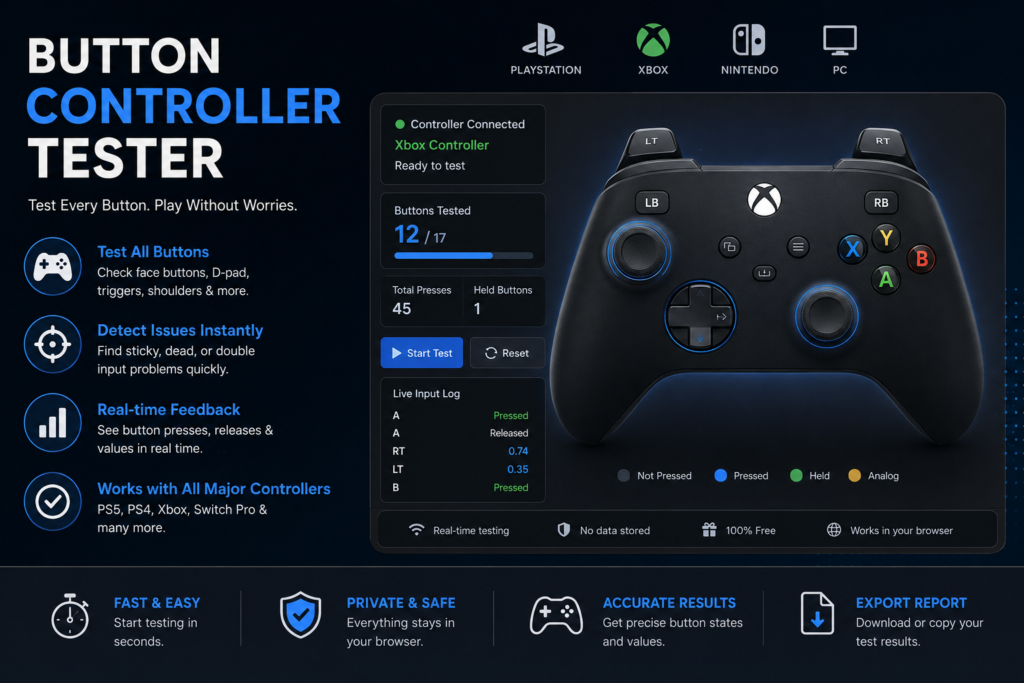
When you press a working control, the matching button or value should change on the screen. When you release it, the input should return to its resting state.
Quick testing checklist
- Press each face button five times.
- Test all four D-pad directions.
- Press the left and right shoulder buttons.
- Slowly press both triggers.
- Click the left and right analog sticks.
- Test the menu, View, Share, Options, Plus, or Minus buttons.
- Release all controls and check that nothing remains active.
Some system-level inputs may not appear in every browser. These can include the PS button, Xbox button, Capture button, touchpad controls, rear paddles, and other controls handled by the operating system.
Can I Use a Button Controller Tester Online?
Yes. Connect the gamepad, open the tool in a supported browser, and press a button. The screen should show the input received from the controller.
A browser can access connected gamepads through navigator.getGamepads(). Each detected controller may report:
- A controller identifier
- A connection state
- A device index
- Button states
- Analog-stick axes
- Mapping information
- Input timestamps
The Gamepad API normally works only on secure HTTPS pages. Some browsers also wait until you press a physical button before making the controller visible to the website.
For better detection:
- Use an updated browser.
- Open the page over HTTPS.
- Click once inside the page.
- Press a face button.
- Keep the browser tab active.
- Reload the page after connecting the controller.
How to Run a Controller Button Test
Start with the control that caused the problem, but test every button before deciding that the controller needs repair.
Connect through USB or Bluetooth
Use a supported USB data cable or pair the controller through your device’s Bluetooth settings.
A cable that only supports charging may power the controller without sending button data.
Press a button to activate detection
Click inside the page, then press A, Cross, B, Circle, or another main face button.
Some browsers do not expose controller information until the user interacts with the device.
Press each control five times
One successful press does not prove that the button works reliably.
Press the same control five times at a steady speed. The number of visible responses should match the number of physical presses.
Hold and release the button
Hold the control for about two seconds.
The on-screen input should remain active while you hold it and return to its normal state after release.
Test slowly before testing quickly
Slow testing makes it easier to compare each physical action with the result on the screen.
After the slow test, press the button at the speed you normally use while gaming.
Reset and repeat
Reload or reset the tool before making a repair decision.
A single unusual reading may come from the connection, browser, controller profile, or mapping software rather than a damaged internal part.
What Does the Test Check?
The tool reads the button states sent to the browser. It can show whether an input is pressed, released, partly pressed, repeated, or mapped to an unexpected index.
The W3C Gamepad specification gives each exposed button three main properties:
- pressed
- touched
- value
The pressed property is either true or false.
The touched property reports whether the control is being touched when the controller and browser support that feature.
The value property is a number from 0 to 1. A value of 0 means fully released, while 1 means fully pressed.
Button press detection
The input should change when you press the physical control.
If nothing changes, the browser did not receive that input during the test.
Button release detection
The input should return to its resting state when you let go.
A control that remains active should be retested after reconnecting the gamepad.
Repeated input detection
One slow physical press should normally produce one press and one release sequence.
If several changes appear from one action, close remapping programs and test again before assuming a hardware fault.
Intermittent response
An intermittent control works during some presses but misses others.
Repeated testing helps reveal problems that may not appear after one attempt.
Incorrect mapping
A physical button may appear under a different label or index.
This can happen when:
- The controller uses a different layout.
- The browser applies a non-standard mapping.
- Steam Input changes the controls.
- An emulator profile is active.
- The controller stores a custom profile.
- A rear paddle copies another control.
Analog trigger values
Some triggers work as analog controls rather than simple on-and-off buttons.
Their values may move gradually between 0 and 1 as you press or release them.
How to Read Your Results
| Result | What the browser received | Recommended next step |
|---|---|---|
| Normal | Each press and release appeared once | Continue testing |
| No response | No input appeared | Try USB and test again |
| Stays active | The input remained pressed after release | Reconnect the controller |
| Repeated response | One press produced extra changes | Close remapping software |
| Intermittent | Some presses appeared and others did not | Test on another device |
| Wrong label | Another position or index appeared | Check the mapping |
| Partial trigger value | The trigger stopped before its expected range | Compare wired and wireless results |
What the result can confirm
The tool can confirm the input data received by the browser during the test.
It can show:
- A detected press
- A detected release
- A button index
- A normalized analog value
- A repeated visible response
- An input that remains active
- A mapping difference
What the result cannot confirm
The tool cannot look inside the controller.
It cannot directly prove that any of these parts are damaged:
- Rubber membrane
- Mechanical switch
- Spring
- Contact pad
- Ribbon cable
- Circuit board
- Internal connector
A missing input may also come from:
- A charge-only USB cable
- A loose connection
- Bluetooth pairing trouble
- Outdated firmware
- Browser support
- Operating-system drivers
- Steam Input
- Controller-remapping software
- Game-specific controls
- A system button reserved by the operating system
Use the result as a troubleshooting clue rather than a final hardware diagnosis.
Common Controller Button Problems
The button does not respond
An unresponsive control does not change in the tool when you press it.
Try these checks:
- Press it five more times.
- Reload the page.
- Connect through USB.
- Use a different data cable.
- Close games and remapping tools.
- Check it in the operating system’s controller settings.
- Test it on another device.
When the same control fails across browsers, connections, and devices, a physical fault becomes more likely.
The button remains active
A held or sticky input stays active after you release the physical control.
Reconnect the controller and run the test again. Also check whether the button feels slow, tight, or hard to release.
Do not pour cleaner directly into the gamepad. Follow the controller maker’s cleaning guidance.
One press appears more than once
Close Steam, emulators, games, and other controller software before retesting.
Press the control slowly five times and compare your physical presses with the recorded count.
Software can create duplicate actions even when the physical button is working correctly.
The button works only sometimes
Test the same control at least ten times.
Keep the gamepad in your normal playing position. Avoid twisting or squeezing the shell during the test because that can make the result harder to repeat.
An input appears without being pressed
Place the gamepad on a flat surface and keep your hands away from it.
Reset the test and disconnect any other controllers. If the same input appears again, compare the result in another browser and the operating system’s controller panel.
The wrong button lights up
Different controller brands use different names for the same physical positions.
For example, the lower face button is commonly:
- A on an Xbox controller
- Cross on a PlayStation controller
- B on a Nintendo-style controller
A different label does not always mean something is broken.
Test Every Type of Controller Button
Face buttons
The four main face controls sit on the right side of most gamepads.
| Physical position | Xbox | PlayStation | Nintendo-style |
|---|---|---|---|
| Bottom | A | Cross | B |
| Right | B | Circle | A |
| Left | X | Square | Y |
| Top | Y | Triangle | X |
Follow the physical position shown in the tool rather than relying only on the printed label.
D-pad
Test Up, Down, Left, and Right separately.
You can then test diagonal movement. A diagonal press may activate two directions at the same time.
Some older or non-standard devices may expose the D-pad differently.
Shoulder buttons
Test:
- LB and RB on Xbox layouts
- L1 and R1 on PlayStation layouts
Each input should turn on while pressed and return to normal after release.
Triggers
Test:
- LT and RT
- L2 and R2
- ZL and ZR
Press each trigger slowly and watch its value change.
A trigger should return close to 0 when released. On supported analog controls, the value should rise as the trigger moves inward.
Stick-click buttons
Press the left and right analog sticks straight down.
These controls may appear as:
- LS and RS
- L3 and R3
Try not to move the stick sideways during this part of the test.
Menu and center buttons
These can include:
- Menu
- View
- Start
- Select
- Options
- Share
- Create
- Plus
- Minus
- Capture
System buttons may be handled by the operating system and may not appear as normal webpage inputs.
Rear paddles and extra controls
Rear paddles often copy another controller button.
For example, a paddle may be assigned to A, Cross, LB, or L3 rather than appearing as a separate input.
The result depends on the controller model, profile, firmware, companion app, operating system, and browser.
Controller Button Mapping Reference
The standard browser layout is based on physical positions rather than brand names.
| Index | Physical position | Xbox label | PlayStation label |
|---|---|---|---|
| 0 | Bottom face button | A | Cross |
| 1 | Right face button | B | Circle |
| 2 | Left face button | X | Square |
| 3 | Top face button | Y | Triangle |
| 4 | Upper-left shoulder | LB | L1 |
| 5 | Upper-right shoulder | RB | R1 |
| 6 | Lower-left trigger | LT | L2 |
| 7 | Lower-right trigger | RT | R2 |
| 8 | Left center button | View | Share or Create |
| 9 | Right center button | Menu | Options |
| 10 | Left stick click | LS | L3 |
| 11 | Right stick click | RS | R3 |
| 12 | D-pad Up | Up | Up |
| 13 | D-pad Down | Down | Down |
| 14 | D-pad Left | Left | Left |
| 15 | D-pad Right | Right | Right |
| 16 | Center system button | Xbox | PS |
This table follows the W3C Standard Gamepad layout.
A controller with no standard mapping may expose its controls in a different order.
Which Controllers Can Be Tested?
The tool can work with controllers that are exposed to the browser through the Gamepad API.
Common devices include:
- PS5 DualSense
- DualSense Edge
- PS4 DUALSHOCK 4
- Xbox Series controllers
- Xbox One controllers
- Xbox Elite controllers
- Switch Pro-style controllers
- Joy-Con pairs
- Generic USB gamepads
- Bluetooth gamepads
- Arcade sticks
- Retro USB controllers
- Compatible handheld gaming controls
Support depends on:
- Controller model
- Connection type
- Operating system
- Browser
- Driver
- Firmware
- Controller mode
- Mapping profile
A controller may work with the operating system while some of its extra features remain unavailable in the browser.
Touchpads, motion controls, adaptive trigger effects, speakers, lights, audio ports, rear paddles, and vibration may have separate support.
How to Test PlayStation, Xbox, and Nintendo Controllers
PS4 and PS5 controllers
Connect a DUALSHOCK 4 or DualSense through USB or Bluetooth.
Then test:
- Cross, Circle, Square, and Triangle
- D-pad directions
- L1 and R1
- L2 and R2
- L3 and R3
- Share, Create, and Options
The PS button, touchpad, microphone, motion controls, speaker, light bar, adaptive triggers, and haptic effects may not appear as standard button inputs.
Xbox controllers
Connect the controller through USB or Bluetooth where supported.
Test:
- A, B, X, and Y
- D-pad directions
- LB and RB
- LT and RT
- LS and RS
- View and Menu
- Share, when exposed
If the controls appear under unexpected positions, close custom profiles or review the settings in the Xbox Accessories app.
Nintendo and third-party controllers
Nintendo-style controllers use a different face-button label order from Xbox controllers.
A third-party controller may support several operating modes, such as:
- XInput mode
- DirectInput mode
- Switch mode
- Android mode
- Keyboard mode
Change only one mode at a time, reload the page, and test the layout again.
Why Is My Controller Connected but Not Detected?
Press a physical button
Click inside the page and press A, Cross, B, Circle, or another main control.
Some browsers wait for a physical interaction before exposing the gamepad.
Check the cable
Try another USB cable that supports data.
A charging cable may power the controller without sending input information.
Reload after connecting
Connect the gamepad, reload the page, click inside the tool, and press a face button.
Keep the tab active
Leave the testing page open and visible. Browser behaviour can change when a tab moves into the background.
Close games and controller software
Exit:
- Steam Input
- Emulators
- Remote-play software
- Controller mappers
- Games using the same device
- Manufacturer configuration tools
Then reset the browser test.
Try another browser
Test the latest available version of Chrome, Edge, Firefox, or Safari.
Support can differ by browser, operating system, controller, and connection.
Compare USB and Bluetooth
A wired test can help rule out wireless pairing trouble.
A wireless test can help reveal a cable or USB-port problem.
Test another device
Connect the same controller to another computer, phone, or console.
A problem that follows the controller is more useful for diagnosis than one that appears in only one browser.
Why Does the Wrong Button Appear?
The physical label and browser index are not always the same.
Common causes include:
- Xbox, PlayStation, and Nintendo layout differences
- Non-standard controller mapping
- Steam Input
- Emulator profiles
- Manufacturer software
- Custom onboard profiles
- Rear-paddle assignments
- Different controller operating modes
Check the physical position and button index shown by the tool.
A different label can be a mapping issue rather than a damaged button.
USB vs Bluetooth Testing
Use the same device and browser when comparing connection types.
Changing the browser, operating system, controller profile, and connection at the same time makes the results harder to compare.
Use USB when:
- Bluetooth detection fails.
- The controller disconnects.
- The battery may be low.
- You suspect wireless interference.
- You need a second result before repair.
Use Bluetooth when:
- You normally play wirelessly.
- The cable may be damaged.
- The USB port may be faulty.
- The controller works by cable but fails during wireless play.
This is not a laboratory latency test.
The browser receives the input after the controller, connection, operating system, and browser have processed it. A normal webpage cannot identify the exact moment your finger begins pressing the physical control.
How Does the Browser Read Controller Inputs?
The Gamepad API gives websites access to supported controller states.
A detected controller can report:
- Device ID
- Device index
- Connection state
- Mapping type
- Button array
- Axis array
- Input timestamp
The page repeatedly reads the current state and updates the controller image or results panel.
Pressed state
The pressed property tells the page whether the browser currently reports the button as pressed.
Touched state
The touched property may report whether the user is touching a control, but not every controller supports it.
Button value
The value property reports a number between 0 and 1.
Digital controls normally report 0 or 1. Analog controls may report values between them.
Button index
Each exposed control has a position in the button array.
Controllers using the standard mapping follow a shared physical layout. Non-standard devices may use another order.
Privacy limits
Browsers may hide controller information until the user presses a control. They may also limit device details to reduce fingerprinting.
Do I Need to Download a Gamepad Tester?
No download is required for a basic online input check.
A manufacturer app or desktop program may still be useful when you need:
- Firmware updates
- Trigger calibration
- Stick calibration
- Rear-paddle mapping
- Profile editing
- Model-specific settings
- Console-only features
Use software from the controller maker or another trusted source. Avoid unknown programs that request broad system permissions without a clear reason.
Can I Test Controller Vibration?
Vibration is separate from button input.
A browser may be able to access a controller’s haptic actuator, but support depends on the device, browser, operating system, and connection.
Use the dedicated Controller Vibration Test to check rumble or supported haptic output.
A working button result does not prove that the vibration motors or haptic features work.
When Should You Test the Buttons?
Before buying a used controller
Check every input before paying.
Test normal presses, repeated presses, holds, releases, and both connection types where possible.
Before the return period ends
Test a new controller soon after purchase.
An intermittent button may not appear during the first few minutes of play.
After cleaning or repair
Run the same button sequence before and after the work.
Using the same steps makes the results easier to compare.
After a firmware update
Check the mapping and the buttons used most often.
A changed profile or setting can look like a hardware problem.
When a control fails in one game
Check the same input in the browser and another game.
A button that works elsewhere may have an in-game binding problem.
Before competitive play
Test face buttons, bumpers, triggers, stick clicks, and D-pad directions before a tournament or long gaming session.
What Should I Do When a Button Fails?
Follow these steps in order:
- Press the button five more times.
- Reset the tool.
- Reconnect the controller.
- Try a data-capable USB cable.
- Compare USB and Bluetooth.
- Close games and remapping programs.
- Check the operating system’s controller panel.
- Update the firmware through the official app.
- Test the gamepad on another device.
- Check the warranty before opening the controller.
Do not open a controller that is still under warranty unless the maker allows it.
Internal work can damage clips, screws, ribbon cables, batteries, connectors, or circuit boards.
How Accurate Is This Test?
The tool reports the controller state exposed to the browser at the time of the test.
It does not inspect the controller physically.
It can show:
- Detected presses
- Detected releases
- Button indexes
- Analog values
- Visible repeated inputs
- Inputs that remain active
- Mapping differences
It cannot directly measure:
- Exact finger-to-device latency
- Internal switch wear
- Rubber membrane damage
- Contact corrosion
- Ribbon-cable damage
- Battery health
- Laboratory polling rate
- The physical cause of every missing input
The result should describe observed behaviour rather than claim that a specific internal component has failed.
How We Researched and Validated This Page
For this page, we checked the button-state explanations, value ranges, mapping table, and browser behaviour against the W3C Gamepad specification and MDN Web Docs.
We also checked the connection guidance for DualSense, DUALSHOCK 4, and current Xbox Wireless Controllers against official Sony and Microsoft support information.
We do not label a controller, operating-system, and browser combination as hands-on tested unless it has been physically checked by the PadProTools team.
When a physical compatibility test is performed, we record:
- Controller model
- Connection type
- Operating system
- Browser and version
- Firmware version where available
- Buttons checked
- Mapping differences
- Test date
- Known limitations
This prevents documentation-based compatibility from being presented as first-hand testing.
PadProTools Testing Method
The tool reads button objects made available through the browser’s Gamepad API.
A normal result requires:
- A visible change when the button is pressed
- A return to rest when the button is released
- One expected response for each slow physical action
- A stable resting state while the controller is untouched
A warning may appear when:
- No input change is received
- The input remains active
- The response count does not match the physical presses
- A value changes without a known action
- The mapping differs from the selected layout
Every warning should be checked again after reconnecting the controller.
A warning describes browser-observed behaviour. It does not identify a damaged internal part.
Technical basis: W3C Gamepad specification and MDN Web Docs
Research type: Technical-document review and manufacturer-support review
Hands-on status: Only device combinations recorded in the site’s test log should be marked as physically tested
Known limitation: The tool cannot inspect internal controller hardware
FAQS
How do I test my gamepad buttons online?
Connect the gamepad, click inside the page, and press every control several times. Check that each press appears and each release returns to normal.
Is the test free?
Yes. The browser-based test is free and does not require an account.
Do I need to install software?
No. Basic input checking works in a supported browser. Manufacturer software may still be needed for firmware, calibration, or custom profiles.
Why is my controller not detected?
Press a physical button, reload the page, check the connection, and try another USB data cable or browser.
Why does one press register twice?
Close games and remapping tools, reset the test, and press the control slowly. Compare the number of physical presses with the recorded responses.
Why does the button stay active?
Reconnect the controller and test it again. The result may come from the button, mapping, firmware, connection, or browser state.
Why does the wrong button light up?
The controller may use a different layout or non-standard mapping. Steam Input, emulators, and custom profiles can also change the result.
Can the tool prove that a button is broken?
No. It can show what the browser received, but it cannot inspect the controller’s internal parts.
Can I test analog triggers?
Yes. Supported analog triggers can report values between 0 and 1.
Can I test a PS5 controller on a PC?
Yes, when the DualSense is connected to a supported PC through USB or Bluetooth and is exposed to the browser.
Can I test a PS4 controller?
Yes. Connect the DUALSHOCK 4 through USB or Bluetooth, press a face button, and check each input.
Does it support Xbox controllers?
Many current Xbox controllers work through USB or Bluetooth on supported devices. Browser results can vary by device and operating system.
Does it work on mobile?
It may work when the phone, browser, and controller all support the connection and Gamepad API.
Can I test more than one controller?
A browser can expose several connected gamepads. The tool should let the user choose the correct controller index.
Are my button presses uploaded?
The tool should process controller states in the browser unless the user deliberately submits or exports a report. The site privacy policy should explain any analytics or stored data.
Can I test vibration here?
Button testing and vibration testing are separate. Use the dedicated vibration tool for supported haptic output.
Is this a true latency test?
No. The tool can show browser-observed changes, but it cannot measure the exact moment a physical press begins.
Technical References
- W3C Gamepad specification
- MDN: Using the Gamepad API
- MDN: Navigator.getGamepads
- MDN: GamepadButton pressed property
- MDN: GamepadButton value property
- PlayStation DualSense connection guidance
- PlayStation DUALSHOCK 4 connection guidance
- Xbox Wireless Controller information
Related Controller Tools
Use the main Gamepad Tester to check the full gamepad, including buttons, analog sticks, axes, and other available inputs.
Related tools: