
An HTML5 controller tester shows the inputs your browser receives from a connected gamepad. You can use it to check buttons, analog sticks, triggers, the D-pad, controller mapping, and supported vibration functions without opening a game.
Live Controller
WaitingRaw Controller Input For non-standard controller mappings
Buttons
Axes
This guide explains how browser controller testing works, what the numbers mean, which problems you can find, and what an online test cannot measure.
What Is an HTML5 Controller Tester?
An HTML5 controller tester is a browser tool that reads gamepad inputs through the Web Gamepad API. After you connect a controller by USB or Bluetooth, the page can display its button states, trigger values, analog stick positions, device ID, connection status, and controller mapping. This helps users check for stick drift, stuck buttons, incomplete trigger movement, wrong button mapping, and connection faults without launching a game or installing a program. The term “HTML5” is commonly used for this type of tool, but the controller data is accessed through JavaScript and the browser’s Gamepad API rather than a special HTML element. Basic gamepad input works across modern browsers, though vibration, timestamps, controller names, and advanced features can differ by browser, operating system, connection type, and controller model. The tester reports what the browser can see, so it cannot inspect every hardware feature inside the controller.
Try the Controller Tester
Connect your controller through USB or Bluetooth, open the tool, and press any button. Some browsers do not reveal a controller to a page until the user interacts with it.
The tester should then display the controller name or ID, active buttons, stick movement, trigger values, and any other inputs that the browser exposes.
How Does the HTML5 Gamepad API Work?
The Gamepad API gives a web page access to controller information that the browser receives from the operating system. JavaScript calls navigator.getGamepads() to retrieve a list of controllers that are currently visible to the page.
An object represents each detected controller. That object can contain its ID, index, connection state, mapping type, buttons, axes, timestamp, and supported haptic controls.
How Your Browser Detects a Controller
The operating system must recognize the controller before the browser can read it. Connecting a USB cable or pairing the controller through Bluetooth does not always make it appear on the page at once.
Try pressing a face button, moving a stick, or pressing a trigger after opening the tester. This user action can make the controller available to the page. The tester normally checks the latest controller state during each animation frame rather than reading one old connection event.
Is the Gamepad API Part of HTML5?
“HTML5 gamepad” is a common search term, but the tester does not use an HTML tag made for controllers. HTML provides the page structure, JavaScript reads the controller, and the Gamepad API defines the browser interface.
The current Gamepad specification is maintained as a separate W3C web standard. The latest published W3C draft available during this review was dated July 10, 2025. It remains a working draft and may change as browsers update their implementations.
Standard Mapping and Raw Controller Mapping
A recognized controller may report the mapping value Standard. This means the browser has arranged its controls into the standard gamepad layout.
In that layout, the main face buttons, shoulder buttons, triggers, center buttons, stick clicks, D-pad, and four main stick axes use known positions in the buttons and axes arrays.
When the browser does not recognize the controller layout, the mapping value may be empty. The controller can still work, but the displayed button numbers may not match Xbox, PlayStation, or Nintendo labels. The W3C specification says unrecognized devices should still be exposed in their available raw form.
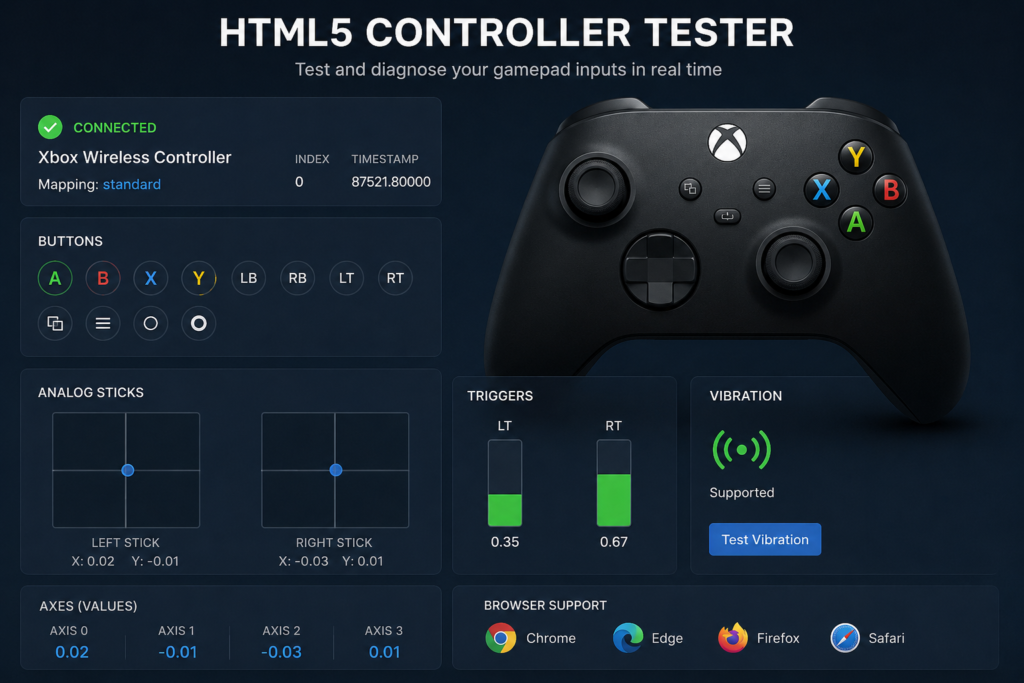
What Data Does a Browser Controller Test Report?
A web tester reads values exposed through the Gamepad object.
| Reported data | What it means |
|---|---|
| Controller ID | A product or controller description supplied by the browser |
| Index | The controller’s position in the browser’s gamepad list |
| Connected | Whether the controller is still available |
| Mapping | Whether the browser uses a known control layout |
| Buttons | Pressed state and pressure value for each exposed button |
| Axes | Horizontal or vertical values from sticks and other axis controls |
| Timestamp | The last reported update time, where supported |
| Vibration actuator | Haptic hardware exposed by the browser, where available |
The controller ID format is not fixed. Browsers may also limit identifying details to reduce fingerprinting risk. A displayed name such as “Unknown Gamepad” does not prove that the controller is faulty.
Button Values
Each exposed button has a pressed state and a numeric value.
A released button normally reports a value near 0. A fully pressed button normally reports 1. Analog controls, including many triggers, may return values between 0 and 1.
Analog Stick Axis Values
Analog sticks are usually shown as pairs of X and Y axes.
Axis values are normalized from -1 to 1. A centered stick should rest around 0. Horizontal movement commonly goes from negative on the left to positive on the right. Vertical movement commonly goes from negative at the top to positive at the bottom.
A value does not need to remain at exactly 0.000 for the controller to be usable. Small changes can come from the stick mechanism, controller calibration, signal noise, browser behavior, or the way the device driver reports the center.
Timestamps
The timestamp property is meant to show when button or axis data was last updated. It can help code decide whether newer controller data has arrived.
It does not reveal the exact physical moment your finger started pressing a button. MDN also notes differences in timestamp support, including a lack of support in Firefox at the time its guide was updated.
Which Browsers Support Online Controller Testing?
The basic Gamepad API is widely available across modern browser families. MDN lists it as a broadly available web feature, while warning that individual parts have different levels of support.
To test the related hardware in your browser, use our online keyboard test.
| Browser | Basic buttons and axes | Points to check |
|---|---|---|
| Google Chrome | Generally available | Haptics and device features depend on the platform and controller |
| Microsoft Edge | Generally available | Behavior can differ by operating system, driver, and connection |
| Mozilla Firefox | Generally available | Some properties, including timestamp behavior, may differ |
| Safari | Basic support is available on supported systems | Controller and vibration support can vary across Apple devices |
| Mobile browsers | Device dependent | Bluetooth support, browser access, and controller mapping may vary |
Browser support does not guarantee that every feature of every controller will appear. A DualSense controller, for example, may expose basic buttons and sticks while browser access to its speaker, microphone, touchpad, adaptive triggers, motion sensors, or advanced haptics remains limited.
For the cleanest diagnosis, use an updated desktop browser first. Then compare the result in another browser if something appears wrong.
Why Test a Gamepad Online Instead of In a Game?
A game may change controller input before showing the result. It can apply a deadzone, remap buttons, combine trigger states, ignore unsupported controls, or pass input through Steam Input or another controller layer.
A browser test gives you a separate view of the controls exposed through the web API.
No Program Installation
A web tester opens in the browser. There is no setup file to install for a basic button, trigger, or stick check.
Downloaded software may still be needed for controller firmware, custom profiles, hardware calibration, or model-specific settings. PlayStation, for example, provides PC software for updating supported DualSense controller firmware and changing certain DualSense Edge settings.
Check Inputs Outside a Game
Testing outside the game helps answer an important question:
Is the unwanted input coming from the controller, or from the game’s settings?
When a button works in the browser but not in one game, the controller may be fine. Check that game’s controller support, input mode, profile, button layout, and Steam Input settings.
Check a Used Controller
A browser check can help buyers and sellers inspect:
- Face buttons
- Shoulder buttons
- Stick clicks
- D-pad directions
- Trigger travel
- Analog stick center movement
- Full stick range
This test cannot confirm the controller’s battery health, internal wear, wireless stability over long sessions, or every console feature.
Can I Test My Controller Online?
Yes. Connect the controller, open the browser tool, and press a button. When the device appears, test each input one at a time.
If the browser displays the controller but the labels look wrong, check its mapping value. A blank mapping can mean the browser is exposing the device without converting it to the standard layout.
How to Test Your Controller Step by Step
- Connect the controller by USB or pair it through Bluetooth.
- Confirm that your computer, phone, or tablet recognizes the controller.
- Open the Gamepad Tester in a modern browser.
- Press a face button to make the controller visible to the page.
- Press each button once. Check that it activates when pressed and clears when released.
- Press the D-pad in all four directions. Watch for a missing direction, a stuck input, or unwanted diagonal presses.
- Leave both analog sticks untouched for several seconds. Look for steady movement away from the center.
- Move each stick slowly up, down, left, and right.
- Rotate each stick around its full outer edge. Check whether the movement reaches every direction.
- Press each trigger slowly. The value should rise as the trigger moves and return when released.
- Run the vibration test only when the tool reports that haptic control is available.
- Repeat the test through USB if the Bluetooth result appears unstable.
- Try another browser before deciding that a missing feature is a hardware fault.
How to Read Your Test Results
A useful result should tell you what was detected, how the number was produced, and what action to take.
Direct Readings and Calculated Results
| Test result | Type of result |
|---|---|
| Button pressed or released | Direct browser reading |
| Button pressure value | Direct browser reading |
| Stick X and Y coordinates | Direct browser reading |
| Trigger value | Direct browser reading |
| Controller ID and mapping | Direct browser reading |
| Drift distance | Calculated from axis readings |
| Center stability | Calculated across several readings |
| Suggested deadzone | Tool estimate based on observed movement |
| Circularity result | Calculated from the stick’s movement path |
| Browser update rate | Estimate based on visible updates |
| Full physical input latency | Not directly measurable by the browser alone |
The W3C interface exposes buttons, axes, mappings, timestamps, and haptic output controls. Drift scores, circularity percentages, health grades, and suggested deadzones are calculations made by the testing site.
Pass, Review, and Unsupported
Pass means the tested input behaved as expected during that session.
Review means the tool saw an unusual or inconsistent pattern. Repeat the test before treating it as a fault.
Unsupported means the browser did not expose that feature. It does not mean the physical part is broken.
What Problems Can a Controller Tester Find?
Button Response and Stuck Inputs
Press a button and watch its state. It should activate promptly and return to its released state when you let go.
A button may need further checking when:
- It never appears in the tester.
- It stays active after release.
- It responds only when pressed hard.
- One press appears several times.
- It activates a different button number.
Retest the same button through USB and in another browser. If the problem repeats across several tools and games, the button mechanism or internal contact may need cleaning or repair.
Analog Stick Drift
Stick drift happens when a controller reports directional movement while the user is not touching the stick.
Leave the controller on a flat surface and keep both sticks untouched. A small center variation does not automatically mean the stick has failed. Look for a repeated pull in one direction that remains present across several tests.
A better drift check records:
- Average center position
- Maximum center movement
- Direction of the movement
- How often it happens
- Whether it changes through USB and Bluetooth
- Whether both sticks are affected
A game may hide small movement through its built-in deadzone. A browser test can show the underlying axis values before the game applies its own control settings.
For diagnosis and repair steps, see our deadzone settings guide.
Deadzone Problems
A deadzone is the area around a stick’s center where movement is ignored. Games use deadzones to prevent minor center movement from moving the camera, character, cursor, or vehicle.
There is no single deadzone number that is right for every controller and every game. A very small setting may reveal slight center noise. A large setting may make aiming feel slow or unresponsive.
Use the lowest setting that prevents unwanted movement during normal play. Treat a suggested value from an online tool as a starting point, not a final rule.
Incomplete Stick Range and Circularity
A stick may return to the center correctly but fail to reach its full range.
Move the stick slowly around the outside edge. Watch for:
- A direction that stops early
- Flat or uneven areas
- Sudden jumps
- A distorted movement path
- Different results between the left and right stick
Circularity is a calculated result. It compares the recorded movement path with an expected outer shape. It does not come directly from the Gamepad API.
Trigger Sensitivity
Analog triggers should normally move through a range rather than acting only as on and off buttons.
Press each trigger slowly. Check whether:
- The value starts near its resting point.
- It rises without sudden jumps.
- It reaches its highest reported value.
- It returns after release.
- Both triggers behave in a similar way.
Some controllers or mappings expose triggers differently. A trigger shown as a button on one device may appear through an axis or another index on a nonstandard controller.
D-Pad Problems
Press Up, Down, Left, and Right separately. Each direction should activate the expected input.
A worn or dirty D-pad can show:
- A missing direction
- A direction that stays pressed
- Unwanted diagonal input
- Two directions from one press
- Different button numbers on a generic controller
Wrong labels can also come from a nonstandard mapping rather than a physical problem.
Vibration and Rumble Motors
A browser may expose a vibration actuator when the controller, operating system, driver, and browser support it. The page can then request effects such as dual rumble.
Haptic support is not available in every major browser and may differ across controller and platform combinations. A failed web vibration test does not prove that the motors are broken. Confirm the result in a supported game, console menu, or official controller app.
For setup, compatibility, or buying details, read our use controllers across platforms.
Input Latency
A browser tester can observe when controller values become available to JavaScript. It may also estimate how often those visible values change.
It cannot measure the full delay from your finger to the final image on the screen without outside equipment.
Full input delay may include:
- Physical switch movement
- Controller scanning
- USB or Bluetooth transfer
- Operating system processing
- Browser processing
- Page rendering
- Game engine processing
- Display refresh and pixel response
The API timestamp marks the last browser-reported input update. It is not a direct measurement of the exact moment the physical button was pressed.
A site should label this result as a browser-side estimate rather than “exact controller latency.”
Which Controllers Can You Test?
The Gamepad API is based on controls exposed by the browser rather than a fixed list of retail controller models. Detection can change with the browser, operating system, firmware, driver, cable, Bluetooth stack, and mapping.
| Controller family | Inputs often available | Possible limits |
|---|---|---|
| Xbox Series and Xbox One controllers | Buttons, D-pad, sticks, triggers | Vibration and naming can vary |
| Xbox 360 controllers | Core controls | Wireless adapters and drivers can affect detection |
| PS5 DualSense | Core buttons, sticks, D-pad, triggers | Touchpad, motion, speaker, adaptive triggers, and advanced haptics may not appear |
| PS4 DualShock 4 | Core controls | Touchpad, motion, light bar, and vibration can vary |
| Nintendo Switch Pro Controller | Buttons, D-pad, sticks | Mapping and haptic support can differ |
| Joy-Con controllers | Device dependent | Separate and paired layouts may be reported differently |
| 8BitDo controllers | Depends on selected input mode | XInput, Switch, DirectInput, and other modes can change the layout |
| Generic USB gamepads | Buttons and axes when recognized | Labels may not match the physical controls |
| Generic Bluetooth gamepads | Device dependent | Pairing, drivers, and mapping can affect results |
The web standard allows recognized devices to use the standard layout while still permitting unrecognized controllers to be exposed without a known mapping.
Is USB or Bluetooth Better for Controller Testing?
Start with the connection you normally use. This shows whether the problem appears in your real gaming setup.
Repeat the test through USB when:
- The controller disconnects.
- Inputs update unevenly.
- The device is not detected.
- Bluetooth pairing fails.
- You want to separate a wireless issue from a controller input issue.
USB removes Bluetooth pairing and radio conditions from the check, but it does not guarantee that every browser feature will work. A charging only cable can also power a controller without carrying controller data.
Bluetooth is useful for checking the wireless connection itself. Keep the controller charged, remove old pairings when needed, and test close to the device before blaming the controller.
Why Does My Controller Show as “Unknown Gamepad”?
The browser’s controller ID is not a fixed public product name. It can depend on the device driver, platform, and privacy rules.
“Unknown Gamepad” may mean:
- The browser received little identifying information.
- The device uses an uncommon ID.
- The driver reports a generic controller.
- The browser does not have a standard mapping for it.
- The page does not recognize the returned ID string.
Test the raw button and axis values. When those values change correctly, the controller can still be usable even if its name is missing.
Why Is My Browser Not Detecting the Controller?
Try these steps in order:
- Press a button after opening the page.
- Check whether the operating system sees the controller.
- Unplug and reconnect it.
- Use another USB port.
- Try a known data-capable cable.
- Charge the controller.
- Remove and pair the Bluetooth device again.
- Close games and controller mapping programs.
- Refresh the page.
- Keep the tester tab active.
- Try Chrome, Edge, Firefox, or Safari.
- Restart the browser.
- Test the controller on another device.
The getGamepads() method returns the controllers currently visible to the page. Empty positions can also appear in the returned array after a controller disconnects.
Why Does the Controller Work in the Tester but Not in My Game?
This usually points toward game support or configuration rather than a dead controller.
Check:
- Whether the game supports controllers
- The selected input mode
- The controller profile
- Steam Input settings
- In-game button mapping
- XInput or DirectInput support
- Deadzone settings
- Whether the game window has focus
- Whether another program is remapping the controller
Steam’s own support pages note that a controller configuration may fail when a game does not support the chosen input style.
Do I Need Controller Testing Software?
You do not need downloaded software for a quick check of buttons, sticks, triggers, or mapping. The browser tool can read the standard inputs exposed through the Gamepad API.
Use official or downloaded software when you need:
- Firmware updates
- Saved controller profiles
- Hardware calibration
- Button remapping
- Trigger curves
- Stick response settings
- Manufacturer-specific features
- Console pairing or recovery
PlayStation Accessories, for example, can update supported controller firmware and edit certain DualSense Edge settings on Windows.
Do I Need to Download the HTML5 Controller Tester?
No. The browser version opens as a web page and reads the controls that the browser can access.
There is no need to search for an installer, APK, EXE, ZIP file, or browser extension for a basic input check.
Is the Controller Tester Free?
Yes. The PadProTools browser tester can be opened without installing controller testing software.
No payment should be required to view basic controller input data. Check the site’s privacy policy to understand how page analytics, advertising, error reports, or exported test data are handled.
Is There a Free Gamepad Tester Download?
A downloaded version is not required for the web test. Keeping the check in the browser also avoids downloading an unknown program from an unofficial source.
Choose official manufacturer software when you need firmware or model-specific settings. Use a trusted open source project only after checking its repository, license, releases, contributors, and source code.
Is an HTML5 Controller Tester Available on GitHub?
Yes, developers have published Gamepad API examples and controller projects on GitHub. W3C also maintains the Gamepad specification and issue discussions through its official repository, while MDN links to code examples for reading connected controllers.
A GitHub project is mainly useful when you want to:
- Study the JavaScript code
- Build your own test page
- Add a new controller layout
- Inspect browser API behavior
- Report a bug
- Contribute a fix
The live PadProTools tester should not be described as open source unless its actual source code is published under a clear license.
HTML5 Gamepad API Tester vs Downloaded Software
| Feature | Browser tester | Manufacturer software | Third party software |
|---|---|---|---|
| Installation needed | No | Usually | Usually |
| Basic button test | Yes | Often | Often |
| Stick and trigger values | Yes, when exposed | Often | Often |
| Works across platforms | Browser and device dependent | Often limited to supported systems | Program dependent |
| Firmware update | No | Often | Usually no |
| Hardware calibration | Limited | Sometimes | Sometimes |
| Button remapping | No | Often | Often |
| Controller profiles | No | Often | Often |
| Browser reported mapping | Yes | Not the main purpose | Not the main purpose |
| Advanced model features | Limited | Usually the best option | Varies |
Use the browser for a quick diagnosis. Use official software for firmware and controller-specific settings. Use a remapping program when a game does not understand the controller layout.
For diagnosis and repair steps, see our Xbox controller issues guide.
What Can a Browser Tester Not Check?
The browser cannot fully inspect every part of a controller.
It may not be able to confirm:
- Battery capacity
- Battery wear
- Internal corrosion
- Loose solder joints
- Wireless stability during long sessions
- Exact physical actuation delay
- Display latency
- Game engine delay
- Console-only functions
- Every touchpad or motion sensor
- Adaptive trigger resistance
- Speaker or microphone condition
The W3C specification focuses mainly on gamepad buttons, axes, touch surfaces where exposed, and supported haptic output. It excludes broader classes of complex sensing from its main scope.
How Controller Test Results Should Be Verified
Do not judge the controller from one number or one short session.
Use this order:
- Repeat the same action several times.
- Compare the left and right controls.
- Test with the normal connection.
- Retest through USB.
- Try another browser.
- Try another device.
- Compare the browser result with a game.
- Use official software when available.
- Repair or return the controller only when the issue repeats.
This process helps separate browser support, connection trouble, game settings, and controller hardware faults.
Privacy and Controller Input Data
The Gamepad API can expose controller state and limited product information to a page after the controller becomes available. The W3C specification warns that controller capabilities may contribute to browser fingerprinting, so browsers can reduce or change the device information they reveal.
A controller testing page should clearly state:
- Whether input readings stay in the browser
- Whether controller IDs are stored
- Whether reports are uploaded
- Whether analytics record test actions
- Whether users can delete saved results
- Which outside scripts load on the page
Do not assume that “browser-based” automatically means that no data leaves the device. The answer depends on the site’s code, analytics, advertising, and storage setup.
FAQS
Is an HTML5 controller tester safe?
The browser API gives the page access to controller inputs and limited device information, not full access to your computer. Use a trusted HTTPS site and read its privacy policy, especially when it offers saved reports or loads advertising and analytics scripts. Browsers may limit controller details to reduce fingerprinting.
Do I need to install drivers?
Not always. Many common controllers are recognized by the operating system without a separate manual driver install. A driver, adapter, or official application may still be needed for older, generic, wireless, or model-specific hardware.
Can an online controller test detect stick drift?
It can display and record movement reported while the stick is untouched. Repeated movement away from the center may point to drift, but the result should be checked through USB, another browser, and a game before treating it as a confirmed hardware fault.
Why must I press a button before the controller appears?
Browsers can wait for user interaction before exposing a connected controller to the page. Pressing a button or moving a control often causes the connection event to become available.
What do axis values from minus one to one mean?
The browser normalizes each exposed axis to a range from -1 to 1. Values near 0 represent the center. Negative and positive values represent opposite directions, such as left and right or up and down.
Why are my buttons numbered instead of named?
The controller may be using a nonstandard mapping, or the page may not recognize its ID. Test each numbered input to identify its physical button. A blank mapping does not stop the controller from reporting inputs.
Can a browser measure exact controller input lag?
No. It can observe browser-visible value changes and may estimate their update timing. It cannot isolate the full delay from physical button movement through the controller, connection, operating system, browser, software, and display.
Why is vibration not working?
The browser, controller, operating system, driver, or connection may not expose haptic control. Vibration support has limited availability and varies across platform and controller combinations. Test it in an official app or supported game before assuming the motors are faulty.
Is USB better than Bluetooth for testing?
USB is useful for ruling out pairing, battery, and wireless connection problems. Bluetooth is useful for checking the setup you normally use. Run both tests when the result is inconsistent.
Can I test PS5, PS4, Xbox, and Switch controllers?
Many controllers from these families can expose their basic inputs through a supported browser and operating system. Exact detection, button mapping, haptics, motion features, and controller names vary by model and connection.
Can I test more than one controller?
The Gamepad API can return several connected devices. Each controller receives an index so the page can keep their inputs separate. A disconnected controller may leave an empty position in the returned list.
Why does my controller work in one browser but not another?
Browsers can differ in mappings, haptic support, timestamps, device IDs, platform integration, and security behavior. Update both browsers, press a button after opening the page, and compare the same controller through USB.
Ready to Test Your Controller?
Connect the controller through USB or Bluetooth, press any button, and check its buttons, analog sticks, triggers, D-pad, mapping, and supported vibration controls.
Technical References
- W3C Gamepad Working Draft, published July 10, 2025.
- MDN Gamepad API documentation, updated December 27, 2025.
- MDN guide to using the Gamepad API.
- MDN documentation for
Navigator.getGamepads(). - MDN documentation for gamepad vibration support.
- Official PlayStation controller support documentation.