
PS5 Controller Not Charging? Find the Cause and Fix It
“”
Last updated: August 16, 2026
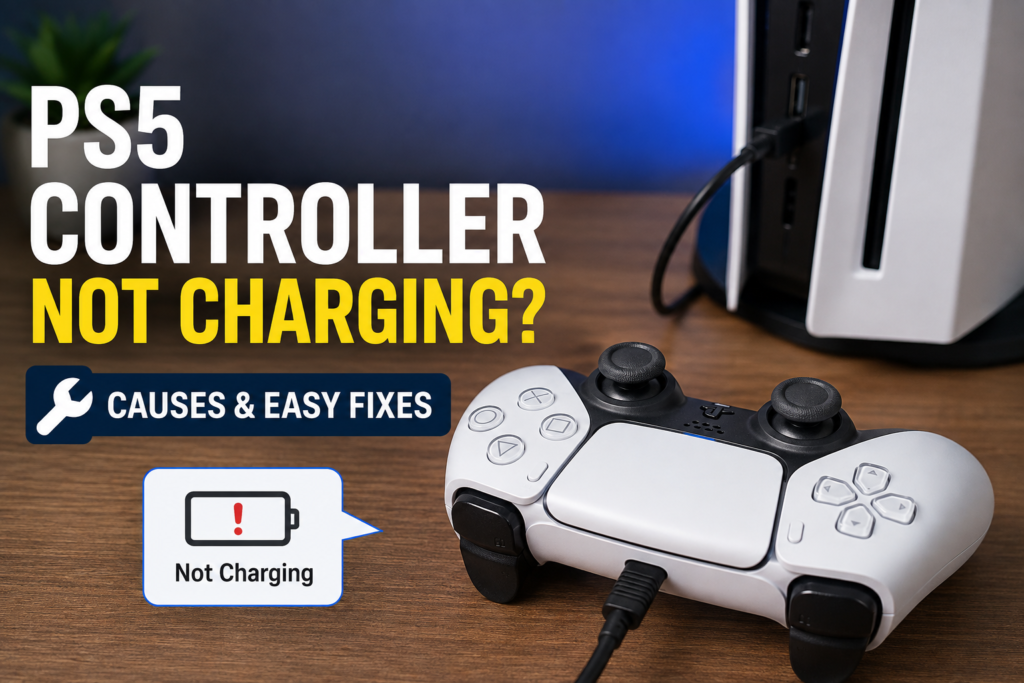
If your PS5 controller is not charging, start with the USB-C cable and the PS5 USB port before assuming the DualSense is broken. Try a known-good charging-and-data cable, switch USB ports, check Rest Mode power settings, reset the controller, and update its software. If it charges but dies quickly after you unplug it, the battery becomes a stronger suspect. html 5 gamepad tester.
The fastest way to solve this is to change one part of the charging setup at a time so you know what actually fixed it.
First, Check Whether Your PS5 Controller Is Actually Charging
Before changing settings or buying another cable, make sure the DualSense really is not charging.
Press the PS button Tester, open the Control Center, and select Accessories. Check the controller battery icon.
When a DualSense is charging, PlayStation shows an animated battery icon with a lightning symbol. When the battery is full, the animation stops and the icon shows three bars.
If you are charging in Rest Mode, the controller light bar slowly pulses orange. When charging is complete, the orange light turns off.
Do not use the orange light alone to diagnose the problem. Check whether the actual battery level increases.
What Color Is the PS5 Controller Light When Charging?
When a DualSense charges while the PS5 is in Rest Mode, its light bar slowly blinks orange. The light turns off once charging is complete.
If you see no orange light, do not immediately assume the battery is dead. The console state, cable, USB port, battery level, and Rest Mode settings can all affect what you see PS5 Keep Overheating.
Why Is My PS5 Controller Not Charging?
The most common places to check are:
- USB-C cable
- PS5 USB port
- Rest Mode USB power settings
- Controller USB-C port
- Controller reset or software
- PC USB power if charging from a computer
- Internal battery
- Internal charging hardware
The easiest way to find the fault is to test these one by one.
PS5 Controller Charging Diagnosis Table
| What happens | What to check next |
|---|---|
| Controller charges with another cable | Original cable |
| Controller charges from one PS5 USB port but not another | Console USB port |
| Controller charges when PS5 is on but not in Rest Mode | Rest Mode power setting |
| Controller charges on a charging station but not USB-C | Cable or controller USB-C port |
| Controller works while plugged in but dies after unplugging | Battery or battery connection |
| Controller reaches full charge but drains very quickly | Battery health |
| Two controllers fail on the same PS5 USB port | Console port or setting |
| Controller charges on PS5 but not PC | PC USB port or power source |
| Multiple cables and power sources fail | Controller hardware becomes more likely |
Use this table to avoid trying random fixes.
How to Fix a PS5 Controller That Is Not Charging
Start with the easiest checks. After every change, check the battery icon again.
1. Try a Different USB-C Cable
Start here.
A cable can look completely normal and still be the problem.
Sony recommends trying another USB cable identified as “charge and sync” or “charging and data.” Its current DualSense support guidance says a cable labeled only “charge only” should not be used for this troubleshooting path.
Connect a known-good cable directly between the DualSense and PS5.
Check the battery icon.
If the controller starts charging, you probably found the problem. Replace the original cable.
If nothing changes, keep the known-good cable connected and move to another USB port.
2. Try Another USB Port on the PS5
Do not assume the controller is bad because one USB port does not charge it.
Sony specifically recommends trying a different PS5 USB port when troubleshooting DualSense charging.
Try another compatible port on the console.
Then check the battery icon again.
If one port works and another does not, the controller and battery may be fine. The original console port becomes the stronger suspect.
If none of the ports work, continue testing.
3. Restart the PS5
Turn the console off normally.
Wait a short moment.
Turn it back on and reconnect the controller using the known-good cable.
Check whether the charging icon appears.
A restart will not repair a damaged charging port or weak battery, but it is a simple way to rule out a temporary console or connection problem.
4. Check for a Loose USB-C Connection
Plug the cable into the controller normally.
Do not force it.
Look for signs such as:
- cable does not sit firmly
- connector feels unusually loose
- charging starts and stops
- charging changes when the cable moves
- plug does not fully seat
- visible damage around the port
If several known-good cables behave the same way, the controller’s USB-C port needs closer attention.
5. Check and Clean the USB-C Port
Turn the controller off and inspect its USB-C port under good light.
Look for:
- lint
- dust
- dirt
- debris blocking the connector
Do not stick metal objects into the port.
Do not pour cleaning liquid into it.
If visible debris is preventing the connector from seating correctly, remove it carefully using an appropriate nonconductive cleaning method.
iFixit also lists charging-port contamination as a problem worth checking before moving into deeper hardware repair.
Reconnect the cable and test again.
6. Reset the DualSense Controller
If the cable and USB port look fine, reset the controller.
Turn off the PS5.
Disconnect the DualSense from the USB cable.
Turn the controller over and find the small reset hole near the Sony logo.
Use a pin or similar small tool to press and hold the reset button for at least five seconds.
Then connect the DualSense back to the PS5 with the USB cable and press the PS button.
Sony recommends this reset procedure when troubleshooting DualSense problems.
Check whether charging starts.
7. Update the Controller and PS5 Software
If the controller still responds, make sure your PS5 system software and DualSense device software are current.
Software will not repair a broken USB-C port or worn battery, but it is worth ruling out before opening the controller.
After updating, reconnect the controller and check the battery level again.
8. Test Charging Again
At this point, check three things:
Does the charging icon appear?
Does the battery level increase?
Does the controller stay powered after you unplug the cable?
Those three answers help separate a charging-input problem from a battery problem.
Why Is My PS5 Controller Not Charging in Rest Mode?
If the controller charges while the PS5 is turned on but stops charging after you enter Rest Mode, check the console’s Rest Mode USB power setting first.
Go to:
Settings > System > Power Saving > Features Available in Rest Mode > Supply Power to USB Ports
Sony currently provides options including:
Always
3 Hours
and Adaptive on supported CFI-2000 PS5 models.
If USB power is disabled or limited, the controller may not continue charging for as long as you expect.
Why Does My Controller Charge When the PS5 Is On but Not in Rest Mode?
That pattern points first toward the PS5’s Rest Mode USB power configuration.
It does not automatically mean the controller battery is bad.
Set Supply Power to USB Ports appropriately, enter Rest Mode again, and check whether the DualSense slowly pulses orange.
Why Does My PS5 Controller Stop Charging After Three Hours?
If Supply Power to USB Ports is set to 3 Hours, power is supplied for only the first three hours after the console enters Rest Mode. Sony says the console reduces power use after that period.
That behavior is expected.
Why Won’t My PS5 Controller Charge When the Console Is Off?
A fully powered-off PS5 and a PS5 in Rest Mode are different.
If the console is completely shut down, do not treat it like Rest Mode.
To charge the DualSense while you are not actively playing, put the PS5 in Rest Mode and enable USB power under:
Settings > System > Power Saving > Features Available in Rest Mode > Supply Power to USB Ports
Sony’s DualSense instructions state that the controller can charge while the PS5 is on or in Rest Mode.
Why Is My PS5 DualSense Controller Not Charging on PC?
This problem needs a separate diagnosis.
A DualSense can be connected to a PC without charging correctly from that specific USB setup.
Sony’s DualSense manual says the controller can be charged from a computer or another USB device using a compliant USB cable, but also warns that some devices may not charge the controller.
Try this:
- Connect the controller directly to another USB port on the PC.
- Avoid a USB hub while diagnosing the problem.
- Use a known-good charging-and-data cable.
- Leave the controller connected and check whether its battery level actually increases.
- Test the same controller and cable on the PS5.
If it charges normally from the PS5 but not the computer, investigate the PC USB setup before blaming the DualSense battery.
My DualSense Connects to PC but Does Not Charge
A working data connection does not automatically prove the battery is being charged correctly.
Your PC may recognize controller input while the battery still fails to gain charge from that particular USB port or setup.
Try another direct USB connection.
Then compare it with charging from the PS5.
Should I Use a USB Hub?
For diagnosis, connect the DualSense directly to the computer first.
Removing the hub gives you one less part to troubleshoot.
If direct charging works but the hub does not, you have narrowed the problem down without opening the controller.
PS5 Controller Not Charging and No Light?
If your PS5 controller shows no orange light, check more than the LED.
Try:
- Another charging-and-data cable
- Another PS5 USB port
- The battery indicator in Control Center
- A controller reset
- Another power source
- Rest Mode USB settings
If the controller is completely unresponsive across several known-good cables and power sources, battery or internal hardware failure becomes more plausible.
PS5 Controller Orange Light but Not Charging
An orange light during Rest Mode usually indicates charging activity.
But if the controller keeps showing charging behavior and the battery level never increases, test the actual battery status instead of relying on the light.
Try another cable and USB port.
Leave the controller connected.
Then check the battery level again.
If there is still no increase, continue to battery and hardware diagnosis.
Why Is My PS5 Controller Not Holding a Charge?
This is different from a controller that never charges.
If the DualSense reaches a full charge but runs out of power unusually fast afterward, battery health becomes more relevant.
Signs include:
- battery reaches full but drops quickly
- controller turns off soon after being unplugged
- controller works normally while wired
- battery runtime has become much shorter over time
- charging appears normal but usable wireless time is very short
iFixit notes that older DualSense batteries may eventually stop holding charge and documents battery replacement for multiple DualSense revisions.
PS5 Controller Works Plugged In but Dies When Unplugged
First confirm that the controller actually reached a meaningful charge level.
If the PS5 shows that the battery charged but the controller shuts off shortly after you remove the cable, the battery or its internal connection becomes a stronger suspect.
At this point, swapping more USB cables may not solve the real problem.
Can the PS5 Controller Battery Be Replaced?
Yes.
The DualSense battery is internal, so replacing it requires opening the controller.
iFixit publishes battery replacement procedures for several DualSense revisions, which also shows why checking your exact controller model matters before buying parts or following a teardown.
Do not assume every charging issue requires a new battery.
Replace or repair the battery only after you have ruled out the cable, console USB ports, settings, and controller charging input.
If a lithium battery appears swollen, stop using the controller and handle it as a damaged battery rather than continuing normal charging attempts.
Use a DualSense Charging Station to Narrow Down the Problem
A charging station can be useful for more than convenience.
Sony’s DualSense Charging Station can charge up to two controllers, and Sony says the controllers charge as quickly as when connected directly to the PS5.
The station also gives you another charging path to test.
If:
USB-C charging fails
but
charging station works
then the battery can clearly accept charge through the dock.
That makes the USB-C cable, USB-C port, or related charging path more important to investigate.
What If One Controller Charges on the Dock but Another Does Not?
If the same charging position works for one DualSense but not another, the noncharging controller becomes the stronger suspect.
Swap positions to confirm.
What If Neither Controller Charges?
Check the charging station power connection, adapter, outlet, and how the controllers are seated before assuming both controllers failed at once.
Is the USB-C Port on My PS5 Controller Broken?
A damaged USB-C port becomes more likely when:
- several known-good cables fail
- connector feels loose
- charging cuts out when the cable moves
- cable does not seat properly
- visible physical damage is present
- charging station works but USB-C charging does not
A physically damaged USB-C port is a hardware problem.
Resetting the controller or changing Rest Mode settings will not repair broken metal, solder joints, or charging hardware.
Port replacement can require electronics repair and soldering.
If you do not already have that experience, get a repair quote rather than learning on the controller’s circuit board.
Why Is My PS5 Controller Charging but Not Turning On?
Charging and powering on are related, but they are not the same fault.
If the battery appears to charge but the controller will not turn on:
- Connect it directly to the PS5 using a known-good USB cable.
- Press the PS button.
- Reset the DualSense.
- Reconnect it to the console.
- Make sure the PS5 system software is current.
- Check whether the controller shows any response at all.
If charging signs are present but the controller remains completely unresponsive, move beyond basic charging troubleshooting and consider an internal power or hardware problem.
Why Is My PS5 Controller Not Charging With USB-C?
If USB-C charging fails, isolate the path.
Try:
Another cable
If that works, replace the first cable.
Another PS5 USB port
If that works, investigate the first console port.
A charging station
If the station works while USB-C does not, inspect the controller’s USB-C charging path.
Another DualSense on the same cable
If another controller charges normally, the original DualSense becomes the stronger suspect.
This is much more useful than replacing parts without knowing which side of the connection failed.
What Charger Can I Use for a PS5 Controller?
The simplest charging method is connecting the DualSense to the PS5 using an appropriate USB cable.
Sony also says a USB-standard-compliant charger may be used, but it specifically warns that not every USB charger can charge the DualSense.
The official DualSense Charging Station is another option and can charge two controllers without occupying the PS5’s USB ports.
Do not assume every phone charger, adapter, cable, or USB hub will behave the same way.
Can I Charge a PS5 Controller With a Phone Charger?
A compatible USB-standard-compliant charger may work.
But Sony does not say that every phone charger will work with DualSense. In fact, its support guidance specifically warns that not all USB chargers are capable of charging the controller.
If you are troubleshooting, use the PS5 and a known-good compatible cable first. That removes another variable from the test.
When Is the Battery or Controller Hardware Probably the Problem?
Hardware becomes more likely after the easy causes have been ruled out.
Pay more attention to the controller itself when:
- several known-good cables fail
- several PS5 USB ports fail with this controller
- another controller charges normally using the same setup
- the DualSense will not charge from USB-C or a known-good dock
- battery shows full but dies shortly after unplugging
- controller works only while wired
- USB-C port is visibly damaged
- charging stops whenever the connector moves
- liquid damage or corrosion is visible
iFixit notes that charging problems can ultimately involve the battery, charging assembly, or motherboard when simpler causes have been eliminated.
When Should You Stop DIY Troubleshooting?
Stop before deeper DIY repair if:
- battery is swollen
- USB-C port needs soldering
- liquid damage is visible
- circuit board has corrosion
- connector has broken away from the board
- controller has several unrelated failures
- you are not comfortable opening electronics
- the controller may still qualify for warranty service
A cable problem is cheap.
A damaged circuit board is not.
Do not turn the first problem into the second one.
Will Sony Repair a PS5 Controller That Won’t Charge?
If the controller still will not charge after basic troubleshooting, PlayStation provides a hardware repair path for controllers.
Sony’s US Hardware & Repairs support directs users to PlayStation Repairs for controller and other PlayStation hardware problems.
Check warranty and repair eligibility before opening a controller that may still qualify for service.
Do not assume the repair will automatically be free. Coverage depends on the controller, purchase details, fault, warranty status, and Sony’s terms.
Should You Repair or Replace a PS5 Controller That Won’t Charge?
Use the diagnosis first.
| Situation | Best next move |
|---|---|
| Different cable fixes it | Replace cable |
| Different PS5 port works | Investigate original USB port |
| Rest Mode setting was wrong | Correct the setting |
| Controller charges on PS5 but not PC | Investigate PC USB setup |
| Dock works but USB-C does not | Inspect USB-C charging path |
| Controller charges but drains very quickly | Check battery |
| Controller works only while plugged in | Battery diagnosis |
| USB-C port is physically damaged | Get repair quote |
| Swollen battery | Stop using and replace safely |
| Liquid or board damage | Professional repair |
| Controller may still be covered | Check PlayStation support |
| Repair price is close to replacement cost | Compare both options |
The cheapest repair is the one you diagnose correctly before buying parts.
PS5 Controller Not Charging Quick Checklist
Use this order:
1. Check the battery icon in Control Center
2. Try a known-good charging-and-data USB-C cable
3. Try another PS5 USB port
4. Restart the PS5
5. Check the controller USB-C connection
6. Inspect the port for visible debris
7. Check Rest Mode USB power settings
8. Reset the DualSense
9. Update the PS5 and controller software
10. Compare charging on PS5 and PC
11. Test a charging station if available
12. Check whether the controller holds charge after unplugging
13. Consider battery or hardware repair only after those tests fail
FAQS
Why is my PS5 controller not charging?
A bad USB-C cable, faulty USB port, Rest Mode power setting, dirty or damaged controller port, software problem, weak battery, or internal hardware fault can stop a DualSense from charging. Start with another charging-and-data cable and another PS5 USB port.
How do I fix a PS5 controller that is not charging?
Try a known-good cable, switch PS5 USB ports, restart the console, check Rest Mode USB power, reset the controller, update its software, and inspect the USB-C port. If the controller charges but dies quickly after unplugging, investigate the battery.
Why is my PS5 controller plugged in but not charging?
Being physically connected does not guarantee that the battery is receiving charge. Check the battery icon, try another charging-and-data cable, and use another PS5 USB port.
Why is my PS5 controller not charging with USB-C?
The cable, PS5 USB port, controller USB-C connector, or internal charging hardware may be responsible. Try another known-good cable and console port first.
Why is my PS5 controller not charging on PC?
Some computer USB setups may not charge DualSense correctly. Sony says the controller can charge from a computer or another USB device, but some devices may not support charging. Try another direct USB port and compare the same controller on your PS5.
Why does my DualSense connect to my computer but not charge?
A working controller connection does not automatically prove that its battery is gaining charge. Try another direct USB port, avoid a hub during testing, use a known-good cable, and compare the result with your PS5.
Why won’t my PS5 controller charge when the console is off?
A fully powered-off PS5 is different from Rest Mode. To charge while you are not playing, use Rest Mode and enable Supply Power to USB Ports under the PS5 Power Saving settings.
Why is my PS5 controller not charging in Rest Mode?
Check Settings > System > Power Saving > Features Available in Rest Mode > Supply Power to USB Ports. Set an appropriate option such as Always or 3 Hours. Adaptive is available on supported CFI-2000 consoles.
Why is my PS5 controller not charging and showing no light?
No light does not automatically mean the battery is dead. Try another cable and USB port, check the Control Center battery icon, reset the controller, and confirm the console is supplying USB power.
What does the orange light mean when charging a PS5 controller?
While charging in Rest Mode, the DualSense light bar slowly blinks orange. When charging is complete, the light turns off.
Why is my PS5 controller charging but not turning on?
Reset the controller, reconnect it directly to the PS5 using USB, and press the PS button. If it shows charging activity but remains completely unresponsive, the problem may involve pairing, battery power delivery, or internal controller hardware.
Why does my PS5 controller work plugged in but die when unplugged?
If the battery genuinely reaches a charge but the controller shuts down shortly after the cable is removed, battery health or the internal battery connection becomes a stronger suspect.
Why is my PS5 controller not holding a charge?
Rechargeable batteries lose capacity as they age. If your DualSense reaches full charge but drains unusually quickly, the internal battery may be worn. iFixit documents battery replacement for several DualSense revisions.
Can I replace the battery in a PS5 controller?
Yes. The DualSense battery is internal, so replacement requires opening the controller. Check your exact controller revision before buying a replacement battery or following a teardown guide.
Can I charge a PS5 controller with a phone charger?
A compatible USB-standard-compliant charger may work, but Sony warns that not every USB charger can charge the DualSense. Use the PS5 and a known-good cable when troubleshooting.
Can a DualSense charging station bypass a bad USB-C charging connection?
It can provide another way to charge the controller. If the controller charges normally on a known-good DualSense Charging Station but repeatedly fails through USB-C, investigate the cable and controller USB-C charging path. Sony says its official station charges DualSense controllers as quickly as connecting them to the PS5.
How do I know if my DualSense USB-C port is broken?
Suspect the port when several known-good cables fail, the plug feels loose, charging cuts in and out when the connector moves, or the controller charges through a dock but not through USB-C.
Will Sony repair a PS5 controller that will not charge?
PlayStation offers hardware troubleshooting and a PlayStation Repairs service for controllers. Whether the repair is covered depends on your controller’s warranty and the cause of the fault.
How This Guide Was Verified
This guide was checked against current PlayStation guidance for DualSense charging, charging indicators, compatible USB cables, Rest Mode USB power, controller reset procedures, charging stations, and PlayStation Repairs. Battery and internal hardware information was cross-checked against current iFixit DualSense repair documentation. No unsupported charging percentages or guaranteed DIY success rates were used.


One Comment