
“By Airam Chandler”
Technical references verified: July 29, 2026
Check every key on your keyboard in seconds with this free online Keyboard Tester. Press any key to see it respond on the virtual keyboard in real time. Whether you’re checking a laptop keyboard, a mechanical keyboard, or a wireless keyboard, the tool helps you find unresponsive keys, repeated inputs, and common keyboard problems without installing any software.
What Is a Computer Keyboard Test?
A computer keyboard test checks whether every key on your keyboard sends the correct input when you press it. It helps you confirm that keys respond as expected and can reveal problems such as unresponsive keys, repeated keystrokes, or multiple keys that fail to register. A browser-based keyboard test is often the fastest way to check your keyboard because you can use it immediately without installing additional software.
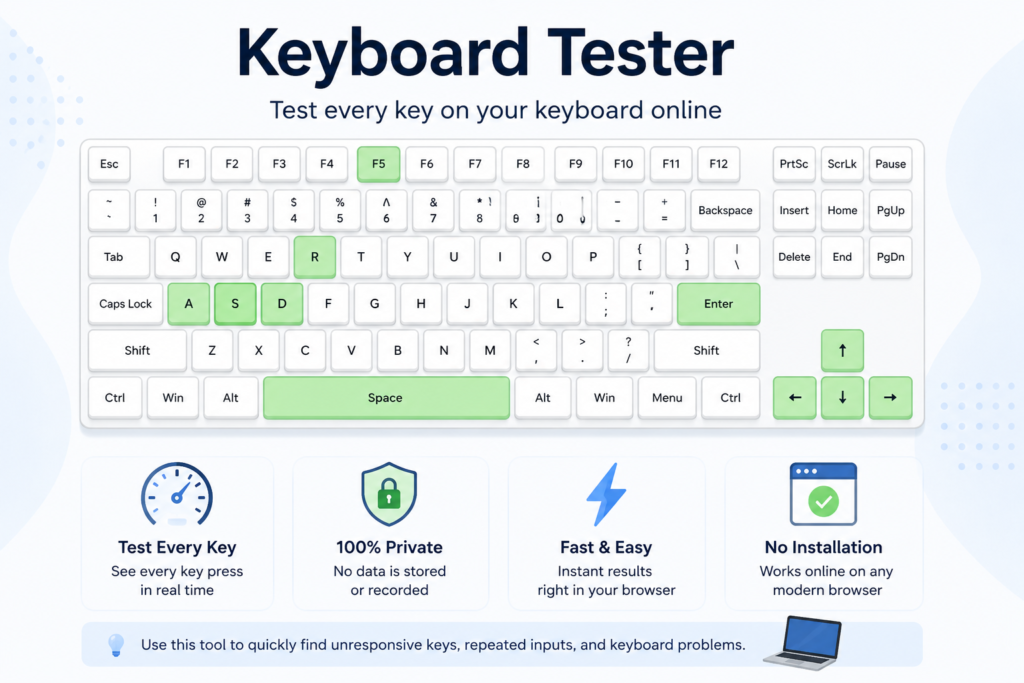
A keyboard problem does not always mean the hardware is damaged. Dust under a keycap, an incorrect keyboard layout, outdated drivers, accessibility settings, or a weak wireless connection can all affect how your keyboard behaves. Testing the keyboard first helps narrow down the possible cause before you spend time repairing or replacing it.
Common Keyboard Problems This Tool Can Help Identify
When a key behaves differently than expected, it usually follows a recognizable pattern.
| Problem | What You May Notice | Possible Cause | What to Do Next |
|---|---|---|---|
| Unresponsive key | Nothing happens when the key is pressed | Dust, damaged switch, hardware fault | Clean the keyboard and test again before checking the drivers |
| Repeated characters | One press types the same letter twice or more | Key chatter, worn switch, firmware issue | Test repeatedly, then inspect or update the keyboard if it continues |
| The wrong character appears | Pressing one key types another | Incorrect keyboard layout or language settings | Verify the operating system’s keyboard layout |
| Several keys fail together | A group of nearby keys does not respond | Hardware connection, liquid damage, keyboard matrix issue | Restart and retest; if the pattern remains, inspect the keyboard |
| Keys drop during gaming | Some keys fail when several are pressed together | Limited key rollover or ghosting | Perform a multi-key test using this tool |
| Wireless delays | Input appears after a short delay | Low battery, Bluetooth interference, weak signal | Replace batteries, reconnect, or move closer to the receiver |
A quick keyboard test can often tell you whether the issue is isolated to a single key or affects a larger section of the keyboard which makes troubleshooting much faster.
What Is Key Ghosting?
Key ghosting happens when a keyboard cannot correctly detect several keys pressed at the same time. Instead of registering every key, one or more inputs may be ignored or an unexpected input may appear. This limitation comes from the way some keyboards are designed to scan their internal key matrix.
For everyday typing, most people never notice ghosting. It becomes more noticeable during gaming, shortcuts, or other tasks where several keys are pressed together.
You can run a simple ghosting check by pressing three or more keys at the same time while watching the virtual keyboard. If every key lights up correctly, your keyboard supports that combination. If one key fails to register, the keyboard likely has a rollover limitation rather than a broken switch.
Key Ghosting vs. Key Rollover
| Feature | Basic Key Rollover | 6-Key Rollover | N-Key Rollover (NKRO) |
|---|---|---|---|
| Simultaneous key detection | Limited | Up to six non-modifier keys | Every key is detected together |
| Common on | Budget keyboards | Many modern keyboards | High-end gaming/enthusiast keyboards |
| Best for | Everyday typing | General use and gaming | Competitive gaming, professional workflows |
Not every keyboard is built with N-Key Rollover. Many office keyboards intentionally use simpler hardware because most users never press large key combinations at once.
Supported Devices, Layouts & Operating Systems
This Keyboard Tester works with most physical keyboards your browser can detect, including desktop, laptop, mechanical, membrane, USB, Bluetooth, wireless, and gaming keyboards.
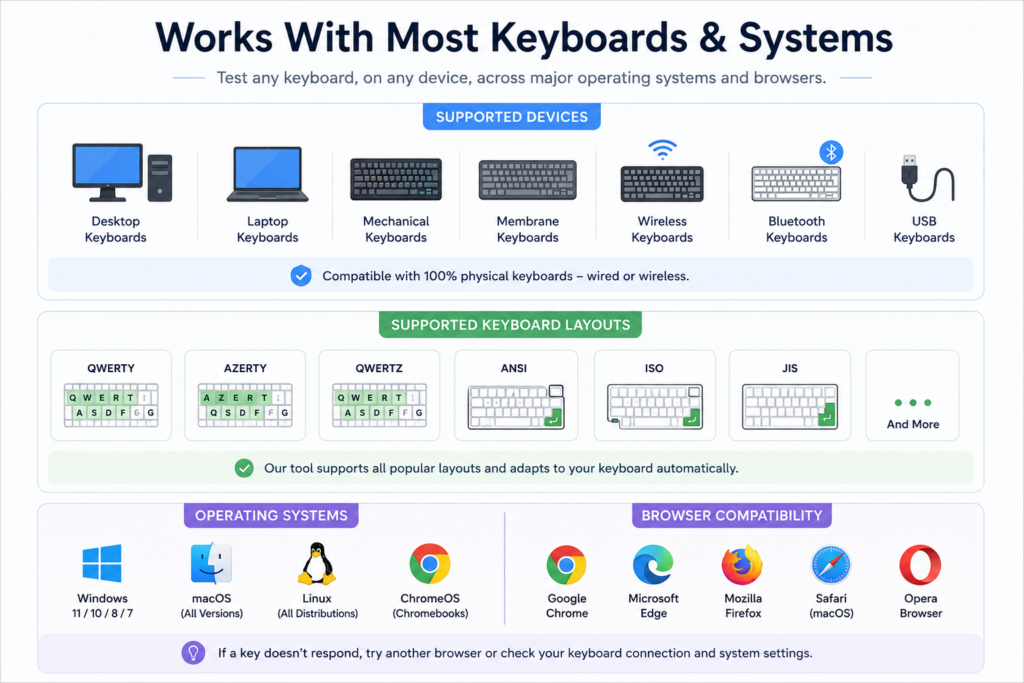
Layouts supported: QWERTY, AZERTY, QWERTZ, ANSI, ISO, JIS
Operating systems: Windows 11, Windows 10, macOS, Linux, ChromeOS. Most keyboards work without extra configuration on any of these.
Browsers: For the most reliable results, use an up-to-date version of Chrome, Edge, Firefox, or Safari. Browser updates occasionally change how special keys or media keys are handled, so if one key won’t register, testing in a second browser is a fast way to rule out a browser-specific quirk.
To test the related hardware in your browser, use our browser controller testing guide.
A few notes by platform:
- macOS: Command, Option, and Fn may behave differently depending on browser and system settings; test these individually for the clearest read.
- ChromeOS: Some shortcut combinations are reserved by the OS itself, so certain keys may trigger a system action before the browser ever receives the input.
- Media keys and manufacturer macros: Behavior varies by keyboard, browser, and OS if one doesn’t register, that’s expected and not necessarily a fault.
If a key doesn’t respond during testing, reconnect the keyboard and check your system’s layout/language settings before assuming the hardware has failed.
Mechanical vs. Membrane vs. Laptop vs. Wireless vs. Gaming Keyboards
Different keyboard types behave differently and develop different problems over time. Use this table as your starting diagnostic reference, then jump to the Troubleshooting Guide below for the fix.
| Keyboard Type | How It Works | Common Problems | What to Test For |
|---|---|---|---|
| Mechanical | An individual switch under every key | Worn switches, key chatter, dust | Keys that register twice or not at all; compare one switch against its neighbors |
| Membrane | Rubber dome beneath the keys | Reduced responsiveness after heavy use | Every key — wear is often uneven across the board |
| Laptop | Compact, built into the chassis | Dust, liquid damage, loose internal cables | Compare nearby keys to spot a pattern before opening the case |
| Wireless / Bluetooth | Radio or Bluetooth connection to a receiver | Battery drain, signal interference, input delay | Confirm a stable connection first — most “dead key” reports are actually connection issues |
| Gaming | Built for multiple simultaneous presses | Firmware settings, rollover limitations | Press several keys together to verify rollover performance |
No keyboard type is immune to problems regular testing catches most of them early, before they get worse.
Troubleshooting Guide
Start with the symptom that matches what you’re seeing.
One Key Is Not Working
- Press the key several times to confirm it’s consistent.
- Press the surrounding keys to compare.
- Check for dust or debris around the key; compressed air usually clears it.
- Restart your computer and test again.
- On a mechanical keyboard with hot-swappable switches, try replacing just that switch.
A single dead key is almost always dirt, wear, or physical damage not a software issue.
Several Keys Are Not Working
Look for a pattern: an entire row, a cluster of nearby keys, or only your shortcut keys.
Likely causes: hardware damage, liquid exposure, a loose internal cable (laptops), a keyboard matrix failure, or a driver/firmware issue.
Restart and retest. If the same group still fails, it’s more likely hardware than software.
The Entire Keyboard Isn’t Detected
- Disconnect and reconnect it.
- Try a different USB port (wired) or replace/recharge batteries and re-pair (wireless).
- Restart the computer.
- Test the keyboard on a second device; if it works there, the problem is your original system’s settings, not the keyboard.
Wrong Characters Appear
This usually means the keyboard is working fine, but the layout is wrong. Check your keyboard language, input method, regional settings, and OS layout — for example, an AZERTY layout active while you’re expecting QWERTY will shift several keys.
Function Keys (F1–F12) Don’t Work
Many laptops route the function row to media controls by default. Try holding Fn, check your OS keyboard settings, and look for a relevant firmware option if your manufacturer provides one.
Number Pad Doesn’t Respond
Check whether Num Lock is enabled; with it off, the numeric pad performs navigation instead of entering numbers.
Modifier Keys Don’t Respond
Test Shift, Ctrl, Alt, Fn, and the Windows/Command key individually. Some applications intercept these keys, so close other software and retest in a plain browser tab.
Wireless Keyboard Feels Slow
Replace the batteries, move closer to the receiver, clear nearby wireless interference, reconnect, and check for a firmware update if your manufacturer offers one. This is usually temporary and doesn’t mean the keyboard is faulty.
Quick Fixes Checklist
If you’re not sure where to start, work through these in order; they resolve most issues without needing to open the keyboard or replace anything:
- Clean it with compressed air (power off first)
- Restart your computer
- Reconnect the cable / re-pair Bluetooth / try a different USB port
- Check keyboard language and input settings
- Update drivers or firmware if available
- Test the keyboard on a second device to isolate the keyboard vs. the system
Keyboard Latency and Input Delay
Keyboard latency is the time between pressing a key and your computer registering that input. For everyday typing, small differences are rarely noticeable; competitive gaming and fast-paced applications are far more sensitive to them.
For setup, compatibility, or buying details, read our controller compatibility guide.
Factors that affect latency include connection type, polling rate, wireless signal quality, background software, and overall system performance.
This tool confirms whether a key is detected correctly. It does not directly measure latency, but consistent registration across repeated presses is a good sign your keyboard itself isn’t the bottleneck.
When Should You Replace a Keyboard?
Replacement is usually the more practical option when:
- Multiple keys have permanently stopped working
- Liquid damage has affected large sections of the board
- Switches keep failing even after cleaning
- Repair costs more than a new keyboard would
Testing first helps you avoid replacing hardware that didn’t actually need it.
How This Keyboard Tester Works
The tool listens for keyboard events generated by your web browser. Each time you press a key, the browser reports that event, and the corresponding key on the virtual keyboard changes its visual state, first showing it’s held, then confirming it registered correctly on release.
This lets you confirm each key individually, test several keys together for rollover/ghosting, verify modifier keys, and spot patterns that suggest a hardware vs. software issue. Because the test runs inside your browser, exact results can vary slightly by operating system, browser, and keyboard model.
Privacy and Security
Your key presses are processed entirely within your browser using standard JavaScript keyboard events. They are not transmitted to, logged by, or stored on our servers. No account or sign-up is required, and no software is installed on your device. You can close the tab at any time, and nothing about your session is retained.
Keep Your Keyboard Working Well
- Clean it regularly with compressed air
- Keep food and drinks away from it
- Update keyboard software/firmware when available
- Replace weak batteries in wireless keyboards promptly
- Disconnect and reconnect external keyboards if they start behaving oddly
- Re-test after spills, repairs, or major OS updates
A quick check only takes a minute and can catch small issues before they become bigger ones.
FAQS
What is the best online keyboard tester?
A good one detects every key accurately, supports common keyboard layouts, works in modern browsers, and requires no software installation. It should also help identify problems like unresponsive keys, repeated inputs, and rollover limitations.
How do I use a keyboard tester?
Open the tool, click anywhere on the page, and press every key. Each working key is highlighted on the virtual keyboard. If a key never responds, repeat the test before troubleshooting.
What does an online keyboard test do?
It checks whether your browser receives input from each key, helping identify unresponsive keys, repeated keystrokes, modifier key issues, and rollover limitations.
Can I test my laptop keyboard online?
Yes. Press every key and compare results against the on-screen keyboard to spot keys that don’t respond correctly.
Does this Keyboard Tester work on a Mac?
Yes. Command, Option, and Fn may behave slightly differently than on Windows, depending on browser and system settings.
Do I need to download a keyboard tester?
No, it works entirely in the browser. Just open the page and start testing.
Can I test a 60% keyboard?
Yes. The virtual layout may show extra keys your physical keyboard doesn’t have; that’s normal.
Can this tool detect key ghosting?
Yes, press multiple keys at the same time and watch for any that fail to register. That’s a sign of a rollover limitation rather than a broken key.
Why are some keys not lighting up?
Possible causes: dust, hardware damage, an incorrect layout, disabled keys, a connection issue, or a browser limitation. Reconnect or restart and test again.
Why does my keyboard type the same letter twice?
Usually key chatter, a worn switch, debris, or a firmware/driver issue. Testing the key several times helps confirm whether it’s consistent.
Can I test function keys?
Yes, press each one individually. Some laptops require holding down Fn, depending on system configuration.
Does this tool test media keys?
Many are detected, but support varies by keyboard, browser, and OS.
Can I test a wireless or Bluetooth keyboard?
Yes, the same way as a wired one. If input is delayed, check the battery and reconnect before retesting.
For diagnosis and repair steps, see our check controller deadzone.
Does this tool store my keystrokes?
No. Key presses are processed locally in your browser and are never sent to or stored on our servers.
What’s the difference between a keyboard tester and a typing test?
A keyboard tester checks whether each key works. A typing test measures your typing speed and accuracy. Different tools, different purposes.
Related Tools
Changelog
- Improved keyboard detection
- Expanded browser compatibility information
- Consolidated troubleshooting guidance into a single symptom-based section
- Added explanations for key ghosting and N-Key Rollover
- Clarified privacy and data-handling language
- Updated compatibility information for Windows, macOS, Linux, and ChromeOS
Future updates will include additional keyboard layouts, expanded accessibility guidance, and support information for new devices as web standards evolve.
References
This page is based on publicly available documentation and widely accepted keyboard behavior across modern operating systems and browsers:
- Mozilla Developer Network (MDN) Keyboard Events
- Google Chrome Developers Keyboard Input Events
- Microsoft Windows Keyboard Documentation
- Apple Keyboard User Guide
- USB Human Interface Device (HID) specifications
- W3C UI Events Specification
Final Thoughts
A keyboard issue doesn’t always mean the hardware has failed. Often, the cause is something simple: an incorrect layout, a temporary connection problem, dust under a key, or a setting that changed after an update.
Running a keyboard test is one of the fastest ways to understand what’s happening before you move to more advanced troubleshooting. Checking every key individually and watching the results tells you whether the problem is isolated to one key, a group of keys, or the whole board.
Whether you’re using a desktop, a laptop, a gaming keyboard, or a wireless keyboard, regular testing helps you catch problems early, confirm a repair worked, and make sure every key does what it’s supposed to.