
PlayStation Wireless Gaming Guide: Controller Buttons, Headsets, Setup, and Testing
Last updated: July 7, 2026
“”
Reviewed using: Sony PlayStation controller support pages, DualSense button documentation, PlayStation headset support, MDN Gamepad API documentation, and the W3C Gamepad standard. Sony confirms DualSense Bluetooth and USB support on several devices, including Windows, Mac, Android, iPhone, and iPad, with some feature limits depending on device and game support.
PlayStation wireless gaming sounds simple. Press the PS button, connect the controller, put on the headset, and start playing.
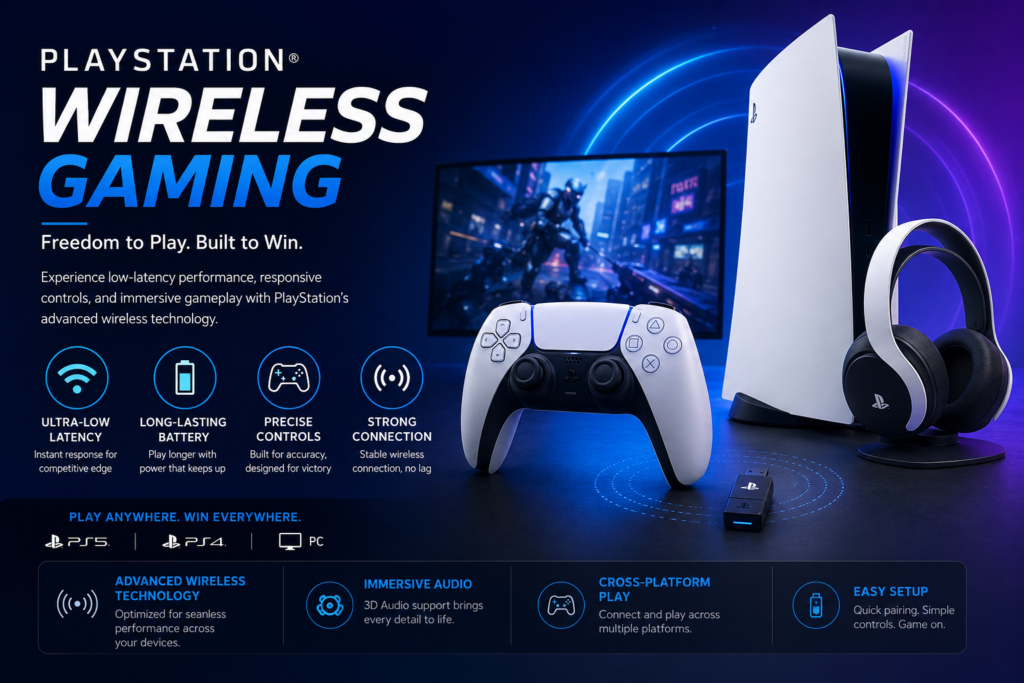
But when the controller does not pair, the buttons feel mixed up, the headset has no sound, or the stick starts moving by itself, you need a quick way to check what is actually wrong.
This page explains PlayStation wireless controllers, PS5 controller button names, R1, R2, R3, headset setup, Bluetooth issues, USB testing, and how to use a gamepad tester before you replace anything.
What PlayStation Wireless Gaming Means
PlayStation wireless gaming means using your controller, headset, mic, and supported accessories without keeping everything plugged into the console during normal play.
For most players, it includes a DualSense controller on PS5, a DUALSHOCK 4 controller on PS4 or PC, a wireless headset for game audio and chat, Bluetooth pairing on supported devices, and online controller testing when something feels off.
The main thing to know is this: wireless does not always mean every feature works everywhere. Sony says DualSense features such as haptic feedback, adaptive triggers, built-in mic, speaker, and headset jack support can depend on the device, connection type, and game support.
So if your controller works perfectly on PS5 but feels basic on a phone or laptop, it may not be broken. The device may only support normal button and stick input.
PlayStation Wireless Controllers Explained
PlayStation has more than one controller type, and each one fits a different kind of player.
| Controller | Best for | What to check |
|---|---|---|
| DualSense wireless controller | PS5 and supported devices | Buttons, sticks, triggers, battery, pairing |
| DualSense Edge wireless controller | Players who want custom controls | Back buttons, profiles, trigger settings, stick modules |
| DUALSHOCK 4 wireless controller | PS4, PC, and mobile use | Buttons, touch pad, sticks, Bluetooth |
| Access controller | Custom accessibility setups | Button mapping, profiles, input response |
The DualSense controller has two analog sticks, a touch pad, action buttons, shoulder buttons, triggers, a PS button, a mute button, a built-in mic, a speaker, haptic feedback, and adaptive triggers. Sony describes the DualSense as supporting haptic feedback and adaptive triggers, while also noting that these features depend on supported games and devices.
For setup, compatibility, or buying details, read our use controllers across platforms.
The simple way to think about it is this: every button, stick, and trigger sends an input signal. If the signal is clean, your game responds correctly. If the signal is wrong, you may get missed buttons, stick drift, trigger problems, or delay.
PS5 Controller Button Names
A lot of players search for PS5 controller button names because games and PC apps do not always show PlayStation labels clearly.
Sony’s PS5 button page lists the main DualSense controls, including directional buttons, Create button, touch pad, Options button, action buttons, right stick with R3, PS button, mute button, left stick with L3, R1, R2, L1, and L2.
| Button name | Where it is | What it usually does |
|---|---|---|
| Cross | Bottom face button | Select, jump, confirm, action |
| Circle | Right face button | Back, cancel, dodge, action |
| Square | Left face button | Reload, interact, attack, shortcut |
| Triangle | Top face button | Switch weapon, open menu, extra action |
| D-pad | Left side buttons | Menu movement, quick items, commands |
| Left stick | Left analog stick | Movement |
| L3 | Press left stick down | Sprint, crouch, movement action |
| Right stick | Right analog stick | Camera or aim |
| R3 | Press right stick down | Melee, zoom, camera reset, special action |
| L1 | Left shoulder button | Block, tab switch, ability |
| L2 | Left trigger | Aim, brake, charge, defend |
| R1 | Right shoulder button | Attack, tab switch, ability |
| R2 | Right trigger | Shoot, accelerate, heavy attack |
| PS button | Center button | Opens Control Center on PS5 |
| Create button | Left of touch pad | Screenshots, clips, capture menu |
| Options button | Right of touch pad | Game menu or settings |
| Mute button | Under PS button | Mutes controller mic and speaker |
Quick tip: L3 and R3 are not extra buttons on the shell. They mean clicking the analog sticks down.
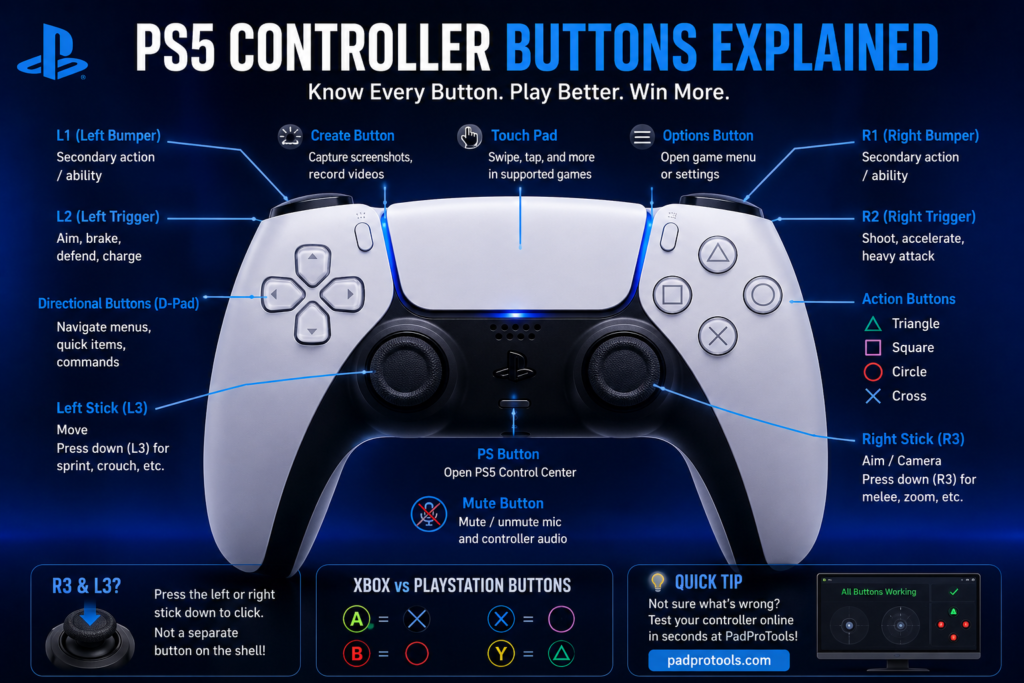
What Is Y on a PS5 Controller?
The PS5 controller does not have a Y button.
Y is an Xbox button name. On a PlayStation controller, the top face button is Triangle.
| Xbox-style label | PlayStation button |
|---|---|
| A | Cross |
| B | Circle |
| X | Square |
| Y | Triangle |
This matters a lot on PC. Some Steam games, browser games, emulators, and cloud gaming apps show Xbox-style prompts even when you are holding a PlayStation controller.
If the screen says “Press Y,” try Triangle.
What Is R1, R2, and R3 in PS5 Games?
R1, R2, and R3 are all on the right side of the controller, but they are not the same.
| Name | Meaning | Common use |
|---|---|---|
| R1 | Right shoulder button | Attack, switch tab, ability, item use |
| R2 | Right trigger | Shoot, accelerate, heavy attack |
| R3 | Right stick click | Melee, zoom, crouch, camera reset |
R3 is the one that confuses people most. Just press the right stick down until it clicks.
What Is L1, L2, and L3?
L1, L2, and L3 work the same way on the left side.
| Name | Meaning | Common use |
|---|---|---|
| L1 | Left shoulder button | Block, switch tab, ability |
| L2 | Left trigger | Aim, brake, defend, charge |
| L3 | Left stick click | Sprint, crouch, movement action |
If sprint is not working in a game, test L3. If aiming feels wrong, test L2.
How to Connect a PlayStation Wireless Controller to PS5
If your controller is new, reset, or paired to another device, use a USB-C cable first.
- Turn on your PS5.
- Connect the controller to the console with a USB-C cable.
- Press the PS button.
- Wait for the player light to turn on.
- Unplug the cable after the controller is paired.
- Press the PS button later to reconnect wirelessly.
Sony’s controller support explains that a DualSense controller can be paired by connecting it with a USB cable and pressing the PS button. It also notes that if connection issues continue, users can try resetting the controller and then use the PlayStation Repairs diagnostic tool.
If the controller charges but does not pair, try another USB-C cable. Some cables only charge and do not transfer data.
How to Connect a DualSense Controller to PC, Mac, Android, iPhone, or iPad
If you want to use your DualSense controller outside of PS5, put it into Bluetooth pairing mode.
- Turn off the controller.
- Disconnect the USB cable if one is attached.
- Hold the Create button and the PS button together.
- Keep holding until the light bar blinks.
- Open Bluetooth settings on your device.
- Select the controller from the device list.
- Test the buttons before starting a game.
Sony lists supported DualSense systems such as Windows 10 64-bit, Windows 11, macOS, Android, iOS, iPadOS, and tvOS versions, but it also says some features are not available on every device.
For setup, compatibility, or buying details, read our use DualSense on PC.
| Device | Connection | What to know |
|---|---|---|
| PS5 | USB first, then wireless | Best feature support |
| Windows PC | USB or Bluetooth | Some features depend on game and USB |
| Mac | USB or Bluetooth | Some features may be limited |
| Android | Bluetooth or USB where supported | Adaptive triggers are not supported on Android mobile devices |
| iPhone and iPad | Bluetooth | Game support varies |
| Browser tester | USB or Bluetooth | Good for button and stick checks |
Why Your Controller May Feel Different on PC or Mobile
Your controller may connect to another device but still lose some PS5 features.
Sony says adaptive triggers are not compatible with Android-based mobile devices. It also says haptic feedback requires a USB on a PC in supported games and is not compatible with Mac computers or mobile devices.
That means a controller can work on a phone, but it may not feel like it does on PS5. The buttons and sticks may work, while haptic feedback, adaptive triggers, mic, speaker, or headset jack support may be limited.
Test Your PlayStation Controller Online Before You Replace It
Before blaming the console, the game, or the controller, test the input.
Use the PadProTools Gamepad Test to check whether the controller is sending the right signal. For PS5 users, the PS5 Controller Test is the fastest way to check button presses, stick movement, trigger response, and drift.
MDN explains that the Gamepad API lets web pages access gamepads and read controller states. The W3C Gamepad standard explains that controllers use buttons and axes, with buttons reported from 0 to 1 and axes from -1 to 1.
In normal words, a tester can show if your controller is actually sending clean input.
Our recommended PadProTools check is simple: test with USB first, then Bluetooth. USB helps remove wireless issues from the first test. Bluetooth shows how the controller behaves during normal play.
Online Controller Testing Workflow
Use this test before a long gaming session, before selling a controller, or before buying a used one.
- Connect the controller with USB and open the Gamepad Tester.
- Press Cross, Circle, Square, and Triangle once each.
- Press every D-pad direction.
- Press L1, R1, L2, and R2.
- Move the left stick in a full circle.
- Move the right stick in a full circle.
- Let both sticks go and check if they return near center.
- Press L3 and R3 by clicking the sticks down.
- Repeat the same test over Bluetooth using the Wireless Controller Test.
| Test | What to do | Good sign |
|---|---|---|
| Face buttons | Press Cross, Circle, Square, Triangle | Each one responds once |
| D-pad | Press all four directions | Each direction appears correctly |
| Shoulder buttons | Press L1 and R1 | Both respond quickly |
| Triggers | Press L2 and R2 slowly | Input rises smoothly |
| Left stick | Move it in a circle | Movement is smooth |
| Right stick | Move it in a circle | Camera stick reads correctly |
| Stick center | Let both sticks go | They return near the center |
| Stick clicks | Press L3 and R3 | Each click registers |
| Wireless check | Test over Bluetooth | Input still responds |
If one button fails on USB and Bluetooth, the issue may be hardware. If it only fails in one game, check that game’s controller settings.
How to Check for Stick Drift
Stick drift means a stick sends movement even when you are not touching it.
You may notice it when your character walks by itself, your aim moves to one side, your camera turns slowly, or the menu cursor slides without input.
- Connect the controller with the USB.
- Open the Stick Drift Test.
- Place the controller on a flat surface.
- Do not touch either stick.
- Watch the left and right stick positions.
- Move each stick fully, then let go.
- Check whether the stick returns near the center.
If a stick moves while untouched, you may have drift.
If drift only happens in one game, check that game’s dead zone setting first. Some games are very sensitive, and a low dead zone can make small stick movement feel worse.
How to Test Buttons, Triggers, and Joysticks
A full input test helps you avoid guessing.
Use the Controller Button Test when a button does not respond. Use the Trigger Test when L2 or R2 feels weak, jumpy, or delayed.
| Part | Test | Warning sign |
|---|---|---|
| Cross, Circle, Square, Triangle | Press each button once | One button does not respond |
| D-pad | Press up, down, left, right | Wrong direction appears |
| L1 and R1 | Press both shoulder buttons | Delay or no response |
| L2 and R2 | Press slowly | Input jumps or stays flat |
| Left stick | Move in all directions | Dead zone, drift, or uneven movement |
| Right stick | Move in all directions | Camera drift or shaky input |
| L3 and R3 | Press sticks down | Click does not register |
| PS button | Press once | Behavior may vary outside PS5 |
| Mute button | Press once | Works mainly with PS5 system audio controls |
The PS button and mute button may behave differently on PC or browser-based tools because they are system-level controls on PS5.
USB vs Bluetooth Testing
Use USB first. Use Bluetooth second.
USB gives a cleaner first check because it removes wireless pairing, distance, and interference from the test. Bluetooth is still important because it shows how the controller works in your normal wireless setup.
For setup, compatibility, or buying details, read our DualShock 4 features.
| Situation | Better choice |
|---|---|
| First controller test | USB |
| Stick drift check | USB |
| Trigger check | USB |
| Pairing issue | Bluetooth |
| Wireless delay check | Bluetooth |
| Used controller check | USB first, Bluetooth second |
| PC setup check | Test both |
If USB works but Bluetooth does not, the controller may be fine. The issue could be pairing, low battery, wireless interference, device support, or distance.
Why Your Controller Is Connected But Not Working
This happens a lot on PC, mobile, and browser games.
The controller may show as connected, but the game does not respond.
Try this order:
- Make sure the game supports controllers.
- Click inside the game window if you are on a PC.
- Test the controller in the Gamepad Tester.
- Try USB instead of Bluetooth.
- Remove the controller from Bluetooth settings and pair it again.
- Restart the game.
- Restart the device.
- Try another USB-C cable.
If the controller works in a tester but not in the game, the game settings are probably the issue. If it fails in the tester too, the connection or controller input needs checking.
PlayStation Wireless Headsets and Audio
Wireless play is not only about the controller. Audio matters too, especially for party chat, footsteps, racing games, and online matches.
Some PlayStation headsets use a USB wireless adapter. Some use PlayStation Link. Some also support Bluetooth for phones or tablets.
Sony says the PULSE 3D wireless headset has dual noise-cancelling microphones, USB-C charging, and controls built for PS5 and PS4 use.
Sony also says the PULSE Elite wireless headset includes a PlayStation Link USB adapter for PS5, PC, and Mac.
| Headset type | Common connection |
|---|---|
| PULSE 3D wireless headset | USB wireless adapter |
| PULSE Elite wireless headset | PlayStation Link USB adapter and Bluetooth support |
| PULSE Explore wireless earbuds | PlayStation Link and supported Bluetooth use |
| Wired headset | 3.5mm jack or USB |
| Standard Bluetooth earbuds | Usually better for phones, not always direct PS5 audio |
If your headset works on your phone but not on PS5, it may need a USB adapter or a PlayStation-supported connection method.
How to Set Up a Wireless Gaming Headset for PlayStation
Use this setup check before joining a party or online match.
- Charge the headset.
- Plug in the USB adapter if your headset uses one.
- Turn on the headset.
- Open PS5 sound settings.
- Select the headset as the output device.
- Select the right microphone input.
- Check game and chat audio balance.
- Test party chat.
- Check that the mic is not muted.
- Restart the headset if audio cuts out.
Sony’s PULSE 3D manual says the headset can be used with compatible Windows or macOS devices that have USB audio output by inserting the wireless adapter into a USB Type-A port and turning on the headset.
Common PlayStation Wireless Gaming Problems
Here are the issues players usually run into.
| Problem | What may be happening | First thing to try |
|---|---|---|
| The controller will not pair | It may be linked to another device | Connect by USB to PS5 |
| Controller works on phone, not PS5 | Last pairing is still active | Re-pair with PS5 |
| The button does not respond | Button fault or mapping issue | Test it online |
| Stick moves by itself | Possible drift | Use the Stick Drift Test |
| L2 or R2 feels wrong | Trigger input issue | Use the Trigger Test |
| Input feels late | Bluetooth delay or distance | Compare USB and Bluetooth |
| Game shows Xbox buttons | PC layout setting | Match Y to Triangle |
| Headset has no audio | Wrong output device | Change sound output |
| Mic is not working | Muted or wrong input device | Check mic setting |
| Battery drops fast | Low battery or aging battery | Fully charge and retest |
Do not fix everything at once. Test one thing, then move to the next.
Best Setup for Smooth Wireless Play
You do not need a fancy room. You need the controller, audio, and connection to behave properly.
- Charge your controller before long sessions.
- Keep a data-ready USB-C cable nearby.
- Keep the console area open and not buried behind objects.
- Move routers, phones, and extra Bluetooth devices away if input feels delayed.
- Update the controller software when your PS5 asks.
- Use the correct headset adapter.
- Check mic and audio before joining party chat.
- Test the controllers before buying them.
- Use USB when checking drift or trigger issues.
- Use Bluetooth when checking real wireless play.
Keep the PS5 in an open, well-ventilated area and avoid placing it inside a closed cabinet or too close to a wall. If you notice excessive heat, loud fan noise, performance drops, or unexpected shutdowns, follow our PS5 Keep Overheating guide to check the console’s airflow and cooling system.
Local Player Terms You May Hear
Players do not always search with official names. They search for the way they talk.
| Player phrase | Meaning |
|---|---|
| PS5 controller buttons names | Names of the DualSense buttons |
| PS5 controller buttons explained | What each button does |
| What is Y on PS5 controller | Usually, asking about the Triangle |
| What is R1 R2 R3 in PS5 games | Asking about right-side controls |
| Button press nahi ho raha | Button is not responding |
| Controller pick nahi kar raha | Controller is not detected |
| Stick khud chal raha hai | Stick drift |
| يد التحكم | Controller in Arabic |
| زر المثلث | Triangle button |
| زر الدائرة | Circle button |
This helps match real searches from players in the USA, UK, Saudi Arabia, Pakistan, India, and other gaming markets where people mix English with local language.
When to Reset the Controller
Resetting can help when the controller does not pair, keeps disconnecting, or behaves strangely.
Sony says you can reset a DualSense controller by turning off the PS5, disconnecting the controller, finding the small reset button near the Sony logo on the back, and holding it with a pin-like tool for at least five seconds.
After the reset, connect the controller to the PS5 with a USB and press the PS button.
For setup, compatibility, or buying details, read our pair a PS5 controller.
Then test it again:
| Check | Why it matters |
|---|---|
| USB connection | Confirms basic connection |
| Bluetooth connection | Confirms wireless pairing |
| Button test | Finds dead or wrong buttons |
| Stick test | Finds drift or uneven movement |
| Trigger test | Finds L2 or R2 problems |
| Multiple games | Checks if the issue is game-specific |
If the same input fails after reset, charging, and testing, it may be a hardware issue.
When to Repair or Replace a Controller
Do not replace your controller too early. Test it first.
Repair or replacement may make sense if a button never responds, a stick drifts in every game, L2 or R2 does not read correctly, the controller fails on USB and Bluetooth, the charging port is loose, the battery no longer holds charge, or the controller has physical damage.
Sony’s Hardware & Repairs page offers a self-service tool for PlayStation console, system, and controller hardware or connectivity issues.
If the controller is still under warranty, check official support before opening it.
Quick Checklist Before You Play
Use this before a long session.
| Check | Done |
|---|---|
| Controller charged | |
| Controller paired to the right device | |
| USB-C data cable nearby | |
| Buttons tested | |
| Sticks centered | |
| Triggers working | |
| Headset connected | |
| Mic not muted | |
| Audio output correct | |
| Game updated | |
| Controller software updated | |
| No random stick movement | |
| Bluetooth working normally |
A one-minute check can save the match.
Final Takeaway
PlayStation wireless gaming works best when the controller, headset, battery, pairing, and input all behave together.
If something feels wrong, do not guess. Connect the controller, test the buttons, move the sticks, press the triggers, and compare USB with Bluetooth.
If the controller responds correctly, you are ready to play.
If it does not, you now know where the problem starts.
FAQs
What does PlayStation wireless gaming mean?
It means using PlayStation controllers, headsets, and supported accessories without keeping them plugged in during normal play. It can include Bluetooth controller use, USB headset adapters, PlayStation Link audio, and wireless controller testing.
How do I connect a PS5 controller wirelessly?
Pair it with the PS5 using a USB-C cable first. After it is paired, press the PS button to use it wirelessly.
Can I use a DualSense controller on PC?
Yes. Sony lists Windows 10 64-bit and Windows 11 among supported systems for DualSense USB and Bluetooth use, but some features depend on the game and connection type.
For setup, compatibility, or buying details, read our DualSense functions explained.
Can I use a PS5 controller on iPhone or Android?
Yes, on supported versions. Sony lists Android, iOS, and iPadOS support, but some DualSense features may not work on mobile devices.
What is Y on the PS5 controller?
There is no Y button on a PS5 controller. Y is an Xbox button name. On PlayStation, the closest matching button is Triangle.
What is R1 on the PS5 controller?
R1 is the right shoulder button above R2. Games use it for actions such as attacking, switching tabs, using abilities, or selecting items.
What is R2 on the PS5 controller?
R2 is the right trigger. It is often used for shooting, accelerating, heavy attacks, or pressure-based actions.
What is R3 on a PS5 controller?
R3 means pressing the right analog stick down until it clicks. It is often used for melee, zoom, crouch, or camera reset.
What is L3 on the PS5 controller?
L3 means pressing the left analog stick down. Many games use it for sprinting, crouching, or movement actions.
Can I test my PlayStation controller online?
Yes. A browser-based tester can read button presses, trigger values, and stick movement when your browser and device support gamepad input. MDN explains that the Gamepad API lets web pages access connected gamepads.
How do I know if my controller has stick drift?
Open a stick drift test and leave the sticks untouched. If the stick indicator moves by itself, the controller may have drift.
Is USB better than Bluetooth for testing?
USB is better for the first test because it removes wireless pairing and interference issues. Bluetooth is still useful for checking normal wireless play.
Why does my controller work on PS5 but not on PC?
The PC game may not support PlayStation prompts, the controller may need game or Steam input settings, or the game window may not be focused. Test the controller online first to see if the PC detects it.
Why does my PC game show Xbox buttons?
Many PC games use Xbox button labels by default. If the game says Y, PlayStation users usually press Triangle.
Does haptic feedback work on every device?
No. Sony says haptic feedback requires a USB on a PC in supported games and is not compatible with Mac computers or mobile devices.
Do adaptive triggers work on Android?
No. Sony says adaptive triggers are not compatible with Android-based mobile devices.
How do I connect a PlayStation wireless headset?
Charge the headset, connect its USB adapter if needed, turn it on, and choose it as the audio output device in PS5 sound settings.
Does PULSE 3D work with a PC?
Yes. Sony’s PULSE 3D manual says the headset can be used with compatible Windows or macOS devices that have USB audio output by using the wireless adapter.
Does PULSE Elite use Bluetooth?
PULSE Elite uses the PlayStation Link USB adapter for PS5, PC, and Mac, and it also supports Bluetooth for mobile use.
Should I repair or replace my controller?
Test it first. If the same button, stick, or trigger fails on USB and Bluetooth after charging, pairing, resetting, and testing, repair or replacement may be needed.



2 Comments