How to Connect PS5 Controller to PC
Written by: PadProTools Editorial Team
Last reviewed: August 6, 2026
You can connect a PS5 DualSense controller to a PC with a USB-C cable or Bluetooth. A wired USB connection is the easiest option and offers the best support for features such as haptic feedback. Bluetooth gives you wireless freedom, but some games may require Steam Input or another compatibility solution and test gamepad.
Sony officially supports DualSense connections on Windows 10 64-bit and Windows 11 through USB and Bluetooth. However, the features available depend on the game and connection method.
Quick Answer
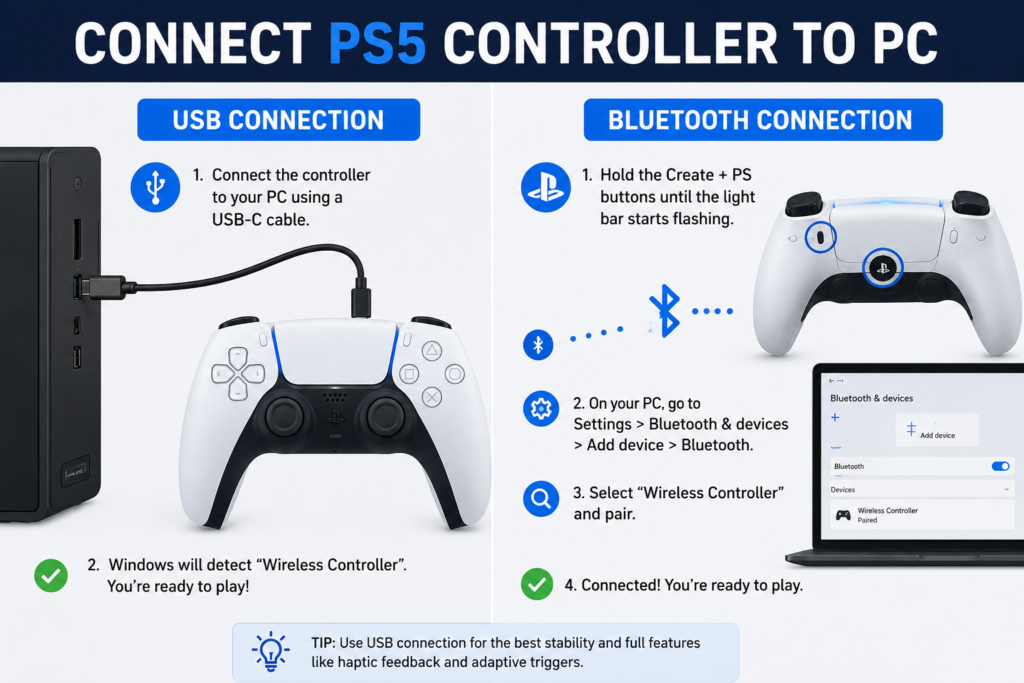
To connect your PS5 controller to a PC with USB, plug a data-capable USB-C cable into the controller and connect the other end to your computer.
For Bluetooth, hold the Create and PS buttons until the controller’s lights begin flashing. On your PC, open Settings > Bluetooth & devices > Add device > Bluetooth, and select Wireless Controller.
Once connected, test the buttons before opening a game. If Windows detects the controller but a game ignores it, enable Steam Input or check whether the game supports PlayStation controllers cross-platform controller guide.
USB vs Bluetooth: Which Method Is Better?
| Feature | USB Connection | Bluetooth Connection |
|---|---|---|
| Setup difficulty | Very easy | Easy |
| Requires charging | No during play | Yes |
| Connection stability | Excellent | Depends on Bluetooth signal |
| Input delay | Usually lowest | Usually slightly higher |
| Haptic feedback | Available in supported games | Usually unavailable |
| Adaptive triggers | Best compatibility | Limited by the game |
| Headset jack | Supported when wired | Not supported wirelessly |
| Best for | Competitive and immersive games | Comfortable wireless gaming |
Choose USB when you want maximum stability and the best possible DualSense pairing guide feature support. Choose Bluetooth when freedom from cables matters more than advanced features.
Sony confirms that haptic feedback requires USB on PC. Adaptive triggers work only in supported games and may also require a wired connection.
What You Need Before Connecting the Controller
You will need:
- A PS5 DualSense or DualSense Edge controller.
- A Windows 10 64-bit or Windows 11 PC.
- A USB-C data cable for a wired connection.
- Built-in Bluetooth or a USB Bluetooth adapter for wireless use.
- A supported game, Steam, or another compatible launcher.
A charging-only USB cable may power the controller without transferring button inputs. Use a cable that supports both charging and data transfer.
Charge the controller before attempting Bluetooth pairing. A low battery can cause failed pairing, random disconnections, or input delay.
How to Connect PS5 Controller to PC With USB
A wired connection is the fastest and most reliable method.
Step 1: Get a Compatible USB Cable
Use either:
- USB-C to USB-A
- USB-C to USB-C
The USB-C end connects to the port at the top of the DualSense controller. Connect the other end to an available USB port on your PC.
Step 2: Wait for Windows to Detect It
Windows should automatically recognize the device. The controller may appear as:
- Wireless Controller
- DualSense Wireless Controller
- PlayStation 5 Controller
The name can differ depending on the program checking the device.
Step 3: Test the Controller
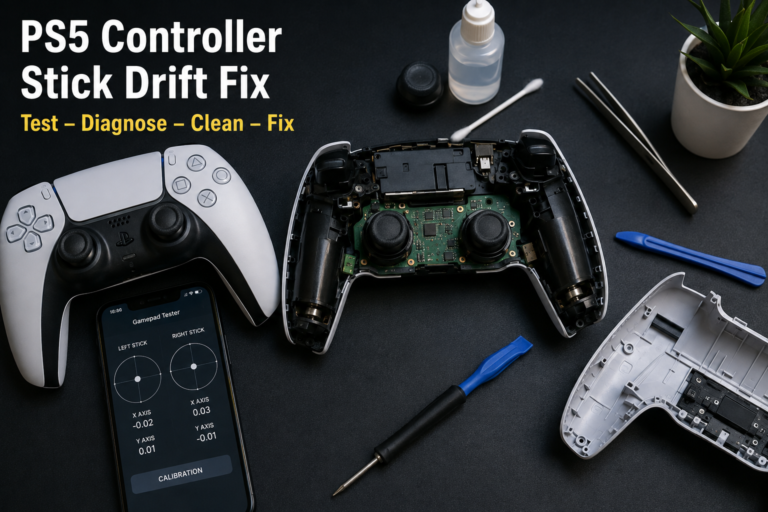
Press the buttons and move both analog sticks. Use a browser-based gamepad tester to confirm that Windows is receiving every input.
Testing outside the game is important. It tells you whether the problem is with the controller connection or the game itself.
- If the tester detects your inputs, the connection is working.
- If the game still ignores the controller, check the game or Steam Input settings.
- If the tester detects nothing, try another cable or USB port.
Step 4: Open Your Game
Many modern PC games detect the DualSense automatically. Other games may require Steam Input or display Xbox button labels instead of PlayStation symbols.
Keep the controller connected by USB when you want to use supported haptic feedback or adaptive-trigger effects.
How to Connect PS5 Controller to PC With Bluetooth
Your desktop or laptop must have Bluetooth. A PC without built-in Bluetooth requires a compatible USB Bluetooth adapter.

Step 1: Turn Off the Controller
Make sure the controller’s player indicator is off.
When it is already connected to a PS5, press and hold the PS button until the controller turns off. Disconnect any USB cable before entering pairing mode.
Step 2: Open Bluetooth Settings in Windows
On Windows 11:
- Open Settings.
- Select Bluetooth & devices.
- Turn Bluetooth on.
- Select Add device.
- Choose Bluetooth.
On Windows 10:
- Open Settings.
- Select Devices.
- Open Bluetooth & other devices.
- Turn Bluetooth on.
- Select Add Bluetooth or other device.
- Choose Bluetooth.
Step 3: Put the DualSense in Pairing Mode
Press and hold these two buttons together:
- Create button: The small button to the left of the touchpad.
- PS button: The PlayStation logo button in the center.
Continue holding both buttons until the light bar begins flashing.
This is the official DualSense Bluetooth pairing method.
Step 4: Select Wireless Controller
Wait for Wireless Controller to appear in the Windows device list.
Select it and allow Windows to finish pairing. The controller’s lights should stop flashing rapidly once the connection is established.
Step 5: Test the Inputs
Open a gamepad tester and check:
- Face buttons
- D-pad
- L1 and R1
- L2 and R2
- Analog sticks
- L3 and R3
- Create and Options buttons
A successful Bluetooth pairing does not always mean the game can understand the controller. Testing it first helps identify where the problem starts.
How to Use a PS5 Controller on Steam
Steam provides one of the easiest ways to use a DualSense controller on PC. It can translate controller inputs for games that do not directly support PlayStation controllers.
Steam has supported the DualSense since 2020 and now recognizes it as a PlayStation 5 controller.
Configure the Controller in Steam
- Connect the DualSense through USB or Bluetooth.
- Open Steam.
- Select Steam > Settings.
- Open Controller.
- Confirm that the PlayStation 5 controller appears.
- Enable Steam Input for PlayStation controllers when needed.
- Open the game from your Steam Library.
Steam may translate the controller into an Xbox-style layout for compatibility. This means the game can show A, B, X and Y prompts even though you are using Cross, Circle, Square and Triangle.
Change Steam Input for One Game
You do not have to use the same setting for every game.
- Open your Steam Library.
- Right-click the game.
- Select Properties.
- Open Controller.
- Choose whether to use the game’s default setting, enable Steam Input, or disable it.
Use native controller support when the game directly supports DualSense features.
Use Steam Input when:
- The game does not detect the controller.
- The controls are incorrectly mapped.
- You want to remap buttons.
- You need keyboard and mouse actions assigned to the controller.
Try disabling Steam Input when a game supports the DualSense natively but advanced features are missing. Running both native input and Steam Input can sometimes prevent the game from accessing the controller correctly.
How to Use a PS5 Controller With Non-Steam Games
Many games from Epic Games, EA, Ubisoft and other launchers include native controller support. Connect the controller before launching the game and check its input settings first.
When the game does not detect it, try adding the game to Steam:
- Open Steam.
- Select Games from the top menu.
- Choose Add a Non-Steam Game to My Library.
- Select the game or launcher.
- Add it to your library.
- Launch it through Steam.
Steam can then apply Steam Input to the added program. PC Gamer also recommends this method for using the DualSense with non-Steam games.
Some Windows games are designed mainly around Microsoft’s XInput standard. These games may not understand the DualSense directly. A trusted controller-mapping program such as DS4Windows can translate the DualSense into an Xbox-compatible controller.
Use third-party mapping software only when native game support and Steam Input do not solve the problem. Avoid running Steam Input and another controller mapper at the same time because the game may detect duplicate controllers.
Do DualSense Features Work on PC?
The DualSense can provide more than basic buttons and analog-stick input, but every PC game chooses which features to support.
Haptic Feedback
Haptic feedback creates detailed sensations instead of ordinary vibration. Sony states that it works only in supported PC games and requires a USB connection.
Adaptive Triggers
Adaptive triggers can change the resistance of L2 and R2. They work only in games that have added support. Some titles require USB even when ordinary controller input works over Bluetooth.
Built-In Microphone and Speaker
The controller’s microphone and speaker can work on Windows when supported by the game or application. Check your Windows sound settings because the DualSense may appear as an audio device after you connect it connect a PS5 controller to a phone.
Headset Jack
The 3.5 mm headset jack requires a wired connection on PC. It is not available through the controller’s Bluetooth connection.
Touchpad and Motion Controls
Support for the touchpad and gyroscope varies between games. Steam Input can assign custom actions to these controls, but native behavior depends on the game.
How to Update PS5 Controller Firmware on PC
Outdated controller software can contribute to compatibility or connection problems.
Sony provides the PlayStation Accessories application for Windows. It can update standard DualSense firmware and manage additional settings for the DualSense Edge.
To update the controller:
- Install PlayStation Accessories from the official PlayStation source.
- Open the application.
- Connect the controller with a USB data cable.
- Follow the displayed update instructions.
- Keep the controller connected until the update finishes.
Do not unplug the controller or close the application during an update.
How to Switch the Controller Between PC and PS5
Current DualSense software can store pairings for up to four devices. This lets you switch between a PC, PS5, phone or another supported device without repeating the full pairing process each time.
The available pairing slots use these combinations:
| Slot | Button Combination |
|---|---|
| Slot 1 | PS + Triangle |
| Slot 2 | PS + Circle |
| Slot 3 | PS + Cross |
| Slot 4 | PS + Square |
To assign a device, hold the chosen action button and the PS button for more than five seconds, then pair the controller from that device.
To switch to a stored device, turn that device on and hold its assigned action button with the PS button for about three seconds.
This feature requires current controller software.
PS5 Controller Connected to PC but Not Working
Start by identifying where the controller stops working.
Controller Does Not Appear in a Gamepad Tester
The connection itself is the likely problem.
Try these fixes:
- Use another USB data cable.
- Connect to a different USB port.
- Charge the controller.
- Remove it from Windows Bluetooth devices and pair it again.
- Restart the computer.
- Update the controller firmware.
- Update the PC’s Bluetooth driver.
Microsoft identifies outdated or incompatible Bluetooth drivers as a common cause of connection problems. Drivers can be updated through Device Manager or the PC manufacturer’s support page.
Controller Works in the Tester but Not in the Game
The hardware and Windows connection are working. The problem is usually game compatibility or input configuration.
Try these steps:
- Enable controller input inside the game.
- Enable Steam Input for that game.
- Restart the game after connecting the controller.
- Close other controller-mapping programs.
- Disable Steam Input if the game supports DualSense natively.
- Check whether the game requires XInput.
- Test the wired connection instead of Bluetooth.
Controller Connects but Immediately Disconnects
Possible causes include:
- Low controller battery
- Bluetooth interference
- Weak or outdated Bluetooth adapter
- Outdated Bluetooth drivers
- Too much distance between the controller and PC
- The controller reconnecting to another saved device
Charge the controller, move closer to the PC, disconnect unused Bluetooth devices, and update the adapter driver.
Controller Works With USB but Not Bluetooth
Remove the saved controller from Windows:
- Open Settings > Bluetooth & devices.
- Find Wireless Controller.
- Select Remove device.
- Restart Bluetooth.
- Put the controller back into pairing mode.
- Pair it again.
When Bluetooth is missing entirely, check Device Manager to confirm that the PC has a working Bluetooth adapter.
Controller Charges but Windows Does Not Detect It
The cable may support charging without data transfer. Replace it with a USB cable that supports synchronization or data.
Also test a rear motherboard USB port on a desktop PC. Front-panel hubs and unpowered USB hubs can sometimes create connection problems.
Controller Is Detected Twice
This usually happens when two input systems are controlling the same device.
Close one of the following:
- Steam Input
- DS4Windows
- Another controller emulator
- A launcher-level controller mapper
Use only one compatibility layer at a time.
Buttons or Sticks Respond Incorrectly
Test the controller outside the game. Check every button, trigger and analog-stick axis.
When an analog stick moves without being touched, run a controller deadzone test. When only one trigger or button fails, the problem may be physical rather than a PC connection issue.
How to Reset a PS5 Controller
Reset the controller when it refuses to pair or continues disconnecting after other fixes.
- Disconnect the controller.
- Locate the small reset hole on the back near the Sony logo.
- Insert a pin or similar tool.
- Press and hold the reset button for at least five seconds.
- Connect the controller again through USB or Bluetooth.
Sony recommends this reset procedure when the DualSense has pairing or connection problems.
How to Reconnect the Controller to Your PS5
After using the DualSense on PC, you may need to reconnect it to the console.
- Turn on the PS5.
- Connect the controller to the console with a compatible USB cable.
- Press the PS button.
- Wait for the player indicator to light up.
- Disconnect the cable after pairing is complete.
Sony lists USB pairing as the standard way to reconnect the controller to a PS5 console.
FAQS
Can a PS5 controller connect to a PC?
Yes. A DualSense controller can connect to a Windows PC through a USB-C cable or Bluetooth. Sony officially supports Windows 10 64-bit and Windows 11.
Can I connect a PS5 controller to PC without Bluetooth?
Yes. Connect it directly with a USB-C data cable. This method is usually more stable and provides better support for advanced DualSense features.
Why is my PS5 controller connected but not working on PC?
The controller may be paired with Windows while the game does not support its input format. Test it in a gamepad tester. When the tester works, enable Steam Input, configure the game’s controller settings, or use an XInput compatibility method.
Why does my PC show Xbox buttons with a PS5 controller?
Many Windows games are designed around the Xbox controller layout. Steam Input can translate DualSense inputs into Xbox-style controls, causing the game to display A, B, X and Y instead of PlayStation symbols.
Does a PS5 controller work with Steam?
Yes. Steam recognizes the DualSense and can automatically map it for thousands of controller-compatible games. Sony advertises support across more than 10,000 Steam games, although individual feature support variesDualShock 4 guide.
Can I use a PS5 controller with PC Game Pass?
It can work with games that support PlayStation or generic controllers. Games that accept only XInput may require a trusted mapper that makes the DualSense appear as an Xbox controller.
Does the PS5 controller have input lag on PC?
Every connection introduces some latency, but a stable wired USB connection normally provides the most consistent response. Bluetooth performance depends on the adapter, drivers, signal strength, interference and distance.
Can I use two PS5 controllers on one PC?
Yes, provided the game supports local multiplayer and recognizes multiple controllers. Connect each controller separately and test both before launching the game.
How do I turn off a PS5 controller connected to PC?
Press and hold the PS button until the controller’s lights turn off. You can also disconnect the USB cable or turn off Bluetooth on the PC.
Do adaptive triggers work wirelessly on PC?
Support varies by game. Some games may support adaptive triggers over Bluetooth, while others require USB. Haptic feedback officially requires a wired USB connection on PC.
Final Check
Connecting a PS5 controller to a PC takes only a few steps:
- Use USB for the easiest and most stable setup.
- Use Bluetooth when you prefer wireless play.
- Test the controller before opening a game.
- Configure Steam Input when the game does not recognize it.
- Use USB for the best chance of getting haptic feedback and adaptive triggers.
- Update the firmware through PlayStation Accessories.
- Diagnose connection and game-compatibility problems separately.
The most useful troubleshooting rule is simple: when the controller works in a gamepad tester but not in your game, the controller is connected correctly. Focus on Steam Input, game support, button mapping, or input compatibility instead of replacing the controller.