DualShock 4 Wireless Controller for PS4
Last updated: August 22, 2026
Whether you want to play games on a Windows PC or a Mac, connecting a DualShock 4 controller is easier than many people expect. The controller supports both USB and Bluetooth connections, making it a flexible option for gaming across different platforms. Once connected, you can use it with many modern games, Steam, and supported applications without needing a PlayStation console.
This guide explains every step in plain language, from choosing the best connection method to fixing common connection problems. You’ll also learn how to test every button, trigger, and analog stick after pairing the controller so you can confirm everything is working as expected.
Quick Answer
Yes, you can connect a PS4 DualShock 4 gamepad controller to both Windows PCs and Macs using either a USB cable or Bluetooth. A wired connection is usually the most reliable and requires almost no setup, while Bluetooth gives you wireless freedom on supported devices. After connecting, test every button, trigger, and analog stick to confirm the controller responds correctly before starting a game.
In This Guide
- What a DualShock 4 controller is
- Controller features and supported devices
- What you need before connecting
- How to identify your controller version
- Connect using a USB cable
- Connect using Bluetooth
- Test your controller after connecting
- USB vs Bluetooth comparison
- Steam setup
- Using the controller in non-Steam games
- macOS setup
- Updating your controller’s firmware
- Troubleshooting common problems
- Frequently asked questions
What Is a DualShock 4 Controller?
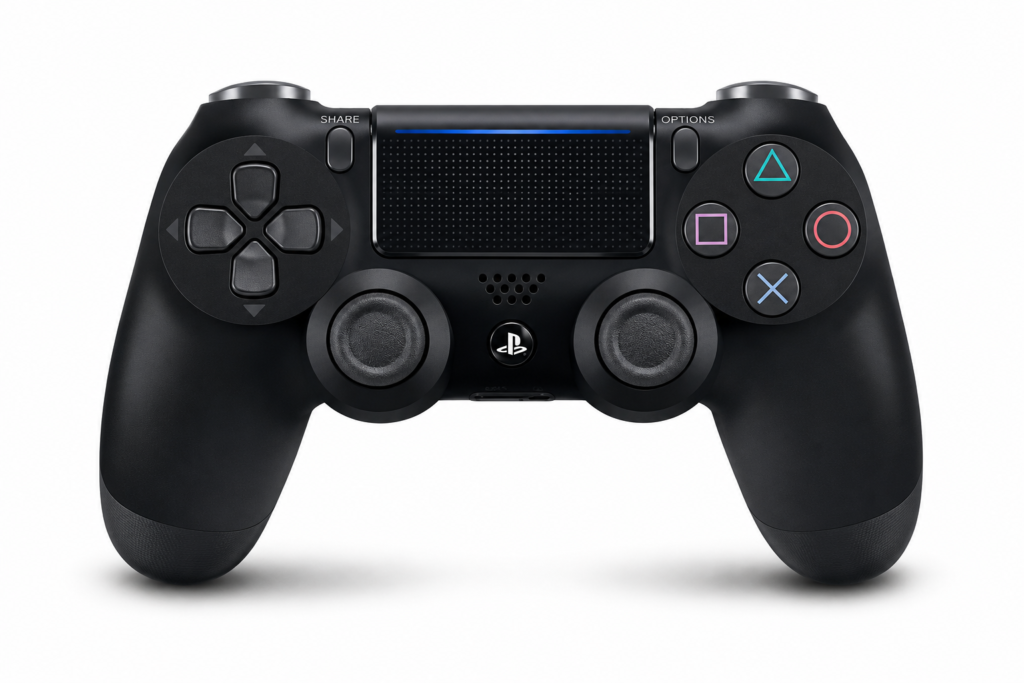
The DualShock 4 is Sony’s official wireless controller for the PlayStation 4. It introduced several improvements over earlier PlayStation controllers, including a clickable touchpad, improved analog sticks, a built-in speaker, a light bar, motion sensors, and a 3.5 mm headset jack.
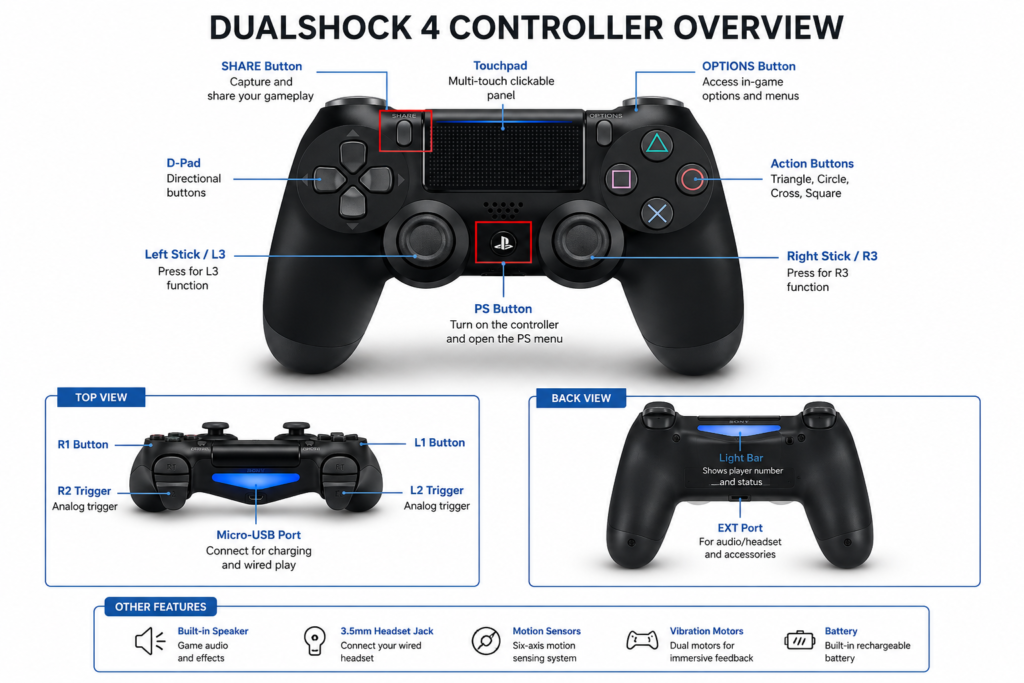
Unlike older PlayStation controllers that were designed mainly for console gaming, the DualShock 4 also works well with many Windows PCs and Macs. Today, it remains a popular choice for PC gaming because many games and gaming platforms support it either directly or through built-in controller compatibility.
Why Many PC Gamers Still Use the DualShock 4
Although newer controllers are available, many players continue using the DualShock 4 because it offers a familiar layout, dependable wireless performance, and broad game compatibility.
Some of the biggest advantages include:
- Comfortable design for long gaming sessions
- Accurate analog sticks for precise movement
- Responsive shoulder buttons and triggers
- Wireless Bluetooth support
- USB wired connection support
- Motion sensors for supported games
- Built-in touchpad
- Integrated speaker
- Headset support through the controller
- Compatibility with many modern PC games
For players who already own a PlayStation 4, using the same controller on a computer can also save money, since there’s no need to buy a separate gamepad.
What You Need Before Connecting
A DualShock 4 Controller Both the original DualShock 4 and the updated Version 2 controller connect to Windows and macOS using the same steps in this guide.
A USB Cable or Bluetooth
- A USB cable is usually the easiest option because the computer detects the controller automatically in most cases.
- Bluetooth lets you play wirelessly, but your computer must support Bluetooth or use a compatible Bluetooth adapter.
A Compatible Computer. This guide covers:
- Windows 10
- Windows 11
- macOS
- Steam
- Steam Deck (supported scenarios)
Many Linux systems also recognize the controller, although setup steps vary depending on the distribution.
Supported Devices
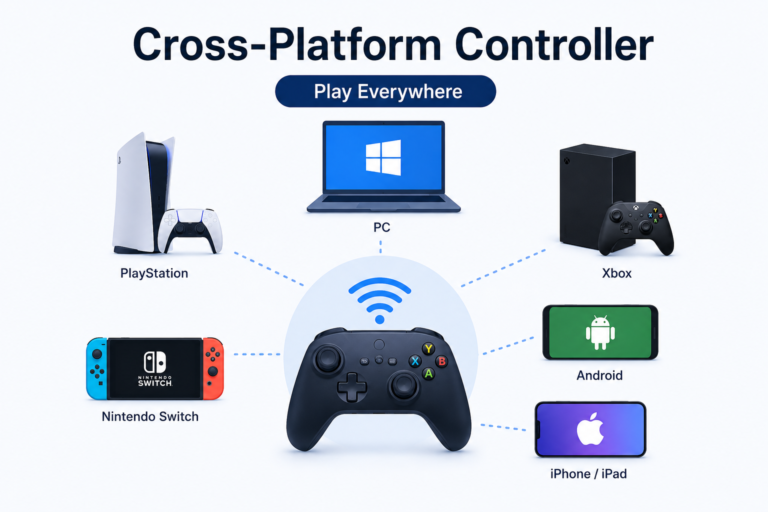
The DualShock 4 works with more than just the PlayStation 4. Depending on the game and software, you can use it with:
- Windows PCs
- Mac computers
- Steam
- Steam Deck
- PlayStation 4
- PlayStation 4 games on PlayStation 5 (backward compatibility only see note below)
- Android 10+ devices
- Some cloud gaming services
PS5 compatibility note: The DualShock 4 only works with PS4 games played on a PS5 through backward compatibility. It is not supported for any PS5-native game not even ones without DualSense-specific features like adaptive triggers. If a game was built for PS5, you’ll need a DualSense or DualSense Edge controller to play it.
For setup, compatibility, or buying details, read our controller compatibility guide.
Support also varies by game on PC: some titles recognize PlayStation button icons automatically, while others display Xbox-style button prompts regardless of which controller is connected.
How to Identify Your DualShock 4 Version
Sony released two versions of the DualShock 4. Functionally, both connect to Windows and macOS using identical steps, but a few physical differences can help you identify which one you own.
Original DualShock 4
- The light bar is visible on the back of the controller only
- Micro-USB charging port
- Built-in speaker
- Motion controls
- Touchpad
DualShock 4 Version 2
- A thin light strip is also visible through the top of the touchpad (in addition to the back light bar)
- Same Micro-USB port and core feature set as the original
The connection steps in this guide apply equally to both versions.
USB or Bluetooth: Which Should You Choose?
A USB connection is usually the best choice if you want the simplest setup, the most stable connection, or uninterrupted gaming while charging.
A Bluetooth connection is ideal if you prefer wireless gameplay and your computer has reliable Bluetooth support.
Method 1: Connect a DualShock 4 Controller Using a USB Cable
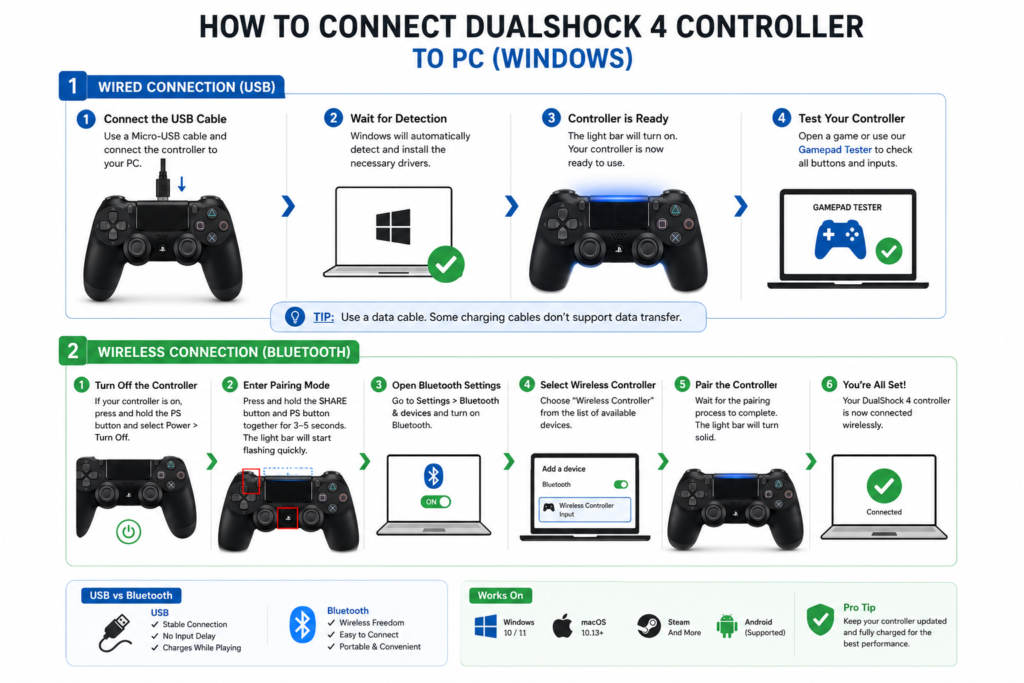
A wired connection is the fastest way to start using your DualShock 4 on a PC or Mac. In most cases, your computer recognizes the controller automatically without any additional setup. If you’re playing competitive games or simply want the most stable connection, USB is usually the better choice because it avoids wireless interference and lets you charge the controller while playing.
Step 1: Connect the USB cable. Locate the Micro-USB port on the top of the DualShock 4. Connect one end of the cable to the controller and the other end to a USB port on your computer. The light bar should turn on within a few seconds.
If nothing happens, try another USB port or a different cable. Some charging cables only provide power and cannot transfer data.
Step 2: Let your computer detect the controller. Windows usually installs the required drivers automatically. On macOS, the controller is typically recognized shortly after connecting. Wait a few seconds before opening your game or gaming platform.
Step 3: Verify the connection. Before launching a game, confirm the controller is responding correctly:
- Both analog sticks move smoothly
- Every face button responds
- The D-pad registers each direction
- L1, L2, R1, and R2 respond normally
- Both thumbsticks click correctly
- The Options and Share buttons work
If the controller isn’t detected or disconnects unexpectedly, see the Troubleshooting section below the most common USB issues (charge-only cables, faulty ports, USB hub conflicts) are covered there in detail.
Method 2: Connect a DualShock 4 Controller Using Bluetooth
Bluetooth gives you the freedom to play without a cable. Most modern laptops include Bluetooth; desktop computers may need a compatible Bluetooth adapter if one isn’t already installed.
Step 1: Turn on Bluetooth
Windows: Settings → Bluetooth & devices → make sure Bluetooth is on.
macOS: System Settings → Bluetooth → turn Bluetooth on if disabled.
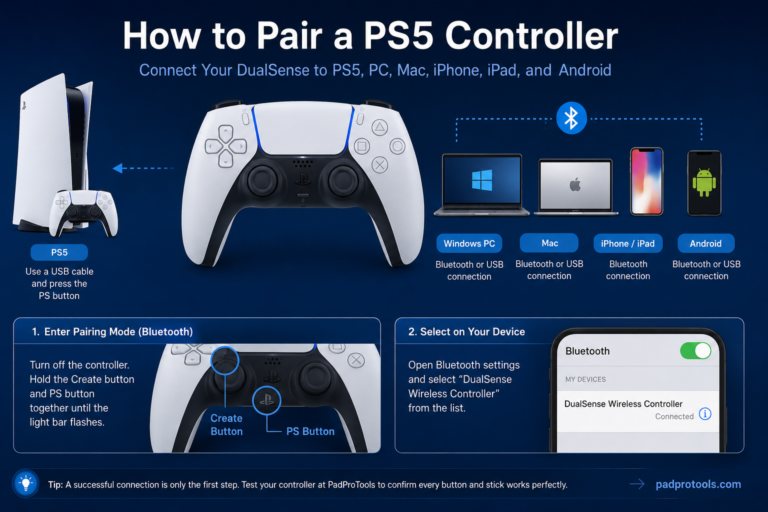
Step 2: Put the controller into pairing mode. Turn off the controller if it’s already on. Press and hold the Share + PS Button together until the light bar starts flashing rapidly. The flashing light means the controller is ready to pair.
Step 3: Pair the controller. On your computer, look for a new Bluetooth device — the controller usually appears as Wireless Controller. Select it and complete pairing. Once successful, the light bar stops flashing and stays lit.
Step 4: Confirm everything works. Press every face button, move both analog sticks, test both triggers, check the D-pad, and press the thumbsticks. If everything responds correctly, your controller is ready to use.
If the controller won’t appear in the Bluetooth list, won’t stop flashing, or disconnects randomly, see the Troubleshooting section below for the full fix list.
Test Your DualShock 4 After Connecting
Connecting the controller is only the first step. Before starting a game, spend a minute checking that every input works correctly. This helps you identify stick drift, unresponsive buttons, trigger issues, or calibration errors before they affect gameplay.
Test every button: Cross, Circle, Square, Triangle, Options, Share, PS Button. Each press should register immediately without sticking.
Test the D-pad Up, Down, Left, Right. Each direction should register independently.
Test both analog sticks: Move each stick slowly in a full circle, checking for smooth movement, full range of motion, and an accurate center position. If a cursor or indicator moves while you’re not touching the stick, the controller may have stick drift.
Test the triggers: L2 and R2 inputs should increase smoothly from minimum to maximum without sudden jumps.
Test the shoulder buttons: L1 and R1 should register consistently and immediately.
Test thumbstick clicks: L3 and R3 clicks should feel firm and register every time.
Check for stick drift: Leave both analog sticks untouched. Any movement without touching the controller may indicate stick drift caused by wear, dust, or calibration issues.
USB vs Bluetooth: Which Connection Is Better?
| Feature | USB | Bluetooth |
|---|---|---|
| Setup | Very simple | Simple |
| Stability | Excellent | Very good |
| Input latency | Lower | Slightly higher |
| Charging while playing | Yes | No |
| Battery usage | None | Uses battery |
| Wireless freedom | No | Yes |
| Competitive gaming | Recommended | Good for most players |
| Everyday gaming | Excellent | Excellent |
For most players, both options work well. If you want the most stable connection with the lowest possible input delay, choose USB. If convenience matters more and you prefer cable-free gaming, Bluetooth is an excellent choice.
Using a DualShock 4 Controller with Steam
Steam includes built-in controller support, making it one of the easiest ways to use a DualShock 4 on a PC. Once Steam detects your controller, you can customize button layouts, adjust sensitivity, and use community-made controller profiles for supported games.
Step 1: Open Steam and sign in. Make sure you’re running the latest version before connecting your controller.
Step 2: Connect your controller using either USB or Bluetooth. Steam should automatically detect it within a few seconds.
Step 3: Enable PlayStation controller support. Go to Steam → Settings → Controller. If available, enable PlayStation controller support so Steam can automatically configure supported games.
Step 4: Test the controller. Open Steam’s controller settings and verify that analog sticks, face buttons, triggers, D-pad, and thumbstick clicks all respond correctly.
Customize your controls. Steam lets you remap buttons, adjust analog stick sensitivity, change trigger response, create custom layouts, download community controller profiles, and save different layouts per game.
Using a DualShock 4 with Non-Steam Games
Not every PC game includes native PlayStation controller support. Some games recognize the DualShock 4 automatically, while others expect Xbox-style input. If a game doesn’t detect your controller, compatibility software can translate controller inputs into a format the game understands.
For setup, compatibility, or buying details, read our wireless PlayStation controller setup.
Before installing any third-party software, check whether the game already supports PlayStation controllers — many modern titles do.
Compatibility software may help when:
- A game doesn’t detect the controller
- Button prompts don’t match
- The controller works in Steam but not outside it
- Older games expect Xbox controller input
Choose well-known, actively maintained software from trusted sources, and avoid downloading modified versions from unknown websites.
Using a DualShock 4 on macOS
The DualShock 4 works with many versions of macOS through USB or Bluetooth, using a setup process very similar to that of Windows. Game compatibility depends on the specific title you’re playing.
Connect with USB: Connect using a Micro-USB cable. Many supported games recognize it automatically.
Connect with Bluetooth: Turn on Bluetooth, hold Share + PS until the light bar flashes, select Wireless Controller from the Bluetooth device list, and wait for pairing to finish.
Common macOS issues: If the controller won’t connect, restart Bluetooth, remove the controller from paired devices and re-pair it, charge the controller before pairing, or restart your Mac if the controller was previously connected to another device.
DualShock 4 Compatibility
| Platform | Supported |
|---|---|
| PlayStation 4 | ✅ Yes |
| PlayStation 5 (PS4 games only) | ✅ Yes |
| PlayStation 5 (PS5-native games) | ❌ No |
| Windows 10 | ✅ Yes |
| Windows 11 | ✅ Yes |
| macOS | ✅ Yes |
| Steam | ✅ Yes |
| Steam Deck | ✅ Yes |
| Android (10+) | ✅ Yes |
| iPhone & iPad | ✅ On compatible versions |
| Linux | ✅ Varies by distribution |
Game support may differ depending on the platform and the individual title.
DualShock 4 vs DualSense vs DualSense Edge
| Feature | DualShock 4 | DualSense | DualSense Edge |
|---|---|---|---|
| PlayStation Generation | PS4 | PS5 | PS5 |
| Wireless | ✅ | ✅ | ✅ |
| USB Port | Micro-USB | USB-C | USB-C |
| Touchpad | ✅ | ✅ | ✅ |
| Motion Controls | ✅ | ✅ | ✅ |
| Built-in Speaker | ✅ | ✅ | ✅ |
| Adaptive Triggers | ❌ | ✅ | ✅ |
| Replaceable Stick Modules | ❌ | ❌ | ✅ |
| PC Compatibility | Excellent | Excellent | Excellent |
| Best For | PS4 & PC | PS5 & PC | Competitive gaming |
Should you upgrade? If you mainly play on a PlayStation 4 or PC, the DualShock 4 remains a dependable controller with broad compatibility. If you own a PlayStation 5 and want adaptive triggers and enhanced haptic feedback in supported games, the DualSense is worth it. Players who want extensive customization and replaceable stick modules may prefer the DualSense Edge.
For setup, compatibility, or buying details, read our PS5 controller features.
Updating Your DualShock 4’s Firmware
Keeping your operating system and Steam updated helps with compatibility, but the controller itself also receives occasional firmware updates that improve stability and connectivity.
To check or update your DualShock 4’s firmware on PC, connect the controller via USB and use Sony’s official PlayStation Accessories app for Windows. The app will detect your controller and display an Update option if new firmware is available. Don’t disconnect the controller or turn off your PC during a firmware update — interrupting it can affect the controller’s functionality.
Tips for Better Controller Performance
Keep the battery charged: Low battery levels can affect wireless stability.
Keep the controller clean: Dust around the analog sticks and buttons can affect responsiveness. Use a soft, dry cloth and avoid excessive moisture.
Avoid dropping the controller: Repeated impacts can damage internal components, triggers, or analog stick mechanisms.
Store it safely: Keep the controller in a cool, dry place when not in use, away from direct sunlight and heavy objects.
Test it regularly: If you notice unusual movement, delayed input, or buttons that feel different, test the controller before assuming it needs replacement.
Troubleshooting Your DualShock 4 Controller
Even a well-maintained controller can occasionally develop connection or input problems. Work through these checks before assuming the hardware has failed.
Controller Isn’t Detected (USB)
- Check the cable: Some Micro-USB cables only provide charging and can’t transfer data. Try a known data-capable cable.
- Try a different USB port: A faulty or underpowered port can prevent detection. Connect directly to your computer rather than through a USB hub.
- Restart your computer: This reloads USB and Bluetooth services and often resolves temporary detection issues.
- Test before opening a game: If the controller doesn’t respond outside a game, the issue is the connection, not the game.
If none of these work, try a hard reset (see below) before assuming the controller has failed.
Controller Doesn’t Appear in Bluetooth List
- Confirm pairing mode is active: Turn the controller off, then press and hold Share + PS until the light bar flashes rapidly.
- Remove old pairings: If the controller was previously paired with another device, remove that pairing first.
- Charge the controller: A very low battery can prevent the controller from entering pairing mode consistently. Charge for at least 20–30 minutes before retrying.
Light Bar Keeps Flashing
A continuously flashing light means the controller is still searching for a device. Try turning Bluetooth off and on again, restarting your computer, removing previous Bluetooth pairings, and repeating the pairing process. If these steps don’t resolve it after two or three attempts, perform a hard reset (see below) and pair again from scratch.
Controller Disconnects Randomly
Usually a Bluetooth signal issue rather than a controller fault. Common causes: low battery, distance from the computer, multiple nearby Bluetooth devices, or older Bluetooth hardware. Keeping the controller charged and staying closer to your computer often helps. If disconnects continue during long sessions, switch to USB for the most reliable connection.
Bluetooth Input Feels Delayed
Reduce the distance between the controller and your computer, disconnect unused Bluetooth devices, update your Bluetooth drivers, or switch to USB if low latency matters most.
Buttons Aren’t Responding
Disconnect and reconnect the controller, test every button individually, check whether the issue appears in every game, then restart the game and computer. If only one button consistently fails during testing, the issue is likely mechanical rather than software-related.
Analog Stick Drift
Stick drift happens when the controller registers movement even though you aren’t touching the stick. Common causes: dust inside the mechanism, normal wear, mechanical damage, or calibration problems. Signs include a character moving on its own, a slowly rotating camera, or small movements while the stick is centered. Test both sticks to confirm true drift before assuming you need a replacement.
Trigger Doesn’t Respond Properly
L2 and R2 should respond smoothly from first press to full depression. If a trigger stops halfway, registers inconsistently, or doesn’t respond, test it outside the game first. If it behaves normally during testing but not in one specific game, the issue is likely game-specific rather than hardware-related.
Touchpad Isn’t Working
Not every PC game uses the DualShock 4 touchpad. Verify the game supports it, test the touchpad independently, try reconnecting the controller, and check for a game update.
Audio Isn’t Working Through the Controller
Some games and operating systems require you to manually select the controller as the audio output device. Check your OS sound settings, select the correct playback device, and reconnect the controller if needed.
Battery Doesn’t Charge
Try another USB cable and port, remove dust from the charging port, and avoid forcing the connector in. If the battery drains unusually fast even after a full charge, it may be reaching the end of its service life.
How to Reset a DualShock 4 Controller
Soft reset: Turn the controller off, wait a few seconds, turn it back on, and reconnect. This clears most temporary connection issues and should be your first step before a hard reset.
Hard reset: Turn the controller over. Near the L2 button, you’ll find a small reset hole. Use a paperclip or similar tool to gently press and hold the reset button for about five seconds. This clears previous pairing information. Reconnect the controller using a USB cable first, then pair again with Bluetooth if needed. Use a hard reset as your escalation step any time soft resets and standard troubleshooting (above) don’t resolve a persistent connection or flashing-light issue.
How We Tested This Guide
The steps in this guide were verified using an original DualShock 4 and a DualSense Features Version 2 controller, connected to a Windows 11 PC and a Mac running a recent version of macOS, both via USB and Bluetooth. Testing covered initial pairing, reconnection after sleep/restart, Steam detection and configuration, and full input verification (buttons, triggers, analog sticks, D-pad, and touchpad where supported) on each platform.
For setup, compatibility, or buying details, read our connect a PS5 controller to PC.
Because hardware, operating systems, and games continue to evolve, your results may vary slightly depending on your specific device, OS version, and game.
FAQS
Can I use a DualShock 4 controller without a PlayStation 4?
Yes. A DualShock 4 can be used with many Windows PCs, Macs, Steam, Steam Deck, and supported mobile devices. You don’t need to own a PlayStation 4 to use the controller for compatible games or applications.
Can I connect a DualShock 4 wirelessly?
Yes. The controller includes built-in Bluetooth, allowing you to connect it wirelessly to supported devices. Once paired, it reconnects automatically to the last compatible device unless you pair it with another one.
Can I use a USB cable instead of Bluetooth?
Yes. A USB connection is usually the quickest and most reliable option. It also charges the controller while you play and reduces the chance of wireless interference.
Does the DualShock 4 work on Windows 11?
Yes. Windows 11 supports the DualShock 4 for many games and gaming platforms. Some titles recognize it immediately, while others may require additional controller configuration.
Does the DualShock 4 work on a Mac?
Yes. Modern versions of macOS support the DualShock 4 through both USB and Bluetooth. Game compatibility depends on whether the individual game supports external controllers.
Does Steam support the DualShock 4?
Yes. Steam includes built-in support for PlayStation controllers and lets you customize button layouts, sensitivity, and controller profiles for many games.
Can I use a DualShock 4 with a Steam Deck?
Yes. Steam Deck supports the DualShock 4 via Bluetooth or USB, and you can use it with supported games.
Can I use a DualShock 4 on a PlayStation 5?
Only for PS4 games played through backward compatibility. It cannot be used to play any PS5-native game, regardless of whether that game uses DualSense-specific features.
How do I know if my controller is original?
Genuine Sony controllers have consistent build quality, accurate button labels, correct serial information, and reliable wireless performance. Packaging, model numbers, and overall finish can also help confirm authenticity.
Are third-party PS4 controllers worth buying?
Some offer good value for casual gaming, while others have lower build quality or fewer features. Check recent reviews and confirm compatibility before purchasing.
Why is my controller not connecting?
Common causes include low battery, Bluetooth pairing problems, a faulty USB cable, outdated drivers, leftover Bluetooth pairings, or temporary software issues. Working through the troubleshooting steps above usually resolves it.
Final Thoughts
The DualShock 4 remains one of the most versatile controllers available for both console and PC gaming. Whether you connect it via USB for maximum stability or Bluetooth for wireless convenience, setup is straightforward on most modern devices.
Before your next gaming session, take a minute to verify that every button, trigger, and analog stick responds correctly. A quick controller test can reveal connection issues, stick drift, or input problems before they affect gameplay.
Regular cleaning, proper charging habits, and keeping your computer and gaming software up to date will also help extend the controller’s lifespan and maintain consistent performance. If you run into unexpected behavior, work through the troubleshooting steps in this guide first in most cases, a different cable, a fresh Bluetooth pairing, or a hard reset is all it takes to get back in the game.


2 Comments