How to Pair a PS5 Controller to PS5, PC, Mac, iPhone, and Android
Last updated: August 7, 2026
Last reviewed: August 7, 2026
Quick Answer
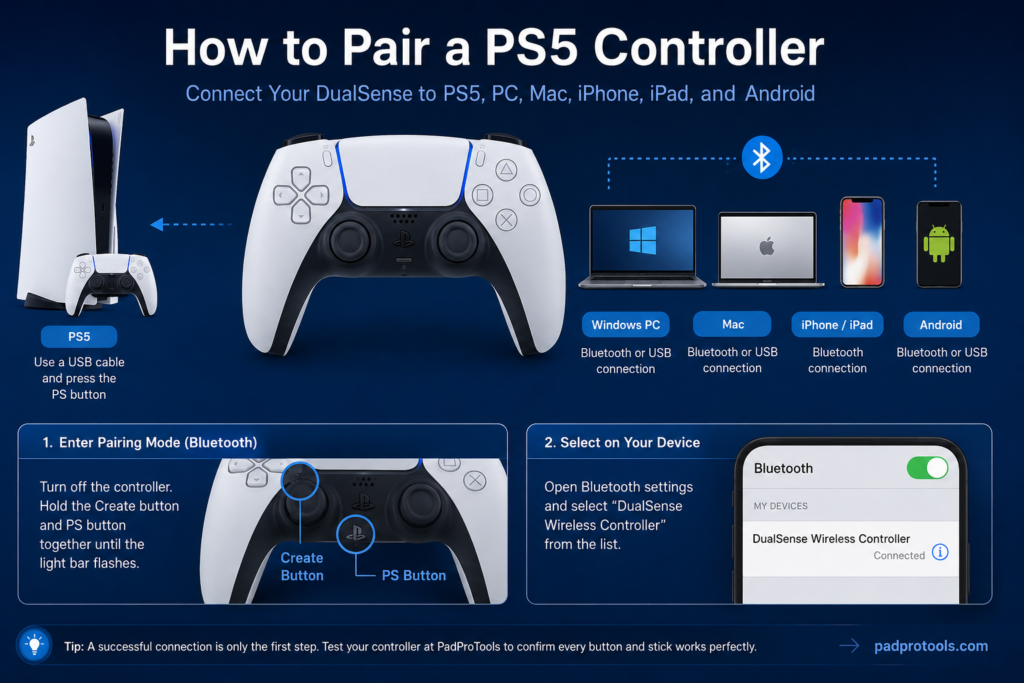
To connect a new PS5 controller to a PS5, turn on the console, attach the DualSense with a USB cable that supports data, and press the PS button. For a PC, Mac, iPhone, iPad, or Android device, hold the Create and PS buttons together until the light bar flashes. Open Bluetooth settings and select the controller tester online.
How to Pair a New PS5 Controller to a PS5
Use these steps when setting up a PS5 for the first time, connecting a replacement controller, or reconnecting a DualSense that the console no longer recognizes.
- Turn on the PS5 using the power button on the console.
- Connect the USB-C end of a data-capable cable to the top of the controller.
- Connect the other end to a USB port on the PS5.
- Press the PS button once.
- Wait for the light bar to blink.
- Confirm that the player indicator lights up.
- Select a user profile when the console asks who is using the controller.
- Disconnect the cable after pairing if you want to play wirelessly.
Sony states that the light bar blinks before the player indicator turns on. A PS5 can support up to four connected controllers at the same time. (PlayStation Support)
Find the PS and Create Buttons First
You need two buttons for most wireless connections.
The PS button has the PlayStation logo. It sits below the touchpad, between the two analog sticks.
The Create button is the small button to the left of the touchpad. It is above the directional buttons.
Some older tutorials call it the Share button. Share is the name used on the PS4 DualShock 4. Sony calls the equivalent DualSense control the Create button.
To enter Bluetooth pairing mode:
- Turn off the controller.
- Disconnect any USB cable.
- Hold the Create button.
- While holding Create, press and hold the PS button.
- Release both buttons when the light bar begins flashing.
The flashing light means the controller is discoverable and ready to appear in another device’s Bluetooth list. (PlayStation Support)
Choose the Right Connection Method
| Device or situation | Best connection method | What you need |
|---|---|---|
| First controller on a PS5 | USB pairing | Data-capable USB cable |
| Additional controller on a PS5 | Wireless pairing | One working PS5 controller |
| Windows PC | Bluetooth or USB | Bluetooth support or USB cable |
| Mac | Bluetooth or USB | Compatible macOS version |
| iPhone or iPad | Bluetooth or USB | Compatible Apple device |
| Android phone or tablet | Bluetooth or USB | Android 12 or later |
| Switching between devices | Saved pairing slots | Updated DualSense software |
| PS Remote Play | Bluetooth or USB | Remote Play app and supported device |
Use USB when you want the simplest connection or when a supported PC game requires a wired connection for haptic feedback. Use Bluetooth when you want to play without a cable.
A connection only confirms that the device recognizes the controller. Individual games still need to support either the DualSense or a generic gamepad.
Why the USB Cable Matters
A USB cable can charge a controller without carrying the data required for pairing.
This explains a common problem: the controller displays an orange charging light, but pressing the PS button does not connect it to the console.
Use one of the following:
- The cable included with the PS5 or controller
- A USB-C cable marked charge and sync
- A cable marked data transfer
- A cable that you have successfully used to transfer files
Avoid cables marked charge only. Their internal wiring may supply power without sending controller data to the console.
If the controller charges but does not pair, test a different cable before resetting anything. Also try another USB port and remove any USB hub or extension. PlayStation specifically states that charge-only cables cannot be used where data is required. (PlayStation Support)
How to Connect a Second PS5 Controller Wirelessly
You can add another controller without connecting it by cable, but you need one controller that already works with the PS5.
- Sign in with the connected controller.
- Open Settings from the PS5 home screen.
- Select Accessories.
- Select General.
- Open Bluetooth Accessories.
- Make sure the second controller’s player indicator is off.
- Disconnect any cable from the second controller.
- Hold its Create and PS buttons together.
- Wait for the light bar to flash.
- Use the first controller to select the new controller on the screen.
- Choose the user who will use it.
The second controller’s light bar will blink, followed by the player indicator turning on when pairing succeeds.
This method is useful for local multiplayer, adding a guest controller, or replacing the controller currently assigned to a profile. (PlayStation Support)
How to Put a PS5 Controller in Pairing Mode
Pairing mode makes the DualSense visible to nearby Bluetooth devices.
Follow these steps:
- Unplug the USB cable.
- Check whether the player indicator is lit.
- If it is lit, hold the PS button until the controller turns off.
- Press and hold the Create button.
- Press and hold the PS button without releasing Create.
- Keep both buttons pressed until the light bar flashes.
- Open Bluetooth settings on the device you want to connect.
- Select the controller from the available-device list.
Depending on the operating system, it may appear as:
- DualSense Wireless Controller
- Wireless Controller
- DUALSENSE Wireless Controller
When the connection completes, the light bar blinks and the player indicator turns on.
Do not press the Options button by mistake. The required combination is Create + PS. (PlayStation Support)
How to Pair a PS5 Controller to a Windows PC
A DualSense can connect to a Windows computer through Bluetooth or a USB cable.
Bluetooth gives you a cleaner setup, while USB can provide a more consistent connection and may be required for certain supported features.
Connect Through Bluetooth on Windows 11
- Put the controller into pairing mode.
- Open Start.
- Select Settings.
- Open Bluetooth & devices.
- Make sure Bluetooth is turned on.
- Select Devices.
- Select Add device.
- Choose Bluetooth.
- Select the DualSense from the list.
- Wait for Windows to confirm the connection.
You can also open Bluetooth controls from the Network, Sound, or Battery section beside the taskbar clock.
Microsoft states that the PC must have Bluetooth support. A computer without built-in Bluetooth can use a compatible USB Bluetooth adapter. (Microsoft Support)
Connect Through Bluetooth on Windows 10
Microsoft ended free security support for Windows 10 on October 14, 2025, but the Bluetooth pairing path remains available on existing installations.
- Open Start > Settings.
- Select Devices.
- Open Bluetooth & other devices.
- Turn Bluetooth on.
- Select Add Bluetooth or other device.
- Choose Bluetooth.
- Put the controller into pairing mode.
- Select it when it appears.
- Select Done after Windows completes pairing.
When possible, use Windows 11 on an internet-connected gaming PC because Windows 10 no longer receives standard free security fixes from Microsoft. (Microsoft Support)
Connect the Controller to a PC with USB
- Connect the USB-C end of the cable to the controller.
- Connect the other end directly to the computer.
- Wait for Windows to detect and install the device.
- Open the game or launcher.
- Check its controller settings.
- Select the DualSense when the game provides a controller option.
A USB connection is useful when Bluetooth is unavailable, unstable, or affected by interference.
It can also matter for advanced features. Sony states that haptic feedback on supported PC games requires a USB connection. Feature support still depends on the individual game. (PlayStation Support)
The Controller Connects to Windows but Does Not Work in a Game
Windows detecting the controller does not guarantee that every PC game can use it.
Some games support the DualSense directly. Others expect an Xbox-style XInput controller. A game may also support basic inputs but not adaptive triggers, haptic feedback, PlayStation button prompts, the speaker, or the headset jack.
Check these areas:
- Open the game’s controller or input settings.
- Confirm that controller input is enabled.
- Disconnect other gamepads that may be set as Player 1.
- Test the game with a USB cable.
- Restart the game after connecting the controller.
- Check the launcher’s controller settings.
- Update the controller through Sony’s PlayStation Accessories application.
You can also open the Gamepad Tester to find out whether the browser receives the controller inputs. If the tester works but the game does not, the problem is more likely game compatibility or configuration than pairing.
How to Connect the Controller to a Mac
Sony lists macOS Big Sur 11.3 or later as compatible with DualSense Bluetooth and USB connections.
To connect wirelessly:
- Turn the controller off.
- Disconnect its USB cable.
- Hold Create and PS until the light bar flashes.
- Open the Apple menu on the Mac.
- Select System Settings.
- Open Bluetooth.
- Find the DualSense in the nearby-device list.
- Select Connect.
You can also connect the controller directly with a USB-C data cable.
On newer macOS versions, supported controller options may appear under System Settings > Game Controllers after connection. Apple notes that button and feature support varies by controller and application.
Sony states that haptic feedback is not supported on Mac in the same way it is on compatible PS5 and wired PC games. The headset jack requires a wired connection. (PlayStation Support, Apple Support)
How to Connect the Controller to an iPhone or iPad
Apple officially lists the PS5 DualSense and DualSense Edge as supported PlayStation controllers.
To connect through Bluetooth:
- Open Settings on the iPhone or iPad.
- Select Bluetooth.
- Leave the Bluetooth screen open.
- Turn off the DualSense.
- Disconnect any USB cable.
- Hold the Create and PS buttons together.
- Wait for the light bar to flash.
- Select the controller under nearby devices.
If it pairs but does not become active, press and release the PS button once.
Apple also supports direct USB connections on compatible devices when the cable supports both charging and data. The port and adapter required will depend on the iPhone or iPad model.
A successful connection does not mean every mobile game supports a controller. Check the game’s settings or App Store information. (Apple Support)
How to Connect the Controller to an Android Phone

Sony lists Android 12 or later for official DualSense Bluetooth and USB support.
Android menu names vary between Samsung Galaxy, Google Pixel, OnePlus, Motorola, Xiaomi, and other brands. The connection process remains similar.
- Open the phone’s Settings.
- Select Connected devices, Connections, or Bluetooth.
- Choose Pair new device, Add device, or Scan.
- Turn the controller off.
- Disconnect its USB cable.
- Hold Create and PS until the light bar flashes.
- Select the controller from the available-device list.
- Accept the pairing request.
Standard buttons can work with compatible Android games and PS Remote Play.
Sony states that adaptive triggers are not supported on Android-based mobile devices. Haptic feedback, the built-in microphone, speaker, and headset jack also have mobile limitations. (PlayStation Support)
How to Use a DualSense with PS Remote Play
PS Remote Play lets you stream a compatible PS5 or PS4 session to a supported computer, phone, or tablet.
First connect the controller to the device running Remote Play. Then:
- Install the official PS Remote Play application.
- Sign in with the PlayStation account used on your console.
- Make sure the console is configured for Remote Play.
- Select the console inside the app.
- Wait for the remote session to open.
- Press a controller button to confirm that the app detects it.
The controller does not need to connect directly to the PS5 while you are playing through Remote Play. It connects to the computer or mobile device running the application.
Sony also confirms that the controller can be used with other applications and games that support generic controllers. (PlayStation Support)
How to Save Pairings for Four Devices
Current DualSense software can store up to four pairings. Each saved device is assigned to a slot.
This lets you keep a PS5, PC, Mac, or phone registered without completing the normal pairing process every time you switch devices.
Before assigning a slot:
- Disconnect the USB cable.
- Make sure the light bar is off.
- Make sure the player indicator is off.
- Hold the required action button and the PS button for more than five seconds.
- Release them when the light bar and player indicator flash twice.
- Open Bluetooth settings on the target device.
- Select the controller.
Use the following combinations:
| Pairing slot | Buttons to hold | Indicator lights |
|---|---|---|
| Slot 1 | PS + Triangle | One |
| Slot 2 | PS + Circle | Two |
| Slot 3 | PS + Cross | Three |
| Slot 4 | PS + Square | Four |
Sony introduced these slots so one controller can retain multiple device pairings. (PlayStation Support)
How to Switch Between Saved Devices
Once the devices are assigned, you can switch without opening pairing mode again.
- Turn on the device you want to control.
- Hold the PS button and the action button assigned to that device.
- Keep both pressed for about three seconds.
- Release them when the light bar and player indicator blink.
- Wait for the indicator matching the slot number to light up.
For example:
- PS + Triangle can connect to the device in Slot 1.
- PS + Circle can connect to the device in Slot 2.
- PS + Cross can connect to the device in Slot 3.
- PS + Square can connect to the device in Slot 4.
Pressing the PS button by itself reconnects the controller to the device used most recently.
If all four slots are occupied, a new automatic pairing can replace the slot that has gone the longest without being connected. (PlayStation Support)
What the PS5 Controller Lights Mean During Pairing
The controller lights help show what is happening.
The Light Bar Keeps Flashing
The controller is discoverable or searching for a saved device. Open Bluetooth settings and select it, or turn on the device assigned to its active slot.
The Light Flashes and the Player Indicator Turns On
Pairing has completed successfully.
One to Four White Indicator Lights Appear
These lights can identify the current player or the selected multi-device slot.
The Controller Pulses Orange
The controller is normally charging while turned off or while the console is in rest mode.
No Lights Appear
The battery may be empty, the controller may be off, or the connected cable may not be supplying power.
A game can change the light bar color during play, so color alone is not always evidence of a pairing problem.
How to Test the Controller After Connecting It
The device saying “connected” only confirms the wireless or USB link. It does not prove that every button, trigger, or analog stick works properly.
Open the PadProTools in a compatible browser.
Then:
- Press a controller button to activate browser detection.
- Press every face button.
- Test the directional buttons.
- Press L1, L2, R1, and R2.
- Move both analog sticks through full circles.
- Press L3 and R3.
- Confirm that released buttons return to the inactive state.
- Check that both sticks return close to their center position.
For a simpler input display, use the HTML5 Controller Tester.
If a stick continues moving after you release it, open the Controller Deadzone Tester to check whether the issue is drift or normal center movement.
Why the Controller Charges but Will Not Pair
Start with the USB cable.
A charge-only cable can make the battery indicator appear while preventing the controller and console from exchanging data. Replace it with a charge-and-sync cable before resetting the controller.
Next, check these points:
- Connect the cable directly to the PS5.
- Remove USB hubs and extensions.
- Try another USB port.
- Press the PS button after connecting the cable.
- Leave a deeply discharged controller charging for a short period.
- Try a second data-capable cable.
- Restart the console.
When connecting wirelessly, make sure another nearby device is not reconnecting first. A previously paired phone, PC, or console may claim the controller as soon as it turns on.
Sony recommends trying another USB port and a cable that supports both charging and data. (PlayStation Support)
Fix a PS5 Controller That Will Not Connect
Use the fixes in this order. This prevents unnecessary resets and repeated pairing attempts.
1. Charge the Battery
Connect the controller to the PS5 with a working USB cable. A battery with very little power may fail during Bluetooth pairing.
2. Turn the Controller Fully Off
Hold the PS button until the light bar and player indicator turn off. Disconnect the cable before entering wireless pairing mode.
3. Use the Correct Buttons
Hold the Create and PS buttons, not Options and PS. Continue holding until the light bar flashes.
4. Stop Another Device from Reconnecting
Turn off Bluetooth temporarily on nearby phones, tablets, computers, or consoles that have used the controller before.
5. Remove the Existing Bluetooth Entry
Open Bluetooth settings on the target device. Remove, forget, or unpair the old controller listing. Put the DualSense into pairing mode and add it again.
Apple and Microsoft both recommend removing and pairing a Bluetooth accessory again when an existing connection no longer works correctly. (Apple Support, Microsoft Support)
6. Test a Wired Connection
Connect the controller directly through USB.
If USB works but Bluetooth does not, the controller inputs are probably functioning. Focus on Bluetooth settings, interference, drivers, or the computer’s Bluetooth adapter.
7. Update the DualSense Software
On PS5:
- Open Settings.
- Select Accessories.
- Select Controller (General).
- Select DualSense Wireless Controller Device Software.
On Windows, use Sony’s PlayStation Accessories application.
Sony includes controller updates with PS5 system software and also allows manual updates from the Accessories menu. (PlayStation Support)
8. Check Windows Bluetooth
On a Windows PC:
- Confirm that Bluetooth is switched on.
- Restart Bluetooth from Quick Settings.
- Install pending Windows updates.
- Check the computer manufacturer’s driver page.
- Remove and reconnect the Bluetooth adapter if it is external.
- Move the controller closer to the computer.
A desktop computer without built-in Bluetooth requires a compatible adapter for wireless pairing. (Microsoft Support)
9. Reset the Controller
Use the reset only after checking the cable, battery, ports, Bluetooth settings, and software.
- Turn off the PS5.
- Disconnect the controller.
- Find the small reset hole on the back of the DualSense.
- Insert a pin, SIM tool, or straightened paper clip.
- Hold the internal reset button for at least five seconds.
- Connect the controller to the PS5 using a USB data cable.
- Press the PS button.
Resetting does not repair damaged buttons, worn analog-stick parts, a broken USB port, or a failed battery.
10. Test for a Different Controller Problem
Pairing is probably not the issue when:
- The controller appears in Bluetooth settings
- The player indicator stays on
- Some buttons work
- A character moves without input
- One trigger or button does not respond
Use the browser tester to separate a connection problem from stick drift, deadzone movement, or a failed button.
DualSense Feature Support by Device
| Feature | PS5 | Windows PC | Mac | Android | iPhone and iPad |
|---|---|---|---|---|---|
| Standard controls | Yes | Compatible games | Compatible games | Compatible games | Compatible games |
| Bluetooth connection | Yes | Yes | Yes | Yes | Yes |
| USB connection | Yes | Yes | Yes | Yes | Yes |
| Adaptive triggers | Supported games | Supported games | Limited by application | Not officially supported | Depends on application |
| Haptic feedback | Supported games | Supported games through USB | Not supported by Sony | Not supported by Sony | Not supported by Sony |
| Built-in microphone | Yes | Supported games | Not supported by Sony | Not supported by Sony | Not supported by Sony |
| Built-in speaker | Yes | Supported games | Not supported by Sony | Not supported by Sony | Not supported by Sony |
| Headset jack | Yes | Requires wired connection | Requires wired connection | Not supported | Not supported |
| PS Remote Play | Console side | Yes | Yes | Yes | Yes |
Feature availability depends on the operating system, game, application, and connection type. Do not assume that a successful Bluetooth connection unlocks every DualSense feature. (PlayStation Support)
FAQS
Can I Pair the First PS5 Controller Without a USB Cable?
The normal first-time setup requires a USB cable that supports data. After one controller is working, you can use it to add another controller through Settings > Accessories > General > Bluetooth Accessories.
How Long Do I Hold the PS and Create Buttons?
Hold them until the light bar flashes. This normally takes a few seconds. When assigning a specific multi-device slot, Sony instructs users to hold the PS button and the chosen action button for more than five seconds.
Why Is My Controller Not Showing in Bluetooth?
Make sure it is turned off before starting, disconnect its USB cable, and hold Create and PS until the light bar flashes. Turn off Bluetooth on nearby devices that may reconnect to it first.
Can One PS5 Controller Remember Several Devices?
Yes. Current DualSense software supports up to four saved pairings. Each device can be assigned to a slot using PS with Triangle, Circle, Cross, or Square.
Can the Controller Operate Two Devices at the Same Time?
No. It can remember four devices, but it controls the device connected to the active slot. Use the relevant PS and action-button combination to switch.
How Many Controllers Can Connect to One PS5?
A PS5 supports up to four controllers at the same time. The console assigns a player color or indicator to each connected controller.
Why Does My Controller Connect to My PC but Not Work in a Game?
The Bluetooth connection may be working while the game lacks DualSense support. Check the game’s input settings, try USB, restart the game after connecting, and test the controller in a browser.
How Do I Reconnect the Controller to My PS5?
Connect it to the PS5 with a compatible USB data cable and press the PS button. You can also use a saved device slot when the PS5 remains registered to that slot.
Why Does the Controller Flash Blue and Then Turn Off?
It is searching for a saved device but cannot complete the connection. Turn on the target device, open its Bluetooth settings, or remove the old controller listing and pair again.
Do I Need Bluetooth on My PC?
Only for wireless use. You can connect the DualSense through a USB data cable instead. A computer without built-in Bluetooth needs a compatible USB Bluetooth adapter.
Why Does the Controller Keep Connecting to My Phone Instead of My PS5?
The phone may be the last device used or may occupy the active saved slot. Turn off the phone’s Bluetooth, switch to the PS5’s assigned slot, or reconnect through a USB data cable.
Will Resetting the Controller Delete Everything?
Resetting can help restore the connection, but it does not change game saves, PlayStation account data, console settings, or controller profiles stored elsewhere. You will need to reconnect the controller afterward.
Final Connection Checklist
Before assuming the controller is faulty, confirm these points:
- The battery has enough charge.
- The USB cable supports charging and data.
- The correct buttons are being held.
- The controller is disconnected from USB before Bluetooth pairing.
- The light bar is flashing.
- Bluetooth is enabled on the target device.
- Another saved device is not reconnecting first.
- The controller software is current.
- The game supports controller input.
- Browser testing confirms that buttons and sticks respond.
For a first PS5 connection, use a USB data cable and press the PS button. For Bluetooth, hold Create and PS until the light bar flashes. When the device reports a successful connection, test the inputs before changing drivers, resetting the controller, or arranging a repair.
How We Tested and Verified This Guide
To test the accuracy of this guide, we ran every instruction through a source-by-source verification checklist.
We cross-checked the button combinations, controller lights, PS5 menu paths, compatible operating systems, USB requirements, four-device pairing slots, and troubleshooting steps against current documentation from PlayStation Support, Microsoft Support, and Apple Support.
We also checked that the instructions use Sony’s current name for each button and include the newer multi-device switching feature. We did not physically test every phone, computer, Bluetooth adapter, or game listed in this guide. Where results can depend on the device or game, we state that clearly instead of presenting uncertain behavior as fact.