
PS3 Controller Problems: Complete Troubleshooting Guide & Fixes (2026)
Last updated: August 22, 2026
PS3 controller problems are caused by a lost Bluetooth connection, a low battery, a damaged Mini-USB cable, worn button contacts, or worn analog stick contacts. Many of these issues can be fixed at home without replacing the controller. Start by checking the battery, resetting the controller, and testing every button and stick before opening it.
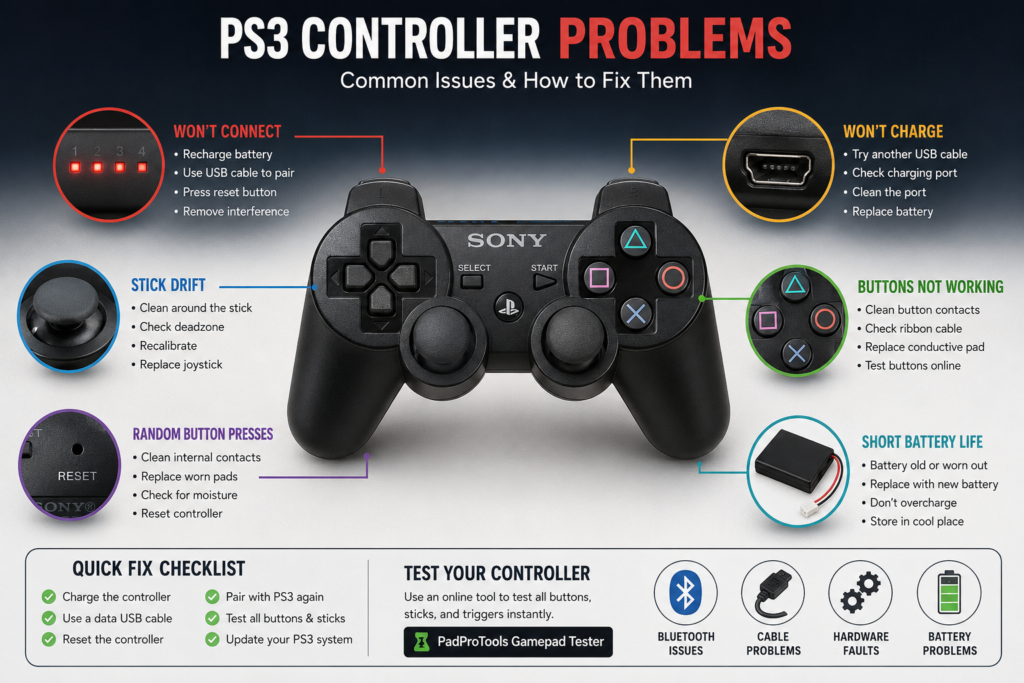
Common PS3 controller faults include battery wear, cable or charging-port problems, dirty contacts, lost pairing information, and joystick wear. Start with the non-invasive checks in this guide before opening the controller or replacing parts.
Whether your controller won’t connect, won’t charge, keeps disconnecting, or starts pressing buttons on its own, this guide walks you through the most common problems and the safest ways to fix them. You’ll also learn how to test your controller step by step to find out whether the issue is caused by software, the battery, or a hardware fault.
Jump to Your Problem
If you’re looking for a specific issue, start here.
PS3 controller won’t connect, PS3 controller charging problems, PS3 controller won’t turn on, PS3 controller keeps disconnecting, PS3 controller connected but not working, PS3 controller buttons not working, PS3 controller left stick problem Stick drift and deadzone issues, PS3 controller lights blinking PS3 controller not working on PC, PS3 controller not working when plugged in How to reset a PS3 controller, Universal fixes checklist
Universal Fixes Checklist
Before taking the controller apart, run through this list once. In my repair shop, this single checklist resolves close to half of all reported problems without opening the controller.
Restart your PlayStation 3. Charge the controller for at least 30 to 60 minutes. Use a known working Mini-USB data cable. Some cables only provide power and cannot transfer data. This is the single most common false alarm I see: a customer convinced their controller is dead when the cable was simply charging only. Connect the cable to a different USB port on the console. Press the reset button on the back of the controller for about 5 seconds using a paperclip. Pair the controller with the console again using a USB cable and the PS button. Make sure your PS3 system software is up to date. Test another controller on the same console if you have one, to isolate console versus controller. Test every button, trigger, and analog stick to identify whether the problem sits with the controller or the connection.
Every troubleshooting path below refers back to this checklist. If a section tells you to “run the universal fixes,” this is the list.
Quick Symptom, Cause, and First Fix
| Problem | Most Likely Cause | First Thing to Try |
|---|---|---|
| Controller won’t connect | Lost Bluetooth pairing | Connect with a Mini USB cable and press the PS button |
| Controller won’t charge | Faulty cable or weak battery | Try another Mini USB data cable |
| Four lights keep flashing | Pairing or sync problem | Reset and pair the controller again |
| Buttons press themselves | Dirty contacts or worn conductive foam | Clean the contacts |
| Left stick moves by itself | Stick drift or worn joystick module | Test the analog stick before replacing parts |
| Controller disconnects randomly | Weak battery or Bluetooth interference | Fully charge and move closer to the console |
| No response from buttons | Internal contact issue or hardware fault | Test all inputs to identify affected buttons |
| Works with USB but not wirelessly | Bluetooth pairing problem | Remove the pairing and reconnect |
Understanding PS3 Controllers
Knowing which controller you have makes troubleshooting much easier. Sony released two official wireless controllers for the PlayStation 3: Sixaxis and DualShock 3. They look nearly identical, but there are a few important differences.
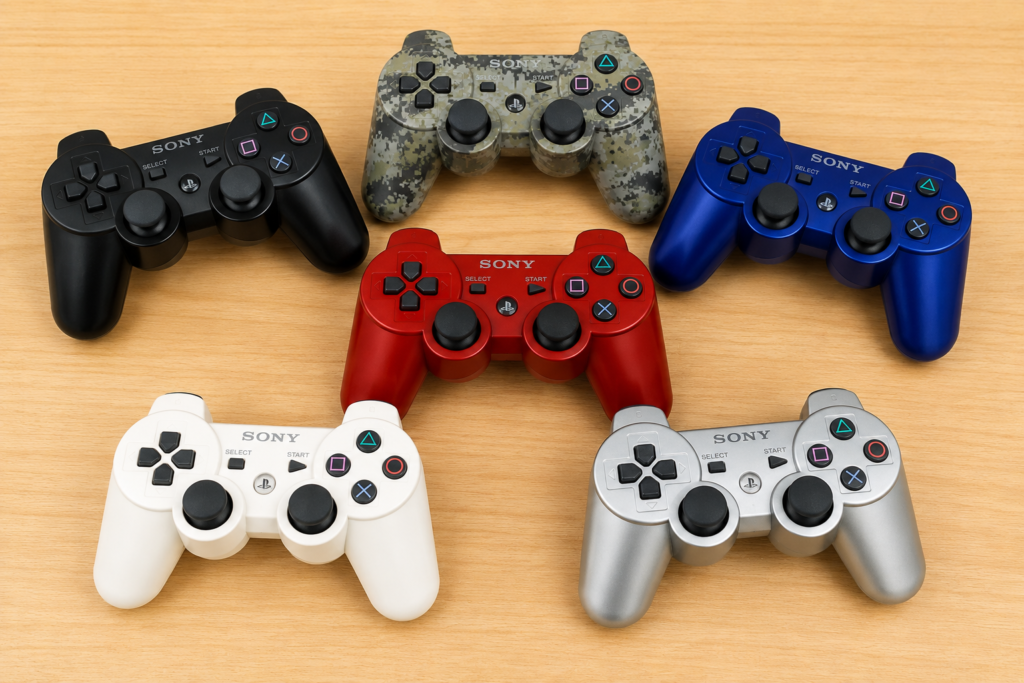
Sixaxis. The Sixaxis was the first controller released for the PlayStation 3. It includes wireless Bluetooth connection, motion sensing, a rechargeable battery, and Mini USB charging. It does not include vibration support.
DualShock 3. The DualShock 3 added vibration while keeping all the features of the Sixaxis. It includes wireless Bluetooth, motion controls, vibration feedback, a rechargeable lithium-ion battery, Mini USB charging, and pressure-sensitive face buttons in supported games.
For setup, compatibility, or buying details, read our use controllers across platforms.
Most PS3 owners today use a DualShock 3, although many third-party controllers are also available. If you’re using a third-party controller, some features such as vibration, motion controls, or Bluetooth pairing may work differently. In my repair experience, third-party controllers fail at the analog stick and button contact level roughly twice as often as genuine Sony units, largely due to lower-grade internal components.
Why PS3 Controllers Stop Working
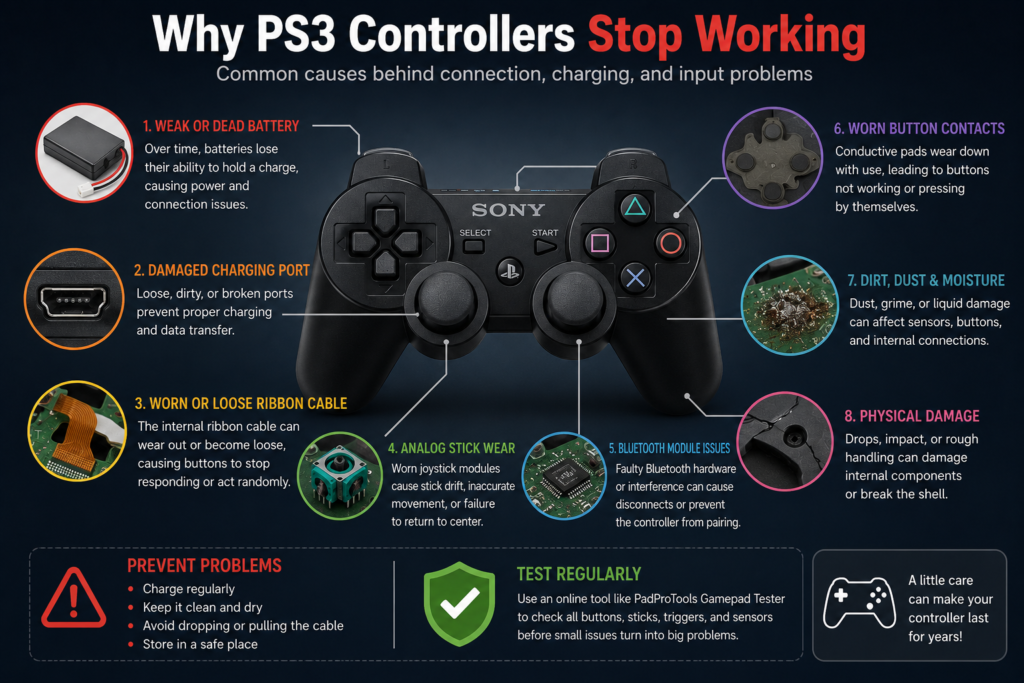
Most controller problems don’t happen without a reason. In many cases, the controller gives warning signs before it stops working completely. Check on our gamepad tester tool when the PS3 controller is not working.
Low battery. A weak battery can cause random disconnects, flashing LEDs, pairing failures, and the controller turning off during gameplay. If the battery no longer holds a charge, replacing it is often enough to bring the controller back to normal.
Bluetooth pairing problems. The controller remembers the last console it was paired with. If you connect it to another PlayStation 3, a PC, or another device, it may stop connecting to your original console until it is paired again. Common signs include four flashing lights, no response after pressing the PS button, or a controller that works only with a USB cable.
Faulty Mini-USB cable. Not every Mini USB cable is the same. Some cables only charge the controller, while others can both charge and transfer data. If the cable cannot transfer data, the controller may never complete the pairing process. If the controller isn’t detected, always try another known working data cable before assuming the controller is faulty.
Worn battery. Rechargeable batteries lose capacity with age and use. Symptoms can include short battery life, incomplete charging, random shutdowns, or a controller that works only while connected by USB. Test with a known-good cable before deciding that the battery needs replacement.
Dirty or worn button contacts. Inside the controller, each button presses against a conductive contact. Over time, dust, moisture, and normal wear can reduce contact pressure. Common symptoms include buttons pressing themselves, buttons needing extra force, buttons working only sometimes, and multiple buttons activating together. Cleaning the contacts often fixes this problem without replacing parts.
Analog stick wear. The analog sticks are mechanical components that wear down with use. As they age, you may notice the character moving without touching the stick, the camera drifting on its own, the stick not returning to center, or movement feeling inconsistent. Before replacing the joystick module, test the stick to confirm whether the issue is drift, dead zone, or calibration.
Physical damage. Drops, liquid spills, and rough handling can damage internal components such as the charging port, motherboard, ribbon cable, battery connector, or joystick module. If the controller stopped working immediately after being dropped or exposed to liquid, a hardware repair may be necessary.
PS3 Controller Won’t Connect
If your PS3 controller won’t connect, the problem is usually a lost Bluetooth pairing, a faulty Mini USB data cable, a low battery, or a pairing conflict after using the controller with another device.
Start by running the universal fixes checklist above. If the controller still won’t connect after that, work through the following in order.
Reset the controller. Turn the controller over. Near the L2 button, you’ll find a small reset hole. Use a paperclip or SIM eject tool. Press and hold the reset button for about five seconds. Reconnect the controller using the USB cable, then press the PS button again. If pairing information is corrupted, this usually restores the connection.
Remove Bluetooth interference. Sit closer to the console, remove nearby Bluetooth devices, turn off unused wireless accessories, and avoid metal objects between the controller and console. This is a less common cause than battery or pairing issues, but it’s worth ruling out.
Test with another controller. Ask yourself two questions: does another controller connect normally, and does your controller fail on another PS3? The answers narrow down whether the fault is in the console or the controller.
| Result | Most Likely Cause |
|---|---|
| The other controller works | Your controller has the problem |
| No controllers connect | PS3 USB ports or Bluetooth hardware may be faulty |
| Controller works on another PS3 | Original console may need troubleshooting |
PS3 Controller Keeps Disconnecting
A controller that disconnects repeatedly usually has a weak battery, an unstable Bluetooth connection, or an internal hardware problem.
Older batteries often lose capacity. Common signs include disconnecting after a few minutes, working only while charging, and sudden shutdowns. If these symptoms appear consistently, replacing the battery is usually the best solution.
If the charging port feels loose, the controller may disconnect whenever the cable moves. Look for a bent connector, dirt inside the port, or physical damage, and clean the port carefully before assuming it needs replacement.
The controller works with USB but not with Bluetooth. This is one of the most common connection problems I see in the shop. It usually means the battery is worn out, Bluetooth pairing has been lost, or wireless hardware has failed. Work through it in this order: reset the controller, pair it again using USB, fully charge the battery, then test Bluetooth again. If it still only works while connected by cable, the battery or Bluetooth hardware likely needs attention.
Re-sync after battery replacement. Replacing the battery clears the controller’s connection information. After installing a new battery, connect the controller with a Mini USB cable, turn on the PS3, press the PS button, and wait until one player LED stays lit. Disconnect the cable and test the wireless connection. If it still won’t connect, repeat the reset process before pairing again.
Safe Mode pairing. If normal pairing fails, Safe Mode can help identify whether the console is the source of the problem. Turn the PS3 off completely. Press and hold the power button until it turns off again, then press and hold it a second time, releasing after the second sequence of beeps. Connect the controller with a USB cable and press the PS button when prompted. If the controller works here, the console is detecting it correctly.
Isolating console versus controller.
| Question | Yes | No |
|---|---|---|
| Does another controller connect? | Console is probably fine | Console may have an issue |
| Does your controller charge? | The battery may still be healthy | Check cable, port, or battery |
| Does it work through USB? | Bluetooth may be the problem | Hardware fault is more likely |
| Does it work on another PS3? | The original console may be causing the issue | Controller is likely faulty |
Before removing a single screw, confirm whether the controller is actually sending inputs. Test the controller online using any browser-based gamepad tester and check whether it’s detected, whether all buttons respond, whether both analog sticks move smoothly, whether the triggers register correctly, and whether there’s unwanted movement when the sticks are untouched. If the controller is detected and inputs respond normally, the issue is more likely pairing or console-related rather than controller hardware.
PS3 Controller Charging Problems
If your PS3 controller won’t charge, the most common causes are a faulty Mini USB cable, a damaged charging port, a worn-out battery, or a loose internal battery connection. Run the universal fixes checklist first, particularly the cable and USB port swaps. In my repair shop, roughly one in three “dead battery” complaints turns out to be a charge-only cable rather than an actual battery fault.
Check the charging port. Look closely at the Mini USB port on the controller for a loose connector, bent metal pins, dust or lint inside the port, or a connector that moves when the cable is plugged in. Use a flashlight to inspect it. If you see dirt, remove it carefully with a soft brush or compressed air. Avoid using metal objects that could damage the connector.
PS3 Controller Won’t Turn On
A controller that won’t turn on may have a fully discharged battery, a failed battery, a charging problem, or internal hardware damage.
If the controller hasn’t been used for months, the battery may be deeply discharged. Charge it for at least one hour before testing again, since some batteries take longer to recover after long storage periods.
Rechargeable batteries wear out over time. Common signs of end of life include charging very slowly, losing power within minutes, working only while plugged in, and not holding a charge overnight. If these symptoms continue after testing another cable, replacing the battery is usually the next step.
If the controller was dropped or repaired before, the battery connector may have come loose. Symptoms include no charging lights, the controller suddenly powering off, or the controller turning on only when pressure is applied to the back cover. Opening the controller and reconnecting the battery cable may solve the problem.
If none of these checks help, the fault may be internal, such as a damaged charging board, broken ribbon cable, motherboard damage, or liquid damage. At this stage a repair is usually required.
Charging LED meanings.
| LED Pattern | Meaning |
|---|---|
| One light flashing while connected | Charging normally |
| One solid light after disconnecting | Controller paired successfully |
| Four lights flashing together | Pairing or connection problem |
| No lights at all | Battery empty, charging fault, or hardware problem |
| Lights stop after a few seconds | The battery may no longer hold a charge |
If the lights behave differently every time you connect the controller, inspect the cable and charging port before replacing parts.
PS3 Controller Not Working When Plugged In
If your controller doesn’t work even while connected by USB, the problem is usually a charging-only cable, a damaged USB port, a failed pairing process, or an internal hardware fault. Run the universal fixes checklist, with particular attention to swapping the cable and USB port, then confirm the controller is genuinely paired rather than just powered.
Inspect the USB connector for bent pins, a loose port, cracks around the connector, or signs of corrosion. Damage here can interrupt both charging and communication.
A battery replacement is worth considering if the controller only works while plugged in, loses charge very quickly, takes much longer to charge than before, shuts off unexpectedly, or the battery appears swollen or leaking. If none of these symptoms are present, keep troubleshooting before buying replacement parts.
Buttons Not Working on a PS3 Controller
If one or more buttons stop responding, the cause is usually dirty contacts, a worn conductive rubber pad, a loose ribbon cable, or physical damage inside the controller. Test every button first to find out whether the problem affects a single button or the entire controller.
Face buttons. X, Circle, Square, and Triangle are used in almost every game, so they naturally wear down over time. Symptoms include a button doing nothing, only working when pressed hard, responding inconsistently, or triggering another button at the same time. Possible causes include dirty contacts, a worn conductive rubber pad, a misaligned ribbon cable, or liquid damage. If only one button fails while the others work normally, the issue is usually limited to that button rather than the motherboard.
Shoulder buttons. L1, L2, R1, and R2 see heavy use, especially in racing and shooting games. Watch for a trigger that doesn’t register, feels loose, sticks after being pressed, or stays active after release. Possible causes include a broken spring, a worn trigger mechanism, dirty contact, or internal damage after a drop. If a trigger feels physically loose, inspect the mechanism before replacing electronic parts.
For setup, compatibility, or buying details, read our arcade sticks guide.
Start, Select, and PS button. These see less use but can still fail. If the PS button won’t turn on the controller, Start won’t pause the game, or Select has no response, the cause is usually a ribbon cable problem, dirty contacts, or a worn conductive pad. If none of these buttons respond at all, the problem may affect a larger section of the controller.
Controller randomly presses buttons. Random button presses, often called ghost inputs, are commonly caused by worn conductive foam, dirty contacts, moisture inside the controller, or a loose ribbon cable. This became especially common on older DualShock 3 units after years of use. Cleaning the internal contacts and restoring proper pressure usually fixes it. If liquid entered the controller recently, turn it off, disconnect the battery if opening the controller, and allow it to dry completely before testing again.
Sticky buttons. Buttons should return immediately after being pressed. If they remain stuck, the cause is usually dirt, food residue, dried liquid, or a worn button housing. Cleaning around the buttons often restores smooth movement. Avoid spraying cleaning products directly into the controller.
Analog Stick Problems
Analog stick problems usually happen because the joystick module has worn over time or the stick needs cleaning, calibration, or replacement. These are mechanical parts, and after years of gaming, they naturally wear down.
Left stick: The left stick controls movement in most games and wears out faster than almost any other control. Watch for the character walking without touching the stick, movement stopping unexpectedly, the character walking slowly in one direction, or the stick feeling rough or loose. Possible causes are a worn joystick module, dirt inside the mechanism, physical damage, or stick drift.
Right stick: The right stick usually controls the camera. Watch for the camera spinning by itself, moving slowly, responding late, or drifting after release. These symptoms often point to joystick wear rather than software problems.
Stick drift: Stick drift happens when the controller detects movement even though the analog stick is centered. Typical signs include the character moving by itself, the camera slowly rotating, the cursor drifting across menus, or a vehicle turning without input. Drift can range from mild, barely noticeable in some games, to severe, affecting almost every game.
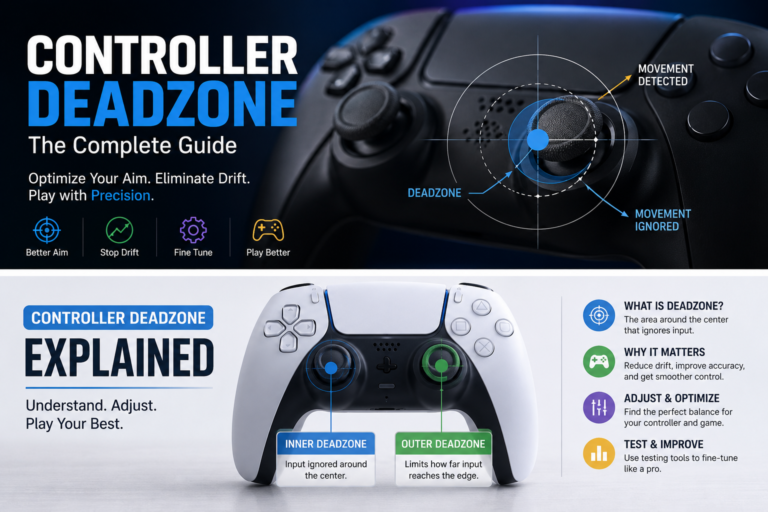
Deadzone problems: Deadzone is the small area around the center of the analog stick where movement is intentionally ignored. Problems appear when the deadzone becomes too large, the controller reports movement inside the center position, or small movements aren’t detected. Testing the analog stick makes it easier to tell the difference between deadzone issues and drift.
For setup, compatibility, or buying details, read our premium Xbox controller guide.
Stick doesn’t return to center: When released, both sticks should return smoothly to center. If they don’t, the cause is usually a worn spring, dirt, internal damage, or a bent joystick module. Avoid forcing the stick back into place, since repeated force can make the damage worse.
Stick click doesn’t work: Pressing the analog stick activates L3 or R3. If clicking no longer works, check for physical movement, dirt around the stick, or internal switch damage. The joystick may still move normally even if the click function has failed.
D-pad problems: The D-pad should register each direction cleanly. Common issues include Up not responding, Down activating Left, multiple directions registering together, or a sticky feel. Possible causes are dirt, a worn conductive pad, or a misaligned rubber membrane. Testing each direction individually quickly reveals whether one side has failed.
Vibration not working:. Only the DualShock 3 includes vibration. If it stops working, check that the game supports vibration, that vibration is enabled in game settings, that the controller is genuine, and that the internal vibration motor connection. If every other function works normally, the vibration motor or its wiring may need attention.
Motion controls are not working: Motion controls rely on the controller’s internal sensors. Problems include motion controls not responding, tilt feeling inaccurate, or certain games ignoring movement. Possible causes are an unsupported game, a sensor problem, a third-party controller, or internal hardware damage. Testing motion controls in a supported game helps confirm whether the sensors are working correctly.
How to Test Every Button and Stick
Before replacing any parts, test the controller to identify exactly which inputs are failing. Any browser-based gamepad tester will let you check the following.
Face buttons. Press X, Circle, Square, and Triangle. Each should register immediately.
Shoulder buttons. Test L1, L2, R1, and R2. The triggers should move smoothly through their full range.
Analog sticks. Rotate both sticks in full circles, watching for smooth movement, full range, no sudden jumps, and proper return to center.
D-pad. Press each direction one at a time. Every direction should register correctly without activating another input.
Stick drift. Leave both analog sticks untouched for several seconds. If movement appears without touching them, stick drift is likely present.
Deadzone. Move each stick slightly away from the center. Movement should begin smoothly without a large delay.
| Test Result | Possible Cause |
|---|---|
| One button doesn’t respond | Dirty contact or worn conductive pad |
| Several buttons fail together | Ribbon cable or motherboard problem |
| Stick moves by itself | Stick drift |
| Stick won’t reach full range | Worn joystick module |
| Trigger doesn’t reach maximum input | Trigger wear or mechanical damage |
| No inputs detected | Connection or hardware failure |
This testing process helps you diagnose the problem with confidence before buying replacement parts or opening the controller.
PS3 Controller Not Working on PC
Many people still use a DualShock 3 on a PC for older games, emulators, and Steam. Setup isn’t as simple as plugging in a newer controller, but it’s usually straightforward once you know the steps.
Check whether Windows detects the controller. Connect the controller using a Mini USB data cable, press the PS button, wait a few seconds, and open Device Manager to look for a new USB or game controller device. If nothing shows up, try another cable, another USB port, restarting the computer, or testing on another PC. If the controller isn’t detected on multiple computers, the problem is likely with the controller rather than Windows.
Test the controller online. Once Windows detects it, verify that every input works using any browser-based gamepad tester. Check face buttons, D-pad, shoulder buttons, both analog sticks, L3 and R3, stick drift, dead zone, and trigger response. If every input responds correctly, your controller hardware is likely fine.
Controller connected, but no input in a game. Possible causes are a missing driver, an unsupported game, incorrect controller configuration, or input mapping problems. Test the controller outside the game first. If it works in a browser tester but not inside a game, the game configuration is usually the issue.
USB works, but Bluetooth doesn’t. Usually, because Bluetooth pairing was never completed, the Bluetooth adapter isn’t compatible, previous pairing information is conflicting, or the battery is weak. Confirm the wired connection is stable first, then troubleshoot Bluetooth separately.
Steam doesn’t detect the controller. Confirm Windows detects it, test every button, and restart Steam after connecting. If Steam still doesn’t recognize it, review your controller settings inside Steam before assuming a hardware fault.
The controller stops working mid-game. Check battery level, USB cable movement, Bluetooth signal strength, power saving settings, and background software that may interfere with input. Random disconnects usually point to battery or connection issues rather than faulty buttons.
How to Reset a PS3 Controller
Resetting a PS3 controller clears its previous pairing information and lets you reconnect it from scratch. You’ll need a paperclip or SIM eject tool and a Mini USB data cable.
Turn the controller over and locate the small reset hole near the L2 button. Insert the paperclip and press and hold the reset button for about five seconds. Reconnect the controller using the Mini USB cable and allow the system a few moments to detect it. Press the PS button and wait until one player light stays lit. Test every input to confirm the reset was successful.
Platform Compatibility
Windows 11. A PS3 controller can work on Windows 11, though additional setup may be required depending on how you connect it. Use a quality Mini USB data cable, confirm Windows detects the controller, and test every input before launching games.
For setup, compatibility, or buying details, read our PS5 controller power guide.
Android. Many Android devices support PS3 controllers through USB OTG or Bluetooth, but compatibility varies by device and Android version. Not every phone supports older Bluetooth controllers, and some games require manual controller support rather than recognizing it automatically.
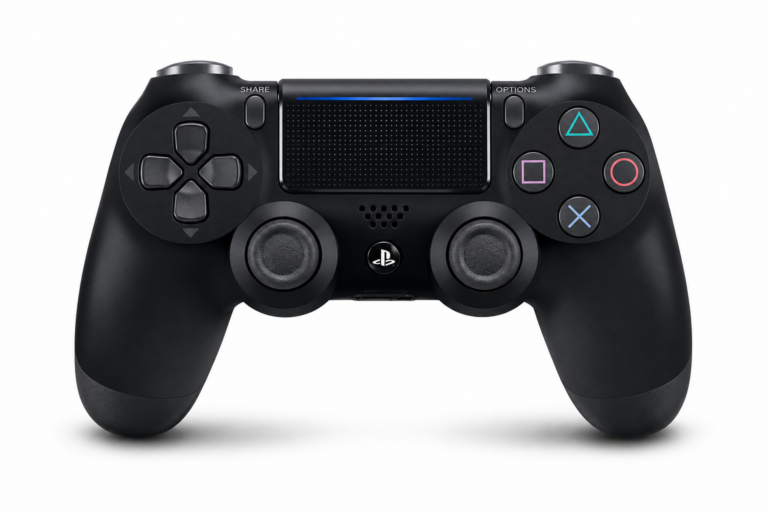
PS4. A standard DualShock 3 is not fully compatible with a PlayStation 4. Some third-party adapters allow limited support, but expect no wireless support, limited button mapping, missing touchpad functions, and reduced compatibility in certain games. If you regularly play on PS4, a native controller gives the best experience.
PS5. The PS5 does not officially support the DualShock 3. Some adapters may allow limited use in specific situations, but compatibility depends entirely on the adapter and the game being played.
How to Replace a PS3 Controller Battery
A worn battery doesn’t always mean you need a new controller. Replacing it is straightforward if you’re comfortable opening the controller.
You’ll need a small Phillips screwdriver, a plastic opening tool, a replacement battery compatible with the DualShock 3, and a clean workspace.
Remove the rear screws, lift the back cover carefully, disconnect the battery connector, remove the old battery, connect the replacement battery, reassemble the controller, and charge it fully before testing. Take your time during reassembly to avoid pinching the ribbon cable or trapping battery wires. In my experience, the most common mistake at this stage isn’t the battery swap itself but forcing the back cover shut over a slightly misaligned ribbon cable, which can crack the connector.
How to Clean a PS3 Controller
Regular cleaning helps prevent many common problems. Focus on removing dirt around the button edges with a soft brush, cleaning around the base of the analog sticks where dust collects, wiping away oils and debris on the triggers, and clearing lint from the charging port with compressed air or a soft brush. Avoid pouring liquid directly into the controller.
Should You Repair or Replace Your Controller
| Problem | Repair | Replace |
|---|---|---|
| The battery no longer holds a charge | Yes | No |
| Stick drift | Yes | No |
| Dirty button contacts | Yes | No |
| Broken trigger spring | Yes | No |
| Loose charging port | Usually | Depends on severity |
| Cracked motherboard | No | Yes |
| Heavy liquid damage | Sometimes | Usually |
If the repair costs nearly as much as another genuine controller, replacing it may be the better long-term choice.
Prevent Future Controller Problems
Simple habits extend the life of your controller. Keep it clean, avoid pulling on the USB cable, charge the battery before it becomes completely empty, store the controller in a dry place, avoid dropping it, keep food and drinks away while gaming, and test the controller occasionally to catch small problems before they grow.
Before You Replace Any Parts
A controller may appear broken even when only one component is causing the problem. Before buying a battery, joystick module, ribbon cable, charging board, or replacement controller, run a complete input test. Checking every button, trigger, and analog stick first can help identify the actual fault and avoid unnecessary repairs.
FAQS
Why won’t my PS3 controller connect?
A PS3 controller usually fails to connect because the Bluetooth pairing was lost, the battery is too weak, or the USB cable cannot transfer data. Charge the controller, connect it with a working Mini USB data cable, press the PS button, and reset the controller if necessary.
Why won’t my PS3 controller charge?
The most common causes are a faulty Mini USB cable, a damaged charging port, a worn battery, or a loose battery connector. Try another cable and USB port before replacing the battery.
Why won’t my PS3 controller turn on?
The battery may be completely discharged or no longer able to hold a charge. A damaged charging port or internal hardware problem can also prevent it from powering on.
Why are all four lights flashing on my PS3 controller?
Four flashing LEDs usually mean the controller is trying to pair but cannot complete the connection. Reset the controller, reconnect it with a Mini USB data cable, and press the PS button to pair it again.
Why is my PS3 controller connected but not working?
Check whether it has been assigned to the correct player, test every button, and make sure the game supports controller input. A damaged ribbon cable or button contacts can also prevent inputs from registering.
Why are my PS3 controller buttons not working?
Buttons usually stop responding because of worn conductive pads, dirty contacts, or a loose ribbon cable. Test every button individually to determine whether the problem affects one button or several.
Why is my PS3 controller pressing buttons by itself?
Random button presses, or ghost inputs, are commonly caused by dirty contacts, worn conductive foam, or a loose ribbon cable inside the controller. Cleaning the internal contacts often solves this problem.
Why is my PS3 controller’s left stick moving by itself?
This is usually stick drift, caused by dust, wear inside the joystick module, or damaged sensors.
What is stick drift?
Stick drift happens when the analog stick reports movement even while resting in the center position. Characters, cameras, or menus may move on their own without input.
What is a controller deadzone?
A dead zone is the small area around the center of an analog stick where movement is ignored. If it becomes too large, small stick movements won’t register correctly.
How do I reset a PS3 controller?
Turn the controller over and locate the small reset hole near the L2 button. Press and hold the button inside the hole for about five seconds using a paperclip, reconnect the controller with a Mini USB cable, and press the PS button.
Can I replace the battery in a PS3 controller?
Yes. The battery inside most genuine DualShock 3 controllers can be replaced. If the controller only works while plugged in or loses power quickly after charging, a new battery may solve the problem.
Is it worth repairing a PS3 controller?
If the controller only needs a battery, cleaning, or a joystick replacement, repairing it is usually more affordable than buying another genuine controller. If the motherboard is badly damaged, replacement is usually the better option.
Can I use a PS3 controller on Windows 11, Android, PS4, or PS5?
Windows 11 and many Android devices support it with some setup. It is not officially supported on PS4 or PS5, though limited third-party adapters exist for both with reduced functionality.
For setup, compatibility, or buying details, read our PS5 controller 30th Anniversary Edition.
PS3 Controller Troubleshooting Flowchart
Controller not working. Does it turn on? If not, charge the battery and check again. If yes, connect with USB and check if it’s detected. If not detected, check the cable and reset the controller. If detected, test every button and both analog sticks. If a hardware problem is confirmed, decide between repair and replacement using the table above. If no hardware problem is found, the issue was most likely pairing-related and should now be resolved.
PS3 Controller Error Reference Table
| Symptom | Most Likely Cause | Difficulty | Typical Fix Time |
|---|---|---|---|
| Won’t connect | Lost pairing | Easy | 5 to 10 minutes |
| Won’t charge | Faulty cable or battery | Easy | 10 to 20 minutes |
| Won’t turn on | Battery or charging issue | Easy to medium | 15 to 30 minutes |
| Four flashing lights | Pairing failure | Easy | 5 to 10 minutes |
| Buttons don’t respond | Dirty contacts | Medium | 20 to 40 minutes |
| Random button presses | Worn conductive foam | Medium | 30 to 45 minutes |
| Stick drift | Worn joystick module | Medium | 30 to 60 minutes |
| Keeps disconnecting | Weak battery | Easy | 10 to 20 minutes |
| USB works, Bluetooth doesn’t | Pairing or wireless issue | Easy | 10 to 20 minutes |
| Controller not detected on PC | Cable or driver issue | Easy | 10 to 30 minutes |
PS3 Controller Maintenance Checklist
Battery. Recharge before it becomes completely empty. Avoid storing the controller with a fully discharged battery. Replace batteries that no longer hold a charge.
Charging. Use a good-quality Mini-USB data cable. Avoid forcing the connector into the charging port. Disconnect the cable by holding the plug instead of pulling on the wire.
Buttons. Remove dust regularly. Wipe away dirt around the face buttons and D-pad. Don’t press buttons with excessive force.
Analog sticks. Keep the area around the sticks clean. Avoid dropping the controller. Test stick movement occasionally to catch early signs of wear.
Storage. Store the controller in a cool, dry place. Keep liquids away. Avoid leaving it in direct sunlight or inside a hot vehicle.
Final Thoughts
Many PS3 controller problems can be traced to a worn battery, a damaged cable, dirty contacts, or lost pairing information. Check these simpler causes first, then consider internal repair only if the controller still fails the same test consistently.
Start with the simple checks before opening the controller. Work through the troubleshooting steps one at a time, and test the controller after each change. This approach helps you identify the real cause instead of replacing parts unnecessarily. If you’re unsure whether the controller itself is at fault, run a complete input test to check every button, trigger, D-pad direction, and analog stick before deciding on a repair or replacement.


One Comment