
Xbox Controller Issues: Fix Xbox Series X, Xbox One, and PC Problems in Minutes
“By Airam Chandler”
Updated: July 2026
If your Xbox controller is acting weird, don’t replace it yet.
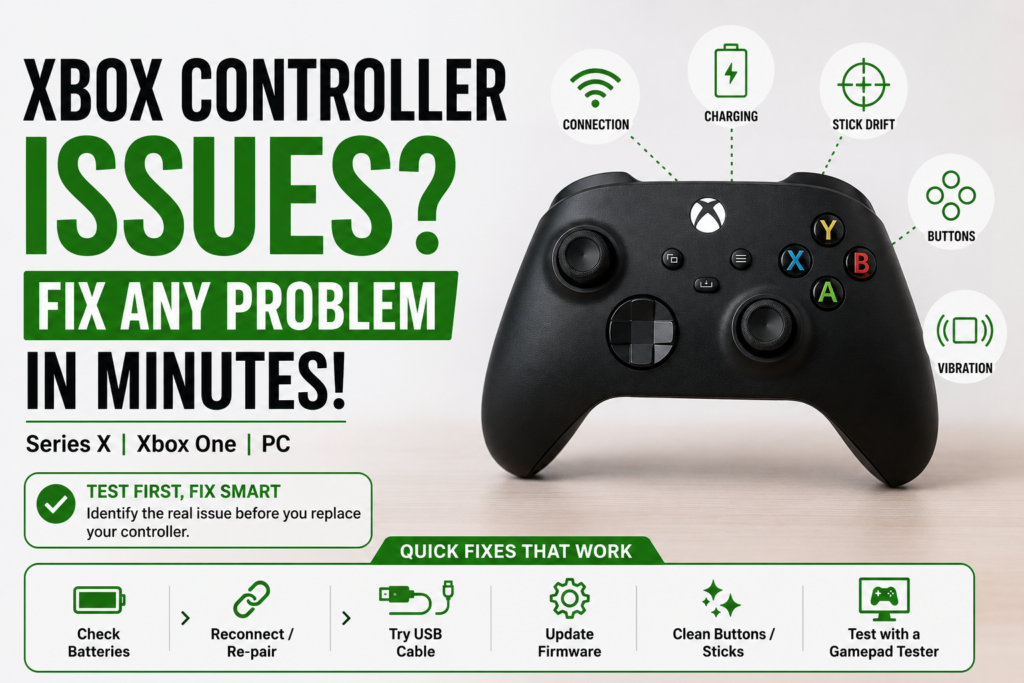
A lot of Xbox controller issues look serious at first. Still, the real problem is often simple: low batteries, a bad USB cable, Bluetooth pairing, old firmware, sticky buttons, stick drift, or one game using the wrong controller settings Xbox Controller Tester .
When I check a controller, I don’t start by opening it. I test it first.
That is the fastest way to know if the problem is the controller, the Xbox console, the Windows PC, the game, or the connection. Before you buy a new one, run a quick input check with the PadProTools gamepad tester. It shows live button presses, stick movement, trigger input, and drift behavior right in your browser.
Quick Answer: How to Fix Most Xbox Controller Issues Fast
To fix most Xbox controller issues, test the controller first, then check batteries, reconnect it, try USB instead of wireless, update the firmware, clean sticky buttons or thumbsticks, and test it again. If the controller works in a tester but not inside a game, the problem is usually game settings, button mapping, Steam Input, or the Xbox app.
Microsoft’s own support flow also starts with basic checks like batteries, USB cable, ports, pairing, and controller updates through Xbox settings or the Xbox Accessories app. You can check Microsoft’s official controller troubleshooting page here: My Xbox controller won’t connect or turn on.
Before You Replace It, Test Your Xbox Controller First
Here’s the move most people skip.
Plug the controller into the PadProTools gamepad tester and press every button. Move both sticks. Pull both triggers. Check the D-pad. Watch what happens on screen.
If every input shows correctly, your controller is probably fine. The issue may be your Xbox console, PC, Bluetooth connection, game settings, or button layout.
If one button, stick, trigger, or direction does not show, now you know where to focus.
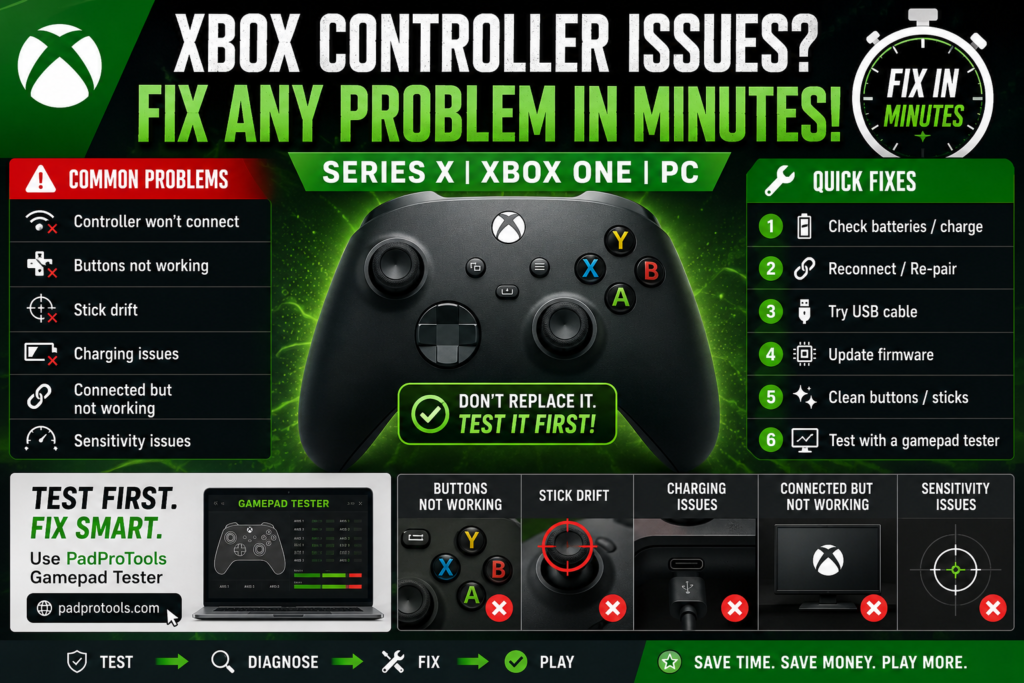
What I Check First
Buttons
A, B, X, Y, Menu, View, Xbox button
Sticks
Left stick, right stick, stick clicks, center position, drift
Triggers
Left trigger and right trigger pressure
D-pad
Up, down, left, right
Bumpers
LB and RB
Vibration
Check in a supported game or controller test setup
Connection
USB, Bluetooth, Xbox Wireless, or Xbox Wireless Adapter
This test-first flow saves time because you are not guessing. You are finding the failed input before trying random fixes.
Xbox Controller Issues Quick Diagnosis Table
| Problem | Most likely cause | Try this first |
|---|---|---|
| Controller won’t sync | Low battery, pairing glitch, firmware issue | Replace batteries, pair again, try USB |
| Controller blinking | Not paired or lost wireless connection | Hold the pair buttons and reconnect |
| Connected but not working | Game setting, firmware, wrong input mode | Test outside the game |
| Buttons not working | Dirt, sticky contact, worn button pad | Test buttons, clean carefully |
| Stick drift | Dust, worn stick module, dead zone issue | Test stick movement, clean, recalibrate |
| Charging issue | Bad cable, bad port, battery pack issue | Try another cable and battery pack |
| PC connection issue | Bluetooth, driver, Steam Input, USB problem | Try USB, update app, retest |
| Vibration not working | Game setting, low battery, motor issue | Check settings, test another game |
| Elite Series 2 issue | Profile, paddle mapping, stick setting | Check the Xbox Accessories app |
How to Fix Xbox Series X Controller Syncing Issues
If your Xbox Series X controller is not syncing, start with the simple stuff first. Most syncing problems are power, pairing, or firmware-related.
Check the Battery First
Put in fresh AA batteries or fully charge the rechargeable battery pack.
If you use a rechargeable pack, remove it and try normal AA batteries. If the controller turns on with AA batteries, the battery pack or charging setup is the problem.
Re-Sync the Controller
Turn on the controller. Press the pair button on the Xbox console, then press the pair button on the controller.
If the Xbox button keeps blinking and never turns solid, it is still not paired.
Try USB-C Before Wireless
Use a USB-C cable with Xbox Series X|S controllers. A wired test tells you quickly if the controller can still communicate with the console tester.
If it works through USB but not wirelessly, the controller is not dead. The issue is likely pairing, wireless range, interference, firmware, or the wireless hardware.
For diagnosis and repair steps, see our PS5 controller troubleshooting.
Restart the Xbox and the controller
Turn off the controller. Restart the console. Then pair the controller again.
This sounds basic, but it fixes a lot of temporary connection problems.
Update the Controller Firmware
Firmware updates can fix input, pairing, and connection bugs.
On the Xbox console, go to:
- Profile & system
- Settings
- Devices & connections
- Controllers & headsets
Then choose the controller and check for updates.
Microsoft’s firmware guide explains how to update an Xbox Wireless Controller on console or Windows: Update your Xbox Wireless Controller.
Why Is My Xbox One Controller Flashing and Not Connecting?
If your Xbox One controller is flashing, it usually means it is trying to connect but cannot find the Xbox console or PC.
Try this order:
- Replace or recharge the batteries
- Move closer to the console
- Press the console pair button
- Press the controller pair button
- Try a USB cable
- Restart the console
- Update the controller firmware
If it works with USB but keeps failing wirelessly, check for wireless interference, old firmware, or pairing problems.
Xbox Controller Connected But Not Working
This is the “it says connected, but nothing happens” problem.
First, test it outside the game with the PadProTools gamepad tester. Press A, B, X, Y, the D-pad, triggers, bumpers, and sticks.
If the tester sees input, the controller is working. The problem is probably inside the game, Steam Input, Xbox app, or a custom button layout.
If the tester does not see input, try a USB cable, restart the device, update firmware, and test again.
Xbox Series X Controller Connected But Not Working
For Xbox Series X, don’t start with repair. Start with the console and the game.
For diagnosis and repair steps, see our Nintendo Switch Joy-Con repair guide.
Try this:
- Open another game
- Restart the current game
- Restart the console
- Reconnect the controller
- Use USB-C
- Update the controller firmware
- Remove old pairings
- Test all buttons and sticks
If the Xbox button works but A, B, X, or Y does not register, test the buttons directly. One dirty button contact can make the controller look broken even when the rest of it works.
Xbox Controller Connected But Not Working on PC
On PC, the issue is often Windows, Bluetooth, Steam Input, the Xbox app, or the cable.
Try USB First
Use a proper data USB cable. Some cables only charge and do not send controller input.
If the controller works through USB, your controller is alive. Now you can focus on Bluetooth, Windows settings, or the game.
Remove and Pair Again in Windows
Open Windows Bluetooth settings. Remove the Xbox controller. Pair it again.
Microsoft has a support page for Xbox controller Bluetooth setup and common Bluetooth problems: Set up Bluetooth on your Xbox Wireless Controller.
Check the Xbox Accessories App
Use the Xbox Accessories app for firmware updates, controller setup, profiles, and supported Xbox accessories.
Microsoft notes that Windows users should connect supported accessories through USB or the Xbox Wireless Adapter when configuring them in the app: Xbox Accessories app.
Check Steam Input
If the controller works in a tester but not in a Steam game, check Steam Input settings. Reset the controller layout and try the game again.
Issues Connecting Xbox One Controller to PC
Some Xbox One controllers support Bluetooth, and some older models do not. That matters.
Try this:
- Use USB first
- Check if your controller model supports Bluetooth
- Remove it from Windows Bluetooth settings
- Pair it again
- Try the Xbox Wireless Adapter
- Update controller firmware
- Test it in the browser before opening a game
Microsoft has a controller platform guide that explains controller support across Windows, Xbox, USB, Bluetooth, and Xbox Wireless Adapter setups: Xbox controller functionality across operating systems.
How to Fix Xbox Series X Controller Charging Issues
First, check what power setup you are using.
Xbox controllers can use AA batteries or a rechargeable battery pack. Regular AA batteries do not charge inside the controller like a phone battery.
Try Another USB-C Cable
Use a cable that supports data and power. A weak cable can make it look like the controller or battery pack is bad.
Check the USB-C Port
Look inside the controller port. Dust, lint, or damage can block charging or wired connection.
Do not push metal tools inside the port.
Test the Battery Pack
Remove the rechargeable pack and use fresh AA batteries.
If the controller turns on with AA batteries, the battery pack, charging cable, or charging port is likely the issue.
How to Fix Xbox Controller Buttons Not Working
If one button does not work, test it first.
Open the PadProTools gamepad tester and press every button. Watch which input shows and which one fails.
If only one button fails, that usually points to dirt, sticky residue, a worn pad, or a contact problem.
Clean Sticky Buttons
Turn off the controller. Use a cotton swab with a small amount of isopropyl alcohol around the button edge. Press the button a few times while cleaning.
Let it dry before turning the controller back on.
If the button still does not register, the controller may need internal cleaning or repair.
Buttons Not Working on PC
If the buttons work in a tester but not in a PC game, the controller is probably fine.
Check:
- Game controller settings
- Steam Input
- Xbox app settings
- Custom button mapping
- Game Pass controller support
If the buttons do not work anywhere, the issue is likely inside the controller.
How to Fix Xbox Series X Controller Sensitivity Issues
Sensitivity problems can feel like slow aim, fast aim, random movement, or bad stick control.
Start with a stick test.
Move the stick slowly in a circle. Watch if the input moves smoothly. Let go of the stick and check if it returns to center.
If the stick does not return to center, you may have stick drift.
Adjust In-Game Sensitivity
Many games have their own sensitivity and dead zone settings. Check those before blaming the controller.
For example, shooters like Call of Duty, Fortnite, Apex Legends, and Halo may all use different dead zone and aim settings.
Check Stick Settings for Elite Series 2
For Xbox Elite Wireless Controller Series 2, Microsoft says stick settings can be adjusted in the Xbox Accessories app: Adjusting the Xbox stick settings in the Accessories app.
Xbox Controller Stick Drift: Test It Before Cleaning
Stick drift means the analog stick sends movement even when you are not touching it.
Here’s how I check it:
- Open the PadProTools gamepad tester
- Do not touch the sticks
- Watch the left and right stick positions
- Move each stick in a circle
- Let go and see if it centers
If the stick moves by itself, that is drift.
Quick Stick Drift Fix
- Blow out dust around the stick base
- Use compressed air carefully
- Clean around the thumbstick edge
- Retest the controller
If cleaning does not fix it, the analog stick module or potentiometer may be worn. At that point, cleaning is probably not enough, and the controller may need repair.
For diagnosis and repair steps, see our fix PS4 controller drift.
Xbox Controller Trigger Issues
If LT or RT does not work right, test the trigger pressure.
A good trigger should move from 0 to full press smoothly. If it jumps, stays pressed, or never reaches full input, the trigger may be dirty, blocked, or damaged.
Try this:
- Test both triggers
- Clean around the trigger area
- Check if one game changed trigger settings
- Try another game
- Retest with USB
If the trigger always shows pressed, the sensor or spring may need repair.
Xbox Controller Vibration Not Working
Vibration can stop because of the game, battery, settings, or motor.
Try this:
- Check the game vibration setting
- Try another game
- Charge or replace batteries
- Reconnect the controller
- Update firmware
- Test the vibration again
If everything works except vibration, the vibration motor may be damaged.
Xbox Elite Series 2 Controller Issues
Elite Series 2 controllers have profiles, paddles, stick settings, and custom button mapping. That means some “broken” problems are actually profile problems.
Check these first:
- Open Xbox Accessories app
- Check active profile
- Reset button mapping
- Check paddle settings
- Test sticks and triggers
- Update firmware
- Try USB
Microsoft’s Elite Series 2 support page explains controller profiles, paddles, stick settings, and other setup details: Get to know your Xbox Elite Wireless Controller Series 2.
How to Reset Xbox Controller Series X
There is no small reset hole like a router, but you can soft reset the controller.
- Hold the Xbox button until the controller turns off.
- Remove the batteries or battery pack.
- Wait a short time.
- Put the batteries back in.
- Turn the controller on.
- Pair it again.
- Try USB if wireless still fails.
Also, restart your Xbox or PC before testing again.
How to Use the Xbox Accessories App
Use the Xbox Accessories app when you need to update firmware, check profiles, configure supported controllers, or change Elite controller settings.
Use it for:
- Firmware updates
- Button mapping
- Elite Series 2 profiles
- Stick settings
- Accessory setup
- Controller checks
If the app does not see your controller over Bluetooth, try USB or the Xbox Wireless Adapter. Microsoft’s support page is here: Xbox Accessories app.
For diagnosis and repair steps, see our PS5 controller flashing blue guide.
Xbox Controller Firmware Update Fix
Firmware can fix bugs that affect connection, input, and controller behavior.
On the Xbox console, go to:
- Profile & system
- Settings
- Devices & connections
- Controllers & headsets
Then choose your controller and check for updates.
On a Windows PC, use the Xbox Accessories app and connect by USB or Xbox Wireless Adapter. Microsoft says Bluetooth firmware updates are not supported, so use a supported wired or wireless adapter setup to update your Xbox Wireless Controller.
Xbox Controller USB Problems
USB problems are usually cable- or port-related.
Try this:
- Use another USB cable
- Use another USB port
- Avoid loose ports
- Check the controller port for dust
- Restart the Xbox or PC
- Test with another controller if you have one
Microsoft also recommends trying another cable or USB port when the controller does not work through USB: My Xbox controller won’t connect or turn on.
Xbox Controller Not Working in One Game
If the controller works in a tester but not in one game, your controller is probably okay.
Check:
- Game controller settings
- Custom layout
- Steam Input
- Xbox app settings
- Game Pass settings
- In-game dead zone
- Aim sensitivity
- Accessibility controls
Reset the game’s controller settings and try again.
Repair or Replace: What Should You Do?
Clean it if:
- Buttons are sticky
- Sticks feel dirty
- Trigger feels stuck
- One button sometimes works
Update firmware if:
- Controller connects but acts weird
- PC does not detect it right
- Syncing fails often
- Inputs delay or drop
Repair it if:
- One button never registers
- Stick drift stays after cleaning
- The trigger is physically broken
- The charging port is loose
- The controller was dropped or spilled on
Replace it if:
- Multiple parts fail
- Board damage is likely
- Repair costs almost as much as a new one
- The controller keeps failing after testing and cleaning
Final Checklist: Fix Any Xbox Controller Problem in Minutes
- Test the controller first
- Check batteries
- Try USB
- Pair it again
- Restart Xbox or PC
- Update firmware
- Test buttons
- Test sticks
- Test triggers
- Clean sticky parts
- Check game settings
- Try another game
- Try another device
- Repair only if the hardware fails
FAQs
Why is my Xbox controller blinking but not connecting?
It is usually not paired, too far from the console, low on battery, or stuck after a connection glitch. Replace or recharge the batteries, pair it again, then try USB.
Why is my Xbox Series X controller connected but not working?
Test it outside the game first. If a tester sees input, check game settings, button mapping, or Steam Input. If no input shows, reconnect it, try USB, and update the firmware.
How do I fix Xbox controller buttons not working?
Test every button first. If one button fails, clean around it with a cotton swab and a small amount of isopropyl alcohol. If it still fails, the internal contact or button pad may need repair.
Why is my Xbox controller connected but not working on PC?
It may be a Bluetooth, driver, Steam Input, Xbox app, or USB cable issue. Try a data USB cable first, then remove and re-pair the controller in Windows Bluetooth settings.
How do I reset an Xbox Series X controller?
Turn it off, remove the batteries or battery pack, wait a short time, put them back, turn it on, and pair it again. Also restart the Xbox or PC.
How do I fix Xbox Series X controller syncing issues?
Replace or recharge batteries, move closer to the console, press the pair buttons again, try USB-C, restart the console, and update the controller firmware.
How do I fix Xbox Series X controller charging issues?
Try another USB-C cable, check the charging port, test with AA batteries, and test the rechargeable battery pack separately. If AA batteries work, the pack or cable is probably the issue.
How do I fix Xbox Series X controller sensitivity issues?
Test the sticks first. If they center properly, adjust the sensitivity or dead zone in the game. If the stick moves by itself, clean it and test for drift.
What is the Xbox Accessories app used for?
It is used for supported Xbox controller setup, firmware updates, profiles, button mapping, and Elite Series 2 settings.
Are Xbox Elite Series 2 controller issues fixable?
Yes, many are fixable. Check profiles, paddles, stick settings, firmware, and USB connection first. If the stick drifts or a button fails after testing, it may need repair.
Why is my PS5 controller on but not working?
That is a different controller setup. PS5 controllers use different pairing, firmware, and console settings. This guide is for Xbox Series X, Xbox One, Windows PC, and Xbox Elite controllers.
Should I buy a new Xbox controller?
Not right away. Test it first. If it is only batteries, pairing, firmware, sticky buttons, or game settings, you can fix it in minutes. Replace it only when hardware damage is confirmed.


One Comment