
PS5 HDMI Port Not Working? Fix No Signal and Black Screen Issues
“”
Last updated: August 16, 2026
If your PS5 turns on but the TV shows No Signal, reconnect the HDMI cable, confirm the correct TV input, and test another cable or HDMI port. Connect the console directly to the TV instead of using a soundbar, receiver, capture card, or HDMI switch,Gaming controller check online.
PS5 HDMI Port Not Working If those checks do not restore the picture, start the PS5 in Safe Mode and test a lower resolution. A loose or damaged HDMI port becomes more likely when the picture cuts out as the cable moves or the connector only works when held at an angle.
A black screen alone does not confirm that the PS5 HDMI port is broken. The same symptom can come from the cable, TV input, video settings, HDMI handshake, connected equipment, or system software.
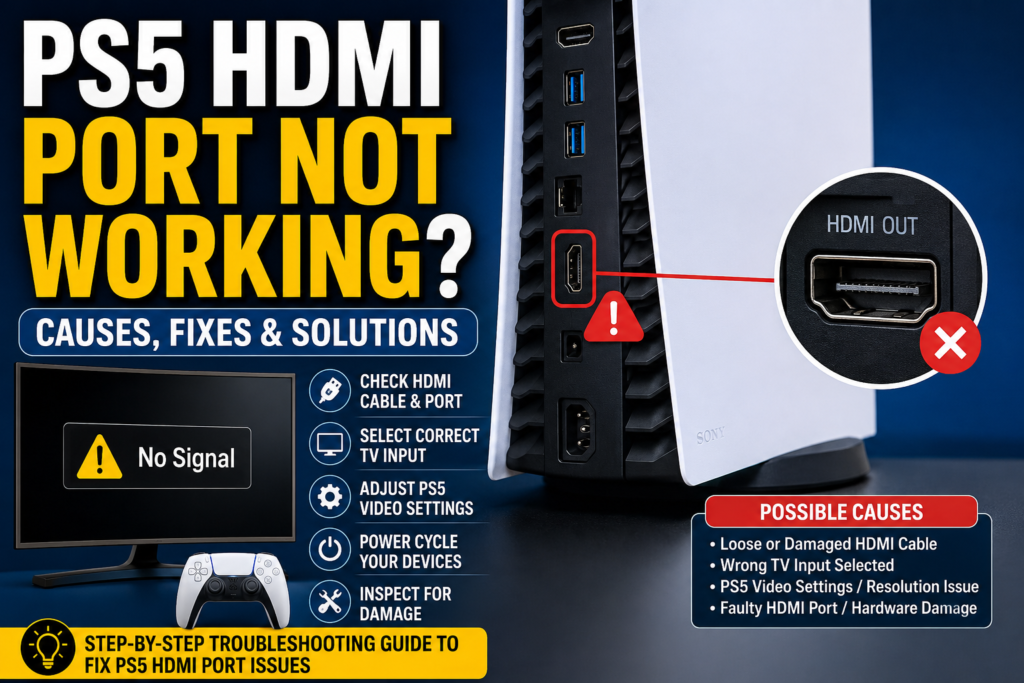
Quick PS5 HDMI Troubleshooting Checklist
Try these checks in order:
- Confirm that the TV is set to the correct HDMI input.
- Disconnect and reconnect both ends of the HDMI cable.
- Try another HDMI cable.
- Try another HDMI input on the TV.
- Connect the PS5 directly to the TV.
- Turn off and unplug the PS5 and TV, then restart both.
- Test the PS5 on another TV or monitor.
- Start the PS5 in Safe Mode.
- Lower the resolution and temporarily disable advanced video features.
- Inspect the PS5 HDMI port for looseness, bent pins, or physical damage.
Sony’s official troubleshooting advice also starts with a direct TV connection, the correct input, another HDMI cable, another TV port, and updated display firmware.
Important: If the picture appears only when you lift, push, or angle the cable, stop moving it. Continued pressure may make physical connector damage worse.
PS5 HDMI Problems at a Glance
| Symptom | What to check first |
|---|---|
| TV says No Signal | TV input, cable connection, TV HDMI port |
| PS5 turns on but the screen stays black | Safe Mode, resolution, HDCP, video settings |
| Picture flickers or cuts out | Cable, loose connection, HDR, VRR, 120 Hz |
| Safe Mode works but normal mode does not | Resolution or advanced video settings |
| HDMI cable works only at an angle | Loose or damaged console port |
| Sound works but there is no picture | Video output, display compatibility, cable |
| 1080p works but 4K does not | Cable bandwidth, TV port, transfer rate, HDR |
| PS5 fails on several TVs | Console-side HDMI or hardware problem |
| PS5 works when connected directly | Receiver, switch, capture card, or soundbar issue |
Why Is My PS5 HDMI Not Working?
The most common causes are:
- The TV is set to the wrong input.
- The HDMI cable is loose or damaged.
- The selected TV HDMI input is faulty.
- A receiver, soundbar, switch, or capture card is interrupting the signal.
- The PS5 is sending a resolution or refresh rate the display cannot handle.
- HDR, VRR, 120 Hz, or HDCP is causing a compatibility problem.
- The display firmware or PS5 system software needs an update.
- The PS5 HDMI port is bent, loose, pushed inward, or damaged.
- A component in the console’s HDMI signal path has failed.
Start with the simple checks before assuming the port needs replacement.
How to Fix PS5 HDMI Not Working
1. Confirm the Correct TV Input
Look at the HDMI input number where the cable is connected. For example, if the cable is plugged into HDMI 2, select HDMI 2 with the TV remote.
Some TVs label inputs as:
- HDMI 1
- HDMI 2
- Game
- Console
- eARC
- AV receiver
Do not assume the TV automatically selected the PS5.
What the result means: If the picture appears after changing the input, the console and cable were likely working. The TV was displaying the wrong source.
2. Reconnect the HDMI Cable
Turn the PS5 and TV off. Remove the cable from both devices, check the plugs for visible damage, and reconnect each end firmly.
The cable should slide into the port without being forced. It should not feel unusually loose.
Turn the TV on first, select the correct input, and then start the PS5.
What the result means: If the picture returns, the cable may have been loose or the devices may have failed to establish a proper HDMI connection.
3. Try Another HDMI Cable
Test with a cable that you know works with another console, streaming box, or computer.
The cable included with the PS5 supports the console’s high-bandwidth features. Older HDMI cables can still display a picture, but they may not support every 4K, HDR, or 120 Hz mode. Sony recommends the included cable or an Ultra High Speed HDMI cable for 4K at 120 Hz.
What the result means: If another cable works, replace the original cable. A cable can fail internally even when there is no visible damage.
For more help choosing the right cable, read our PS5 HDMI 2.1 cable guide.
4. Try Another HDMI Port on the TV
Move the cable to another HDMI input and select that input with the TV remote.
TV ports do not always support the same features. On some televisions, only one or two inputs support HDMI 2.1, 4K at 120 Hz, VRR, or enhanced signals.
What the result means: If the PS5 works through another TV input, the original input may be faulty, disabled, or configured incorrectly.
5. Connect the PS5 Directly to the TV
Temporarily remove every device between the PS5 and the screen, including:
- AV receivers
- Soundbars
- HDMI switches
- Splitters
- Capture cards
- Adapters
- Home theater systems
Connect the PS5 HDMI cable directly to the TV or monitor.
Sony recommends this step because other audio and video devices can cause picture or sound problems.
What the result means: If the picture returns, the PS5 HDMI output is working. One of the removed devices, cables, or compatibility settings is causing the problem.
Reconnect the equipment one item at a time to find the cause.
6. Perform a Full Power Cycle
A restart does not always fully reset the HDMI connection. Try a complete shutdown:
- Turn the PS5 off completely.
- Turn the TV or monitor off.
- Disconnect both devices from power.
- Remove the HDMI cable.
- Wait about two minutes.
- Reconnect the HDMI cable.
- Connect the TV to power and turn it on.
- Select the correct HDMI input.
- Reconnect and start the PS5.
Do not disconnect the PS5 power cable while its power indicator is lit or blinking. Sony warns that this may cause data loss, corruption, or console damage.
What the result means: If the picture returns, the problem was likely a temporary HDMI handshake or device-state issue.
Test the PS5 on Another TV or Monitor
Connect the console directly to a second TV or monitor using a known-good cable.
This is one of the best ways to separate a console problem from a display problem.
If the PS5 Works on Another Screen
The original TV may have:
- A faulty HDMI input
- Outdated firmware
- An unsupported resolution
- An enhanced-signal setting that is turned off
- A compatibility issue with HDR, VRR, or 120 Hz
- A problem with an attached receiver or soundbar
Check the TV manufacturer’s instructions and install any available firmware update. Sony also recommends checking display firmware and any settings needed for high-resolution signals.
If the PS5 Fails on Every Screen
Test at least two known-good cables before blaming the port.
If the console still produces no picture on several displays, the problem is more likely on the PS5 side. The next steps are Safe Mode and a physical HDMI port inspection.
How to Start a PS5 in Safe Mode Without a Picture
Safe Mode starts the console with basic functions and gives you tools for display and system problems.
- Hold the power button for three seconds to turn the console off.
- Wait until the power indicator stops blinking.
- Press and hold the power button again.
- Keep holding it after the first beep.
- Release it when you hear the second beep, about seven seconds later.
- Connect the DualSense controller with a USB data cable.
- Press the PS button.
These are the current official PlayStation Safe Mode steps.
Some USB cables only provide power. Try another USB cable if the controller charges but does not connect.
If Safe Mode Appears
Safe Mode uses a basic video configuration. If it displays normally but regular startup remains black, the HDMI port can send at least a basic signal.
That points more strongly toward:
- Resolution
- HDR
- VRR
- 120 Hz output
- HDCP
- Video Transfer Rate
- System software
- Another video-output setting
It does not prove that the physical port is in perfect condition, especially when the signal changes as the cable moves.
Change Video Output
From Safe Mode, select:
Change Video Output
Then test:
- Change Resolution
- Change HDCP Mode
Sony specifically lists these options for troubleshooting blank screens.
Start with a lower resolution. If the PS5 displays normally after restarting, open:
Settings > Screen and Video > Video Output
You can then test the display settings one at a time.
Restore Default Settings
Safe Mode also includes Restore Default Settings. It returns system settings to their default values without deleting games, apps, screenshots, video clips, or saved data.
This can help when a changed display setting caused the problem.
Do not confuse it with Reset PS5. Resetting the console deletes user data. Sony marks both Reset PS5 options as data-deleting actions.
Update System Software
Safe Mode lets you update the PS5 system software through the internet or a USB drive.
Try this when the HDMI problem started after:
- An interrupted update
- A console crash
- A failed restart
- A long period without system updates
An update cannot repair bent pins or a broken connector, but it may fix a software-related output issue.
PS5 Shows a Black Screen at 4K, HDR, VRR, or 120 Hz
A PS5 may work at 1080p but lose the picture when a higher-bandwidth mode starts.
Open:
Settings > Screen and Video > Video Output
The PS5 automatically detects the display’s abilities, but the final result still depends on the TV, its HDMI input, firmware, cable, and any equipment between the console and screen.
Test at a Lower Resolution
Set Resolution to 1080p and test the console.
If 1080p works but 4K does not, the HDMI port is not completely dead. Check the cable, TV port, display firmware, and advanced video settings.
Change the Video Transfer Rate
Under Video Output, find Video Transfer Rate.
If the screen flickers or goes black at 4K, test:
- -1
- -2
Sony says these settings limit the video transfer rate and may help with flickering. They also restrict certain high-bandwidth formats, including 4K at 120 Hz.
Turn Off 120 Hz Output Temporarily
Set 120 Hz Output to Off and test again.
Sony recommends turning this setting off when a monitor or other display has video-output problems with 120 Hz games.
If the picture becomes stable, check:
- Whether the TV supports 4K at 120 Hz
- Whether you are using the correct HDMI input
- Whether the TV firmware is current
- Whether the cable supports the required bandwidth
- Whether the PS5 is connected directly to the TV
Turn Off VRR Temporarily
VRR adjusts the screen’s refresh rate while a game is running.
Turn VRR off and test the same game again. Sony notes that results vary by television and recommends disabling unsupported-game VRR if it causes unexpected behavior.
Test With HDR Off
Turn HDR off temporarily.
If the image returns, check the TV’s HDR support and enhanced HDMI settings. You can then turn HDR back on after correcting the display configuration.
Check the TV’s Enhanced HDMI Setting
TV brands use different names for the setting that allows high-bandwidth HDMI signals, such as:
- Enhanced Format
- HDMI Ultra HD Deep Color
- Input Signal Plus
- Enhanced HDMI
- 4K Enhanced
- HDMI Signal Format
The exact name and menu path depend on the TV model. Check its manual rather than changing unrelated picture settings.
Use the Correct HDMI 2.1 Input
PS5 supports HDMI 2.1 and 4K at 120 Hz, but the television must also support those features. Some TVs have only one or two compatible inputs. Sony recommends checking the TV manual and using the included PS5 cable or an Ultra High Speed HDMI cable.
PS5 Not Showing on TV but Sound Works
Sound without a picture means the HDMI connection is not completely inactive. The problem may be limited to the video portion of the signal.
Try these steps:
- Connect the PS5 directly to the TV.
- Try another HDMI cable and TV input.
- Start Safe Mode.
- Lower the resolution.
- Change HDCP Mode.
- Turn off HDR, VRR, and 120 Hz temporarily.
- Test the PS5 on another screen.
Also open Settings > Sound > Audio Output when you regain access to the menu. Sony places PS5 audio controls under that path.
If sound continues while the image cuts out when the cable moves, inspect the console port for physical damage.
How to Know if a PS5 HDMI Port Is Broken
A broken port is more likely when you notice one or more of these signs:
- The port looks bent or pushed into the console.
- Internal pins look bent, flattened, or missing.
- The cable does not sit straight.
- The plug feels much looser than it did before.
- The connector moves when touched lightly.
- The picture appears only when the cable is held up or pushed sideways.
- The signal cuts out when the cable moves.
- The console was dropped while the cable was connected.
- The cable was pulled sharply from the console.
- Multiple known-good cables and displays produce no picture.
No single black-screen symptom confirms a broken port. Cable and display tests should be completed first.
How to Inspect the Port Safely
- Turn the PS5 off.
- Wait until the power indicator is fully off.
- Unplug the console.
- Remove the HDMI cable.
- Shine a flashlight directly into the port.
- Look for straight pins and an evenly positioned inner connector.
- Touch only the outside of the port and check for obvious movement.
Do not:
- Insert a screwdriver, pin, or metal tool.
- Push bent pins back into place.
- Spray liquid cleaner into the port.
- Force the cable into a damaged connector.
- Keep moving the cable to make the picture appear.
Why Does the HDMI Cable Work Only at an Angle?
A signal that appears only when the cable is lifted or pushed usually points to a loose connection.
Possible causes include:
- A worn HDMI cable plug
- A bent console connector
- Loose internal port connections
- A damaged pin
- Physical damage around the port
Try a second cable once. If the same thing happens, stop applying pressure to the connector.
Holding the cable at an angle is not a repair. It can place more force on the port and its motherboard connections.
Can You Fix a PS5 HDMI Port Without Taking It Apart?
You can fix many HDMI problems without opening the console, including:
- Wrong TV input
- Loose cable
- Bad HDMI cable
- Faulty TV input
- HDMI handshake issue
- Incorrect resolution
- HDR, VRR, or 120 Hz compatibility
- HDCP issue
- Outdated system or display firmware
A physically broken port cannot normally be replaced from outside the console. The system must be opened so the damaged connector and surrounding board can be inspected.
Physical replacement is board-level work. It carries a risk of damaging the motherboard if the correct tools and repair experience are not used.
For a fuller explanation of the repair process, read how to fix a PS5 HDMI port.
What if the Port Looks Fine but There Is Still No Signal?
The visible connector is only one part of the HDMI signal path.
When several working cables and displays fail, a technician may need to check:
- The HDMI connector
- Pins and solder connections
- Board traces
- Filters and nearby components
- HDMI signal circuitry
- Damage caused by impact, liquid, or power problems
Symptoms alone cannot identify the exact failed component.
A clean-looking port does not rule out an internal fault, and a black screen does not prove that the motherboard is bad.
Can Remote Play Help?
Remote Play may help confirm that the PS5 is starting and responding even when the TV has no picture.
It can also give you a chance to:
- Check video settings
- Sync saved data
- Confirm that games and menus load
- Access the console before repair
Remote Play normally needs to be enabled on the PS5 under:
Settings > System > Remote Play
For wake-up from Rest Mode, the console must also stay connected to the internet and allow network startup. This means Remote Play may not help when it was never configured before the HDMI problem began.
A laptop cannot usually accept the PS5’s HDMI signal through its built-in HDMI port because most laptop HDMI ports are outputs. Remote Play or a capture device is usually needed instead. See our PS5 laptop display guide for the available methods.
When Should You Stop Troubleshooting?
Arrange an inspection when:
- The port is visibly bent or pushed inward.
- The cable fits loosely.
- The image changes when the cable moves.
- Several known-good cables fail.
- The PS5 fails on multiple displays.
- Safe Mode never appears.
- The console was dropped with the cable connected.
- The port shows heat or impact damage.
- You are about to open the console without board-repair experience.
If the PS5 also shuts down unexpectedly, becomes unusually hot, produces excessive fan noise, or displays heat warnings, the HDMI connection may not be the only problem. Follow our PS5 Keep Overheating guide before using the console for longer gaming sessions.
PS5 HDMI Port Replacement
A proper replacement normally involves opening the console, removing the motherboard, removing the damaged connector, checking the contact points, installing a replacement port, and testing the output.
A repair shop should test more than whether the home screen appears. Ask whether it checks:
- Stable video output
- Audio through HDMI
- More than one resolution
- HDR output
- 4K output
- Signal stability when the cable is connected normally
- Nearby board damage
- Warranty on the repair
Do not choose a shop based only on the lowest price. A connector can be replaced while another damaged part remains undiagnosed.
PS5 HDMI Port Repair Cost
The final price depends on the repair provider and whether the damage is limited to the connector.
Costs may also be affected by:
- Diagnostic fees
- Damaged board connections
- Other failed components
- Shipping
- Local labor rates
- Repair warranty
- Whether the console has been opened before
Ask for a written estimate before approving the work. Our PS5 HDMI port repair cost guide explains the common charges and what to ask before paying.
How to Find PS5 HDMI Port Repair Near Me
Search for a console repair provider that performs board-level work in-house.
Before handing over the console, ask:
- Do you repair PS5 HDMI ports in-house?
- Do you inspect for board damage before replacing the connector?
- Is there a diagnostic fee?
- Is that fee included in the repair price?
- Do you test video and audio after repair?
- Do you test 4K output?
- Is there a written repair warranty?
- What happens if the fault is not limited to the port?
- Could the repair affect my stored data?
- How will my console and account information be protected?
Recent reviews mentioning PS5, Xbox, HDMI, or microsoldering are more useful than general phone-repair reviews.
Should You Contact PlayStation or a Local Repair Shop?
Contact PlayStation first when:
- The PS5 may still be under warranty.
- The problem began without a drop or cable impact.
- The connector is not visibly damaged.
- You have the original proof of purchase.
- You prefer an official repair route.
In the United States and Canada, Sony’s limited PS5 hardware warranty lasts one year for the original purchaser and covers qualifying defects in materials and workmanship. Accidental damage, misuse, unauthorized opening, and unauthorized service may be excluded. Proof of purchase is required for warranty service.
A qualified local shop may be considered when:
- The connector has clear accidental damage.
- The warranty has expired.
- Official service is not suitable or available.
- You have confirmed that the shop performs board-level PS5 repairs.
Check the warranty terms before opening the console or allowing unauthorized service.
Will HDMI Repair Delete My PS5 Data?
Do not assume your data is guaranteed to remain untouched.
Sony states that service may involve software updates, storage service, or replacement with a factory-recertified console. It warns that repair may change settings or cause data loss and recommends backing up console storage before service.
When possible:
- Sync supported saves to PlayStation Plus cloud storage.
- Use Remote Play to access the console.
- Back up supported console data.
- Ask the repair provider about its data policy.
- Remove discs and external accessories before service.
PS5 saved data cannot be copied individually to a USB drive in the same way as PS4 saved data. PlayStation Plus members can use cloud storage for supported saves.
How to Prevent Future HDMI Port Damage
- Turn the console off before moving it.
- Disconnect the HDMI cable before repositioning the PS5.
- Leave enough space behind the console for the cable.
- Avoid tight bends near the HDMI plug.
- Do not let a heavy cable hang from the port.
- Do not push the console against a wall with the cable bent.
- Avoid changing cables more often than necessary.
- Keep children and pets away from connected cables.
- Do not move a TV stand while the PS5 is still connected.
- Support long or heavy cables so they do not pull on the connector.
Final PS5 HDMI Troubleshooting Order
Follow this order before paying for repair:
- Select the correct TV input.
- Reconnect the HDMI cable.
- Try another cable.
- Try another TV HDMI input.
- Connect directly to the screen.
- Power-cycle the PS5 and TV.
- Test another screen.
- Start Safe Mode.
- Change the resolution and HDCP mode.
- Test at 1080p.
- Turn off HDR, VRR, and 120 Hz temporarily.
- Inspect the console’s HDMI port.
- Contact PlayStation or a qualified repair provider.
If another cable, another input, another screen, and Safe Mode do not restore the picture, a console-side fault becomes more likely. Stop using the port when the signal changes as the cable moves or the connector looks physically damaged.
FAQs
Why is my PS5 HDMI port not working?
The cause may be a loose or damaged cable, wrong TV input, faulty display port, unsupported video setting, HDMI handshake problem, connected receiver, outdated firmware, or physical console-port damage. Test the cable, input, and another display before assuming the port is broken.
How do I know if my PS5 HDMI port is broken?
Look for bent pins, a pushed-in connector, looseness, or a picture that cuts out when the cable moves. Failure with several working cables and displays also makes console-side damage more likely, but a physical inspection is needed to confirm the failed part.
Why does my PS5 turn on but show no signal?
The power system and HDMI output are separate. The console can start while the TV receives no usable video signal. Check the TV input, cable, Safe Mode, video settings, and console port.
Can a faulty HDMI cable cause a PS5 black screen?
Yes. Test a known-good cable before arranging a console repair. A cable may be damaged internally without showing visible wear.
Why does Safe Mode work but normal PS5 mode show a black screen?
Safe Mode uses basic functions and display settings. If it appears, the normal resolution, HDR, VRR, 120 Hz, HDCP, or another video setting may be causing the black screen.
How do I reset PS5 video output without seeing the screen?
Start Safe Mode by holding the power button until the second beep. Connect the controller through USB, select Change Video Output, and test Change Resolution or Change HDCP Mode.
Can I fix a loose PS5 HDMI port without opening the console?
You can reconnect the cable and test another cable, but you cannot safely secure or replace a physically loose connector from outside the console. Do not wedge the cable or keep it held at an angle.
Why does my PS5 show sound but no picture?
The console may be sending audio while the video format is not being displayed correctly. Try another cable and input, connect directly to the TV, enter Safe Mode, and lower the resolution.
Does the PS5 need HDMI 2.1 to display a picture?
No. HDMI 2.1 is not required for basic PS5 video. It is mainly relevant to higher-bandwidth features such as 4K at 120 Hz on a compatible TV. Sony confirms that older HDMI cables can still be used, though they may not support every feature.
Why does 1080p work but 4K does not?
This usually points to a cable-bandwidth, TV input, display firmware, enhanced HDMI, HDR, or Video Transfer Rate issue rather than a fully dead port.
Can HDR or VRR cause a black screen?
A compatibility problem with HDR or VRR can cause unexpected video behavior on some display setups. Turn each setting off temporarily and test again.
Why does the signal cut out when the HDMI cable moves?
The cable plug or console connector may be loose or damaged. Test another cable once. If movement still affects the signal, stop using pressure to hold the cable in place and arrange an inspection.
Can resetting the PS5 fix an HDMI problem?
Restoring default settings may fix a video-setting problem without deleting stored games or saves. A full PS5 reset deletes user data and cannot repair physical HDMI damage.
Can a damaged PS5 HDMI port be repaired?
Yes. A qualified technician may be able to replace the connector or repair nearby damage. The correct repair depends on what failed, so the console should be inspected before replacement is approved.
Will PS5 HDMI port repair erase my games?
The connector repair itself may not require a reset, but any service can carry a risk of data loss or console replacement. Back up accessible data and ask the repair provider about its data policy before handing over the PS5.
Should I contact PlayStation or a local repair shop?
Contact PlayStation first when the console may still qualify for warranty service. Consider a local board-level repair provider when there is clear accidental connector damage or the official warranty has expired.
How This Guide Was Checked
This article was reviewed against current official PlayStation guidance for:
- PS5 picture and sound troubleshooting
- Direct HDMI connection
- HDMI cable and TV-port testing
- Safe Mode startup
- Resolution and HDCP recovery
- 4K, HDR, VRR, and 120 Hz settings
- Remote Play
- Restore Default Settings
- US and Canadian PS5 warranty terms
The steps are designed to help you narrow down the cause. They cannot confirm a specific failed motherboard component without a physical inspection.



One Comment