Does PS5 Controller Work on PS4?
“”
Last updated: August 16, 2026
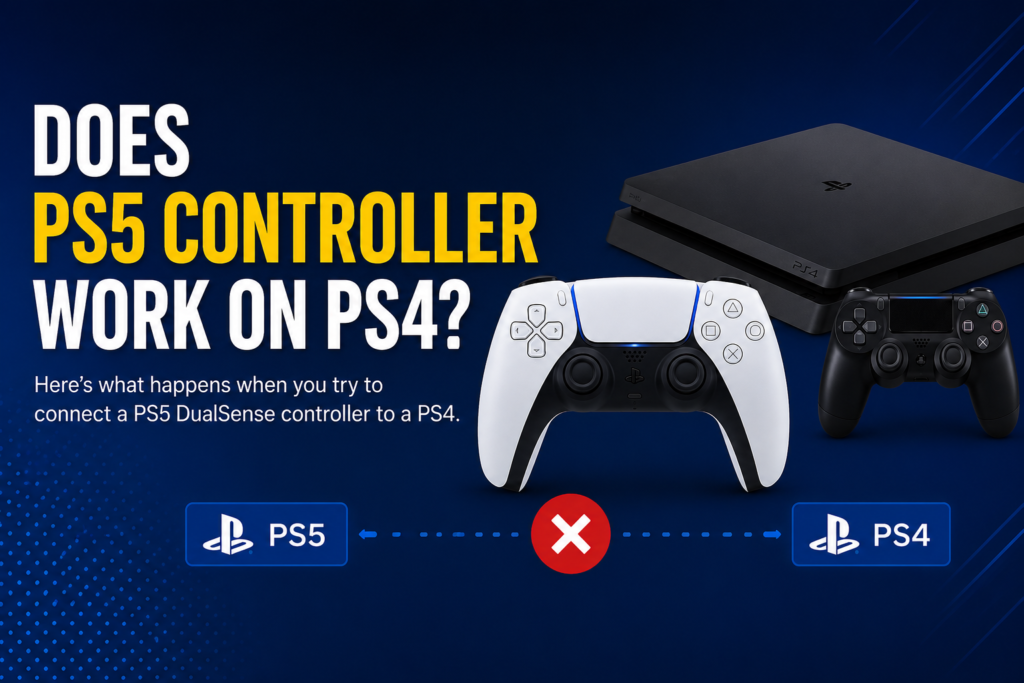
Does PS5 Controller Work on PS4? No, a PS5 DualSense controller does not work directly on a PS4 as a normal controller. Sony officially states that the DualSense wireless controller is not compatible with the PS4 console.
Connecting it with a USB cable may supply power, but it will not let you navigate PS4 menus or play games. The PS4 may also detect and register the DualSense as a Bluetooth device, but its buttons and analog sticks will not provide normal input.
You can still use a PS5 controller with PS4 games through PS Remote Play on a supported computer, phone, tablet, or television. Some third-party controller adapters may also provide basic controls, although their compatibility and features vary Test gamepad .
How This Guide Was Verified
We checked Sony’s official DualSense compatibility information, controller-pairing instructions, PS Remote Play setup guidance, and network requirements.
We also reviewed a recorded direct-connection demonstration in which a PS4 registered the DualSense as a Bluetooth device but did not accept menu or gameplay input. Connecting the controller through USB produced the same result.
PadProTools has not independently tested every PS4 model, adapter, controller revision, or firmware combination. Adapter performance is therefore described as product-dependent rather than guaranteed.
Quick Compatibility Overview
| Connection method | Does it work? | What you need | Main limitation |
|---|---|---|---|
| Direct USB connection | No | USB-A to USB-C cable | May provide power, but not PS4 controls |
| Direct Bluetooth connection | No | No additional device | May register, but buttons and sticks do not work check stick dift test |
| PS Remote Play | Yes | Supported PC, Mac, phone, tablet, or TV | Possible network delay |
| Third-party adapter | Sometimes | Compatible controller adapter | Features vary by adapter and firmware |
| Native PS4 support | No | None | DualSense is not compatible with PS4 |
Can You Connect a PS5 Controller Directly to a PS4?
You cannot use the DualSense directly as a standard PS4 controller.
The PS4 was designed to work with the DualShock 4 and compatible third-party PS4 controllers. It does not include native support for the newer DualSense input system.
This limitation applies to:
- Original PS4
- PS4 Slim
- PS4 Pro
A PS4 may detect the DualSense as a Bluetooth device. However, detecting a device is not the same as supporting its controls.
The console needs compatible input mapping before it can understand:
- Face-button presses
- D-pad input
- Analog-stick movement
- L2 and R2 triggers
- Touchpad input
- PS button commands
- Motion controls
Without native controller support, the PS4 cannot use these inputs normally.
Does PS5 Controller Work on PS4 With a Cable?
No. Connecting a PS5 controller to a PS4 with a USB cable does not make it work as a normal PS4 gamepad.
The DualSense has a USB-C port, while standard PS4 consoles use USB-A ports. You would normally connect them with a USB-A to USB-C cable.
After connecting the cable, the controller may:
- Light up
- Receive electrical power
- Begin charging
- Appear physically connected
However, you normally cannot use it to select a profile, open a game, navigate menus, or control gameplay.
Why Does the Controller Charge but Not Work?
Charging and controller input are separate functions.
A USB port can provide electrical power even when the console does not support the connected device as a controller. The PS4 may therefore supply power to the DualSense without understanding its buttons, sticks, triggers, or touchpad.
Some USB cables support only charging, while others support both charging and data transfer. Using a data-capable cable can solve certain connection problems on supported devices, but it cannot add native DualSense support to a PS4.
Buying a different USB cable will not make the controller compatible with the console.
Does PS5 Controller Work on PS4 With Bluetooth?
The PS4 may find and register a DualSense through Bluetooth, but the controller will not provide normal PS4 input.
To place a DualSense controller in Bluetooth pairing mode:
- Disconnect its USB cable.
- Make sure the controller’s player indicator is off.
- Press and hold the Create button.
- While holding Create, press and hold the PS button.
- Release both buttons when the light bar begins flashing.
The button beside the directional pad is called the Create button, not the Share button.
On the PS4, Bluetooth devices can be viewed through:
Settings → Devices → Bluetooth Devices
The DualSense may appear as Wireless Controller. The PS4 may even allow you to register it.
Registration does not provide usable controls. Pressing buttons, moving the analog sticks, or pressing the PS button will not normally let you control the console.
Why Does PS4 Detect DualSense but Ignore Its Buttons?
Bluetooth establishes a wireless connection between devices. It does not automatically make every Bluetooth controller compatible with every console.
The PS4 can identify that a wireless controller is nearby without having the software required to interpret its input correctly.
This explains why the DualSense may appear in the PS4 Bluetooth list while:
- Buttons do nothing
- Analog sticks do not move through menus
- The PS button does not open a profile
- Games do not respond
- The controller cannot turn on the console
Detection and compatibility are not the same thing.
How to Use a PS5 Controller on PS4 With Remote Play
PS Remote Play is the most practical officially supported workaround.
Instead of connecting the DualSense directly to the PS4, you connect it to a supported computer, phone, tablet, or television. The Remote Play app streams the PS4 screen to that device and sends your controller inputs back to the console.
Sony confirms that the DualSense can play games streamed from a PS4 through PS Remote Play on supported devices.
What You Need
Prepare the following:
- A PS4 connected to the internet
- A PlayStation Network account
- The PS Remote Play app
- A supported PC, Mac, phone, tablet, or television
- A DualSense controller
- A compatible USB cable or Bluetooth connection
- A stable internet or home-network connection
Sony recommends upload and download speeds of at least 5 Mbps. For better performance, it recommends at least 15 Mbps in both directions.
Step 1: Enable Remote Play on Your PS4
On the PS4:
- Open Settings.
- Select Remote Play Connection Settings.
- Turn on Enable Remote Play.
Sony’s current Remote Play setup instructions use this menu path for PS4 consoles.
You may also need to activate the console as your primary PS4:
- Open Settings.
- Select Account Management.
- Choose Activate as Your Primary PS4.
- Select Activate.
Step 2: Enable Rest Mode Access
These settings allow Remote Play to connect while the PS4 is in Rest Mode.
- Open Settings.
- Select Power Save Settings.
- Open Set Features Available in Rest Mode.
- Enable Stay Connected to the Internet.
- Enable Enable Turning On PS4 From Network.
Rest Mode access is optional. You can skip it when you plan to turn the console on manually before each Remote Play session.
Step 3: Install PS Remote Play
Install the PS Remote Play app on your supported device.
Open the app and sign in using the same PlayStation Network account connected to your PS4.
Supported device and operating-system requirements can change. Sony currently provides Remote Play support across compatible Windows PCs, Macs, iPhones, iPads, Android devices, and selected Android TV devices.
Step 4: Connect the DualSense to Your Device
Connect the DualSense to the device running Remote Play, not directly to the PS4.
You can use Bluetooth or a USB cable when supported.
For Bluetooth:
- Turn off the controller.
- Hold the Create button.
- Press and hold the PS button.
- Wait for the light bar to flash.
- Open the Bluetooth settings on your device.
- Select the detected wireless controller.
For a wired connection, connect the controller using a compatible USB-C cable.
Feature support can vary by device, operating system, connection method, and game.
Step 5: Connect the App to Your PS4
Open PS Remote Play and select PS4.
The app will search for a PS4 connected to the same PlayStation account. After it connects, the PS4 screen will appear on your Remote Play device.
You can then use the DualSense to navigate the streamed PS4 interface and play supported PS4 games.
Remote Play Limitations
Remote Play works differently from a controller connected directly to the console.
Possible limitations include:
- Input delay
- Reduced video quality
- Audio delay
- Connection interruptions
- Higher battery use on mobile devices
- Features that vary between devices
- Poor performance on congested Wi-Fi
Connect the PS4 to the router with an Ethernet cable when possible. Use a 5 GHz Wi-Fi connection for the Remote Play device when Ethernet is unavailable.
Remote Play may work well for slower single-player games. Small delays are usually more noticeable in:
- Fighting games
- Competitive shooters
- Racing games
- Rhythm games
- Sports games
- Other timing-sensitive titles
How to Use a PS5 Controller on PS4 With an Adapter
Some third-party controller adapters can translate DualSense inputs into a format the PS4 recognizes.
An adapter acts as a bridge. The DualSense connects to the adapter, and the adapter presents those inputs to the PS4 as a supported controller format.
This is not native or officially guaranteed PS4 support.
Compatibility depends on:
- Adapter brand and model
- Adapter firmware
- PS4 system software
- Controller firmware
- Wired or wireless connection mode
- Individual game requirements
Check the adapter manufacturer’s current compatibility list before buying. A product that supports generic Bluetooth controllers may not support DualSense-to-PS4 use.
General Adapter Setup
The exact steps differ between products, but the process usually looks like this:
- Confirm that the adapter specifically lists DualSense and PS4 compatibility.
- Install any available adapter firmware update.
- Plug the adapter into a PS4 USB port.
- Put the adapter into its pairing mode.
- Hold the DualSense Create and PS buttons.
- Wait for the adapter’s connection indicator.
- Test the face buttons, sticks, triggers, touchpad, and PS button.
Always follow the manufacturer’s instructions for your exact adapter.
Adapter Limitations
Even when the basic controls work, some features may be missing or unreliable:
- Adaptive-trigger resistance
- Full DualSense haptic feedback
- Built-in microphone
- Controller speaker
- Headset-jack audio
- Touchpad gestures
- Motion controls
- PS button functions
- Ability to turn on the PS4
- Consistent vibration
An adapter may also introduce input delay. Compatibility can change after an adapter, controller, or PS4 firmware update.
Which DualSense Features Work on PS4?
| DualSense feature | Direct connection | Remote Play | Third-party adapter |
| Face buttons | No | Basic control supported | Usually supported |
| D-pad | No | Basic control supported | Usually supported |
| Analog sticks | No | Basic control supported | Usually supported |
| L2 and R2 input | No | Basic input supported | Usually supported |
| Standard vibration | No | Device and game dependent | Adapter dependent |
| Haptic feedback | No | Limited or unavailable for PS4 games | Usually unavailable |
| Adaptive triggers | No | Native PS5 effects unavailable | Usually unavailable |
| Touchpad | No | Support can vary | Adapter dependent |
| Built-in microphone | No | Device dependent | Usually unavailable |
| Controller speaker | No | Device dependent | Usually unavailable |
| Headset jack | No | Depends on connected device | Adapter dependent |
| PS button | No | App and device dependent | Adapter dependent |
| Turn on the PS4 | No | Possible through configured Remote Play | Usually unavailable |
PS4 games were developed for the DualShock 4 feature set. A workaround may translate normal button and stick inputs, but it cannot turn a PS4 game into a native DualSense-supported PS5 game.
Why Won’t My PS5 Controller Work on PS4?
The correct explanation depends on how you are connecting the controller.
You Are Using a Direct USB or Bluetooth Connection
Unresponsive controls are expected during a direct connection.
The DualSense is not compatible with the PS4 console as a native gamepad. Resetting the PS4, pairing the controller again, or buying another cable will not change this limitation.
Use PS Remote Play, a clearly compatible adapter, or a controller made for PS4.
Remote Play Is Not Enabled
Open the PS4 settings and confirm that Enable Remote Play is turned on.
Also check that:
- The PS4 is connected to the internet
- The Remote Play device is online
- The PS4 system software is updated
- The Remote Play app is updated
You Are Using Different PlayStation Accounts
The account in the PS Remote Play app must match the PlayStation account used on the PS4.
Sign out of the app and sign in again using the correct account.
The Network Is Unstable
Try the following changes:
- Connect the PS4 through Ethernet.
- Use 5 GHz Wi-Fi on the Remote Play device.
- Move closer to the router.
- Pause large downloads.
- Stop other video streams.
- Restart the router.
- Lower the Remote Play video quality.
The DualSense Is Connected to Another Device
The controller may still be connected to a PS5, computer, phone, or tablet.
Put it back into pairing mode and select it from the Bluetooth settings of the device running Remote Play.
You may also reconnect it with a USB cable.
The Adapter Needs a Firmware Update
Check the adapter manufacturer’s support page for a firmware update.
Confirm that:
- Your exact adapter model supports DualSense
- It supports PS4 output
- The correct connection mode is selected
- The controller is paired with the adapter rather than the console
The Controller May Have a Hardware Problem
A failed direct PS4 connection does not prove that the DualSense is broken. The PS4 will ignore the controller even when its buttons and sticks work correctly.
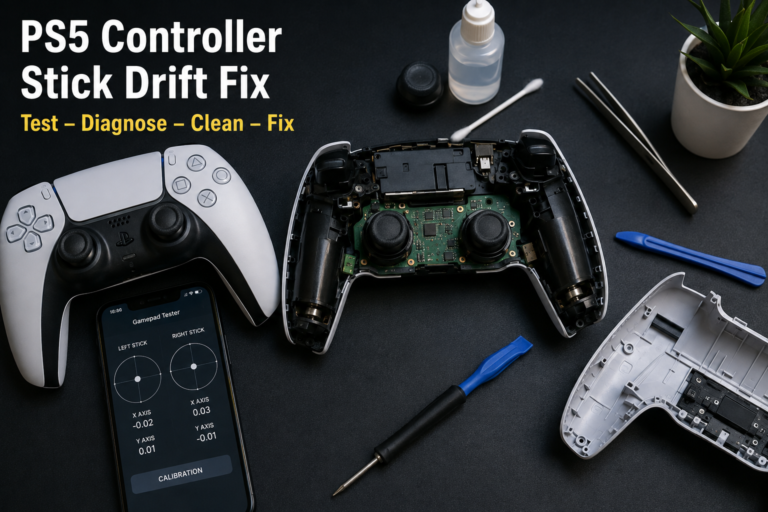
Connect the DualSense to a supported computer or mobile device and open the Free gamepad tester.
The tool can help check:
- Controller detection
- Face-button input
- D-pad input
- Analog-stick movement
- Trigger response
- Stick-button presses
- Possible stick drift
A successful browser test confirms that the connected browser receives controller inputs. It does not prove that the DualSense is directly compatible with PS4.
When the inputs work in the tester but not through a direct PS4 connection, the result is consistent with the PS4’s lack of native DualSense support.
Is It Better to Buy a DualShock 4?
For regular PS4 gaming, a DualShock 4 or another officially compatible PS4 controller is usually more practical than Remote Play or an adapter.
A compatible PS4 controller provides:
- Direct console support
- Reliable menu navigation
- Normal PS4 button mapping
- Local multiplayer
- No streaming delay
- Better touchpad support
- Standard headset-jack behavior
- Easy profile selection
- Normal PS button functions
Remote Play may be enough when you already own a DualSense and only need a temporary workaround.
An adapter may be useful when its manufacturer clearly lists DualSense-to-PS4 support and you accept possible feature limitations.
For frequent PS4 use, buying a compatible PS4 controller is generally easier than relying on another screen, a network connection, or an adapter.
Does a PS4 Controller Work on PS5?
A DualShock 4 works on a PS5 when you are playing supported PS4 games, but it cannot normally be used with native PS5 games. Those games require a DualSense or another controller officially supported for PS5 gameplay. If the console becomes unusually hot, produces loud fan noise, or shuts down while gaming, follow our PS5 Keep Overheating guide because this is a console cooling issue rather than a controller compatibility problem.
Sony lists the DualShock 4 as compatible with supported PS4 games running on PS5.
This is different from using DualSense on PS4. The PS5 supports the older controller for backward-compatible PS4 games, but the PS4 does not support the newer DualSense as a native controller.
FAQS
Can you use a PS5 controller on a PS4?
Not through a direct connection. The DualSense is not compatible with the PS4 as a native controller. You need PS Remote Play or a compatible third-party adapter.
Can a PS4 take a PS5 controller?
The PS4 may detect and register the DualSense as a Bluetooth device, but it will not accept normal menu or gameplay input.
Does a PS5 controller work on PS4 with USB?
No. A USB cable may supply power or charge the controller, but it does not enable native PS4 controls.
Does a PS5 controller work on PS4 with Bluetooth?
No. It may appear in the PS4 Bluetooth device list, but its buttons, analog sticks, and triggers will not work normally.
Does a PS5 controller work on PS4 Pro?
No. PS4 Pro does not provide native DualSense support. The Remote Play and adapter workarounds are the same as on other PS4 models.
Can you use a PS5 controller on a PS4 Slim?
Not directly. The PS4 Slim has the same basic DualSense compatibility limitation as the original PS4 and PS4 Pro.
How do you use a PS5 controller on PS4 without an adapter?
Enable PS Remote Play on the PS4, install the app on a supported device, connect the DualSense to that device, and select your PS4 inside the app.
Can a PS5 controller turn on a PS4?
It cannot normally turn on a PS4 through a direct USB or Bluetooth connection. A properly configured Remote Play app can wake a PS4 from Rest Mode through the network.
Do DualSense adaptive triggers work on PS4?
PS4 games do not provide native DualSense adaptive-trigger effects. A workaround may provide ordinary L2 and R2 input, but not the resistance effects designed for supported PS5 games.
Does DualSense haptic feedback work on PS4?
Full DualSense haptic feedback is not available through a direct PS4 connection. Remote Play and adapter results depend on the connected device, game, connection method, and adapter.
Can you use two PS5 controllers on a PS4?
The PS4 does not natively support one or multiple DualSense controllers. Multiple-controller support through Remote Play or adapters depends on the device, software, adapter, and game.
Does a PS4 controller work on PS5?
Yes, a DualShock 4 can control supported PS4 games running on PS5. It cannot normally control native PS5 games.
Final Answer
A PS5 DualSense controller does not work directly on a PS4, whether you connect it through a USB cable or Bluetooth.
The PS4 may supply power to the controller or display it in the Bluetooth device list. That does not provide normal button, stick, trigger, menu, or gameplay controls.
PS Remote Play is the most practical supported workaround. Connect the DualSense to a compatible PC, Mac, phone, tablet, or television, then use the Remote Play app to stream and control the PS4.
A compatible third-party adapter may also translate basic DualSense inputs, but support varies by model and firmware. Advanced features such as adaptive triggers, full haptic feedback, microphone support, and headset audio may not work.
For regular PS4 gaming, a DualShock 4 or another compatible PS4 controller remains the simplest and most reliable option.