Fortnite PS5 Controller: Setup, Settings and Fixes
“”
Last updated: August 16, 2026
Fortnite supports the PS5 DualSense wireless controller directly. Once the controller works in the PS5 menus, launch Fortnite and open its controller settings to change your button layout, sensitivity, dead zones, aim assist, gyro aiming, and vibration.
Fortnite currently offers five controller configurations: Old School, Quick Builder, Combat Pro, Builder Pro, and Custom. PlayStation users can find them by pressing the Options button, opening Settings, and selecting the Controller Mapping page Controller testing.
This guide also explains how to fix controller input lag, stick drift, missing Advanced Options, incorrect button prompts, and a controller that works on PS5 but not inside Fortnite.
How This Guide Was Verified
We checked Epic Games’ current instructions for Controller Mapping, aim assist, gyro aiming, haptic feedback, Advanced Options, and 120 FPS Mode.
We also reviewed PlayStation’s current guidance for DualSense updates, controller settings, resets, and PS4 controller compatibility.
The sensitivity values below are suggested starting points, not official Epic Games recommendations. PadProTools has not independently tested every controller revision, display, Fortnite update, or internet connection.
For setup, compatibility, or buying details, read our custom PS5 controller guide.
Quick Fortnite PS5 Controller Overview
| Feature or question | Answer |
|---|---|
| Does DualSense work with Fortnite on PS5? | Yes |
| Can you play with a USB cable? | Yes |
| Can you play wirelessly? | Yes |
| Can you customize the buttons? | Yes |
| Does Fortnite support aim assist? | Yes |
| Does Fortnite support gyro aiming? | Yes |
| Can gyro and aim assist work together? | No |
| Does Fortnite support PS5 haptic feedback? | Yes |
| Can Fortnite run at 120 FPS on PS5? | Yes, with a compatible display |
| Can DualShock 4 play the native PS5 version? | No, not through a direct connection |
How to Connect a PS5 Controller to Fortnite
Fortnite can only use the controller after it is connected to your PS5 and assigned to a user profile.
Connect DualSense With a USB Cable
- Turn on your PS5.
- Connect the DualSense with a USB data cable.
- Press the PS button.
- Assign the controller to your user profile.
- Open Fortnite.
- Test the controller in the lobby.
A damaged or charging-only cable may provide power without creating a stable data connection. Try another data-capable cable when the controller charges but does not pair.
Use DualSense Wirelessly
After the controller is paired and has enough battery power, disconnect its USB cable.
Test it on the PS5 home screen before opening Fortnite. If you can navigate the console menus, the controller is connected correctly.
When the controller works on PS5 but not inside Fortnite, the problem is more likely related to the game, button mapping, selected mode, or saved settings.
Update the DualSense Controller
Sony includes DualSense device-software updates with PS5 system-software updates. You can also check manually:
- Open Settings.
- Select Accessories.
- Open Controller (General).
- Select DualSense Wireless Controller Device Software.
- Install the update when one is available.
Keeping the controller and console updated may resolve pairing, disconnection, and input problems.
For setup, compatibility, or buying details, read our SCUF controller for PS5.
How to Open Fortnite Controller Settings on PS5
Follow these steps:
- Launch Fortnite.
- Press the Options button.
- Open Settings.
- Select the gamepad or Controller Mapping page.
- Choose a controller configuration.
- Select Apply to save your changes.
Epic currently provides these layouts:
- Old School
- Quick Builder
- Combat Pro
- Builder Pro
- Custom
Settings can vary depending on the Fortnite mode you selected. Make sure you are viewing the correct gamepad tab and game mode when an option appears to be missing.
For setup, compatibility, or buying details, read our use controllers across platforms.
Fortnite Controls on PS5 Explained
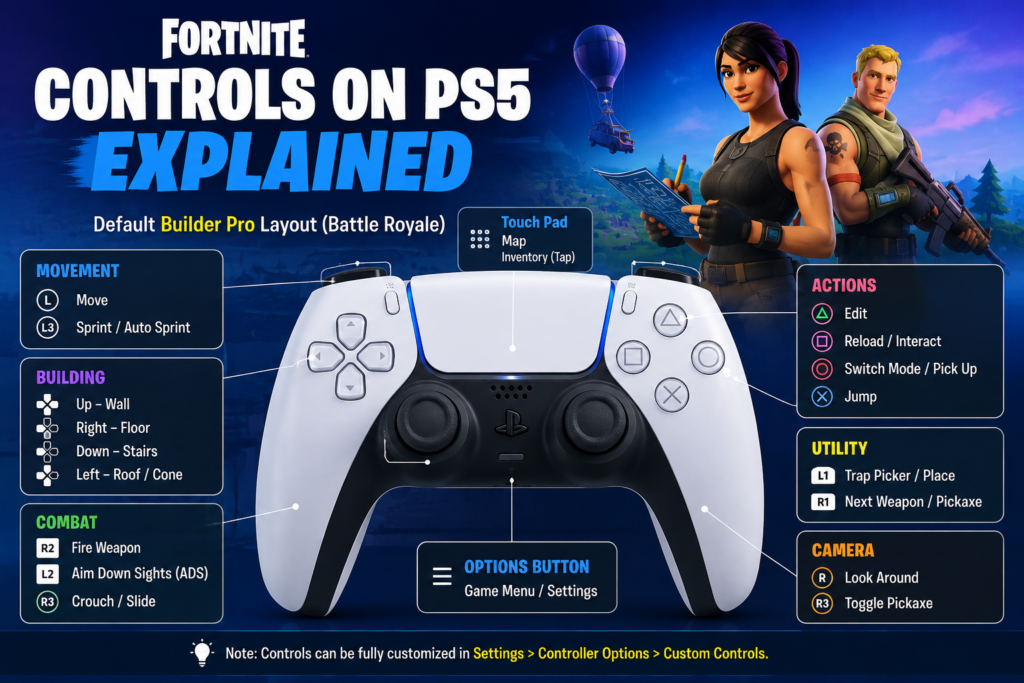
Builder Pro
Builder Pro assigns different building pieces to separate controller inputs. It is a useful starting layout for players who build frequently in Battle Royale.
It may take time to learn if you are new to Fortnite.
Combat Pro
Combat Pro uses a simpler combat-focused layout. It may feel easier for Zero Build players who do not need fast access to every building piece.
Old School
Old School uses an older Fortnite controller arrangement. It is mainly useful for returning players who already remember that control style.
Quick Builder
Quick Builder gives faster building access than basic layouts but offers less flexibility than Builder Pro for advanced building and editing.
Custom
Custom lets you assign actions to individual buttons.
It is useful when:
- You want faster edit access
- A standard button is uncomfortable
- You use accessibility adjustments
- You want different Battle Royale and Zero Build controls
- You prefer personal bindings over a preset
Select Apply after changing your controls. Otherwise, Fortnite may not save the new mapping. Epic identifies Custom as the option for creating your own controller configuration.
For setup, compatibility, or buying details, read our PS4 controller on PS5 guide.
Best Fortnite Controller Settings for PS5
There is no perfect controller setup for every Fortnite player. Your ideal settings depend on your play style, stick condition, game mode, display, and experience.
Use the following values as moderate starting points.
| Fortnite setting | Suggested starting point |
|---|---|
| Controller layout | Builder Pro, Combat Pro, or Custom |
| Look horizontal speed | 38–42% |
| Look vertical speed | 38–42% |
| ADS horizontal speed | 7–12% |
| ADS vertical speed | 7–12% |
| Build mode multiplier | 1.8×–2.1× |
| Edit mode multiplier | 1.8×–2.1× |
| Look boost | 0% to start |
| ADS boost | 0% to start |
| Input curve | Linear or Exponential |
| Aim Assist Strength | 100% starting point |
| Left-stick dead zone | 8–10%, then adjust |
| Right-stick dead zone | 8–10%, then adjust |
| Vibration | Personal preference |
| 120 FPS Mode | On with a compatible display |
These are not official Epic Games values. Change one setting at a time and test it during several matches before making another adjustment.
Look Sensitivity
Look sensitivity controls how quickly the camera turns when you move the right analog stick.
A higher value helps you turn quickly in close fights. A value that is too high can make small aiming corrections harder.
A lower value gives more control but may feel slow when an opponent moves behind you.
Start around 38–42% and adjust in small steps.
ADS Sensitivity
ADS sensitivity controls how quickly the crosshair moves while aiming down sights.
It should normally be lower than your standard look sensitivity. This can make medium-range and long-range aiming easier to control.
Start around 7–12%. Increase it when tracking feels too slow, or lower it when your aim regularly passes the target.
Build and Edit Multipliers
Build and edit multipliers increase your speed while building or editing without making normal camera movement equally fast.
A range around 1.8×–2.1× is a reasonable starting point for Battle Royale players.
Zero Build players can leave these values lower because they are less important in that mode.
Linear vs. Exponential Input Curve
Fortnite lets controller players choose how analog-stick movement affects camera speed.
Linear
Linear provides a more immediate response to stick movement.
It may suit players who want:
- Fast close-range turns
- Direct camera response
- Quick building and editing
- Less gradual acceleration
Linear can make stick drift and small unwanted movements easier to notice.
Exponential
Exponential starts more gradually near the center of the stick.
It may suit players who prefer:
- Smoother small corrections
- More controlled long-range aim
- Gradual camera acceleration
- A less sensitive feel near the stick’s center
Neither input curve is automatically better. Test both before changing several other sensitivity settings.
How to Set Fortnite Controller Dead Zones
A dead zone is the amount an analog stick can move before Fortnite registers input.
A value that is too low may reveal stick drift. A value that is too high can make aiming or movement feel delayed.
Each stick may need a different setting.
Safe Dead-Zone Adjustment Method
- Start with both dead zones around 8–10%.
- Enter a quiet area or private match.
- Lower one stick’s value slightly.
- Release the stick completely.
- Watch for unwanted camera or character movement.
- Continue lowering it until drift appears.
- Increase the value slightly until the movement stops.
- Repeat the process for the other stick.
Older or heavily used controllers may require higher dead zones.
Do not copy another player’s dead-zone values without testing your own controller. Physical stick wear is different on every gamepad.
How to Enable Aim Assist in Fortnite on PS5
To check aim assist:
- Launch Fortnite.
- Open the menu.
- Select Settings.
- Open Controller Options.
- Go to Sensitivity.
- Turn Use Advanced Options on.
- Set Aim Assist Strength to your preferred amount.
- Select Apply.
Epic recommends checking that Aim Assist Strength is set to 100%, or lower when you prefer less assistance.
Why Is Aim Assist Not Working?
Check whether:
- Gyro aiming is enabled
- Advanced Options are turned off
- Your changes were not applied
- You opened the wrong settings tab
- Fortnite needs to be restarted
Epic states that aim assist is disabled whenever gyro aiming is active.
Aim Assist vs. Gyro Aiming
Aim assist and gyro are two different aiming systems.
Aim assist works with analog-stick aiming. Gyro aiming uses physical controller movement to adjust the camera.
Fortnite does not keep normal aim assist active while gyro is enabled. Choose the system that fits your preferred aiming style.
How to Turn Gyro On or Off
- Open Fortnite Settings.
- Go to Touch and Motion.
- Find Gyro Options.
- Turn Gyro Aiming on or off.
- Apply the change.
Epic places the gyro toggle under Gyro Options in Fortnite’s settings.
Gyro may suit players who enjoy aiming through small controller movements. Traditional stick players may prefer to keep it disabled and use aim assist.
Why Are Advanced Controller Options Missing?
Set your selected game mode to Battle Royale, then reopen the controller settings.
Epic says the Advanced Options toggle may not appear unless the selected Fortnite mode is Battle Royale.
Follow these steps:
- Return to the Fortnite lobby.
- Select Battle Royale.
- Open Settings.
- Select Controller Options.
- Check the Sensitivity section again.
Settings menus can change depending on the mode you are currently playing.
How to Enable Haptic Feedback and Vibration
Fortnite provides additional haptic feedback options on PS5.
To enable controller vibration:
- Launch Fortnite.
- Open Settings.
- Select Wireless Controller.
- Go to Input.
- Set Vibration Feature to On.
- Select Apply.
Haptic feedback can make weapons and actions feel more distinct. Some players prefer the added immersion, while others find strong feedback distracting.
Test vibration enabled and disabled before deciding. Turning it off does not automatically improve your accuracy.
You can also change the PS5’s general controller vibration and trigger-effect intensity through:
Settings → Accessories → Controller (General)
How to Fix PS5 Controller Input Lag in Fortnite
First, identify what type of delay you are experiencing.
| Symptom | Likely cause |
|---|---|
| Button press appears late on screen | Controller or display delay |
| Character freezes or teleports | Internet or server lag |
| Camera begins moving slowly | Sensitivity, input curve, or dead zone |
| Controller disconnects | Battery, pairing, wireless, or firmware problem |
| Delay occurs only in Fortnite | Game settings, cache, or software problem |
Test a Wired Connection
Connect the DualSense with a data-capable USB cable and compare it with wireless play.
A wired test can help identify wireless instability. It does not guarantee that every delay will disappear.
Replace the cable when it feels loose, disconnects, or only charges the controller.
Reduce Wireless Interference
Try these steps:
- Move closer to the PS5.
- Charge the controller.
- Move other wireless devices away.
- Reconnect the controller.
- Restart the PS5.
- Test another DualSense when available.
Enable Game Mode on Your Display
Televisions often add picture processing that delays what appears on screen.
Enable your TV or monitor’s Game Mode and disable unnecessary motion smoothing. Check the display manufacturer’s instructions because menu names vary.
Try Fortnite at 120 FPS
Fortnite can run at either 60 FPS or 120 FPS on PS5. The 120 FPS option requires a compatible 120 Hz display.
To enable it:
- Close Fortnite.
- Open PS5 Settings.
- Select Save Data and Game/App Settings.
- Select Game Presets.
- Choose Performance Mode.
- Open Fortnite.
- Go to Settings → Video.
- Turn 120 FPS Mode on.
- Select Apply.
Epic notes that enabling Performance Mode can affect output resolution when the display setup does not support 4K at 120 Hz. The 120 FPS option will not appear when the required hardware support is unavailable.
A higher frame rate can make on-screen movement feel smoother. It cannot repair broken sticks, buttons, triggers, or network problems.
Fortnite’s PC-style Performance Mode is not available as a separate console rendering option. PS5 players use the 120 FPS setting instead.
Fortnite Controller Not Working on PS5
Controller Does Not Work in PS5 Menus
Check:
- Controller battery
- USB cable
- User assignment
- Controller pairing
- DualSense device software
- PS5 system software
- Physical damage
If the controller fails everywhere, the problem is probably not limited to Fortnite.
Controller Works on PS5 but Not in Fortnite
Try these steps:
- Close Fortnite completely.
- Restart the PS5.
- Reopen Fortnite.
- Open Settings.
- Select the gamepad tab.
- Check Controller Mapping.
- Select a preset or review Custom controls.
- Choose Apply.
- Test another Fortnite mode.
Fortnite settings can differ based on the mode selected in the lobby.
Buttons Are Mapped Incorrectly
Open Controller Mapping and check whether Custom is selected.
Restore Builder Pro, Combat Pro, or another preset when you no longer want custom assignments.
Epic is also aware of an issue where the Controller Platform setting may return to its default option after another platform is selected.
Fortnite Shows Keyboard Prompts
Move an analog stick or press a controller button.
Temporarily disconnect any unused keyboard or mouse. Close and reopen Fortnite if the button prompts do not change.
Make sure the gamepad tab is selected in Settings.
Reset the DualSense Controller
Sony recommends resetting the controller when pairing or connection problems continue:
- Turn off the PS5.
- Disconnect the USB cable.
- Find the small reset hole beside the Sony logo on the controller’s back.
- Press and hold the internal button with a pin for at least five seconds.
- Connect the controller to the PS5 using USB.
- Press the PS button.
Resetting the controller does not remove its profiles or reconfigure its settings.
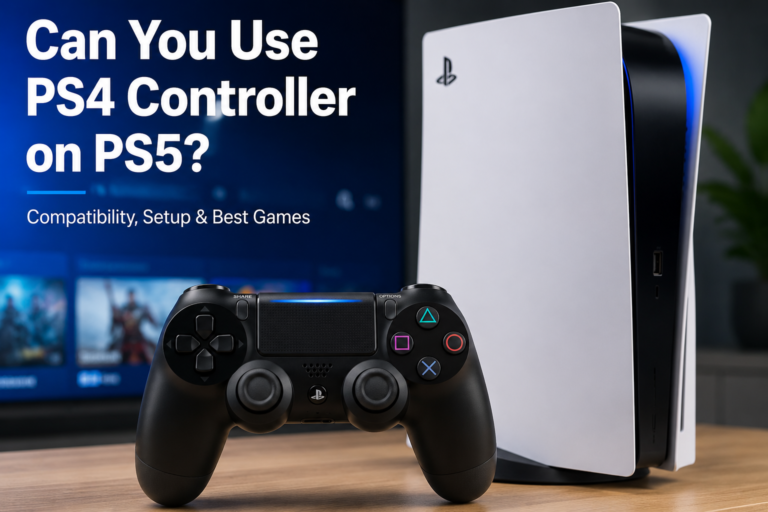
Can You Use a PS4 Controller for Fortnite on PS5?
A DualShock 4 cannot directly control the native PS5 version of Fortnite.
Sony states that DualShock 4 works with supported PS4 games on PS5, while PS5 games require DualSense.
A PS4 controller may work when the PS4 edition of Fortnite is available and running through backward compatibility. Availability can depend on the edition shown in your game library.
Read our full guide: Can You Use PS4 Controller on PS5?
Standard DualSense vs. DualSense Edge for Fortnite
Both controllers support Fortnite on PS5.
| Feature | DualSense | DualSense Edge |
|---|---|---|
| Native Fortnite support | Yes | Yes |
| Mappable back buttons | No | Yes |
| Adjustable trigger stops | No | Yes |
| Custom PS5 profiles | Standard settings | Multiple profiles |
| Stick sensitivity adjustment | In Fortnite | Controller and game settings |
| Replaceable stick modules | No | Yes |
| Best suited for | Most players | Players wanting extra controls |
DualSense Edge provides back buttons, trigger stops, custom profiles, button remapping, stick sensitivity, stick dead-zone, and trigger dead-zone adjustments.
These options may make certain Fortnite actions more convenient. They do not guarantee better aim, faster building, or more wins.
How Much Is the Fortnite PS5 Controller?
Sony released a Fortnite Limited Edition DualSense controller in November 2024. Its original US recommended price was $84.99, and it was released in limited quantities.
Current retailer and resale prices may be different because availability is limited.
The Fortnite design does not provide different gameplay performance from a standard DualSense. Its main difference is its appearance.
Controller colors and collections, including Hyperpop designs, also use the standard DualSense feature set. The color does not change Fortnite input performance.
Test Your Fortnite Controller Before Replacing It
A Fortnite settings problem can look like a broken controller. Test the hardware separately before buying a replacement.
Connect the DualSense to a supported browser device and open the PadProTools gamepad tester.
The tool can help check:
- Face buttons
- D-pad input
- Analog-stick movement
- L2 and R2 triggers
- L3 and R3 stick buttons
- General controller detection
- Possible stick drift
- Incomplete trigger movement
A successful browser test confirms that the connected device receives controller input.
It cannot measure:
- Fortnite server ping
- Aim-assist behavior
- PS5 display latency
- Fortnite network lag
- DualSense haptic quality
- Your ideal sensitivity
When the controller fails in Fortnite but works in the PS5 menus and browser tester, check Fortnite’s Controller Mapping, selected mode, and saved settings.
FAQS
Does Fortnite support the PS5 controller?
Yes. Fortnite’s native PS5 version supports the DualSense controller directly, including in-game controller mapping and PS5 haptic feedback options.
What are the best Fortnite controller settings for PS5?
Start with moderate look sensitivity, lower ADS sensitivity, and the lowest dead zones that do not cause drift. Adjust one setting at a time instead of copying an entire setup.
Which Fortnite controller layout should beginners use?
Builder Pro is a useful starting point for Battle Royale players who build regularly. Combat Pro may feel simpler for Zero Build.
Why is my PS5 controller delayed in Fortnite?
Check the display’s Game Mode, controller connection, Fortnite frame rate, controller software, dead zones, and network condition. Network lag and controller delay are different problems.
Why can’t I find Advanced Options?
Select Battle Royale in the lobby, then reopen the controller settings. Epic says Advanced Options may not appear when another mode is selected.
Why is aim assist not working?
Gyro aiming may be enabled. Fortnite disables aim assist while gyro is active.
Should I disable vibration in Fortnite?
It is personal preference. Keep it enabled when you enjoy haptic feedback, or disable it when the feedback feels distracting.
Does 120 FPS reduce Fortnite controller delay?
It can make on-screen response feel smoother on a compatible display. It does not fix network lag or controller hardware faults.
Can a PS4 controller play Fortnite on PS5?
It cannot directly play the native PS5 edition. DualShock 4 works only with supported PS4 games running on PS5.
Is DualSense Edge better for Fortnite?
It offers back buttons, trigger stops, custom profiles, and detailed stick adjustments. These features provide more options, but they do not guarantee better gameplay.
Is there an official PS5 Controller V3?
Sony does not currently market a controller called the “PS5 Controller V3.” Listings using that name may refer to an informal hardware revision or a third-party controller.
Do PS5 controller colors affect Fortnite performance?
No. Standard DualSense color and limited-edition designs use the same main controller features. Choose based on design, price, and availability.
Final Answer
Fortnite supports the PS5 DualSense controller directly.
Connect the controller to your PS5, open Fortnite, and select the Controller Mapping page to choose Builder Pro, Combat Pro, Old School, Quick Builder, or a Custom layout.
Start with moderate sensitivity and dead zones around 8–10%. Lower each dead zone gradually until drift appears, then raise it slightly. Aim assist can be adjusted through Advanced Options, but Fortnite disables it while gyro aiming is active.
When the controller feels delayed, test the display’s Game Mode, wired and wireless connections, controller updates, and Fortnite’s 60 or 120 FPS options. If buttons, sticks, or triggers still fail, test the controller outside Fortnite before replacing it.