How to Turn Off PS5 Controller: PS5, PC, Phone and Quick Shortcut
“By Airam Chandler”
Last updated: August 16, 2026
How to Turn Off PS5 Controller If you just want your DualSense off, press and hold the PS button until the controller lights go out. When using it with a PS5, you can also press the PS button > Accessories > DualSense Wireless Controller > Turn Off.
The button-hold method is especially useful on a PC, phone, Mac or when you cannot see the PS5 screen. PlayStation’s own support instructions confirm that holding the PS button until the player indicator turns off powers down the controller.
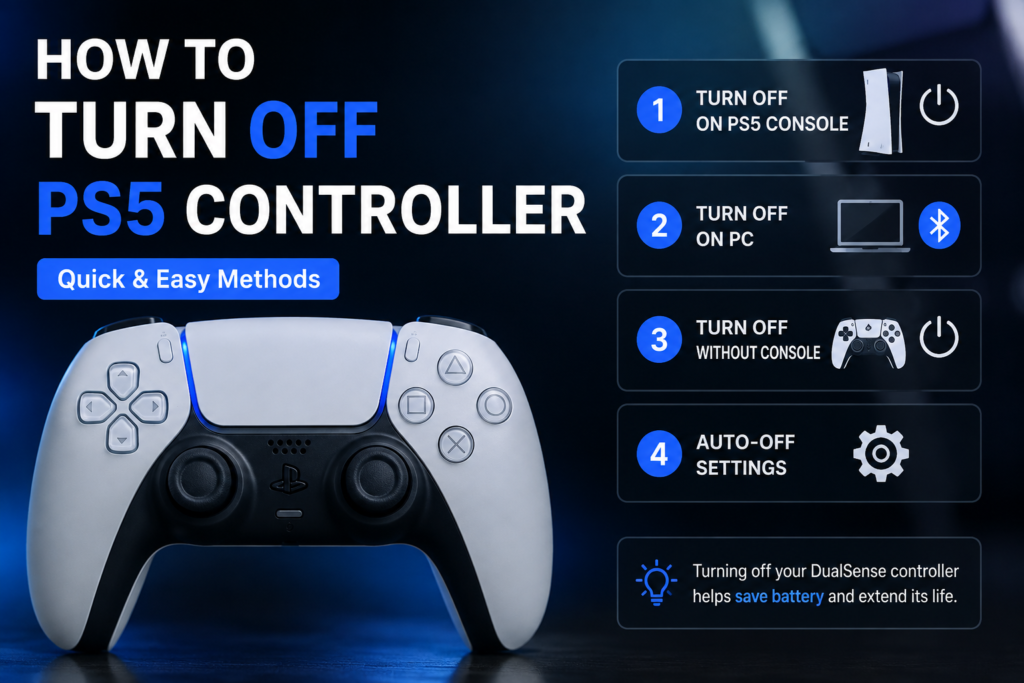
Quick Start in 5 Languages
English: Hold the PS button until the controller lights turn off.
Roman Urdu: PS button ko daba kar rakhein jab tak controller ki lights band na ho jayen.
Urdu: PS بٹن کو دبا کر رکھیں جب تک کنٹرولر کی لائٹس بند نہ ہو جائیں۔
Arabic: اضغط مطولاً على زر PS حتى تنطفئ أضواء وحدة التحكم.
Spanish: Mantén presionado el botón PS hasta que se apaguen las luces del mando.
How to Turn Off a PS5 Controller on PS5
The normal PS5 method takes only a few seconds:
- Press the PS button once.
- Open Accessories in the Control Center.
- Select your DualSense Wireless Controller.
- Choose Turn Off.
The light bar and player indicator should go dark.
This only turns off that controller. Your PS5 console can stay running, continue a download or keep playing media.
If several controllers or accessories are connected, make sure you select the correct DualSense before choosing Turn Off.
Fastest Way to Turn Off a PS5 Controller Without the Menu
You do not always need the PS5 screen.
Press and hold the PS button until the controller’s player indicator and lights switch off.
PlayStation specifically tells users to hold the PS button until the player indicator turns off before Bluetooth pairing, so the button itself works as the controller’s physical power-down method.
In practice, this normally takes around 10 to 15 seconds.
Do not release the button just because the PS5 Home screen or another menu appears. Keep holding until the controller itself goes dark.
How to Turn Off PS5 Controller Without the Console
The same PS-button method works when your DualSense is being used away from a PlayStation 5.
- Disconnect any USB cable if one is attached.
- Hold the PS button.
- Keep holding until the light bar and player indicator turn off.
- Release the button.
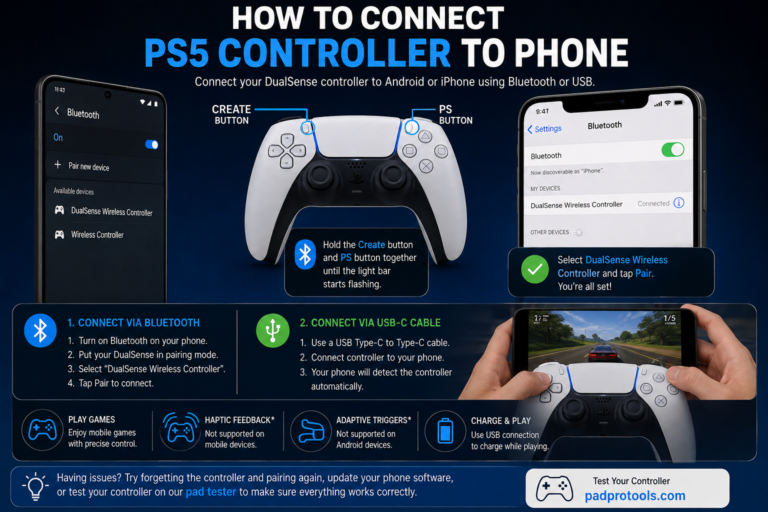
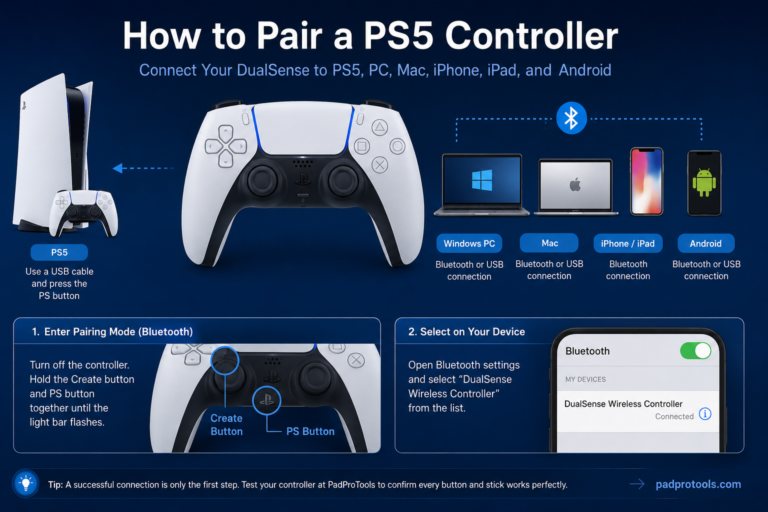
Sony supports DualSense connections with Windows PCs, Macs, Android phones, iPhones and other compatible devices through Bluetooth or USB.
This means you do not have to reconnect the controller to a PS5 just to shut it down.
How to Turn Off PS5 Controller on PC
If your DualSense is connected to a Windows PC through Bluetooth, the simplest method is:

Hold the PS button until the controller lights go out.
You can then check Windows Settings > Bluetooth & devices to confirm that the controller is no longer connected.
Do not choose Remove device every time you finish playing unless you actually want Windows to forget the pairing. Removing the controller means you may need to pair it again later.PS Controller Tester .
What if the PS5 controller is connected by USB?
A USB-connected DualSense is different because the cable supplies the connection and may also supply power.
If you are finished playing:
- Close the game if needed.
- Disconnect the USB-C cable from the controller.
- If its lights remain on because it has switched to another wireless connection, hold the PS button until they go out.
If you use the controller frequently on PC, Sony’s PlayStation Accessories software can also be used to update DualSense device software.
What about Steam?
Steam officially supports Sony DualSense controllers.
You do not need to remove the controller from Steam when you are done. Finish your game, then hold the PS button until the controller powers down.
If pressing the PS button opens Steam’s interface first, keep holding the button until the controller lights switch off.
How to Turn Off a PS5 Controller on Android, iPhone, iPad or Mac
The quickest method is still the same:
Hold the PS button until the lights turn off.
You can also disconnect it from the Bluetooth settings on the phone, tablet or Mac, but there is an important difference between Disconnect and Forget.
Disconnect ends the current connection.
Forget/Remove deletes the stored Bluetooth pairing.
If you plan to use the controller with that device again, simply powering the DualSense down is usually easier.
Current DualSense software can store pairings for up to four devices and switch between those registered devices with PS-button combinations.
So if your controller starts connecting to an unexpected PC or phone later, check your registered device pairings instead of assuming the controller is faulty cross-platform controller compatibility .
How to Turn Off PS5 Controller While Watching Netflix or a Movie
You can switch the controller off without shutting down your console.
While Netflix, YouTube or another media app is running:
- Press the PS button.
- Open Accessories.
- Select DualSense Wireless Controller.
- Choose Turn Off.
Your PS5 remains on.
This is useful when you are watching a long movie and do not need the controller sitting beside you with its lights, microphone and wireless connection active.
Streaming-app behavior can vary. If a particular app pauses when you open the Control Center, start playback again or use the automatic controller timeout instead.
A second option is to hold the PS button until the controller shuts down. This avoids searching through menus, although the PS button may briefly bring up the console interface first.
How to Turn Off the Controller Without Exiting an App
Turning off the controller does not mean you are shutting down your PS5 or closing the app.
Use:
PS button > Accessories > DualSense Wireless Controller > Turn Off
If you are in a game, however, the game may pause or display a controller-disconnected message because it can no longer receive input.
For Netflix, YouTube and other passive media, turning the controller off makes much more sense because you may not need any controller input for a long period.
How to Make the PS5 Controller Turn Off Automatically
If you regularly forget to switch it off, let the console do it for you.
Go to:
Settings > System > Power Saving > Set Time Until Controllers Turn Off
Depending on the current system software, you can choose an inactivity period such as:
- 10 minutes
- 30 minutes
- 60 minutes
- Don’t Turn Off
Current PS5 guides show these timeout choices in the Power Saving menu.
For most people, 10 minutes is a sensible choice if the controller is often left running while watching videos or after a gaming session.
If you use headphones connected through the controller while watching media, remember that an automatic shutdown can also interrupt that connection. In that situation, use a longer timer or Don’t Turn Off.
Does Turning Off the Controller Save Battery?
Yes. If the DualSense is powered down, it is no longer sitting active between gaming sessions.
The practical benefit is simple: less unnecessary use means you are less likely to come back later and find the controller battery lower than expected.
That matters most when you leave the PS5 running for downloads, streaming or other tasks that do not require controller input.
You do not need to obsessively switch it off during every short pause. The automatic timeout exists for exactly that situation.
How to Turn Off PS5 With the Controller
This is a different task.
If you want to turn off the entire PS5 console:
- Press the PS button.
- Open the Power menu in Control Center.
- Select Turn Off PS5.
- Wait until the console’s lights finish blinking and switch off.
Do not confuse this with Turn Off Controller.
Turn Off Controller powers down only the DualSense.
Turn Off PS5 shuts down the console.
Enter Rest Mode keeps the PS5 in a low-power state so supported background and charging functions can continue.
How to Turn Off PS5 With the Controller When the TV Is Off
Holding the PS button for 10 to 15 seconds only turns off the controller. It does not safely shut down the PS5 console.
If you cannot see the console menu because the TV or monitor is off, avoid guessing through menu selections blindly.
Either turn the display on briefly and use Control Center > Power > Turn Off PS5, or use the physical power button on the console.
That reduces the chance of selecting Rest Mode, restarting the console or opening something else by mistake.
How to Turn Off PS5 Without a Controller
If your controller battery is dead or the controller will not connect, use the physical power button on the PS5.
For a full shutdown, press and hold the console’s power button until you hear the shutdown beeps, then release it and allow the system to finish powering down.
Do not unplug the power cord while the PS5 is still operating or while its status light is blinking.
How to Turn Bluetooth Mode Off on a PS5 Controller
This phrase can mean two different things.
If you simply want to stop the controller’s Bluetooth connection, power the controller off by holding the PS button.
That keeps your existing pairing information for next time.
If you choose Forget or Remove Device on a PC or phone, you are deleting the pairing instead.
The PS5 also has deeper Bluetooth settings, but those should not be confused with simply turning off one controller. For everyday use, you normally do not need to disable the console’s Bluetooth system just to stop a DualSense connection.
Controller Off vs Bluetooth Disconnected vs PS5 Off
These actions are not the same.
| Action | Controller | PS5 Console | Pairing Saved? |
|---|---|---|---|
| Hold PS button until lights turn off | Off | Stays on | Yes |
| Accessories > Controller > Turn Off | Off | Stays on | Yes |
| Disconnect from Bluetooth device | Connection ends | No effect | Usually yes |
| Forget/Remove Bluetooth device | Disconnected | No effect | No |
| Turn Off PS5 | Controller normally loses its console session | Off | Yes |
| Rest Mode | Controller may shut down while console enters low-power state | Rest Mode | Yes |
This distinction solves a large share of the confusion around DualSense shutdown questions.
How to Turn Off the Mic on a PS5 Controller
You do not need to switch the whole controller off just because you want the microphone muted.
The DualSense has a dedicated mute button close to the PS button. Sony’s controller documentation identifies both the built-in microphone and physical mute button on the controller.
Press the mute button once.
When the mute indicator is lit, the controller microphone is muted.
Press it again when you want to talk.
This is useful during multiplayer sessions, calls or when you simply do not want the built-in microphone active.
PS5 Controller Won’t Turn Off
If the controller light stays on, try these fixes in order.
Hold the PS button longer
Keep holding the PS button until the player indicator and light bar actually go dark.
A short press opens PS5 or Steam menus instead of powering down the controller.
Disconnect the USB cable
If the DualSense is connected by USB, unplug it before testing the wireless shutdown method.
Sony also tells users to disconnect USB before beginning normal Bluetooth pairing.
Check the device it is connected to
A DualSense can be used with several types of devices, and current firmware supports multiple stored pairings.
Check your:
- PS5
- Windows PC
- Mac
- Android phone
- iPhone or iPad
The controller may simply be reconnecting to another registered device.
Reset the controller if it is frozen
If buttons are unresponsive or the controller is stuck in an unusual connection state, Sony provides a physical reset button on the back of the DualSense.
- Turn off the PS5 if possible.
- Disconnect the controller.
- Find the small reset hole near the Sony logo on the rear.
- Use a pin or similar tool.
- Hold the reset button for at least five seconds.
- Connect the controller to the PS5 with USB.
- Press the PS button.
Sony recommends this reset procedure when troubleshooting DualSense problems.
Do not use the reset button as your normal way of turning the controller off. It is a troubleshooting step.
Update the controller software
If the controller repeatedly disconnects, behaves strangely or refuses normal commands, check its software.
On PS5, controller software updates are delivered through the console.
On PC, Sony provides PlayStation Accessories for DualSense software updates.
How Do I Know the PS5 Controller Is Really Off?
Look at the controller itself.
The light bar and player indicator should be off.
Sony uses the player indicator being off as the starting condition for DualSense Bluetooth pairing, making it a reliable visual check that the controller is not currently active.
If the lights come back immediately, the controller may have reconnected to a nearby registered device.
How This Guide Was Verified
This guide was checked against current PlayStation support documentation for DualSense power state, Bluetooth pairing, multiple-device pairing, controller software updates and controller reset procedures.
I also compared the steps with current PS5 tutorial coverage and common user questions involving Windows, Steam and streaming apps.
I have not claimed physical hands-on testing where it was not performed. Menu labels can change after PS5 system updates, so the guide is reviewed when Sony changes controller or console behavior.
FAQs
How do I turn off my PS5 controller without turning off the PS5?
Press the PS button, open Accessories, select DualSense Wireless Controller, then choose Turn Off. Your console stays running.
Can I turn off a PS5 controller without a console?
Yes. Hold the PS button until the controller’s lights and player indicator turn off.
How do I turn off a PS5 controller on PC?
For a Bluetooth connection, hold the PS button until the light bar goes dark. You can verify the disconnection in Windows Bluetooth settings.
How do I turn off a PS5 controller while watching Netflix?
Press PS > Accessories > DualSense Wireless Controller > Turn Off. The console remains on so you can continue using the streaming app.
Can I turn off the controller without exiting the app?
Yes. Turning off the controller does not shut down the PS5. Some games may pause when the controller disconnects, while media apps can normally remain open.
Why won’t my PS5 controller turn off?
First hold the PS button longer. If that fails, disconnect USB, check whether it is connected to another device and reset the controller only if it appears frozen.
Does holding the PS button turn off the PS5 too?
No. Holding the PS button until the controller goes dark powers down the controller. Use the PS5’s Power menu if you want to shut down the console.
How do I turn the PS5 off with the controller?
Press the PS button, open Power, then select Turn Off PS5.
How do I turn off PS5 without a controller?
Use the physical power button on the console and allow the PS5 to complete its normal shutdown before disconnecting power.
How do I turn off the microphone on my PS5 controller?
Press the controller’s mute button. You do not need to turn off the whole DualSense.
Should I remove the PS5 controller from Bluetooth every time?
No. Removing or forgetting the device deletes its stored pairing. If you only want to stop using it for now, power the controller off instead.
Will my PS5 controller reconnect later?
Yes. Pressing the PS button can reconnect it to a registered device. Current DualSense software can store several device pairings, so check which device slot you are using if it connects somewhere unexpected.
Should I turn my controller off while downloading a game?
If you are not using it, yes. The PS5 can continue its task while the DualSense is off.
What is the fastest way to turn it off?
Hold the PS button until the lights turn off. That method is particularly useful when you are on a PC or phone or cannot see the PS5 screen.