Reset PS5 Controller: Soft Reset, Hard Reset and Pair It Again
“”
Last updated: August 16, 2026
If your PS5 controller will not connect, keeps disconnecting, flashes blue, or stops responding, first turn the DualSense off and reconnect it. If that does not work, reset it using the small button on the back Reset PS5 Controller.
To reset a PS5 controller, turn off the PS5, disconnect the controller, press the recessed reset button next to the Sony logo for at least 5 seconds, connect the controller to the PS5 with a USB cable, and press the PS button.
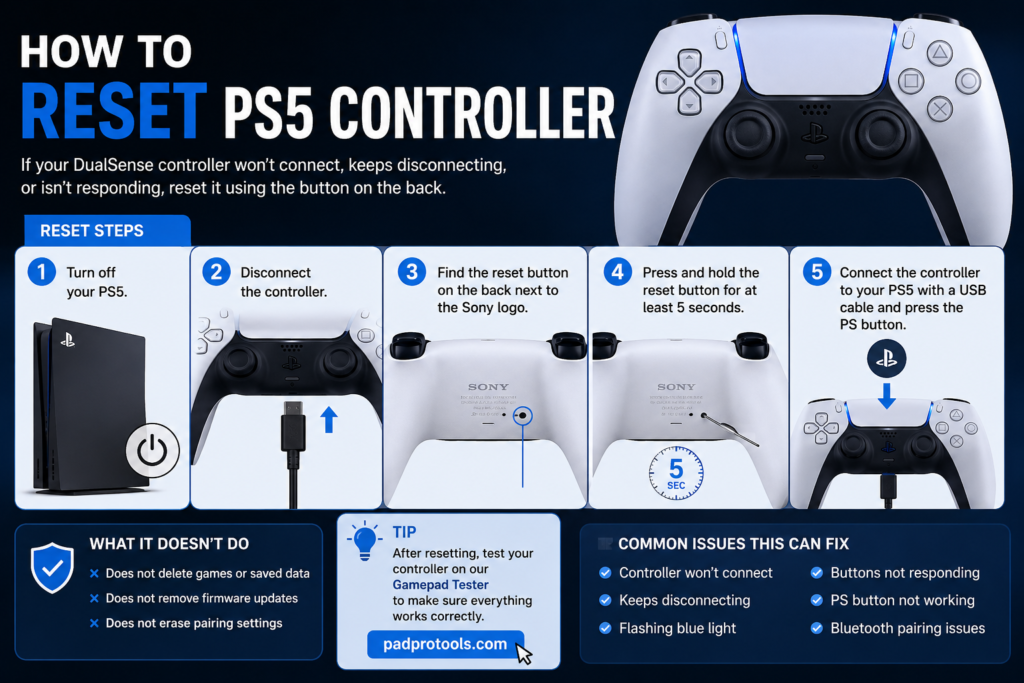
Quick Reset in 5 Languages
English: Turn off the PS5, unplug the controller, press the rear reset button for at least 5 seconds, reconnect by USB, then press the PS button.
Roman Urdu: PS5 band karein, controller disconnect karein, peeche reset button ko kam az kam 5 seconds daba kar rakhein, USB se connect karein aur PS button dabayein.
Urdu: PS5 بند کریں، کنٹرولر منقطع کریں، پیچھے موجود ری سیٹ بٹن کو کم از کم 5 سیکنڈ دبائیں، USB سے دوبارہ جوڑیں اور PS بٹن دبائیں۔
Arabic: أوقف تشغيل PS5، وافصل وحدة التحكم، واضغط على زر إعادة الضبط الخلفي لمدة 5 ثوانٍ على الأقل، ثم صِلها بكابل USB واضغط على زر PS.
Spanish: Apaga la PS5, desconecta el mando, mantén pulsado el botón de reinicio trasero durante al menos 5 segundos, vuelve a conectarlo por USB y pulsa el botón PS.
When Should You Reset a PS5 Controller?
Reset your DualSense when a simple restart does not fix a connection or response problem.
A reset is worth trying if:
- The controller will not connect to your PS5.
- The controller keeps disconnecting.
- The light bar keeps flashing blue.
- The PS button does not reconnect the controller.
- Buttons suddenly stop responding.
- The controller behaves strangely after switching between PS5 and another device.
- Bluetooth pairing is not working properly.
- The controller appears connected but the PS5 does not respond.
Do not reset the controller repeatedly for obvious hardware problems.
If one analog stick moves by itself, a button is physically stuck, a trigger is broken, or the controller no longer charges correctly, resetting may not fix the real fault.
Soft Reset vs Physical Reset
A soft reset simply means turning the controller off and back on.
A physical reset uses the recessed button on the rear of the DualSense.
| Reset Method | What You Do | Best For |
|---|---|---|
| Soft reset | Turn controller off and reconnect | Temporary connection or response problem |
| Physical reset | Hold rear reset button for at least 5 seconds | Persistent connection or controller issues |
| Reset PS5 | Reset the console itself | Console-level problems, not normal controller troubleshooting |
Always start with the easiest option.
How to Soft Reset a PS5 Controller
Before using a pin or paperclip, try turning the controller off normally.
On PS5:
- Press the PS button.
- Open Accessories in the Control Center.
- Select your DualSense Wireless Controller.
- Choose Turn Off.
- Wait a few seconds.
- Press the PS button again.
If the controller reconnects and works normally, you do not need to perform a physical reset.
If the menus are not responding, press and hold the PS button until the controller lights turn off.
How to Hard Reset a PS5 Controller
If restarting the controller does not fix the problem, use the physical reset button.
Turn Off Your PS5
Shut down the PlayStation 5 completely before starting.
Sony’s official troubleshooting instructions tell users to turn off the PS5 before resetting the controller.
Disconnect the Controller
Remove the USB cable from the DualSense.
The controller should be disconnected before pressing its reset button.
Find the PS5 Controller Reset Button
Turn the controller over.
Look for the small hole next to the Sony logo on the back of the DualSense.
The reset button sits inside this hole.
You do not need to open the controller or remove any screws.
Sony confirms the reset-button location in its DualSense troubleshooting guide.
Press the Reset Button for at Least 5 Seconds
Use a pin or another thin tool that fits comfortably inside the reset hole.
Gently push until you feel the button.
Hold it for at least five seconds.
Do not force a thick object into the opening.
Sony specifically instructs users to hold the reset button for at least five seconds.
Reconnect the Controller With USB
After resetting the controller:
- Connect the DualSense to the PS5 using a compatible USB cable.
- Turn on the PS5 if needed.
- Press the PS button.
The controller should reconnect to the console.
Where Is the Reset Button on a PS5 Controller?
The reset button is on the back of the standard DualSense controller, inside a small recessed hole next to the Sony logo.
You need a pin or similar narrow tool to reach it.
Do not confuse the reset hole with:
- Controller screws
- Microphone openings
- L2 or R2
- USB-C port
- Headset jack
You should never need to take the DualSense apart just to reset it.
What Happens When You Reset a PS5 Controller?
A DualSense reset is a controller troubleshooting step.
It is not the same as factory-resetting a PlayStation 5.
Sony currently states that resetting a DualSense does not reconfigure the controller or affect its pairing settings.
After resetting, Sony still recommends connecting the controller to the PS5 with USB and pressing the PS button.
Does Resetting a PS5 Controller Delete Games or Saved Data?
No.
Resetting your DualSense does not delete:
- Games
- Saved games
- Screenshots
- Videos
- PS5 accounts
- Installed applications
Those files are stored on the PS5 or connected storage, not inside the controller.
A controller reset is completely different from selecting a console reset option on the PS5.
Does Resetting Remove Controller Pairing?
No.
Sony’s current support documentation states that resetting the DualSense does not affect its pairing settings.
That is different from manually removing a controller from a Bluetooth device.
After resetting the controller, reconnect it to your PS5 using USB and press the PS button.
Does Resetting Remove DualSense Firmware Updates?
Do not expect the rear reset button to roll the controller back to its original software.
Sony treats controller resetting and controller software updates as separate processes.
You can check DualSense software on PS5 under:
Settings > Accessories > Controller (General) > DualSense Wireless Controller Device Software
Sony also provides PlayStation Accessories for updating supported controllers on Windows.
PS5 Controller Won’t Connect After Reset
If your controller does not connect immediately after the reset, try these checks.
Use a USB Cable That Supports Data
Connect the controller directly to the PS5 and press the PS button.
If nothing happens, try another compatible USB cable.
Some cables can provide power but may not work correctly for controller communication.
Try Another USB Port
Move the cable to another USB port on the PS5.
Then press the PS button again.
This helps determine whether the issue is with the controller, cable, or USB port.
Charge the Controller
A very low battery can cause connection problems.
Leave the DualSense connected for a while, then try pressing the PS button again.
Restart the PS5
Completely shut down the console.
Start it again and retry the wired connection.
Update PS5 System Software
Sony recommends keeping PS5 system software current when controller issues continue.
Check:
Settings > System > System Software > System Software Update and Settings
PS5 Controller Flashing Blue After Reset
A flashing blue light often means the controller is trying to establish a connection.
If the controller keeps flashing:
- Connect it to the PS5 through USB.
- Press the PS button.
- Try another USB cable.
- Try another PS5 USB port.
- Restart the console.
- Check whether the controller is trying to connect to another device.
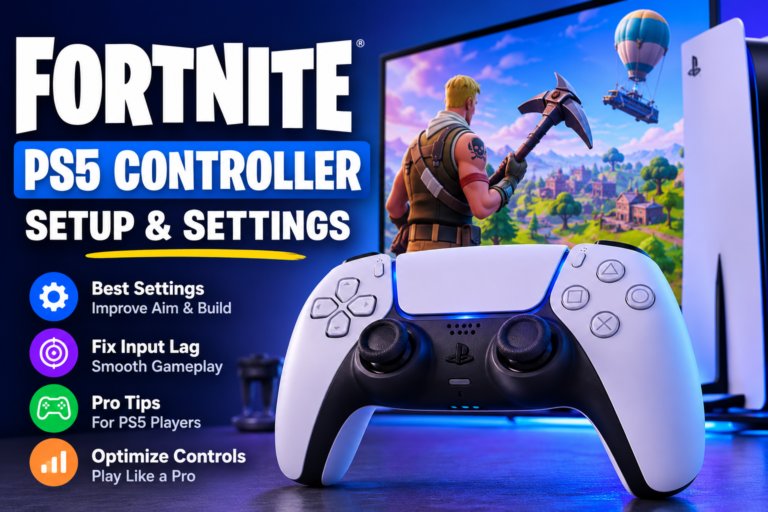
DualSense controllers can also be used with compatible PCs, Macs, Android devices, iPhones, and iPads.
If you regularly move the same controller between devices, make sure it is connecting to the device you actually want to use.
Sony’s current DualSense Bluetooth guide explains supported wireless pairing.
Test the Controller After Resetting It
Once the DualSense reconnects, test it before assuming the problem has disappeared.
Open the Gamepad Tester on PadProTools and check:
- X
- Circle
- Square
- Triangle
- D-pad
- L1
- R1
- L2
- R2
- L3
- R3
- Left analog stick
- Right analog stick
- Trigger movement
- Stick center position
- Button release behavior
A reset may fix a temporary connection problem, but testing helps you find out whether an actual input is still failing.
For example, if the controller reconnects correctly but the right stick continues showing movement while untouched, the issue is more likely to be stick drift than pairing.
Will Resetting Fix PS5 Controller Stick Drift?
Not usually if the drift is caused by worn hardware.
A reset is still worth trying because it helps rule out temporary software or connection problems.
Stick drift can be caused by:
- Worn joystick sensors
- Dirt or contamination
- Mechanical wear
- Damaged stick components
- Calibration problems
After resetting, open the Gamepad Tester and leave both analog sticks untouched.
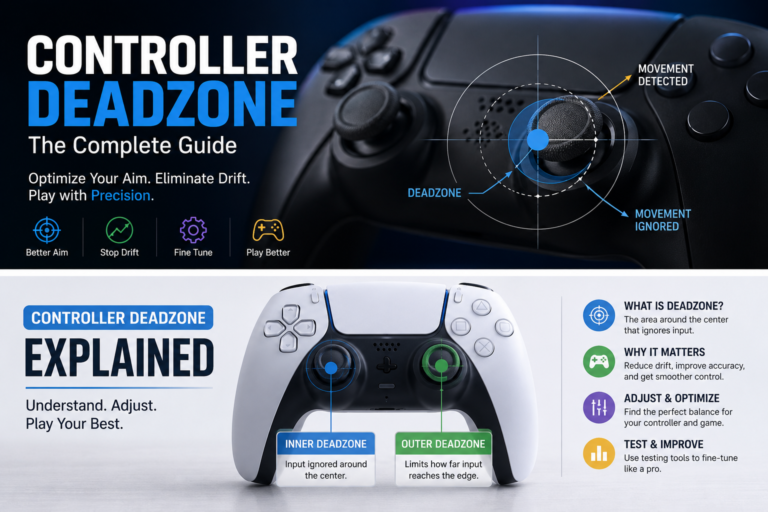
If the tester continues showing movement, read our Controller Deadzone guide.
A larger deadzone can sometimes reduce mild drift during gameplay, but it does not physically repair a worn joystick.
If the drift is severe or persistent, see our PS5 DualSense Analog Stick Replacement guide before deciding whether the controller should be repaired or replaced.
Will Resetting Fix Unresponsive Buttons?
It depends on the cause.
A reset may help if the button problem comes from a temporary controller or connection glitch.
It will not repair:
- Broken buttons
- Worn conductive pads
- Liquid damage
- Broken internal cables
- Physical damage
If one button still fails after the controller reconnects while every other input works normally, hardware is more likely to be the problem.
Use the PadProTools Gamepad Tester to check each button individually.
Will Resetting Fix a PS5 Controller That Keeps Disconnecting?
Sometimes.
A controller can disconnect for several reasons, including:
- Low battery
- Bluetooth interference
- USB cable problem
- Outdated controller software
- Outdated PS5 system software
- Distance from the console
- Hardware damage
Resetting is one troubleshooting step, not proof that the controller is broken.
How to Reset a PS5 Controller Used on PC
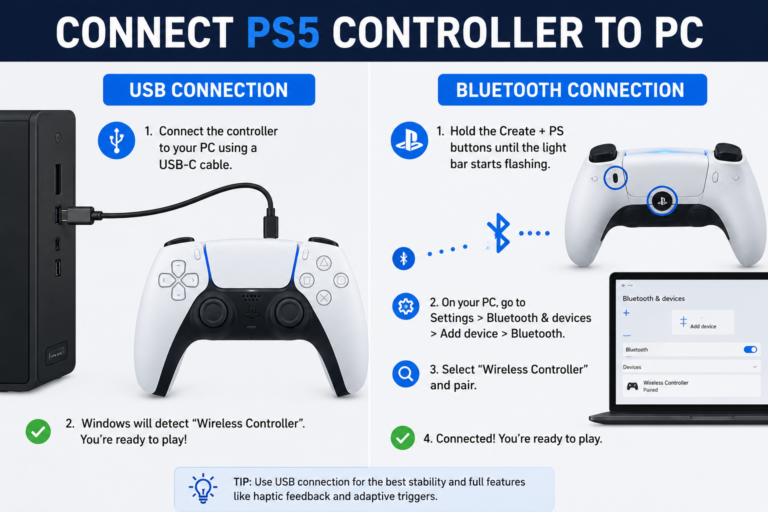
If you use DualSense on a Windows PC, first try turning the controller off and reconnecting it.
If the problem continues:
- Turn the controller off.
- Disconnect its USB cable.
- Press the rear reset button for at least five seconds.
- Connect it again.
- Reconnect through Bluetooth if needed.
Sony’s PlayStation Accessories software can also be used on Windows to update supported DualSense controller software.
After reconnecting, open the PadProTools Gamepad Tester to confirm that Windows and your browser are reading the controller correctly.
This is useful for separating a Bluetooth problem from a bad stick, button, or trigger.
Resetting a DualSense Used With Android, iPhone or Mac
Try a normal Bluetooth reconnect before physically resetting the controller.
Turn the DualSense off, switch Bluetooth off and back on on your phone or computer, then reconnect it.
If the controller remains unresponsive, perform the rear-button reset.
PlayStation officially supports DualSense wireless connections with compatible Windows, macOS, Android, iOS, and iPadOS devices, although available controller features can differ by device.
Can You Reset a DualSense Edge?
Yes.
The DualSense Edge also includes a reset button.
Sony’s basic procedure is:
- Turn off the PS5.
- Find the reset button on the back of the DualSense Edge.
- Press it using a pin or similar tool.
- Connect the controller to the PS5 through USB.
- Press the PS button.
Sony also says that resetting DualSense Edge does not affect its pairing or profile settings.
Do You Need Safe Mode to Reset a PS5 Controller?
No.
You do not need PS5 Safe Mode to perform a normal DualSense reset.
Sony’s official controller-reset procedure only requires:
- Turning off the PS5.
- Pressing the rear controller reset button.
- Reconnecting the controller through USB.
- Pressing the PS button.
Safe Mode is a troubleshooting environment for the PS5 console, not a special controller-reset method.
PS5 Safe Mode contains options such as:
- Restart PS5
- Update System Software
- Repair Console Storage
- Restore Default Settings
- Clear Cache
- Rebuild Database
- Reset PS5
- Reinstall System Software
Do not select Reset PS5 just because one DualSense controller will not connect.
That is a much more serious console-level action.
When Should You Use PS5 Safe Mode?
Consider Safe Mode only when evidence points toward the PS5 console rather than one controller.
Examples include:
- Several working controllers have the same problem.
- The PS5 system is behaving abnormally.
- The console cannot start normally.
- System software fails to update.
- Storage or system-level errors appear.
One controller failing to connect is usually not enough reason to reset the PS5 itself.
What If Resetting Doesn’t Fix the Controller?
A reset can fix some temporary communication problems, but it cannot repair damaged hardware.
If the controller connects but the same input still fails, test it before replacing anything.
For example, if the DualSense connects normally but one analog stick continues moving while untouched, open the PadProTools Gamepad Tester.
If the unwanted movement appears there too, investigate the joystick rather than repeating the reset.
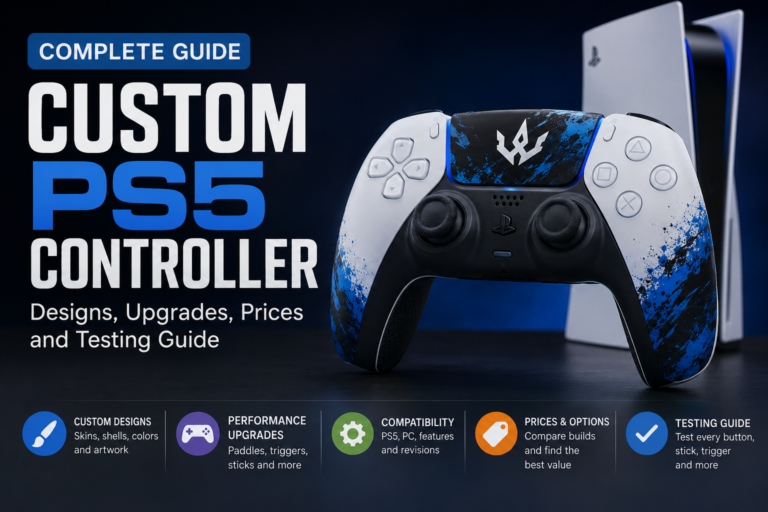
Independent repair documentation from iFixit also shows that DualSense controllers have different hardware revisions and separate repair procedures for components such as joysticks, batteries, buttons, triggers, and USB-C hardware.
When Resetting Won’t Help
A controller reset cannot repair:
- Cracked controller shell
- Liquid damage
- Broken USB-C port
- Physically stuck buttons
- Broken L2 or R2 trigger
- Severe stick drift
- Analog stick that does not return to center
- Failed battery
- Damaged internal components
If a known-good cable, software update, reset, and controller test do not solve the problem, hardware repair may be the next step.
Quick Troubleshooting Table
| Problem After Reset | Check Next |
|---|---|
| Controller won’t pair | USB cable, USB port, battery |
| Controller flashes blue | Wired pairing, nearby paired devices |
| Keeps disconnecting | Battery, Bluetooth, firmware, interference |
| One button does not work | Test button for hardware failure |
| Stick moves by itself | Test for stick drift |
| Trigger behaves incorrectly | Test trigger input |
| Controller will not charge | Cable, USB port, battery |
| Controller appears completely dead | Charge, another cable, hardware diagnosis |
How This Guide Was Verified
We checked the reset procedure in this guide against Sony’s current PlayStation Support documentation on August 7, 2026.
We confirmed:
- The official reset-button location
- The five-second minimum hold time
- The USB reconnection procedure
- The DualSense software-update path
- Sony’s statement that resetting does not affect pairing settings
- The difference between controller reset and PS5 Safe Mode
We also compared the troubleshooting flow with independent DualSense repair documentation from iFixit to separate connection problems from faults that may require hardware diagnosis.
We have not claimed hands-on testing of a physical controller where that testing was not actually performed.
If PadProTools later performs a documented physical reset test, the controller model, software version, procedure, and results should be added here.
FAQs
How do you reset a PS5 controller?
Turn off the PS5 and disconnect the DualSense. Find the small reset hole next to the Sony logo on the back. Press the button inside for at least five seconds. Connect the controller to the PS5 with USB and press the PS button.
How long should I hold the PS5 controller reset button?
Sony says to hold the reset button for at least five seconds.
Where is the reset button on a PS5 controller?
The reset button is inside a small hole on the back of the DualSense next to the Sony logo.
What can I use to press the reset button?
Use a pin or another thin tool that fits comfortably inside the reset hole. Do not force a thick object into the controller.
Does resetting a PS5 controller erase its pairing?
Sony states that resetting the DualSense does not affect its pairing settings.
Does resetting a PS5 controller delete games?
No. Controller resetting does not delete games, saves, screenshots, videos, or PS5 accounts.
Is resetting a DualSense the same as resetting the PS5?
No. Resetting the DualSense only troubleshoots the controller. Resetting the PS5 is a console-level action and can affect stored data depending on the option selected.
Why won’t my PS5 controller connect after resetting?
Try another compatible USB cable, another PS5 USB port, charge the controller, restart the console, and check for system software updates.
Why is my PS5 controller flashing blue after reset?
It is usually trying to establish a connection. Connect it to the PS5 with USB and press the PS button. Also check whether it is trying to reconnect to another paired device.
Can resetting fix stick drift?
It can rule out a temporary software problem, but it cannot repair physically worn joystick components.
Can resetting fix an unresponsive PS button?
It may help if the cause is software or connection-related. If the PS button still fails after the controller reconnects, test the controller for a hardware problem.
Can I reset a PS5 controller without a PS5?
You can press the physical reset button without the console, but Sony’s normal PS5 troubleshooting process finishes by connecting the controller to a PS5 with USB and pressing the PS button.
Can I reset a PS5 controller connected to a PC?
Yes. The reset button is built into the controller. Reconnect or pair it with your PC again afterward if needed.
Do I need to open the controller to reset it?
No. The reset button is accessible through the small hole on the back of the controller.
Should I reset my controller every time it disconnects?
No. First check the battery and connection and restart the controller. Use the physical reset when normal troubleshooting does not solve the problem.
Does resetting fix battery problems?
A reset may help if strange battery behavior is software-related, but it cannot repair a worn or damaged battery.
Should I update my DualSense after resetting it?
Check whether a controller software update is available. Keeping the DualSense and PS5 system software current can help prevent connection and compatibility problems.