How to Connect PS5 to a Laptop With HDMI
“”
Last updated: August 16, 2026
You usually cannot connect a PS5 directly to a laptop with a standard HDMI cable. The PS5 sends video through HDMI, but most laptop HDMI ports are designed to send video out, not receive it.
To display PS5 gameplay on your laptop, use an HDMI capture card. Sony’s PS Remote Play app is the easier alternative when you do not want to buy additional hardware.
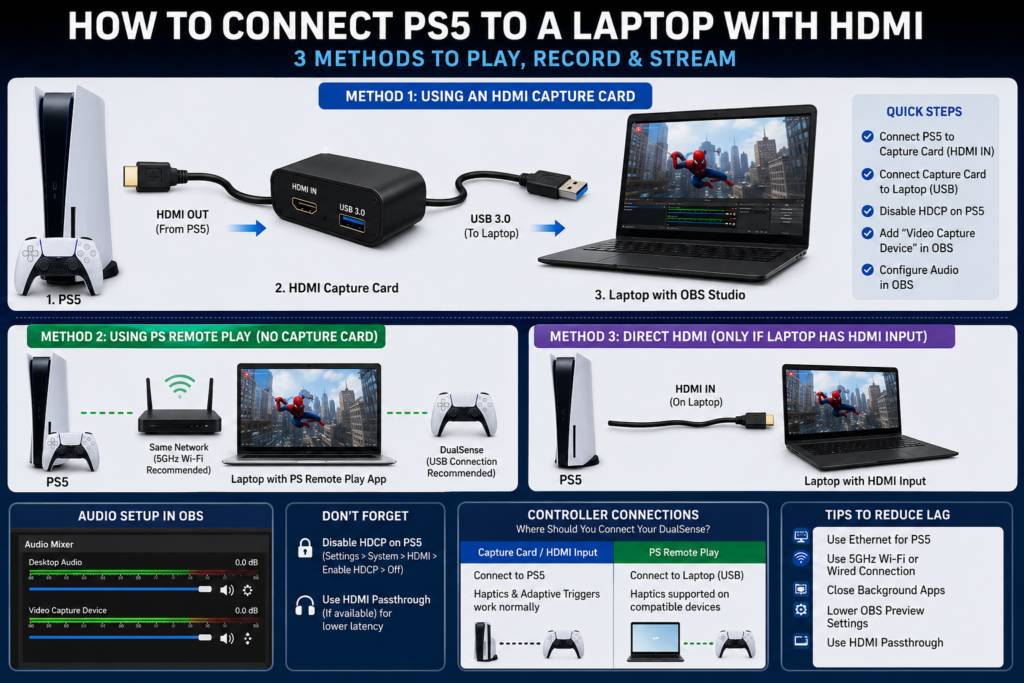
Quick answer: How to Connect PS5 to a Laptop With HDMI capture card, connect the capture card to your laptop through USB, disable HDCP on the PS5, and select the capture device in OBS Studio.
Why a Direct PS5-to-Laptop HDMI Cable Does Not Work
A direct HDMI connection usually fails because the PS5 and laptop are both sending video signals. The PS5 uses HDMI output, while the HDMI port on most laptops is also an output.
The connection looks like this:
PS5 HDMI OUT → Laptop HDMI OUT = No picture
An HDMI-shaped port does not automatically mean the laptop can receive video. A direct connection only works when the laptop specifications specifically mention HDMI input or HDMI IN. HP also states that direct HDMI use requires a laptop with an HDMI input port. ng drivers or changing Windows display settings cannot convert an HDMI output into an input.
Which Method Should You Use?
There are three realistic ways to display PS5 gameplay on a laptop. The best choice depends on whether you need an HDMI connection, want to avoid extra hardware, or own a rare laptop with a genuine HDMI input.
| Method | Additional Hardware | Internet Required | Possible Delay | Best For |
|---|---|---|---|---|
| HDMI capture card | Yes | No | Depends on the device and preview software | HDMI setup, recording and streaming |
| PS Remote Play | No | Yes | Depends on network stability | Casual gaming and convenience |
| Genuine HDMI input | No | No | Usually the most direct | Rare compatible laptops |
Choose an HDMI capture card when you want to connect through HDMI or record gameplay.
Choose PS Remote Play when you want a free method and have a reliable network.
Use direct HDMI only when the laptop manufacturer confirms that the port is an HDMI input.
For competitive gaming, a dedicated gaming monitor remains the safer choice because capture previews and network streaming can introduce delay.
Method 1: Connect the PS5 Using an HDMI Capture Card
An HDMI capture card receives the PS5’s video and audio signal and converts it into data that laptop software can display. This is the correct HDMI-based method for an ordinary laptop.
For the related PS5 display or hardware issue, see our PS5 no-signal troubleshooting.
What You Need
The required equipment is simple, although capture-card quality and supported resolutions vary between models.
You need:
- A PS5 console
- A Windows laptop or Mac
- An HDMI cable
- A USB HDMI capture card
- A compatible USB port
- OBS Studio or the manufacturer’s capture software
- A DualSense controller connected to the PS5
A small HDMI-to-USB capture adapter is also a capture card. It performs the same basic function as a larger capture device, although it may have fewer features.
Connect the PS5 to the Capture Card
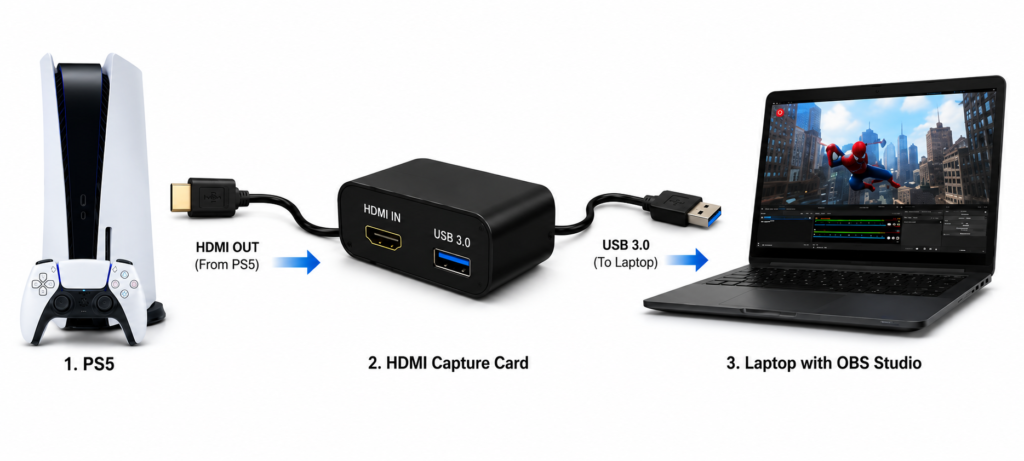
The direction of the HDMI connection matters. The PS5 must connect to the capture card’s HDMI IN port rather than its HDMI output.
Use this signal path:
PS5 HDMI OUT → Capture Card HDMI IN → Capture Card USB OUT → Laptop
Follow these steps:
- Connect the capture card to a suitable USB port on the laptop.
- Connect one end of the HDMI cable to the PS5.
- Connect the other end to HDMI IN on the capture card.
- Turn on the PS5.
- Open OBS Studio or the capture-card application.
Some capture cards also include an HDMI OUT port. This sends the PS5 picture to a separate monitor while the laptop records or streams it.
A passthrough setup looks like this:
PS5 → Capture Card HDMI IN
Capture Card HDMI OUT → Monitor
Capture Card USB OUT → Laptop
Playing on the passthrough monitor is normally more responsive than playing through the software preview.
Disable HDCP on the PS5
HDCP is a content-protection system that can prevent an external capture device from displaying the PS5 signal. Sony confirms that external HDMI capture devices can be used after HDCP is disabled. S5:
- Open Settings.
- Select System.
- Select HDMI.
- Turn off Enable HDCP.
- Restart OBS or reconnect the capture card when necessary.
HDCP only needs to be disabled for the HDMI capture method. It does not need to be disabled for PS Remote Play.
Protected streaming and entertainment applications may not display through the capture device while HDCP is turned off.
Add the Capture Card in OBS Studio
OBS must use the correct source type to receive the PS5 signal. OBS identifies capture cards through the Video Capture Device source. These steps:
- Open OBS Studio.
- Create a scene or select an existing one.
- Find the Sources panel.
- Click the + button.
- Select Video Capture Device.
- Select Create New.
- Choose the capture card from the Device menu.
- Select a resolution and frame rate supported by the card.
- Click OK.
- Resize the source to fill the OBS canvas.
Do not select Game Capture, Window Capture, or Display Capture for the raw HDMI signal. Those options capture applications or content already running on the laptop.
To make the PS5 picture fill the laptop screen, right-click the OBS preview and choose the appropriate full-screen projector option.
Configure PS5 Audio in OBS
HDMI normally carries gameplay video and audio together, but OBS may receive the sound without automatically playing it through the laptop speakers.
For the related PS5 display or hardware issue, see our PS5 HDMI 2.1 cable guide.
First, check whether the capture-card audio meter moves in the OBS Audio Mixer. A moving meter means OBS is receiving sound even when you cannot hear it.
Try these steps:
- Confirm that the capture-card source is not muted.
- Open Advanced Audio Properties.
- Find the capture-card audio source.
- Enable the required monitoring option.
- Confirm the correct monitoring device in OBS settings.
- Check that the PS5 is sending sound through HDMI.
- Disconnect a headset from the DualSense temporarily.
Plugging headphones into the controller can change the PS5 audio route and stop gameplay sound from reaching the capture card.
Budget Capture Dongle vs Full Capture Card
Budget capture dongles and full capture cards both convert HDMI video into a laptop-readable signal. The main differences are passthrough, software support, capture quality, and preview performance.
| Feature | Budget USB Capture Dongle | Full Capture Card |
|---|---|---|
| Size | Small and portable | Usually larger |
| HDMI passthrough | Often unavailable | Available on many models |
| Software support | Usually basic | Often better supported |
| Capture settings | May be limited | Usually more flexible |
| Preview performance | Highly variable | Often more consistent |
| Best use | Occasional use and travel | Regular recording and streaming |
Check these specifications before buying:
- Maximum HDMI input resolution
- Maximum capture resolution
- Maximum capture frame rate
- Passthrough resolution
- USB standard
- Windows or macOS compatibility
- HDR support
- Supported video formats
A device advertised as “4K” may only accept or pass through a 4K signal while capturing at 1080p. Check the listed capture resolution, not only the product title.
Does a Capture Card Add Input Lag?
The laptop preview may introduce processing delay, and the amount varies significantly between capture devices. For example, Elgato documents software-preview delays ranging from about 50 to 100 milliseconds on some USB 3.x models, while an older USB 2.0 model can have a delay of several seconds. Why a capture card should not automatically be described as a zero-lag or low-latency solution.
For better responsiveness:
- Use HDMI passthrough when a separate monitor is available.
- Connect the card to its recommended USB port.
- Close unnecessary laptop applications.
- Lower preview settings when the laptop struggles.
- Compare OBS with the manufacturer’s capture application.
- Avoid inexpensive unverified devices for competitive gaming.
A “lag-free” claim often refers to HDMI passthrough, not the video displayed inside OBS.
Do Haptic Feedback and Adaptive Triggers Still Work?
A capture card only sends PS5 video and audio to the laptop. It does not route or process the controller signal.
Keep the DualSense connected directly to the PS5. In supported games, haptic feedback, adaptive triggers, vibration, the touchpad, and controller speaker should continue to be controlled by the console as normal.
The signal flow is:
DualSense → PS5
PS5 video and audio → Capture Card → Laptop
The controller features do not need to “pass through” OBS or the capture card. OBS neither enables nor disables adaptive triggers or haptic feedback.
This is different from Remote Play, where the controller connects to the laptop, and its input is sent to the console through the Remote Play connection.
Method 2: Use PS Remote Play Without a Capture Card
PS Remote Play streams the PS5 screen to a Windows laptop or Mac over a network. It is the easiest method when you do not want to purchase capture hardware.
Remote Play Requirements
Remote Play requires the official app, a PlayStation account, a supported controller, and a reliable network connection.
Sony currently lists the following Windows requirements:
- Windows 10 64-bit or Windows 11
- Seventh-generation Intel Core processor or later
- At least 100 MB of storage
- At least 2 GB of RAM
- Display resolution of 1024 × 768 or higher
- A sound card
- A USB port
Sony lists 5 Mbps upload and download speed as the minimum and recommends at least 15 Mbps in both directions for better performance. are the PS5 for Remote Play
Remote Play must be enabled in the PS5 settings before the laptop can control the console. Complete and test this setup while you still have access to a TV or monitor.
On the PS5:
- Open Settings.
- Select System.
- Select Remote Play.
- Turn on Enable Remote Play.
To wake the PS5 from Rest Mode:
- Open Settings.
- Select System.
- Select Power Saving.
- Open Features Available in Rest Mode.
- Enable Stay Connected to the Internet.
- Enable Turning On PS5 from Network.
These Rest Mode options are required only when you want Remote Play to wake the console. The PS5 can also be connected while already turned on. ect the PS5 to the Laptop
The Remote Play app signs in to the same PlayStation account used on the console and searches for the associated PS5.
Follow these steps:
- Install the official PS Remote Play application.
- Turn on the PS5 or place it in Rest Mode.
- Connect the DualSense to the laptop with a USB cable.
- Open PS Remote Play.
- Sign in using the same PlayStation account as the PS5.
- Review the available video-quality settings.
- Select PS5.
- Wait for the app to find and connect to the console.
Sony’s current PC and Mac instructions specify a USB cable for the controller during Remote Play. omatic connection fails, manually pair the devices:
- On PS5, open Settings → System → Remote Play → Pair Device.
- Note the number displayed on the screen.
- Open PS Remote Play on the laptop.
- Enter the pairing number.
The PS5 and laptop must be on the same network during manual registration. After registration, Remote Play can connect remotely through a suitable internet connection. Before Starting Remote Play
Testing the controller first helps determine whether a problem comes from the controller, USB cable, or Remote Play app.
Connect the DualSense to the laptop and open the PadProTools gamepad tester to check:
- Face buttons
- D-pad directions
- Analog-stick movement
- L2 and R2 trigger input
- Stick drift
- USB detection
Close the tester before opening Remote Play when both applications attempt to use the controller simultaneously.
What Happens to DualSense Features During Remote Play?
During Remote Play, the DualSense connects to the laptop rather than directly to the PS5. Input is then transmitted to the console through the Remote Play connection.
Sony notes that feature availability can depend on the connected device. On compatible Windows setups, haptic feedback requires a USB connection and support from the game, while certain controller features may not be available on every device. most consistent DualSense experience, use the USB connection specified in Sony’s Remote Play instructions rather than assuming Bluetooth will provide identical support.
Reduce Remote Play Lag
Remote Play depends on connection stability as well as advertised internet speed. A fast connection can still perform poorly when Wi-Fi is congested or unstable.
Try these improvements:
- Connect the PS5 to the router through Ethernet.
- Use a wired connection for the laptop where possible.
- Use 5 GHz Wi-Fi when close to the router.
- Pause large downloads and video streams.
- Disconnect unnecessary devices from the network.
- Move the laptop closer to the router.
- Restart the router, PS5, and Remote Play app.
- Check whether security software is blocking the app.
Sony specifically recommends 5 GHz Wi-Fi, pausing other downloads, and using a wired PC or Mac connection when possible. Play is suitable for casual gaming, but it may not provide the responsiveness required for competitive shooters, fighting games, or rhythm games.
Method 3: Use Direct HDMI Only With Genuine HDMI Input
A direct HDMI connection is possible only when the laptop is designed to receive an external video signal. Genuine HDMI input is uncommon on normal laptops.
Check Whether the Laptop Has HDMI Input
The appearance of the port is not enough to confirm its direction. Check the exact model documentation before attempting a direct connection.
Look for:
- An HDMI IN label
- HDMI input listed in the official specifications
- An input-selection button
- Manufacturer software for switching video inputs
- Documentation describing the laptop screen as an external display
When the specifications only mention HDMI output or external monitor support, the port cannot receive the PS5 signal.
For the related PS5 display or hardware issue, see our fix a PS5 HDMI port.
Connect the PS5 to an HDMI-Input Laptop
A laptop with genuine HDMI input can display the PS5 without a capture card. The exact controls vary between laptop models.
Follow these general steps:
- Turn on the PS5 and laptop.
- Connect the PS5 HDMI output to the laptop HDMI input.
- Open the laptop’s input-selection utility or press its source button.
- Select HDMI input.
- Adjust the PS5 resolution when necessary.
These steps will not work on an output-only HDMI port.
How to Connect a PS5 to an HP Laptop With HDMI
The answer depends on the exact HP model rather than the brand. Most standard HP laptop HDMI ports should not be assumed to accept an incoming PS5 signal.
Check the official specifications using the laptop’s full product number. When HDMI input is not listed, use a capture card or PS Remote Play instead.
HP’s own guide makes direct HDMI use conditional on the laptop having an HDMI input port. Resolution, Frame Rate and Picture Quality
To test the related hardware in your browser, use our GPU tester.
The quality displayed on the laptop depends on every device in the signal chain. The PS5 output setting alone does not determine the final result.
| Setting | What It Controls |
|---|---|
| PS5 output resolution | Signal sent by the console |
| Capture-card input | Maximum signal the card accepts |
| Capture resolution | Video sent to the laptop |
| Passthrough resolution | Video sent to a separate display |
| Laptop resolution | Native resolution of the laptop panel |
| OBS frame rate | Frames displayed or recorded in OBS |
The PS5 supports HDMI 2.1 and video output up to 4K at 120 Hz, but the full setup must support those formats. with a 120 Hz display does not guarantee that a capture card can deliver a 120 fps preview. A card offering 4K passthrough may still capture at 1080p.
When the capture device shows no signal, temporarily use a standard PS5 resolution and disable 120 Hz or VRR to check whether the card supports the original signal.
Common PS5-to-Laptop Problems
Most connection failures come from an output-only laptop port, incorrect capture-card wiring, HDCP, audio routing, or network instability. However, if the console becomes unusually hot, makes excessive fan noise, freezes, or shuts down during gameplay, follow our PS5 Keep Overheating guide before troubleshooting the laptop connection.
The Laptop Shows No Picture
A normal HDMI cable produces no picture when the laptop port is output-only. With a capture card, check the physical signal path before changing software settings.
Check:
- The cable connects to HDMI IN on the capture card.
- HDCP is disabled.
- The capture card is selected in OBS.
- No other application is using the device.
- The USB and HDMI cables are fully connected.
- The selected resolution is supported.
- The PS5 works when connected directly to another display.
OBS Shows a Black Screen
A black OBS preview usually means the source is blocked, incorrectly configured or receiving an unsupported signal.
Check:
- The source type is Video Capture Device.
- The correct capture card is selected.
- HDCP is turned off.
- The source is visible in the OBS scene.
- The resolution and frame rate are supported.
- Another camera or streaming application is not using the card.
There Is Video but No Audio
Video without sound usually indicates that OBS is capturing audio without monitoring it, or the PS5 is routing sound somewhere else.
Check:
- The capture source is unmuted.
- The OBS audio meter moves.
- Audio monitoring is enabled where required.
- The correct monitoring device is selected.
- The PS5 audio output is set to HDMI.
- A headset connected to the DualSense is not redirecting the sound.
Gameplay Feels Delayed
Delay comes from different sources depending on the selected method.
For capture-card delay:
- Use HDMI passthrough when available.
- Try the manufacturer’s software.
- Use the recommended USB connection.
- Lower preview settings.
- Close background applications.
For Remote Play delay:
- Connect the PS5 through Ethernet.
- Use a wired laptop connection or nearby 5 GHz Wi-Fi.
- Stop large downloads.
- Reduce network congestion.
Is a Portable Monitor Better Than a Laptop?
A portable monitor is often a better choice for regular console use because it is designed to receive video directly through HDMI, Mini-HDMI or supported USB-C input.
A portable monitor generally provides:
- Direct video input
- No capture software
- No Remote Play network requirement
- Less setup complexity
- A dedicated console display
The disadvantage is the cost and need to carry another screen.
FAQS
These answers cover the most common variations of the PS5-to-laptop connection question without repeating the full setup instructions.
For setup, compatibility, or buying details, read our use DualSense on PC.
Can I Connect My PS5 Directly to My Laptop With HDMI?
Usually, no. Most laptop HDMI ports are outputs and cannot receive the PS5 signal. Direct HDMI only works when the laptop specifically supports HDMI input.
Can I Connect a PS5 to a Laptop Without a Capture Card?
Yes, use PS Remote Play. A direct HDMI cable only works when the laptop has genuine HDMI input.
How Do I Connect My PS5 to an HP Laptop With HDMI?
Check the exact HP model specifications for HDMI input. When the port is output-only, use an HDMI capture card or PS Remote Play.
Why Does My Laptop Show No Signal From the PS5?
The laptop HDMI port is probably output-only. When using a capture card, check HDMI IN, HDCP, OBS source selection, and the supported resolution.
Can I Use My Laptop as a PS5 Monitor Without Internet?
Yes, an HDMI capture card does not require internet. PS Remote Play requires a network connection.
Does a Capture Card Cause Input Lag?
The software preview may add delay. The amount depends on the capture card, USB connection, laptop, and application. HDMI passthrough is usually preferable when responsiveness matters.
Do Adaptive Triggers Work Through a Capture Card?
The controller does not connect through the capture card. Keep the DualSense paired with the PS5, and adaptive triggers and haptic feedback should continue in supported games.
Can I Hear PS5 Audio Through My Laptop?
Yes. The capture card must send HDMI audio to OBS, and audio monitoring may need to be enabled before the sound plays through the laptop.
Can a Laptop Display PS5 Games at 120 Hz?
Only when the capture device, USB connection, software and laptop display all support the required frame rate. Many capture devices support high-resolution passthrough but provide a lower capture frame rate.
Does Remote Play Need the Same Wi-Fi Network?
Not for normal remote use. The laptop and PS5 must be on the same network during manual device registration. ld the DualSense Connect to the PS5 or Laptop?
Connect it to the PS5 when using a capture card or genuine HDMI input. Connect it to the laptop through USB when using PS Remote Play.
Final Recommendation
Most users should choose between an HDMI capture card and PS Remote Play rather than trying to force a direct HDMI connection.
Use:
- An HDMI capture card for an HDMI-based laptop setup, recording or streaming
- PS Remote Play for a free method without capture hardware
- Direct HDMI only when the laptop officially supports HDMI input
- A dedicated monitor when low delay and consistent image quality matter most
For most people searching how to connect a PS5 to a laptop with HDMI, the practical answer is a USB capture card. Connect the PS5 to HDMI IN, connect the card to the laptop, disable HDCP, and add the card as a Video Capture Device in OBS.
About This Guide
“This guide was written and fact-checked by Airam Chandler using current PlayStation, OBS Studio, and HP documentation.”