
Supports PS4 and PS5 controllers through USB or Bluetooth. Input stays in your browser.
Technical claims on this page were checked against the W3C Gamepad specification, MDN Gamepad API documentation and official PlayStation support guidance. Browser and controller support can change over time, so retest with the live tool if a feature behaves differently than described here.
Connect your PlayStation controller and check its buttons, analog sticks, D-pad, triggers and touchpad click directly in your browser. You do not need to download an app or create an account.
Use a USB cable for the first test when possible. Press any controller button after connecting so the browser can detect it.
Quick start
- Connect your PS5 or PS4 controller.
- Press any button to activate it.
- Test every button, stick and trigger.
- Review any input that does not respond or return to rest.
Controller Not Detected?
Press Cross, Circle or another controller button first. A browser may not expose a connected gamepad until you press a button or move an analog stick. This behavior is part of how browser test gamepad detection works.
Still not connected? Try these checks:
- Use a USB cable that supports data, not only charging.
- Disconnect and reconnect the controller.
- Try another USB port.
- Keep the page open and selected.
- Close Steam Input, DS4Windows or other remapping software.
- Restart the browser after connecting the controller.
- Test with another current browser.
- Compare USB and Bluetooth connections.
A charging light does not prove that the cable is carrying controller input.
How to Use the PS Controller Tester
Connect the controller
Connect a DualSense, DualSense Edge or DualShock 4 through USB or Bluetooth.
Sony supports DualSense connections to compatible Windows, macOS, Android and Apple devices through USB or Bluetooth, although some controller features vary by device and connection type.Controller performance may also be affected if your PS5 keeps overheating, so make sure the console has proper ventilation.
Press any button
Press Cross or move a stick after opening the page. The connection panel should display the controller name, number of buttons and available axes.
The name may appear as:
- DualSense Wireless Controller
- Wireless Controller
- DualShock 4
- Sony Interactive Entertainment Controller
- A generic gamepad name
A generic name does not mean the controller is fake or damaged. Device names and mappings can change between operating systems, browsers and controller software.
Test every input
Press each button once and release it. The matching control should light up while pressed and turn off after release.
Then move both sticks in full circles, click L3 and R3, and slowly pull L2 and R2 from rest to their maximum position.
Read the result
One unusual reading does not always mean the controller is broken. Repeat the test, switch from Bluetooth to USB and compare the result in another game before deciding whether the controller needs repair.
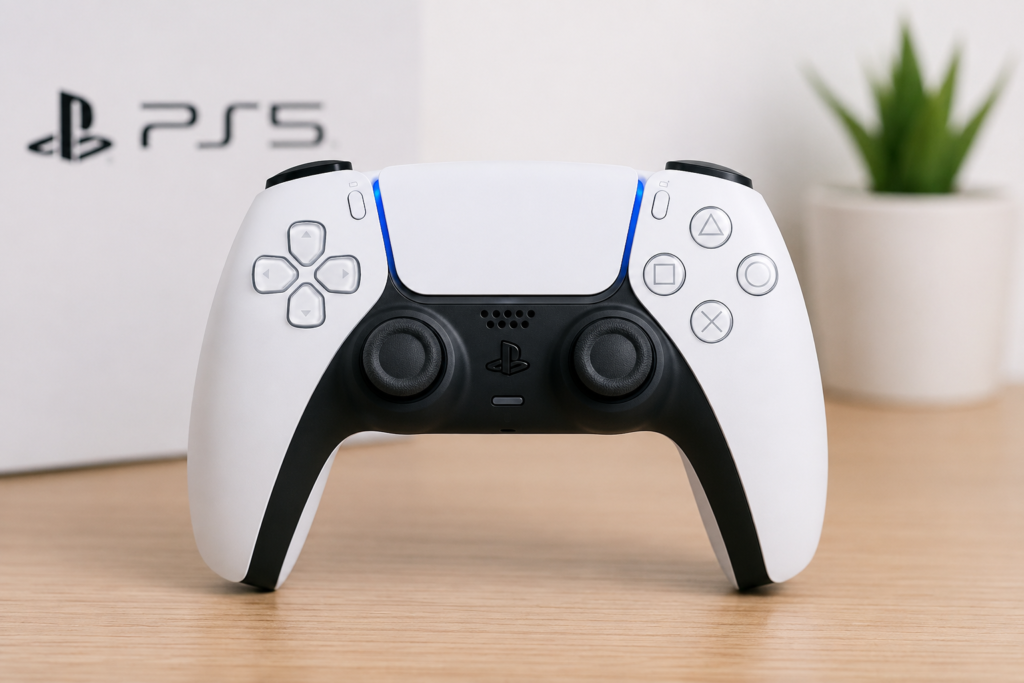
What Can You Test?
The browser Gamepad HTMl can expose controller identity, button states and analog-axis positions. Button readings include pressed and released states, while analog controls can return changing values.
Face buttons
Test the four main PlayStation buttons:
- Cross
- Circle
- Square
- Triangle
Press and release each button several times. The on-screen indicator should respond to every press and switch off after release.
A missed press may point to a physical button problem, but it can also come from a browser mapping or connection issue. Retest before drawing a conclusion.
D-pad
Press Up, Down, Left and Right separately.
Each direction should appear without activating another direction. Test diagonal movement by pressing two directions together only after all four individual directions respond correctly.
Shoulder buttons
Check L1 and R1 by pressing and releasing them several times.
Watch for:
- A press that does not appear
- A button that remains active
- Repeated input from one press
- A response that works only when pressed hard
Analog sticks
Move the left and right sticks slowly in every direction. The markers should follow your movement and return close to the center when released.
Browser gamepad axes normally use values ranging from -1.0 to 1.0. A center position is usually near zero, but it may not display as a perfect 0.000 on every controller.
Also press both sticks downward to test:
- L3
- R3
L2 and R2 triggers
Pull each trigger slowly instead of pressing it quickly.
The value should:
- Begin close to its resting point.
- Increase as you pull the trigger.
- Reach or approach its maximum reading.
- Return close to rest after release.
The Gamepad API allows analog buttons such as modern controller triggers to report values between an unpressed and fully pressed state.
Create, Share and Options
DualSense controllers use the Create button, while DualShock 4 controllers use the Share button.
Test these along with the Options button. Their displayed names may differ when the operating system applies a standard controller mapping.
Touchpad click
Press the touchpad downward like a button.
The browser may detect the touchpad click without detecting finger location, swipes or multi-touch gestures. Do not treat missing touch-position data as proof that the touchpad is faulty.
PS button
The PS button may be handled by the operating system before its input reaches the webpage. A missing PS-button response does not automatically mean the button is damaged.
How to Check a PS5 Controller for Stick Drift
Stick drift happens when an analog stick sends movement while you are not touching it.
You may notice:
- A character walking without input
- The camera slowly turning
- Menu selections moving alone
- Aiming that pulls in one direction
- A stick marker that will not settle near the center
Run a hands-off drift check
Place the controller on a flat surface.
Take your hands off both analog sticks and wait a few seconds. Watch the left-stick and right-stick markers without moving the controller.
Repeat the test at least two or three times.
Move each stick through its full range
Rotate one stick slowly around its outer edge. Repeat the movement in both directions.
Look for:
- Areas the stick cannot reach
- Sudden jumps
- Movement that is not smooth
- A marker that remains pulled to one side
- Input that continues after release
Repeat the same test with the second stick.
Is a small center offset normal?
A small offset can appear without causing a noticeable problem in games. Many games use an inner deadzone that ignores slight movement near the center.
Focus on repeatable behavior. A controller is more likely to have a real drift problem when the same unwanted movement appears across repeated tests and inside games.
How much drift is too much?
There is no single browser reading that proves every controller is faulty. Games use different deadzone settings, and controller readings can vary slightly.
Treat the result as a possible problem when:
- The marker moves while the stick remains untouched.
- The same direction appears during each test.
- The movement continues through USB and Bluetooth.
- The issue also appears in more than one game.
Use a dedicated stick drift test when you need a longer center reading, deadzone view or movement history.
How to Test L2 and R2
Pull L2 slowly while watching its input value. Release it and confirm that the reading returns close to rest.
Repeat the same steps with R2.
Trigger does not reach full input
Retest it several times. A limited reading may be connected to:
- Incomplete physical travel
- Dirt around the trigger
- A worn trigger component
- A remapping profile
- Software changing the input
- A browser or connection issue
Compare the result through USB and inside a game that uses analog trigger input.
Trigger stays active after release
Release the trigger completely and press it several more times. A repeated reading above its normal rest position may point to a sticking trigger, mapping issue or internal wear.
Does this test check adaptive triggers?
It checks the input value reported by L2 and R2. It does not fully measure the physical resistance generated by the DualSense adaptive-trigger mechanism.
Sony states that adaptive-trigger availability depends on the connected device and supported software. Reading trigger travel is not the same as testing the resistance motor.
PS5 Controller Vibration Test
Use the vibration test controls only when the tool shows that a supported vibration actuator is available.
A browser may be able to request a vibration effect, but the webpage cannot physically measure how strong the motor feels. You must confirm whether you felt vibration in the left handle, right handle or both.
Browser vibration support varies between controllers, operating systems and browsers. The vibrationActuator feature is not available in every major browser or setup.
A failed vibration request does not prove that the controller motor is broken. Retest it:
- With a USB cable
- In a supported game
- On the PlayStation console
- After closing controller-remapping software
What This Online Test Cannot Confirm
This PS controller tester reads inputs that your browser makes available. It does not inspect the controller’s internal hardware.
It cannot reliably confirm:
- Battery health
- Remaining controller lifespan
- Exact input latency
- Polling rate without a separate measurement method
- The physical strength of vibration motors
- Complete DualSense haptic quality
- Adaptive-trigger motor health
- Touchpad finger position on every setup
- Microphone quality
- Speaker quality
- Headset-jack condition
- Firmware health
- The exact part that needs repair
The Gamepad API supports buttons, axes, controller identity and some optional output controls, but feature support varies by controller and platform.
Use the result as a first check, not as a complete electronic diagnosis.
PS5 DualSense vs PS4 DualShock 4
| Test feature | PS5 DualSense | PS4 DualShock 4 |
|---|---|---|
| Cross, Circle, Square and Triangle | Yes | Yes |
| D-pad | Yes | Yes |
| L1 and R1 | Yes | Yes |
| L2 and R2 input range | Yes | Yes |
| Left and right analog sticks | Yes | Yes |
| L3 and R3 | Yes | Yes |
| Create or Share button | Create | Share |
| Options button | Yes | Yes |
| Touchpad click | Often available | Often available |
| Touch location and swipe | Setup dependent | Setup dependent |
| Basic vibration request | Setup dependent | Setup dependent |
| Adaptive-trigger resistance | Not fully confirmed by a basic browser test | Not applicable |
| Advanced haptic feedback | Not fully confirmed by a basic browser test | Not applicable |
The exact controls exposed to the webpage depend on the browser, operating system, connection and controller mapping.
Supported PlayStation Controllers
DualSense Wireless Controller
The main controls of a standard PS5 DualSense can be checked when the browser detects the controller.
This includes most buttons, both analog sticks, L2/R2 input and touchpad click.
DualSense Edge
A DualSense Edge may expose its standard controller inputs in the same way as a regular DualSense.
Custom profiles, rear-button assignments and stick-module settings may need to be checked through supported PlayStation software or console settings.
DualShock 4
A PS4 DualShock 4 can be tested through a supported USB or Bluetooth connection.
The controller may appear under the generic name “Wireless Controller.”
Third-party PlayStation controllers
Many licensed and compatible controllers work through the Gamepad API, but their names and button layouts may differ.
Check the visual response rather than relying only on the detected device name.
PS3 controllers
PS3 controller support is less consistent and may require drivers, adapters or additional software. Do not assume that every DualShock 3 setup will work directly in a browser.
USB or Bluetooth: Which Is Better for Testing?
Start with USB when you are trying to find a problem.
A wired test removes Bluetooth pairing, wireless interference and adapter quality from the first check. It also helps you determine whether a problem appears only during wireless use.
Use Bluetooth afterward to compare the readings.
Sony supports both USB and Bluetooth connections for DualSense on compatible devices, but certain features can vary by platform and connection.
Use USB when:
- The controller is not detected.
- Inputs disconnect randomly.
- Button readings appear unstable.
- Vibration is unavailable.
- You are checking a second-hand controller.
- You want to rule out Bluetooth interference.
Use Bluetooth when:
- You normally play wirelessly.
- You want to test the pairing.
- The controller works through USB but not wirelessly.
- You want to compare the two connection methods.
How to Connect a PS5 Controller Through Bluetooth
Before pairing, disconnect the USB cable and make sure the controller’s player indicator is off.
Hold the Create button and the PS Controller Tester button together until the light bar begins blinking. Open the Bluetooth settings on your device and select the controller from the available device list.
These are the official DualSense pairing steps provided by PlayStation.
After pairing, return to the tester and press any button.
PS Controller Not Working? Check This Table
| Problem | Check first | What it may mean |
|---|---|---|
| Controller does not appear | Press a button and reconnect it | Browser activation, cable or pairing issue |
| Controller charges but gives no input | Try another USB data cable | Current cable may carry power only |
| Character moves alone | Run the hands-off stick test | Possible drift or game deadzone issue |
| One button does not light up | Press and release it several times | Button, mapping or connection issue |
| Button remains active | Check its release state | Sticky button or remapping issue |
| L2 or R2 does not reach full input | Pull it slowly through its range | Limited travel, wear or mapping issue |
| Trigger does not return to rest | Repeat through USB | Sticking trigger or unstable reading |
| Vibration does not start | Check support and test in a game | Browser limitation or unsupported connection |
| Controller works here but not in a game | Check the game and Steam settings | Software configuration issue |
| Inputs use Xbox labels | Close remapping software | Steam Input or another tool may be converting the layout |
| PS button does not appear | Test it on the console | The operating system may reserve the button |
| Bluetooth disconnects | Retest through USB | Pairing, battery, adapter or interference issue |
Why Does the Controller Work Here but Not in a Game?
A successful browser test means the webpage is receiving controller input. It does not guarantee that every game is configured to use that controller.
Check:
- The game’s controller settings
- Steam Input settings
- Native DualSense support
- Button-remapping profiles
- Whether the game was opened before connecting the controller
- Whether the game requires a wired connection
- Whether another controller has been selected as Player 1
Restart the game after connecting the controller.
Can Steam Input or DS4Windows Change the Results?
Yes. Controller software can rename the device, change its button mapping or convert PlayStation controls into an Xbox-style layout.
This may cause Cross, Circle, Square and Triangle to appear as A, B, X and Y.
Close remapping software and reload the page when you want the browser’s most direct available reading.
How to Reset a DualSense Controller
Resetting may help with pairing or connection problems, but it will not repair a physically worn analog-stick component.
To reset it:
- Turn off the PS5 console.
- Disconnect the controller.
- Locate the small reset hole near the Sony logo on the back.
- Use a pin or similar tool to hold the reset button for at least five seconds.
- Reconnect the controller to the console with a USB cable.
- Press the PS button.
These steps follow Sony’s official DualSense troubleshooting guidance.
Testing a Used PS5 Controller
Run these checks before buying a second-hand controller:
- Confirm that the controller connects through USB.
- Press every face button and D-pad direction.
- Check L1 and R1.
- Pull L2 and R2 slowly.
- Rotate both sticks through their full range.
- Leave both sticks untouched and watch for drift.
- Test L3 and R3.
- Check Create, Options and touchpad click.
- Compare USB and Bluetooth.
- Test vibration in a supported setup.
- Inspect the charging port, sticks and buttons physically.
A browser test can reveal input problems, but it cannot confirm battery condition, liquid damage or previous repairs.
How This Tester Works
The page reads the controller state through the browser’s Gamepad API.
A connected controller can provide:
- An identifying name
- A connection state
- A button array
- Analog button values
- Axis positions
- Mapping information
- Optional haptic controls
The browser updates these values while you press buttons and move the sticks. The visual controller reflects the readings it receives.
The tool should not decide that a controller is broken from one reading. It should display the input, highlight repeated problems and tell the user when a result needs another test.
FAQS
Is the PS controller tester free?
Yes. You can test browser-visible controller inputs without creating an account or installing a program.
Do I need to download an app?
No. The test runs on the webpage through the browser’s Gamepad API.
How do I test my PS5 controller online?
Connect the DualSense through USB or Bluetooth, open the page and press any button. Test each control and check whether it responds and releases correctly.
Can I test a PS4 controller?
Yes. A detected DualShock 4 can be checked for standard buttons, sticks, triggers and touchpad click.
Can I test a DualSense Edge?
You can test its standard controller inputs. Custom profiles, rear-button settings and stick-module options may need PlayStation-supported software.
How can I tell whether my PS5 controller has stick drift?
Leave both sticks untouched and watch their markers. Repeated movement away from the center may point to drift, especially when the same movement also appears in games.
Does a small non-zero value mean stick drift?
Not always. Small resting offsets can occur. Repeat the test and check whether the controller causes unwanted movement during gameplay.
Can the tool test L2 and R2?
Yes. It can show the analog value reported as each trigger is pulled and released.
Can it test adaptive-trigger resistance?
It can read trigger travel, but it cannot fully judge the physical resistance effect produced by the adaptive-trigger system.
Can I test vibration?
A vibration button can work when the browser, operating system and controller expose a supported haptic actuator. You must confirm whether you felt the vibration.
Why is my controller not detected?
Press a button, reconnect the controller and try a data-capable USB cable. Also close remapping software and restart the browser.
Why does it appear as “Wireless Controller”?
That is a common generic device name supplied by some operating-system and browser combinations. Check the actual inputs before treating the name as a problem.
Why is the PS button not registering?
The operating system may reserve the PS button and prevent its input from reaching the webpage.
Can the tool test the touchpad?
It may detect the touchpad click. Touch position, swipes and gestures are not available on every setup.
Does it work through Bluetooth?
Yes, when the operating system and browser detect the paired controller. Start with USB when diagnosing an input problem.
Does it work on a laptop?
Yes. It can work on a compatible laptop with a supported browser and USB or Bluetooth connection.
Does it work on Mac?
DualSense controllers can connect to supported macOS devices, but browser-visible features may vary.
Does it work on Android or iPhone?
A DualSense can connect to supported Android and Apple devices, but browser access and individual controller features may vary.
Can it measure input latency?
A basic button display does not provide a reliable end-to-end latency measurement. Latency testing requires a separate method that accounts for the controller, connection, browser, display and measurement equipment.
Can it check controller battery health?
No. A browser input test cannot judge battery capacity, wear or remaining lifespan.
Can an online test fix stick drift?
No. It can help you confirm unwanted input, but it cannot clean, calibrate or replace a worn component.
Should I replace the controller after one failed test?
No. Retest with another cable, browser and connection type. Compare the behavior in more than one game before paying for repair or replacement.
Related Controller Checks
Continue testing with: