
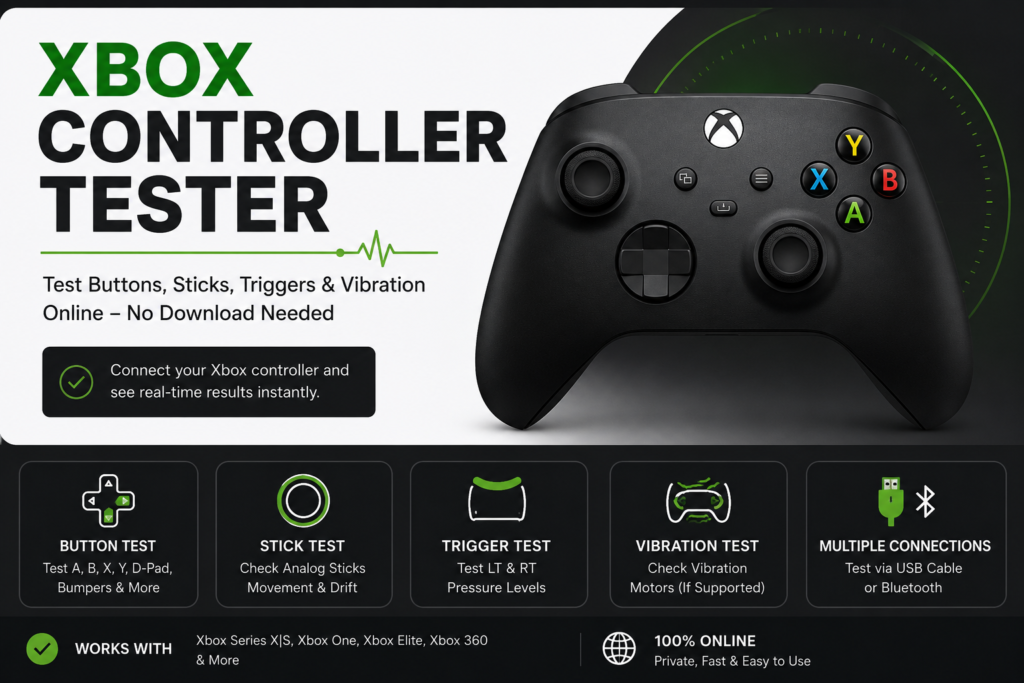
Use our free Xbox Controller Tester to check buttons, analog sticks, triggers, D-pad inputs, and vibration directly in your browser.
Connect your Xbox controller with a USB cable or Bluetooth, press any button, and watch your inputs appear on the virtual controller. You do not need to download software or create an account.
The test runs locally in your browser. No controller data is uploaded.
How to Test an Xbox Controller Online
- Connect your Xbox controller using USB or Bluetooth.
- Open this page in a supported browser.
- Click inside the tester and press the A button.
- Test the A, B, X, and Y buttons one at a time.
- Check the D-pad, bumpers, Menu, View, L3, and R3 buttons.
- Move both analog sticks slowly in complete circles.
- Press LT and RT from light pressure to full pressure.
- Run the vibration test when your browser supports it.
A USB connection is usually better for troubleshooting because it removes low battery, Bluetooth pairing, and wireless interference from the test.
How I Test and Review This Tool
During each review, I check whether the tool can:
- Detect a compatible gamepad
- Display button presses
- Show D-pad directions
- Track analog-stick movement
- Display LT and RT pressure values
- Detect controller disconnection and reconnection
- Request vibration when browser haptics are available
- Explain test results without claiming an exact hardware diagnosis
My Review Checklist
| Test area | What we check | Expected result |
|---|---|---|
| Controller detection | Connecting and reconnecting a controller | Controller appears after a button press |
| Face buttons | A, B, X, and Y inputs | Correct button activates on screen |
| D-pad | Up, down, left, and right | Each direction appears separately |
| Analog sticks | Center, direction, and full movement | Indicator follows movement smoothly |
| Stick buttons | L3 and R3 clicks | Each click appears as a button input |
| Triggers | LT and RT pressure | Value rises and returns smoothly |
| Bumpers | LB and RB presses | Input appears without delay |
| Vibration request | Browser haptic command | Rumble starts on supported setups |
| Reconnection | Disconnecting and reconnecting | Tool detects the controller again |
This is a browser-level diagnostic tool, not a certified hardware test. Results can vary by controller model, operating system, browser, firmware, driver, cable, Bluetooth adapter, and connection type.
We do not claim that a controller has passed a physical hardware inspection. The tester only shows the information your browser receives from the controller.
What Can the Xbox Controller Tester Check?
The tester can check the main inputs that your browser receives through the Gamepad API.
A, B, X, and Y Buttons
Press each face button several times.
The matching button on the virtual controller should activate immediately and return to its normal state when released.
Possible button problems include:
- A press does not appear
- The button works only when pressed hard
- One press registers more than once
- The input remains active after release
- The button responds less reliably than the others
A browser test can confirm whether an input signal was received. It cannot identify the exact damaged component inside the controller.
D-Pad
Press all four D-pad directions separately:
- Up
- Down
- Left
- Right
Each direction should appear without requiring excessive pressure.
Test diagonal combinations by holding two directions together. Some browser mappings may show diagonal movement as two active directions rather than one separate input.
LB and RB Bumpers
Press LB and RB from the center and near both edges.
A bumper that works only from one position may have a worn switch, damaged plastic support, dirt, or an internal alignment problem.
Compare both bumpers to see whether they respond consistently.
Menu, View, L3, and R3 Buttons
Test the Menu and View buttons, then press each analog stick straight down to test L3 and R3.
Avoid moving the stick sideways while pressing it. Stick movement and stick-click input are reported separately.
The Xbox button and Share button may not appear as normal browser inputs because the operating system can reserve them for system-level actions.
Test Xbox Controller Analog Sticks
Move the left analog stick slowly in every direction. Repeat the same test with the right stick.
A working stick should:
- Follow your movement smoothly
- Reach a similar range in every direction
- Return close to the center after release
- Remain mostly stable while untouched
- Avoid sudden jumps or shaking
Analog-stick values are normally displayed between approximately -1 and 1.
A centered stick should remain near 0. Full movement should approach the outer ends of the available range.
How to Check for Xbox Controller Stick Drift
Release both sticks and place the controller on a flat surface.
Watch the stick indicators and axis values for several seconds.
Possible stick drift is more likely when:
- The indicator continues moving without input
- Axis values keep changing while untouched
- A character moves by itself in a game
- The camera slowly turns without input
- The stick does not return near its normal center
- The problem appears across multiple games and devices
A small stable center offset does not always mean the controller is faulty. Many games apply a deadzone that ignores small movements around the center.
Use our dedicated Stick Drift Tester for a more detailed test of center movement, stick range, and unwanted input.
Test LT and RT Trigger Pressure
LT and RT are analog triggers. They can report different pressure levels instead of only showing an on or off state.
Press each trigger slowly from its resting position to full pressure.
A working trigger should:
- Start close to zero
- Increase smoothly as you press it
- Reach close to its maximum value
- Return close to zero after release
- Produce similar results across repeated tests
Possible trigger problems include:
- The trigger starts above zero
- The value jumps suddenly
- The trigger does not reach full pressure
- The input remains active after release
- LT and RT produce very different results
Xbox Elite controller trigger stops can limit physical trigger movement. Test with the trigger stops enabled and disabled before deciding that the trigger has a fault.
Xbox Controller Vibration Test
After the controller is detected, press the vibration test button to request a short rumble.
Online vibration testing depends on several parts of your setup:
- Controller model
- Browser
- Operating system
- USB or Bluetooth connection
- Controller driver
- Browser haptic support
A failed vibration test does not automatically mean that the vibration motors are broken.
Your browser may detect the buttons and sticks correctly while being unable to control the rumble motors.
Use our Controller Vibration Tester to try different vibration strengths and durations on supported controllers.
You can also compare the result with a game or controller configuration application that supports vibration.
Supported Xbox Controllers
The tester is designed for controllers that your device and browser expose as gamepads.
| Controller | Recommended connection | Inputs normally available |
|---|---|---|
| Xbox Series X|S Controller | USB-C or Bluetooth | Buttons, sticks, triggers and D-pad |
| Xbox One Controller | USB or supported wireless connection | Buttons, sticks, triggers and D-pad |
| Xbox Elite Series 2 | USB-C or Bluetooth | Standard mapped inputs |
| Xbox Elite Series 1 | USB or compatible wireless adapter | Standard mapped inputs |
| Xbox 360 Wired Controller | USB | Standard controls |
| Xbox 360 Wireless Controller | Compatible PC receiver | Standard controls |
| Third-party Xbox Controller | USB or Bluetooth | Depends on driver and mapping |
Rear paddles on Elite controllers may appear as remapped standard buttons instead of separate browser inputs.
Older Xbox One controllers without Bluetooth may require a USB cable or compatible wireless adapter.
USB or Bluetooth: Which Connection Should You Use?
Use USB first when diagnosing a controller problem.
A wired test helps remove these possible causes:
- Low battery
- Bluetooth pairing problems
- Wireless interference
- Nearby console connections
- Bluetooth adapter problems
Bluetooth is useful when you specifically want to test wireless operation.
Test both connection methods when:
- The controller works through USB but not Bluetooth
- Inputs disconnect during testing
- The controller has delayed or frozen inputs
- Vibration works with only one connection
- The browser shows different results for each connection
When using Bluetooth near an Xbox console, turn off or unplug the console so the controller does not reconnect to it during the browser test.
Xbox Controller Problems: Quick Diagnosis
| Test result or symptom | Possible cause | What to do next |
|---|---|---|
| Stick moves while untouched | Stick drift, dirt, center offset, or worn sensor | Use the Stick Drift Tester and compare the controller on another device |
| Stick does not return near the center | Debris, wear, shell interference, or calibration issue | Rotate the stick fully, clean around it, and test again |
| Stick does not reach full range | Restricted movement, sensor wear, or calibration problem | Test full circular movement and compare both sticks |
| Button misses some presses | Dirt, worn membrane, damaged switch, or obstruction | Press it repeatedly and compare it in another testing tool |
| Button remains active after release | Sticking button, dirt, membrane wear, or internal damage | Clean around the button and retest |
| One D-pad direction does not work | Worn contact, dirt, damage, or mapping problem | Test each direction separately on another device |
| LT or RT starts above zero | Trigger obstruction, sensor offset, or trigger-stop setting | Release it repeatedly and disable trigger stops |
| Trigger does not reach maximum | Trigger stop, restricted travel, or worn sensor | Disable trigger stops and compare LT with RT |
| Controller turns on but is not detected | Charge-only cable, browser issue, pairing problem, or driver issue | Use a data cable, reconnect, and try another browser |
| Controller disconnects | Weak battery, damaged cable, wireless interference, or USB problem | Charge it and test with a wired connection |
| Buttons work but vibration does not | Browser limitation, connection issue, or motor problem | Try USB, another browser, and the vibration tester |
| Controller works here but not in a game | Game settings, Steam Input, profile conflict, or unsupported mode | Check the game and launcher controller settings |
The listed causes are possibilities, not confirmed diagnoses.
Xbox Controller Not Detected
Press a Controller Button
Some browsers wait for a controller button press before exposing gamepad information.
Click inside the page and press A, B, X, or Y.
Reconnect the Controller
Disconnect the USB cable or Bluetooth connection.
Wait a few seconds, reconnect the controller, reload the page, and press a face button.
Try a Different USB Cable
Some USB cables provide power but do not transfer data.
The controller may turn on without appearing in the browser. Test with another cable that supports data transfer.
Try a Different USB Port
Connect the controller directly to another USB port on the computer.
Avoid using an unpowered USB hub while troubleshooting.
Close Games and Controller Software
A game, emulator, remapping application, launcher, or cloud-gaming service may interfere with controller detection.
Close other applications and reopen the tester.
Try Another Browser
Controller support and button mapping can vary between browsers.
Try a current version of Chrome, Edge, Firefox, or another browser that supports the Gamepad API.
Test the Controller in Windows
On Windows, press Windows + R, type joy.cpl, and press Enter.
Select the controller and open its Properties or Test panel. This gives you another way to compare button and axis input.
Understanding Your Test Results
The Controller Passes Here but Fails in a Game
A controller can pass a browser test and still fail in one game.
Possible causes include:
- Incorrect in-game button mapping
- Steam Input settings
- Launcher conflicts
- Unsupported controller mode
- Game-specific deadzone settings
- Controller profile settings
- Another connected controller taking priority
Check the game’s input settings and test the controller in another game.
A Button Does Not Respond
Press the button several times and compare it with the others.
Reconnect the controller and test it through another browser or device. If the same button fails everywhere, the controller may have an internal button problem.
A Stick Does Not Reach Full Range
Move the stick slowly around the complete outer edge.
Clean around the base of the stick and test it again. Restricted range can be caused by dirt, wear, shell interference, calibration, or a damaged sensor.
The Controller Appears as an Xbox 360 Controller
A newer controller may appear with an Xbox 360 or generic device name because the operating system, driver, or browser is using a standardized controller mapping.
The displayed name alone does not mean the wrong controller is connected.
Check whether the buttons, D-pad, sticks, and triggers are mapped correctly.
What This Xbox Controller Tester Cannot Confirm
This online tester cannot fully diagnose:
- Battery health
- Internal component damage
- Headset or microphone quality
- Bluetooth signal strength
- Firmware corruption
- Exact input latency
- Console-specific behavior
- Every Elite paddle configuration
- Vibration support in every browser
- The exact part that needs repair
Use the test as the first step in troubleshooting.
Compare the controller through another browser, device, game, connection method, or controller application before deciding that it needs repair.
Do You Need an Xbox Controller Tester Download?
No. This Xbox Controller Tester runs directly in your browser.
You do not need to download software, install an extension, or create an account for a basic input test.
A downloadable controller application may still be useful for:
- Firmware updates
- Button remapping
- Controller profiles
- Elite controller settings
- Advanced calibration
- Features that browsers cannot access
FAQS
How do I test my Xbox controller online?
Connect your Xbox controller to a PC, laptop, or compatible mobile device with USB or Bluetooth. Open the Xbox Controller Tester, click inside the page, and press a face button. The tester should display buttons, D-pad directions, analog-stick movement, and trigger pressure in real time.
Can I test an Xbox controller without an Xbox console?
Yes. A compatible Xbox controller can be tested on a computer or supported mobile device without using an Xbox console. Connect it through USB or Bluetooth and open the tester in a browser that supports gamepad input.
Can this Xbox controller tester detect stick drift?
Yes. The tester can display analog-stick movement while the controller is untouched. Continuous movement or changing axis values without physical input may indicate stick drift. A small stable offset may be normal or ignored by a game’s deadzone. Use the Stick Drift Tester for a more detailed check.
Can I test Xbox controller vibration online?
Yes, when the controller, browser, operating system, driver, and connection method support gamepad vibration. A failed browser vibration test does not prove that the motors are broken. Try USB, another browser, a supported game, or the Controller Tester before deciding that the controller has a hardware fault.
Does the tester work with Xbox Series X and Series S controllers?
The tester can work with Xbox Series X and Series S controllers when the controller is connected to a compatible device and detected by the browser. USB-C is usually the best connection for troubleshooting because it removes common Bluetooth and battery issues.
Does the tester work with Xbox One controllers?
Most Xbox One controllers can be tested through a compatible USB or wireless connection. Older models without Bluetooth may require a USB cable or compatible Xbox Wireless Adapter.
Can I test an Xbox Elite controller?
Yes. Standard Elite controller inputs such as buttons, sticks, triggers, bumpers, and the D-pad can be checked when the browser detects the controller. Rear paddles may appear as remapped standard buttons instead of separate browser inputs.
Can I test an Xbox 360 controller?
A wired Xbox 360 controller can normally connect through USB. A wireless Xbox 360 controller usually requires a compatible receiver before the computer and browser can detect it.
Why does my controller appear as an Xbox 360 controller?
A newer Xbox controller may appear with an Xbox 360 or generic name because the operating system, driver, or browser is using a standard gamepad mapping. Check the actual button and stick layout instead of relying only on the displayed device name.
Why is my Xbox controller detected but not responding?
Click inside the tester and press A or another face button. If it still does not respond, reconnect the controller, reload the page, try another data-capable USB cable, close controller software, and test another browser.
Why does my controller pass this test but fail in a game?
A controller can pass the browser test but fail in a game because of button mapping, Steam Input, launcher settings, controller profiles, deadzone settings, or unsupported game modes. Check the game’s controller settings and compare the controller in another game.
Do I need to download an Xbox controller tester?
No. This Xbox Controller Tester works inside the browser and does not require a download. Software may still be needed for firmware updates, remapping, profiles, or other controller-specific settings.
Is the Xbox Controller Tester free?
Yes. The browser-based Xbox Controller Tester is free to use and does not require registration or software installation.