
STRESS//GPU.CPU
A browser-based stress test & benchmark for your graphics and processing hardware. Runs entirely on this page using WebGL and JavaScript — nothing is installed, nothing leaves your machine except the score you choose to keep.
| Device class | Typical score |
|---|
What Is a GPU Tester?
A GPU tester measures how your graphics card handles a rendering workload, right inside your browser, no download required.
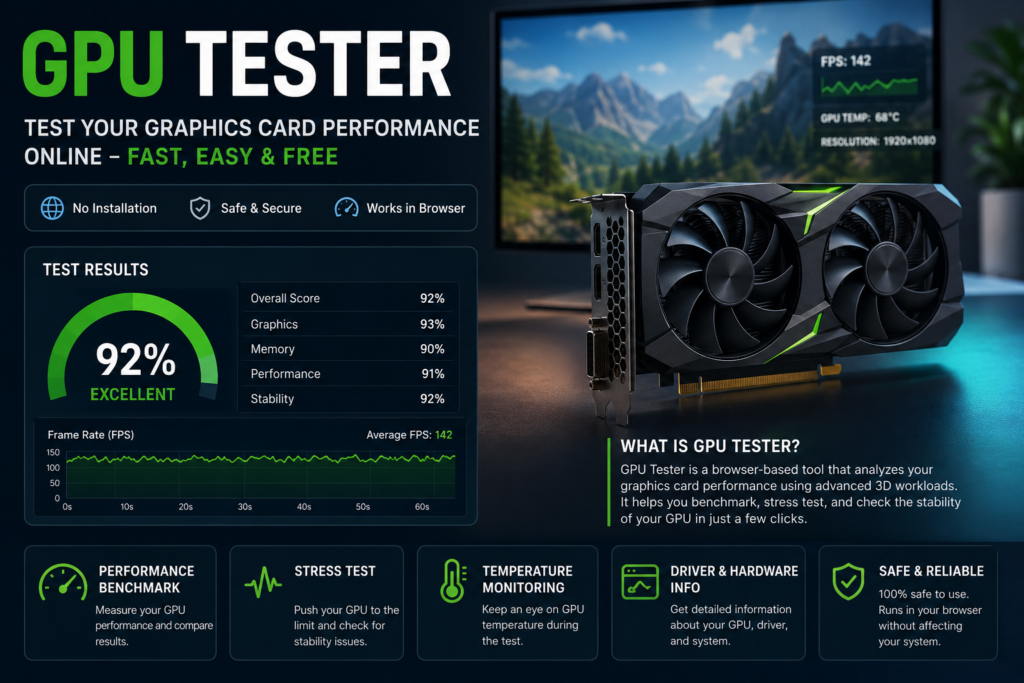
Our tool runs a repeatable WebGL/WebGPU render loop and measures frame rate, frame-time consistency, and rendering stability while your GPU processes it. Because it runs in-browser, it’s the fastest way to answer one question: is my graphics card responding and performing normally?
It’s not a replacement for dedicated desktop stress-testing software (more on that below). Think of it as your first 60-second check before you decide whether deeper diagnostics are worth the time.
Use it if you’ve just:
- Built a new PC or installed a new GPU
- Bought a used graphics card and want to check it before/after purchase
- Updated the graphics driver
- Noticed lower frame rates, stutter, or visual glitches in games
What This Test Checks
| Metric | What it tells you |
|---|---|
| Rendering performance | Whether your GPU processes lighting, shadows, and geometry smoothly |
| FPS (frames per second) | How many frames your GPU renders per second, higher is generally smoother |
| Frame time stability | How consistent each frame is, two GPUs with the same average FPS can feel very different if one has erratic frame times |
| Browser graphics support | Whether your browser supports WebGL, WebGL 2, and WebGPU, and whether hardware acceleration is active |
| Rendering stability | Whether the GPU completes the workload without dropped frames, corruption, or failures |
| Overall GPU score | A single number summarizing the session, useful mainly for comparison against similar hardware |
Frame time matters as much as FPS. Two systems can average the same FPS and still feel completely different: one with smooth, consistent frame delivery, the other with micro-stutter from inconsistent frame times. If you only look at one number, look at frame time consistency, not peak FPS.
Works with NVIDIA GeForce, AMD Radeon, and Intel (Arc and integrated) graphics, though results naturally vary by tier. Comparing an entry-level GPU to a flagship card won’t tell you much; compare against similar hardware for a meaningful read.
How to Use the GPU Tester
Close unnecessary tabs and programs first. On a laptop, plug in and switch to your high-performance power mode. Battery-saver mode will skew results low.
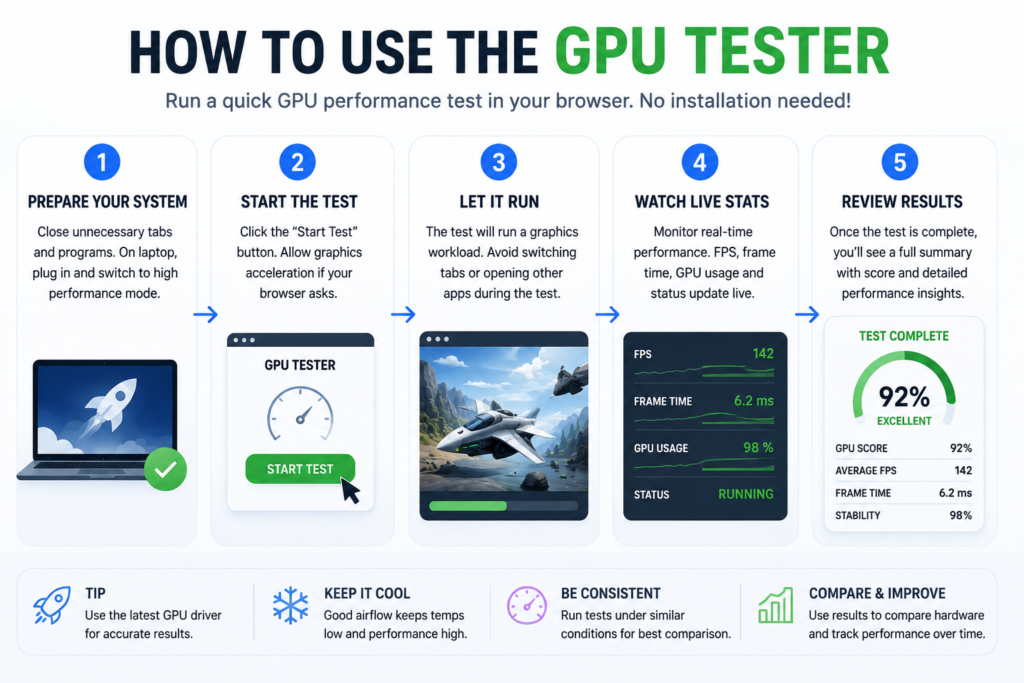
- Start the test. Click Start Test. Allow graphics acceleration if your browser prompts you.
- Let it run. Avoid switching tabs or opening other apps mid-test; background load affects your score.
- Watch the live stats. GPU score, FPS, frame time, rendering status, and detected graphics API update in real time.
- Review your results. You’ll get a full summary with an explanation of what each number means, not just raw figures.
Understanding Your Score
Your score reflects performance on this specific browser-based workload; it’s not an absolute measure of your GPU’s total capability. It’s most useful compared against similar cards under similar conditions, since drivers, browser version, cooling, and background apps all shift results.
| Rating | What it typically means |
|---|---|
| Excellent | Smooth, consistent frame delivery throughout the test |
| Good | Performing as expected; small variance from other systems is normal |
| Average | Not necessarily a hardware problem; check power-saving mode, background apps, and driver version |
| Below average | Worth investigating: outdated drivers, disabled hardware acceleration, thermal throttling, or background GPU load |
GPU Stress Test vs. GPU Benchmark
People use these terms interchangeably, but they measure different things.
| GPU Benchmark | GPU Stress Test | |
|---|---|---|
| Measures | Performance | Stability |
| Output | A score | Pass/fail on reliability |
| Duration | Shorter | Longer, sustained load |
| Best for | Comparing hardware, tracking changes over time | Catching crashes, overheating, driver failures |
Run a benchmark if you want a quick performance snapshot or want to compare hardware. Run a stress test if you’re troubleshooting crashes, instability, or suspect overheating. Desktop tools like FurMark are better suited here since they can sustain a load for much longer and monitor temperature directly, which browser-based testing cannot do.
To test the related hardware in your browser, use our online controller testing tool.
A GPU stress test won’t damage a healthy card; modern GPUs throttle automatically before temperatures become dangerous. Stop immediately if you see a sudden shutdown, artifacts, or system instability, and check cooling before retrying.
Common GPU Problems, Quickly Diagnosed
| Symptom | Likely causes | First step |
|---|---|---|
| Artifacts (colored blocks, broken textures, flashing pixels) | Overheating, unstable overclock, VRAM fault, driver corruption | Reset overclock, update drivers, re-test |
| Overheating | Dust buildup, poor airflow, worn thermal paste, failing fans | Clean the case, check fan spin-up under load |
| Thermal throttling | GPU auto-reducing clock speed to manage heat | Improve cooling; scores that start strong and decay mid-test point here |
| Crashes during load | Driver issues, insufficient power delivery, and hardware instability | Update drivers, verify PSU capacity, re-test after each change |
| Screen flicker | Often not the GPU: loose cable, monitor refresh rate, display driver | Try another cable/monitor before assuming GPU fault |
| Black screen | Driver failure, loose connection, or overheating | Check the cable and driver first |
| Stuttering/hitching | Inconsistent frame times, background software, storage delays | Close background apps, check frame time (not just FPS) |
One symptom alone rarely confirms a diagnosis; overlapping symptoms from drivers, power, or cooling can look identical to hardware failure. If several appear together, that’s your signal to test rather than assume.
Buying a used GPU? Run this test, install the latest driver first, watch for artifacts, and check that scores stay stable rather than degrading over the session.
Browser-Based Testing vs. Desktop Software
| Browser-based (this tool) | Desktop software (e.g., FurMark, MSI Afterburner) | |
|---|---|---|
| Installation | None | Required |
| Speed | Results in seconds | Setup + longer test runs |
| Best for | Quick checks, comparing before/after a change | Extended stress testing, temperature/power monitoring, overclock validation |
| Limitation | Can’t read GPU temp, power draw, or fan speed directly | More setup is not needed for a routine check |
Honest limitation: a browser can measure rendering performance and stability within the browser environment, but it can’t access hardware sensors GPU temperature, power draw, fan RPM, or RAM error counts. If this test shows a problem, or you want to monitor thermals directly, that’s when desktop software is the right next step, not before.
Faqs
What is a GPU Tester?
A tool that checks how your graphics card performs during a rendering workload. It measures FPS, frame consistency, browser graphics support, and stability directly in your browser.
How can I test my GPU online for free?
Open the tool in a supported browser and click Start Test. No installation is required.
Is this GPU Tester safe?
Yes. It uses standard browser-based rendering (WebGL/WebGPU), the same technology many websites and web apps use. It doesn’t install drivers or change system settings.
Can a GPU stress test damage my graphics card?
Not under normal conditions. Modern GPUs throttle automatically to protect themselves. Stop testing and check your cooling if you see instability or overheating.
What’s the difference between a GPU benchmark and a GPU stress test?
A benchmark measures performance and produces a comparable score. A stress test measures stability under sustained load to surface problems like overheating or crashes.
For the related PS5 display or hardware issue, see our fix PS5 HDMI problems.
How long should I stress-test my GPU?
A few minutes are enough for a quick check. Longer sessions give more confidence after hardware changes, since heat builds up gradually.
What’s a good GPU score?
There’s no universal “good” score. It depends on your card, browser, and OS. Compare against systems running the same GPU model.
Why is my GPU overheating?
Usually, dust buildup, poor airflow, worn thermal paste, or a failing fan. Cleaning your case and improving airflow resolve most cases.
What is thermal throttling?
A safety feature that lowers GPU clock speed when temperatures get too high, protecting the hardware at the cost of performance.
What are GPU artifacts?
Visual errors such as flashing pixels, broken textures, or colored blocks are often caused by overheating, an unstable overclock, or driver problems.
For the related PS5 display or hardware issue, see our PS5 overheating guide.
Can I test a used GPU before buying it?
Yes. Install the latest driver, run this test, and watch for artifacts or scores that degrade over the session; both are red flags.
Does this work with NVIDIA, AMD, and Intel graphics?
Yes. GeForce, Radeon, Arc, and Intel integrated graphics are all supported, though performance naturally varies by tier.
Can I test without installing software?
Yes. That’s the main advantage. Everything runs in your browser.
Our Testing Methodology
This browser-based test runs a local WebGL/WebGPU rendering workload and samples frame timing during the session. Results vary with browser, drivers, power settings, background activity and hardware. Use the score to compare repeated runs on the same or a similar setup; it is not a universal GPU benchmark.
For the related PS5 display or hardware issue, see our connect PS5 to a laptop with HDMI.
We do not have access to OS-level hardware sensors (temperature, power draw, fan RPM) from the browser. This is a rendering-performance and stability check, not a full hardware diagnostic.
Check the Rest of Your Setup
If your GPU passes but games still feel off, the bottleneck might not be graphics. A controller with stick drift or an unresponsive key can feel identical to poor frame delivery. Check our Gamepad Tester , html5 tester and Keyboard Tester to rule out input issues before spending money on new hardware.
Sources & References
- Khronos Group, WebGL and WebGPU specifications
- Chrome, Edge, Firefox, and Safari developer documentation
- NVIDIA, AMD, and Intel graphics driver documentation
- Microsoft DirectX documentation